The agentic way to turn PowerPoint into video.
Bring your deck and your speaker notes. The agent drafts scenes, picks visuals, and narrates with an AI avatar. Import to preserve the deck as-is, or have it redesign for video pacing.









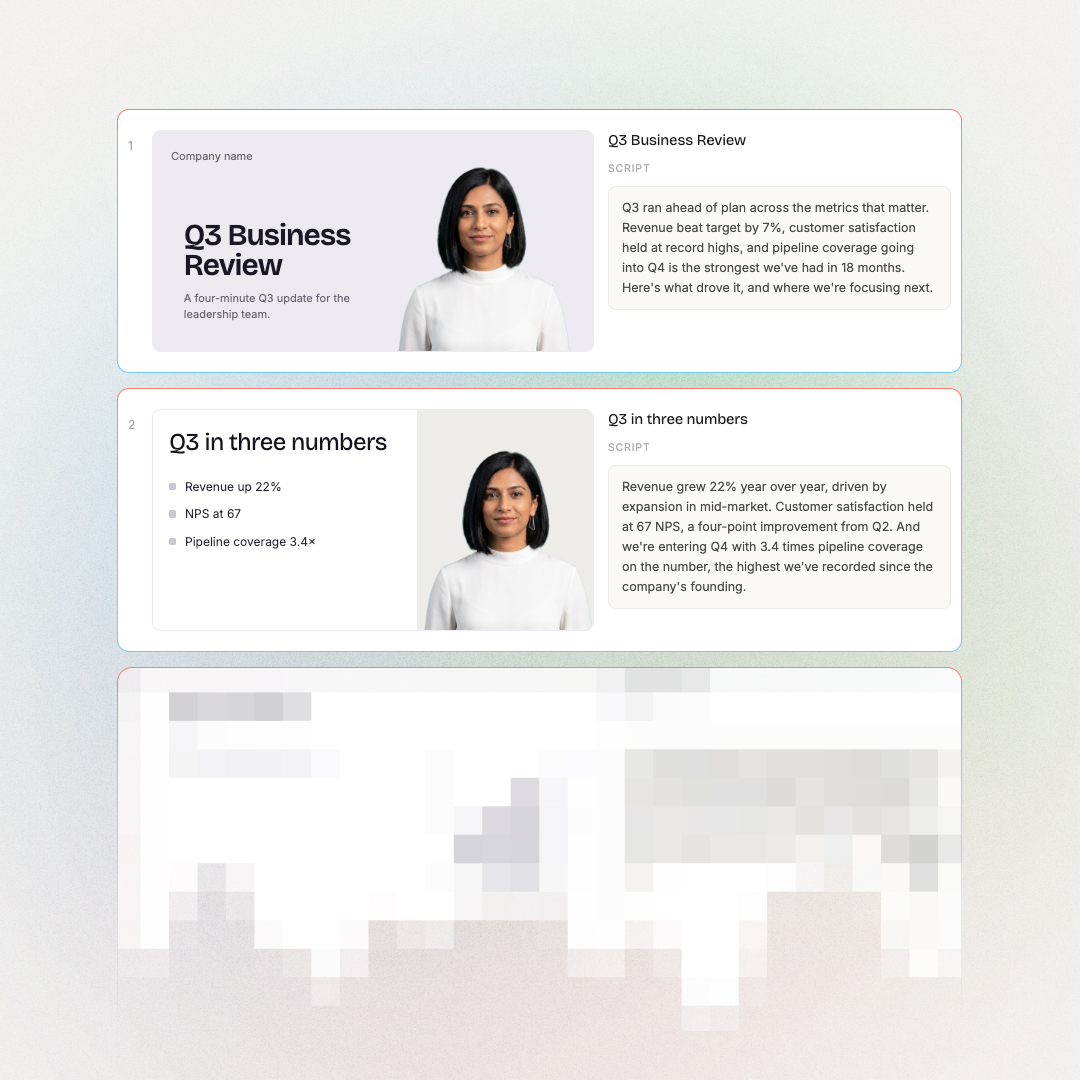
- Revenue up 22%
- NPS at 67
- Pipeline coverage 3.4×
 q3-business-review.pptx
Three things go wrong when a tool just renders your deck.
Each slide renders flat. No layers. No edits.
Speaker notes either disappear or get read by a robot.
There's no in-between. Want to fix a sentence? Start over.
Two ways to bring your PowerPoint to video.
Pick at upload, depending on what you need.
Bring your deck in as editable scenes
- Text boxes, shapes, images, charts, tables come in as separate editable scene elements (not flattened to a slide image)
- Speaker notes map to scene narration, ready for AI voice delivery
- Slide order is kept; slide-level animations don't translate (see FAQ)
- Brand fonts and colours from the deck come across; your brand kit overrides on conflict
Have Cora redesign the deck for video
- The agent reads slide content, speaker notes, and embedded assets
- Drafts scene narration that fits AI-voiced delivery, not bullet recitation
- Re-uses your charts and visuals in the scenes that need them, with citations back to the source slide
- Slide-heavy passages get split into multiple scenes; trivial ones get merged
Training videos other teams shipped from a deck.
Onboarding handbooks, security awareness, healthcare procedures, compliance. Real outputs.




From a deck in your inbox to an editable video plan in minutes.
Six capabilities, built around your deck.
Plan-first checkpoint. Editable PPT objects. Speaker notes as narration. Either flow you pick.
Plan-first, on either flow
Pick Import or AI rebuild at upload. Both produce a scene-by-scene plan with slide citations. You edit at the scene level and approve before anything renders. No render-and-pray.
PPT objects stay editable
Text boxes, shapes, charts, and images come in as separate scene elements, not flattened to a slide image. Edit anything at the element level after import.
Speaker notes become narration
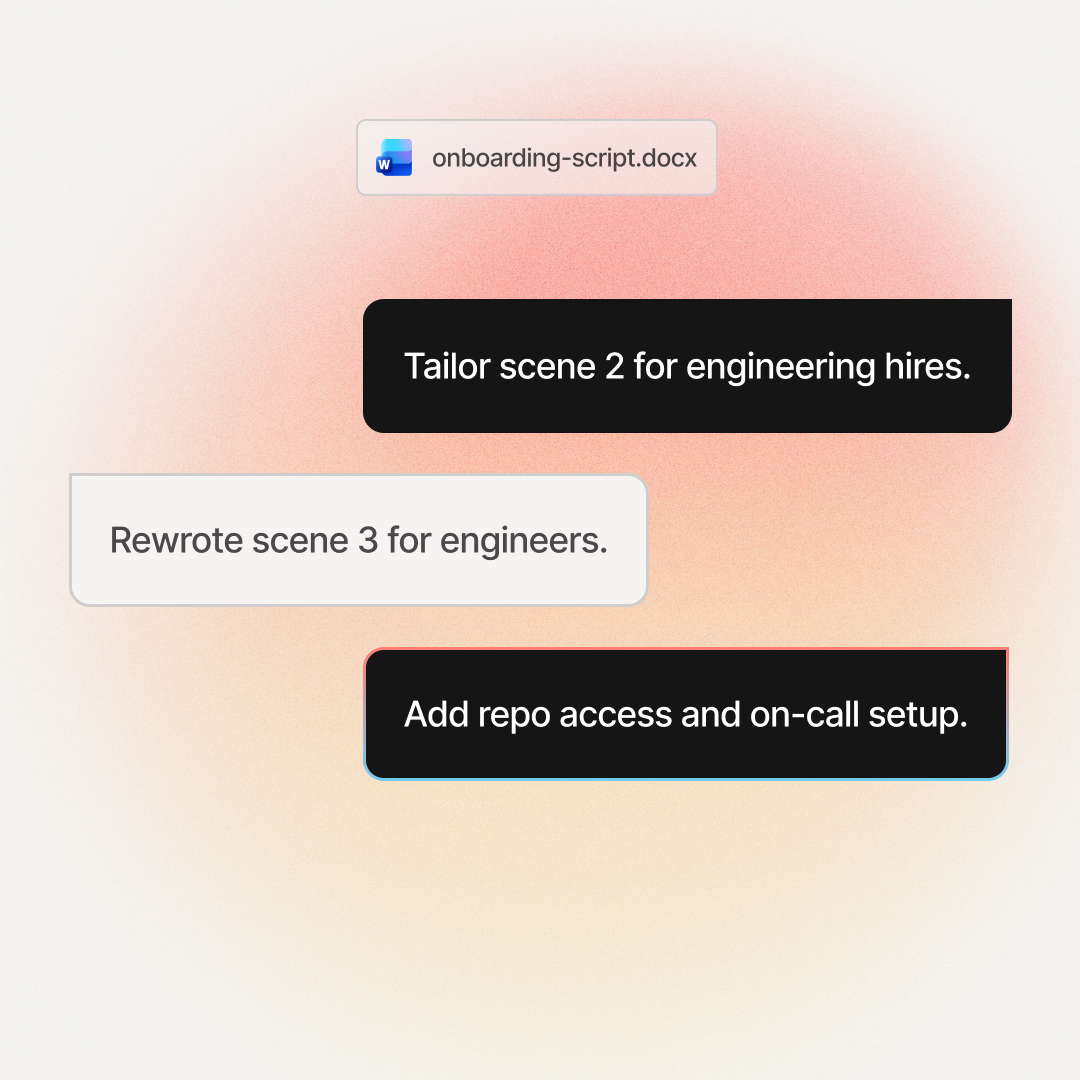
Your existing training script is exactly what the AI voice says. On AI rebuild, notes are a source the agent uses to draft new narration that fits video pacing.
Brand kit applied automatically
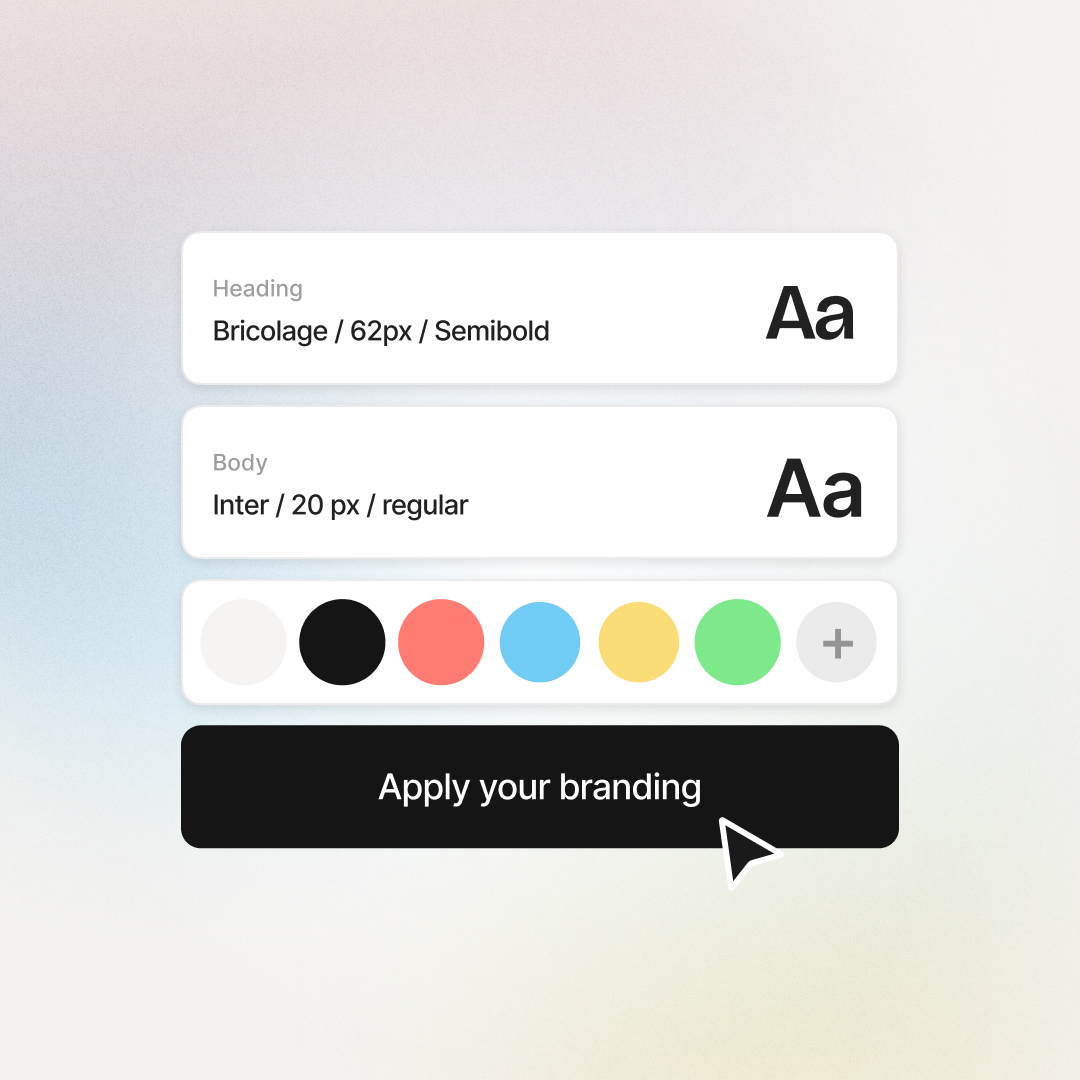
Your avatars, colours, and fonts carry into every scene by default. Nothing leaves looking off-brand.
Multi-format source flexibility
Same product also handles PDFs, Word documents, URLs, and scripts. One flow per source type.
100+ languages
Translate the plan before render, no double work. Lip-synced delivery in the language you ship.
Frequently asked questions
Everything you need to know about turning a PowerPoint into a video.
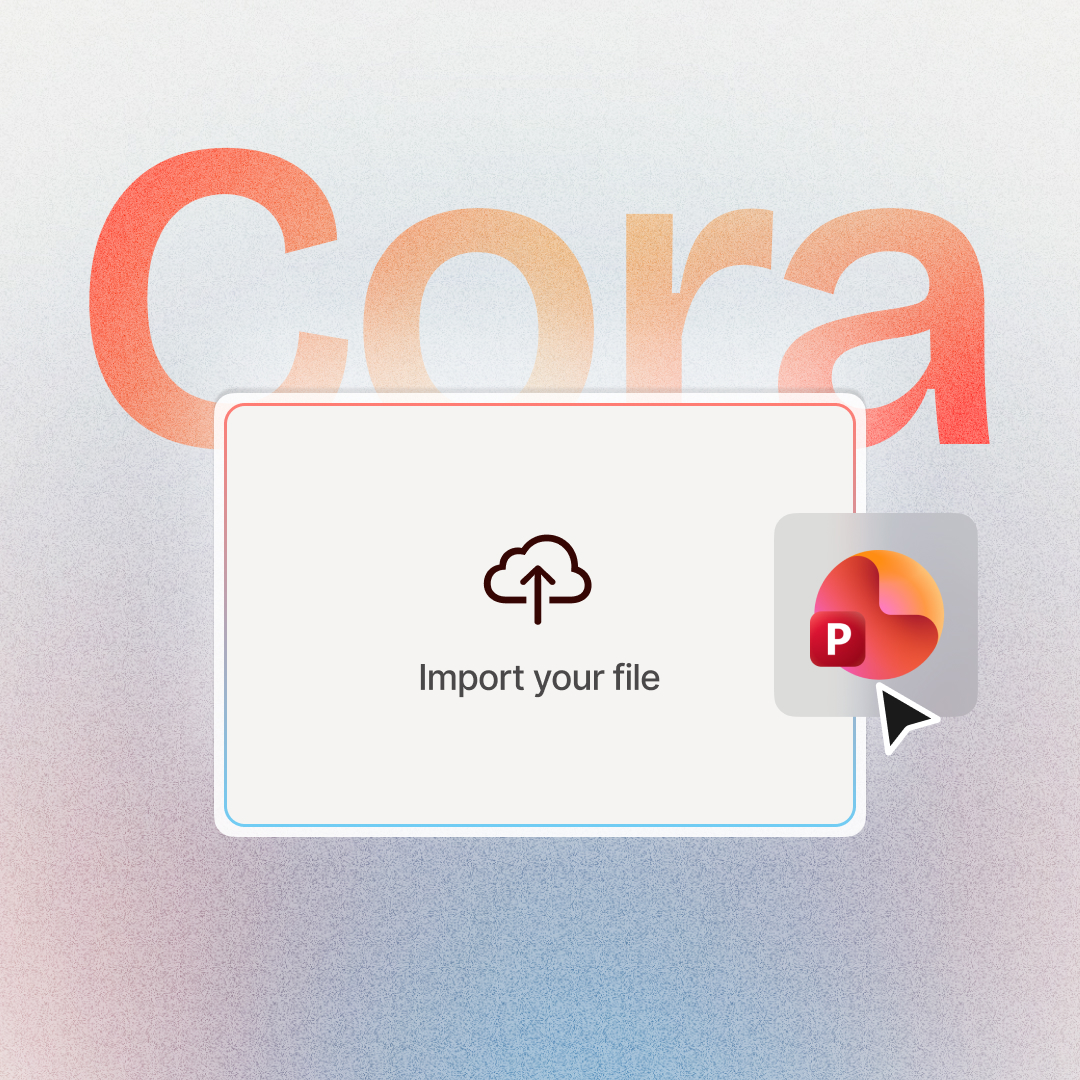
Upload your .pptx to the Colossyan AI Video Generator. Pick Import (deck objects become editable scene elements, speaker notes become narration) or AI rebuild (the agent drafts a video-first plan). Edit at the scene level, then render the approved plan as MP4 with AI avatars, voiceovers, and your brand kit.
Yes. A PPT-to-video tool renders your deck as an MP4 you can share by link, embed, or LMS upload. The Colossyan AI Video Generator produces an editable scene plan first, so anything you share is the version you approved, not a one-shot render.
PowerPoint exports decks as MP4 via File → Export → Create a Video. For AI narration, avatars, and editable output, upload the .pptx to the Colossyan AI Video Generator, pick a flow, edit the plan, then export as MP4 up to 1080p.
The Colossyan AI Video Generator turns PowerPoint files into editable video plans, then renders them with AI avatars, voiceovers, and your brand kit. It offers two flows: Import (preserves the deck as editable scenes with speaker-note narration) and AI rebuild (the agent redrafts the deck for video pacing).
Upload your .pptx file. PowerPoint has a built-in "Save as video" for a simple slideshow MP4. For AI narration, avatars, or editable scenes, use the Colossyan AI Video Generator: pick Import or AI rebuild, edit the scene plan, then render as MP4 with your brand kit.
The best AI PowerPoint-to-video tool depends on whether you want to preserve the deck or rebuild for video. The Colossyan AI Video Generator offers both flows. It is the only one that produces a scene plan with slide citations you can edit and approve before render. Other AI tools drop you in the editor.
Import keeps your deck intact: text boxes, shapes, charts, and speaker notes come in as editable scene elements you arrange and render. AI rebuild has the agent read the deck and redraft scenes for video pacing, so slides get split, merged, and reframed for video delivery. Pick Import to preserve the deck, AI rebuild to redesign for video.
The plan is a scene-by-scene draft of your video before anything renders. Each scene shows the narration, visual, source citation back to the slide or speaker note it came from, and edit controls. You review every scene, edit at the scene level, and regenerate one scene without re-rendering the whole video.
Yes. On Import, every slide's speaker notes become the narration for that scene, so your existing training script is exactly what the AI voice says. On AI rebuild, speaker notes are one of the inputs the agent uses to draft new scene narration that fits video pacing.
PowerPoint's per-element animations don't translate directly to AI-generated video, because scenes are composed for AI avatar delivery rather than slide playback. On Import, animated content lands as static editable scene elements you can re-animate using Colossyan's scene controls. On AI rebuild, motion is applied at the scene level.
Yes. Sign up for Colossyan free and you can upload a .pptx, pick Import or AI rebuild, see the draft plan, and edit scenes before rendering. See pricing for what comes with each plan, including brand kit, SCORM export, and team collaboration. No watermark on the output.
Cora is the agentic engine inside Colossyan. The AI Video Generator is the feature you interact with; Cora is what reads your deck, drafts the scenes, and assembles the plan. You direct the work and approve each step. See the full Cora launch page for more.
Yes. Approved plans render as MP4 files up to 1080p. You can also export to SCORM or xAPI for LMS upload, download captions as SRT or VTT, or share via a hosted link. The plan itself supports collaboration and version control, so teams can review before render.
The training teams already shipping AI videos rate us 4.8 on G2.




Training content that never goes obsolete
The ease of content update and cost savings are remarkable. Colossyan's AI technology and its translation capabilities have revolutionized our training processes, especially in a multi-lingual environment like ours.

Cutting-edge AI for new hire training
The AI technology they've built into their software is truly cutting-edge and has significantly improved our new hire training program productivity.

Like extending our team
Working with Colossyan feels like we have extended our team. The ease of using Colossyan Creator to create engaging learning materials has been a game changer.

90% video production cost reduction
With Colossyan, we were able to cut around 90% of our video production costs. We chose Colossyan because we liked their company culture and the quality of their product.

We Have Partnered With Colossyan!
Colossyan Creator is a cost-effective, user-friendly tool that allows our global team to produce interactive, multilingual training videos in just minutes. While there is a minor initial learning curve, the platform's ability to scale professional content across 80+ languages has made it an essential partner for our enterprise.

Start from a different source.
The same agent works across the source types you already have.



Want the bigger picture? See the full AI Video Generator.

Drop in your deck. Pick a flow. Approve the plan before you render.
Import keeps every PPT object editable. AI rebuild has Cora redesign for video. Either way, you see the plan first. For anyone turning a PowerPoint into video.