Turning your PowerPoint into a video can be as simple as hitting "Export," but relying on outdated methods for critical business communication is a recipe for inefficiency. While native exports and screen recordings have their place, they create more problems than they solve when it comes to creating scalable, professional training and sales content. The real argument isn't about if you should convert your PPT to video, but how you can do it in a way that saves time, cuts costs, and actually delivers results.
This is where AI video platforms like Colossyan Creator don't just offer an alternative—they provide a fundamentally better workflow that integrates with and enhances the tools you already use.
Why Bother Converting Your PPT to Video?
We've all been there: trapped in a lifeless presentation, clicking through slide after slide of dense bullet points. In a world of ever-shrinking attention spans, static decks just don't cut it anymore, especially for critical communications like employee training or client onboarding. While you've invested time creating valuable content in PowerPoint, its format is holding back its potential.
Transforming your PPT to video isn't just a nice-to-have; it's a strategic move to make your existing content work harder. You're taking the valuable information you’ve already built and giving it the dynamic format it needs to connect with people, drive engagement, and improve knowledge retention.
Moving Beyond Static Slides
Think about the practical impact. Turning a deck into a video can completely change the game in a few key areas:
Corporate Learning: Instead of asking new hires to trudge through a 50-slide deck on company policy, you can give them a concise, narrated video. This simple switch can make a huge difference in knowledge retention and completion rates for mandatory training.
Sales Enablement: Imagine a sales rep sending a potential client a personalized video walkthrough of a proposal instead of just another static PDF. It adds a human touch that builds rapport and makes complex ideas much easier to grasp.
Customer Onboarding: A series of short, easy-to-follow videos can guide new users through your software, clearing up confusion before it starts. The result? Fewer support tickets and happier customers from day one.
A simple export is great when speed is your top priority. But when you need to create scalable, professional, and personalized content, you’ll want to look at more advanced tools. That's where AI platforms like Colossyan come in, bridging the gap by making high-quality video creation accessible to everyone.
The market is already signaling this massive shift. The AI video generator market is seeing explosive growth, with the PowerPoint-to-video segment alone projected to grow at a CAGR of 21.8% through 2034. It’s not hard to see why—businesses are finding that video content can hold a viewer's attention 17 times longer than plain text. That’s a huge leap in engagement.
Choosing Your PPT to Video Conversion Method
If you want a smarter workflow, it helps to compare the main ways teams turn PowerPoint decks into video. Each method has its place, but their limitations quickly show up when you need scale, consistency, or ongoing updates.
Here’s a practical breakdown.
1. Native PowerPoint Export
Best for: Simple, text-based decks that do not require narration or complex editing.
Effort level: Low
Key benefit: The fastest way to generate a basic video file directly from your presentation.
Where it falls short: No built-in presenter, limited polish, and difficult to maintain once exported.
2. Screen Recording
Best for: Adding a personal touch with live narration and cursor movement to guide viewers.
Effort level: Medium
Key benefit: Great for informal tutorials and personalised walkthroughs.
Where it falls short: Hard to update, inconsistent quality, and time-consuming to recreate for new versions or languages.
3. AI Video Generator
Best for: Creating professional, scalable training modules with AI avatars, multi-language support, and easy updates.
Effort level: Low to Medium
Key benefit: Delivers consistent, high-quality videos that are simple to localize and maintain.
Why it stands out: Built for scale. Edit the script, regenerate the video, and instantly create versions in multiple languages without re-recording.
Each method has a use case.
But if your goal is to create training content that is easy to update, easy to localize, and built for long-term maintenance, only one approach is designed for that reality.
The Foundational Method Using PowerPoint's Native Export
Let's start with the tool you already have open. PowerPoint's built-in 'Export to Video' feature is the most direct route for turning your deck into a video. It's a solid, accessible starting point for straightforward presentations, and you don't need any new software to get it done.
This method is useful when you just need a quick, no-frills conversion—a self-running slideshow for a lobby kiosk or a simple project update. You can set slide timings, record some basic narration, and have a video file ready to go in minutes. However, this convenience comes at a high cost when you need to create content that is professional, up-to-date, and accessible.
Setting Timings and Recording Narration
Getting a decent result from a native export comes down to managing your timing and narration. PowerPoint gives you tools to rehearse and record timings, which is key for making sure animations land correctly. You can also record a voiceover right on top of your slides.
Slide Timings: I always recommend using the "Rehearse Timings" feature. As you click through your presentation, it automatically records how long you spend on each slide, helping you create a much more natural pace.
Narration: The "Record Slide Show" option is where you'll add your voiceover. While convenient, the audio quality is entirely at the mercy of your microphone and environment, often resulting in an unprofessional sound that undermines your message.
For a clearer look at the export options available, here is a screenshot of the PowerPoint interface.
As you can see, the interface has simple dropdowns for picking your video quality and managing timings. It’s all very straightforward.
The Limitations of Native Export
That simplicity, however, comes with some pretty significant trade-offs. The native export spits out a static, linear video file. There's zero room for interactivity, and if you need to update anything, you have to re-record and re-export the entire video. For content that changes often, this becomes a huge headache.
The biggest challenge with native export is scalability. Recording narration for a 50-slide deck is incredibly time-consuming, and trying to get consistent audio quality when multiple presenters are involved is nearly impossible. And if you need to localize the content for a global audience? You're basically starting from scratch for each language.
This is exactly where the case for a more advanced tool starts to build. While the built-in method is functional for one-off tasks, it creates bottlenecks and inconsistencies that don't scale. A solution like Colossyan works with your PowerPoint file, using it as a foundation to build something far more powerful, maintainable, and professional.
To see how you can move past these basic limitations, learn more about the seamless PowerPoint integration offered by dedicated video creation platforms.
The Control Method: Screen Recording Your Presentation
Sometimes, PowerPoint's native export just feels too stiff and automated. When you need more control and a personal touch, screen recording is the perfect middle ground. But this "control" comes with a heavy price in time and effort, making it unsustainable for most business needs.
This approach lets you capture your voice, cursor movements, and even your face on a webcam, guiding the viewer through the content yourself. It’s effective for one-off software tutorials or a highly personalized sales demo. Tools like Loom or Camtasia are built for this, letting you record your screen, webcam, and audio all at once.
Setting Up for a Clear Recording
The final quality of your screen-recorded video really comes down to the setup. A few small tweaks can make a world of difference between "amateur" and "authoritative."
Find a Quiet Space: Nothing screams unprofessional like a dog barking or a notification dinging in the background. A small room with soft surfaces (carpets, curtains) is great for dampening echo.
Invest in a Decent Microphone: Your laptop’s built-in mic is a recipe for disaster—it'll pick up every keyboard click and the whir of the cooling fan. A simple USB microphone will give you a massive audio quality boost for a pretty small investment.
Script Your Narration: Please, don't try to wing it. A simple script or even just a bulleted list of talking points will keep you focused and help you avoid all those "ums" and "ahs." It's the key to a smooth, confident delivery.
The real power of screen recording is its authenticity. Viewers connect with a real person guiding them through the material. But that strength is also its biggest weakness—every cough, stumble, or mistake gets captured, meaning you'll likely spend time in an editor to polish the final cut.
The Trade-Offs: Personalization vs. Polish
While screen recording adds that invaluable human element, it also opens up a new can of worms. The manual effort involved is unsustainable for any team needing to produce content regularly.
Imagine you're a sales manager creating custom demo videos for ten different clients. That means recording each one from scratch. Make a mistake? You either start over or resign yourself to a session in a video editor. While a few quick cuts can add some polish, that’s a whole other skill to learn and another step in your workflow. You can learn more about effective screen recording techniques to help manage this process.
This is where the limitations of manual production become obvious. It's a fantastic solution for one-off projects, but it just doesn't scale for teams needing to produce consistent, high-quality video content. The method simply lacks the efficiency and easy updatability required for large-scale training programs or company-wide communications.
The Scalable Solution: Creating AI-Powered Videos
PowerPoint’s native export and screen recording get the job done for one-off projects. But what happens when you need to create, update, and translate dozens of training videos for a global team? That’s where manual methods start to break down. They simply weren’t built for the scale, consistency, and speed modern businesses demand.
This is where an AI video generator like Colossyan becomes essential. It’s not just another tool; it’s a strategic solution that works with your existing PowerPoint content to solve the core challenges of video production: time, cost, and consistency.
Here, you stop thinking about manually converting a PPT to video and start automating the entire creation process. A platform like Colossyan Creator doesn't just turn your slides into a video file; it transforms them into professional, avatar-narrated videos that can be produced, updated, and translated in minutes, not hours or days.
Beyond Conversion to Creation
The real case for using AI is that it solves the big business problems that manual methods can't touch: time, cost, and consistency. Instead of booking a studio and spending hours recording a voiceover, an AI platform generates perfect narration from your slide notes in seconds.
Imagine you need to update a single statistic in a 30-minute training module. With a screen recording, you'd have to re-record the whole thing. With Colossyan, you just change the text on that one slide, and the video rebuilds itself automatically.
The biggest shift with an AI-driven workflow is that your video becomes a living document, not a static, finished file. This allows for quick iteration, making your content agile and incredibly easy to maintain.
This approach is already changing how companies handle training and development. The market for AI video presentation production is on track to grow from USD 2.57 billion in 2025 to USD 4.01 billion by 2034. It's easy to see why. U.S. firms are seeing training completion rates jump from under 20% for static PPTs to over 80% for engaging avatar-led videos.
A Seamless Path from Slides to Video
Turning your PowerPoint into a professional video with an AI tool is designed to be ridiculously simple. It fits right into your existing workflow without causing any disruption.
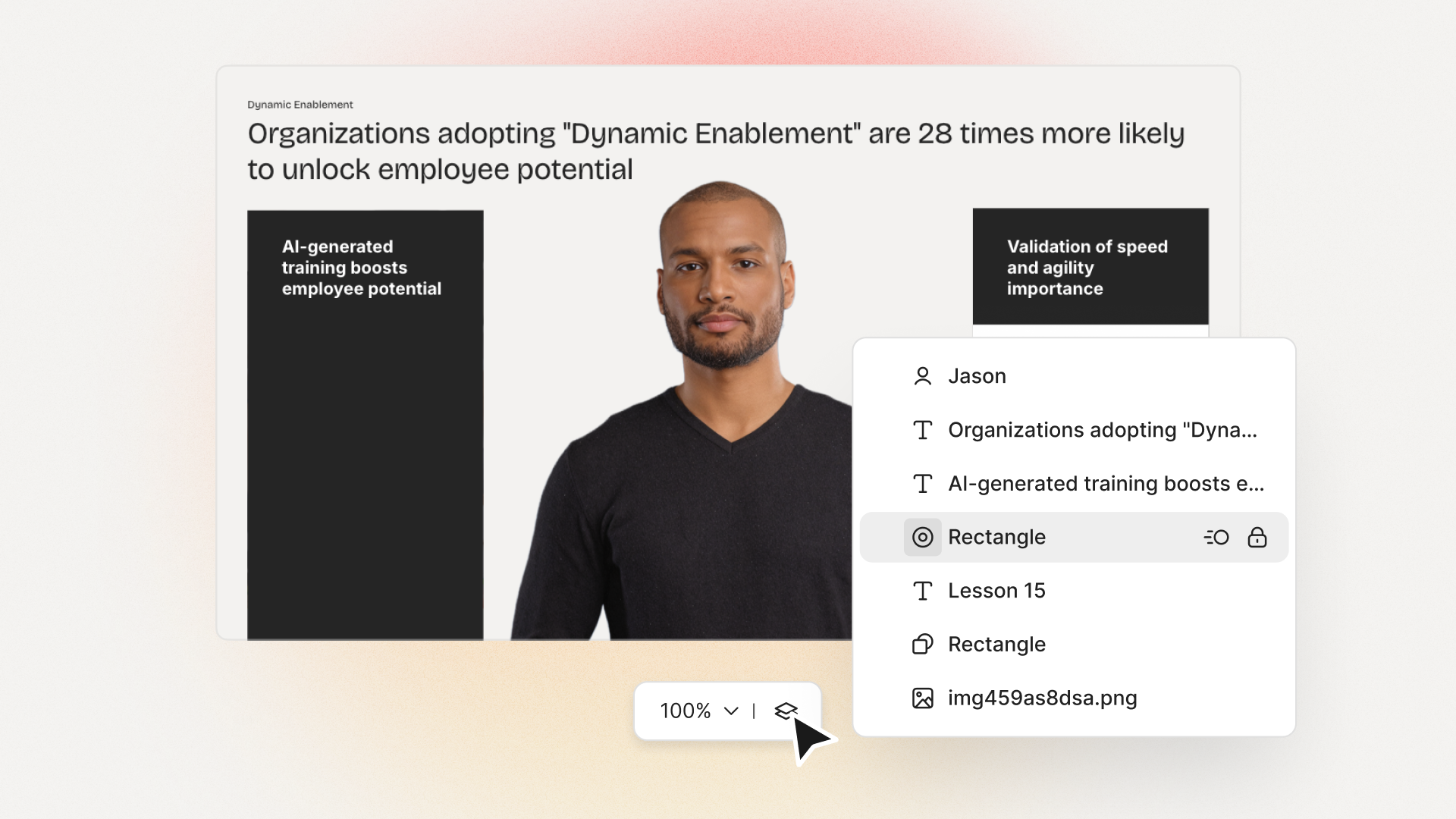
Import Your Presentation: You start by uploading your .pptx file directly into the platform. It automatically breaks down each slide into a scene in the video editor.
Choose an AI Avatar and Voice: Next, you pick a presenter from a diverse library of AI avatars. Then, select a voice from hundreds of options across dozens of languages to narrate your script.
Generate the Script: The platform can pull the text directly from your slide notes to create the script, or you can just type it in manually for each scene.
Refine and Publish: From there, it's all about the finishing touches. You can tweak the timing, add background music, and apply your company's branding. When it's ready, export the final video or share it with a link.
For those looking to produce polished videos at scale, tapping into advanced AI content generation tools can completely change the game, cutting down production time from days to minutes.
Solving for Global Teams
Perhaps the most powerful advantage of an AI-powered approach is effortless localization. If your company operates across different countries, translating training content is a massive headache filled with logistical hurdles and high costs.
With a tool like Colossyan, you can translate an entire video presentation into over 80 languages with a single click.
This isn't just a nice-to-have feature; it's a game-changer for enterprise-level training and sales enablement. You can create one master training module in English and instantly generate localized versions for your teams in Germany, Japan, and Brazil, all with perfect narration and consistent brand messaging.
To see how different tools stack up, check out our guide on the best online tools to convert PPT to video. This level of efficiency is something manual recording and editing simply can't compete with.
Feature Breakdown: AI Generation vs Traditional Methods
To put it all into perspective, here’s a direct comparison of what each method brings to the table. Notice how the conversation shifts from simple conversion to powerful, business-focused features when you introduce AI.
As you can see, while traditional methods have their place for quick, simple tasks, an AI platform like Colossyan is purpose-built to solve the complex challenges of creating high-quality video content at an enterprise scale.
Pro Tips for a Polished and Professional Video
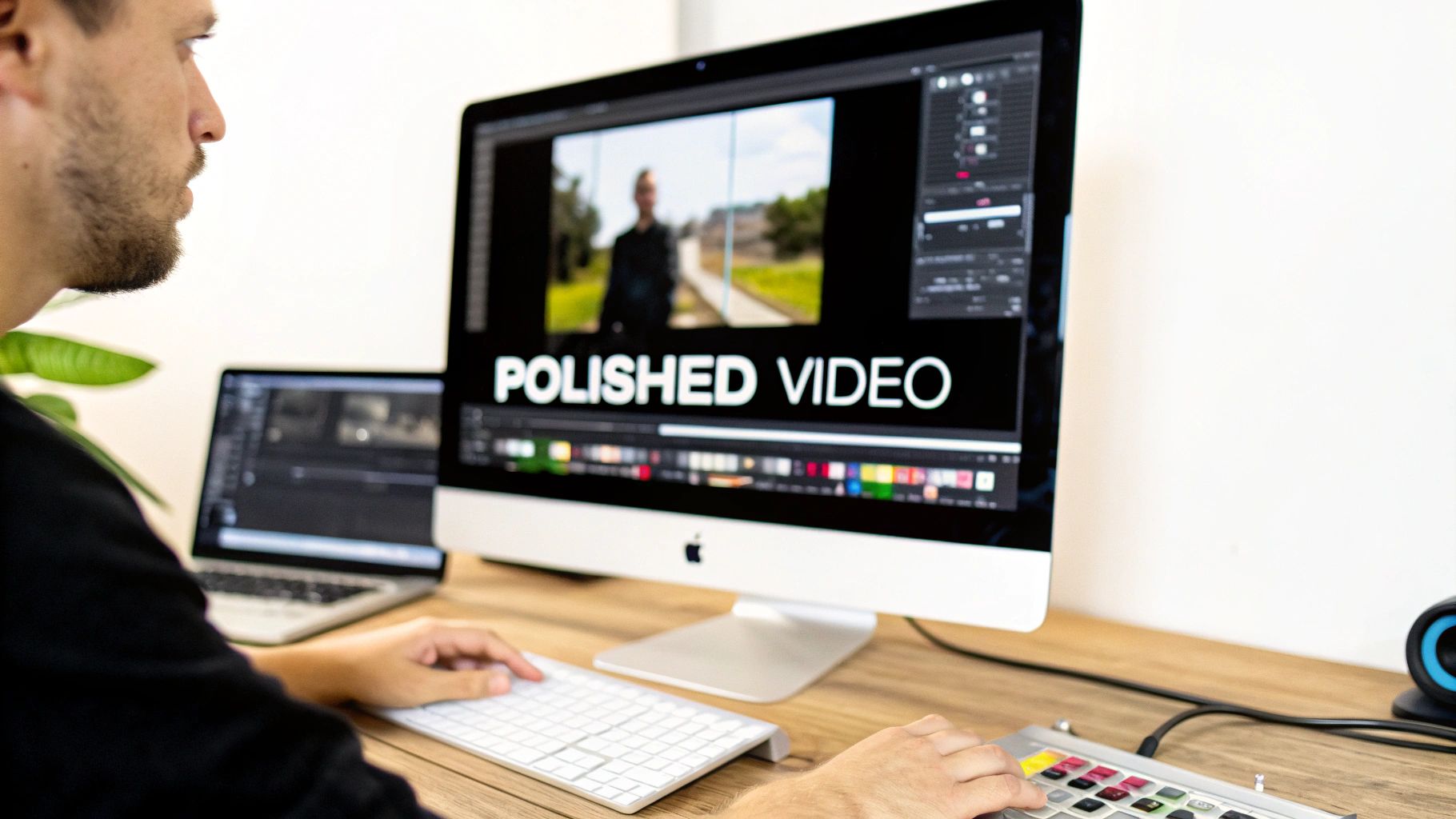
Alright, so you’ve turned your slides into a video file. That’s a great first step, but the real magic happens in the details. A few small tweaks can take your video from a simple slide-to-video export to something truly engaging and professional. It all starts with rethinking your design for the screen, not a conference room.
Slides built for a live presentation are often packed with way too much text. For a video, you have to think more visually. Bust up those dense paragraphs into short, punchy bullet points. Use high-quality images and stick to a consistent visual theme. Your narration is there to do the heavy lifting, so let the slides support the story, not try to tell the whole thing.
Master Your Audio and Pacing
If people have to strain to hear you or your audio is full of distracting background noise, they’re gone. Crisp, clear audio is completely non-negotiable for a professional-feeling video.
Invest in a Microphone: Seriously, even an inexpensive USB mic is a massive upgrade over your laptop's built-in one.
Find a Quiet Space: Record in a room with soft surfaces like carpets, curtains, or even a closet full of clothes. They do wonders for absorbing echo and dampening outside noise.
Watch Your Pacing: Try to speak just a little slower than you would in a regular conversation. Deliberately pause after making a key point—it gives your audience a moment to let the information sink in.
To really elevate your presentation from a set of slides to a dynamic story, getting a handle on the basics of video editing makes a world of difference. Even simple edits can tighten up the pacing and get rid of those awkward pauses.
The demand for these skills is exploding. The market for video presentation software—the engine behind these workflows—is on track to hit USD 1,298 million by 2034. This growth is fueled by AI, which has slashed production costs by as much as 45% and put professional-grade video within reach for smaller teams. With 80% of marketers reporting a direct increase in sales after using video, the ROI is impossible to ignore. You can read more about the growth of video presentation software if you want to dive deeper.
Final Touches for Maximum Impact
A couple of final elements can tie everything together and make sure your video actually achieves its goal. Don't sleep on the power of subtle background music to set the mood, but keep the volume low enough that it supports, not competes with, your voice.
The single most overlooked element is the call-to-action (CTA). Your video needs to tell the viewer what to do next. A clear, direct CTA on your final slide—like "Visit our website," "Download the guide," or "Schedule a demo"—turns passive viewing into an active step.
Finally, stay on-brand. Use your company’s official fonts, colors, and logo throughout the video. It’s a small detail, but it reinforces your brand's identity and makes the video feel like a polished, authoritative piece of content. These are the finishing touches that separate the amateur stuff from truly professional results.
Common Questions About Converting PPT to Video
Making the jump from static slides to dynamic video always brings up a few questions. From technical details to bigger strategic choices, getting clear answers upfront helps make sure your final video actually lands with the impact you intended.
Let's walk through some of the most common hurdles people hit when turning a PPT into a video.
What Is the Best Video Format for My Presentation?
For just about any scenario you can dream up, MP4 (using the H.264 codec) is the clear winner. It’s the gold standard for a reason: you get fantastic visual quality without a massive file size. Plus, it’s compatible with basically everything—YouTube, social media, internal training portals, you name it.
When you export directly from PowerPoint, always select the highest quality your destination can handle, which is usually 1080p (Full HD). This keeps everything looking crisp and professional. Of course, this is one of those little details that platforms like Colossyan handle for you, automatically optimizing exports to MP4 so they're ready to go.
How Can I Add a Voiceover Without Expensive Gear?
Good news: you absolutely do not need a professional recording studio to get clean, clear audio. A simple USB microphone and a quiet room will get you surprisingly far, cutting out most of that distracting background hum and echo. For a one-off project, this is a perfectly good starting point.
But if you're aiming for consistency and scale, the conversation really shifts toward AI-driven solutions. Using a tool like Colossyan allows you to generate professional-grade voiceovers from text in hundreds of distinct voices and languages. This completely sidesteps the need for hardware and ensures you don't have jarring audio inconsistencies between different recordings or speakers.
My Exported Video File Is Huge. What Can I Do?
A massive video file is almost always the fault of uncompressed, high-resolution images or embedded videos hiding in your slides. Before you even hit export, your first move should be to use PowerPoint’s built-in “Compress Pictures” feature. It works wonders on shrinking file sizes without any noticeable drop in quality.
If it's still too big after that, try exporting at a lower resolution. Dropping from 1080p to 720p can make a huge difference, especially if crystal-clear HD isn't a must-have. Again, this is an area where AI platforms streamline the process by handling all that server-side compression for you, delivering an optimized file every time.
Can I Make My PowerPoint Video Interactive?
A standard MP4 video exported from PowerPoint is a one-way street. Viewers can play, pause, and rewind, but that’s about it. If you want to add truly engaging elements like quizzes, clickable resources, or branching scenarios, you need to use a platform built for that kind of interactivity.
This is where a tool like Colossyan Creator really shines. You can bring your PowerPoint slides in and then layer on all sorts of interactive components. For corporate training, the ability to export the final product as a SCORM package for an LMS is a game-changer, letting you actually track how learners are progressing.
Ready to move beyond basic exports and create scalable, professional videos from your presentations? Colossyan makes it easy to generate engaging, avatar-led content in minutes. Start creating for free today.
Nikitas leads brand and content at Colossyan, shaping how knowledge is communicated, experienced, and scaled. He spends most of his time fighting unnecessary complexity and reminding people that clarity is not boring.
Networking and Relationship Building
Use this template to produce videos on best practices for relationship building at work.
Oops! Something went wrong while submitting the form.
example
Thank you - your video is on its way!
If you’d like to try out Colossyan and create a video yourself, just visit our website on your desktop and sign up for a free account in seconds. Until then, feel free to check out our examples.








.avif)





%20(1).avif)



.webp)
.webp)