You have an AI avatar, a background image, a branded header, two text blocks, and a clickable quiz button all on the same canvas. You need to move the quiz button. But the text block is sitting on top of it, and clicking anywhere selects the background instead. According to ATD research compiled by Cognota, producing one hour of interactive e-learning already takes between 73 and 154 hours. Wasting minutes fighting your editor's stacking order is time you don't have. If you're building training videos with a training video maker and running into this wall, layer management is the feature that fixes it.
The problem gets worse as scenes get more ambitious. L&D teams are adding interactive elements (quizzes, hotspots, branching buttons) because the data backs it up: according to Research.com's 2026 interactive learning data, interactive content drives 20% higher engagement than static alternatives. But every new element stacked onto a canvas increases the chance that something gets buried, misaligned, or accidentally edited. Without a way to see, reorder, and selectively lock what's on your canvas, complex scenes become a source of frustration rather than better training. Platforms like Colossyan let you create AI avatar videos for free, and the new Layers panel makes building those multi-element scenes far less painful.
What layer management actually looks like
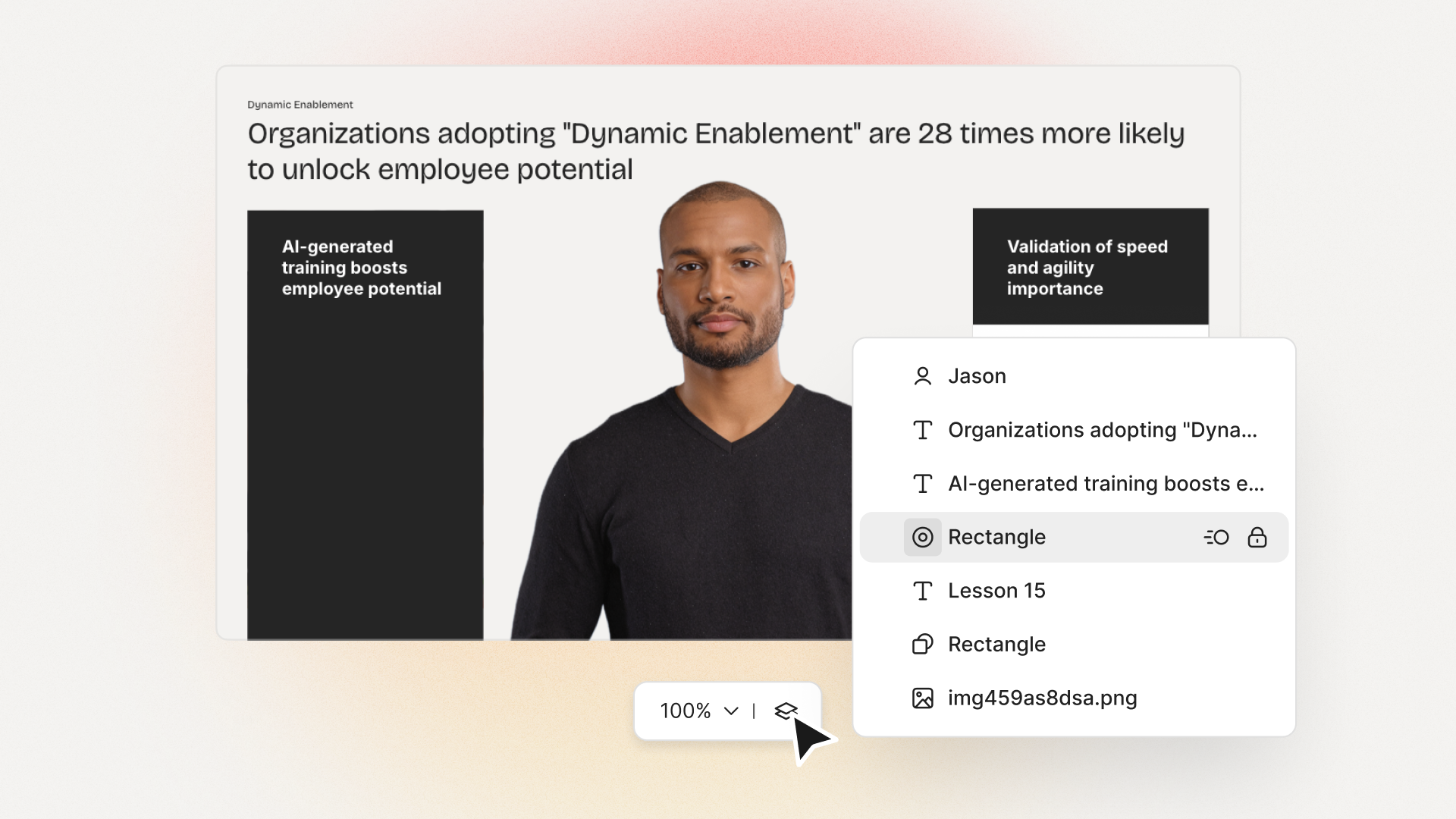
Layer management gives you a panel that lists every element on your canvas in stacking order, top to bottom. Think of it as a table of contents for your scene. Instead of clicking blindly and hoping you grab the right object, you select it directly from the list. That's the baseline. But useful layer management goes further than a simple list.
Visual stacking order and drag-and-drop reordering
Stacking order (sometimes called z-order) determines which elements appear in front of others. The element at the top of your layers panel renders in front of everything below it. In design tools like Figma and Canva, drag-and-drop reordering in a layers panel has been standard for years. For AI video generators focused on training content, the same principle applies: you should be able to grab any element and drag it higher or lower in the stack without guessing what's behind what.
Practical example: your compliance training scene has a background video, a semi-transparent overlay, an avatar, a title bar, and a "Next" button. The button needs to be in front of everything. Drag it to the top of the panel. Done. No right-click menus, no "bring to front" commands you have to repeat four times.
Multi-select and bulk actions
If you need to reorder six elements at once, or group a set of related objects so they move together, single-element dragging won't cut it. Multi-select (Shift+click for a range, Ctrl/Cmd+click to toggle individual items) lets you grab exactly the elements you want and apply bulk actions: group them, lock them, move them up or down as a unit. For training scenes where you've built a quiz interaction with a question, four answer buttons, and a feedback overlay, grouping those into one unit means you can reposition the entire interaction without breaking the layout.
Locking layers protects finished work
Locked layers can't be moved, resized, or edited until you unlock them. That sounds simple, and it is. The value shows up when you're collaborating or iterating. Lock the branded header bar that legal approved. Lock the background that design signed off on. Now you can rearrange everything else on the canvas without accidentally nudging something that was already finalized.
This matters more than it might seem. According to Research.com's 2026 training video data, 85% of organizations now use video-based training. As more people across an organization touch training content (subject matter experts, designers, reviewers), accidental edits to approved elements become a real problem. Locking solves it at the editor level.
Smart labels and spotlight make large scenes navigable
A scene with 15 elements and labels like "Rectangle 1", "Rectangle 2", "Rectangle 3" isn't much help. Smart labels auto-generate meaningful names: the actor's name for avatars, the first few words for text blocks, "Quiz Button" for interactive elements, the file name for uploaded media. When you're scanning a layers panel during a review pass, "Sarah - VP Presenter" tells you more than "Avatar 1." Add a spotlight feature (click an element in the panel and the canvas zooms to show it) and you can navigate dense scenes the way you'd navigate a long document with bookmarks.
How to build complex training scenes without the complexity
The overlapping-elements problem described above is exactly what Colossyan's new Layers feature addresses. A Layers icon in the floating toolbar opens a dropdown panel where every canvas element is listed by name in stacking order. Drag to reorder. Shift+click to multi-select. Right-click for a context menu with grouping, locking, and arrangement options. No timeline. No video editing vocabulary. Just a panel.
That distinction matters. Some AI video platforms solve the layering problem by adding a full timeline with tracks, keyframes, and nested compositions. If you're a video editor, that feels natural. If you're an L&D professional who builds training content alongside a dozen other responsibilities, a timeline is one more thing to learn. Colossyan's approach preserves the "no video editing skills required" positioning while giving you the control that was missing. According to Carmine Valente, VP of Information Security at Paramount, his team replaced an average of 10 hours of walkthrough meetings every month by generating a Colossyan video. Layers make it possible to build scenes dense enough to replace those meetings, with avatars, on-screen text, interactive elements, and branded overlays all coexisting on a single canvas.
Specific capabilities in the Layers panel include:
Drag-and-drop reordering for instant z-order changes
Multi-select with Shift+click (range) and Ctrl/Cmd+click (toggle)
Spotlight: click any layer to zoom the canvas to that element
Lock layers to freeze approved elements in place
Smart labels: auto-generated names (actor name, shape type, text preview, media type)
Bulk actions: Group, Ungroup, Lock from the panel or right-click context menu
The result is that training teams can build scenes with 10, 15, or 20 elements and still find, select, and edit any one of them in seconds. You can explore Colossyan's course authoring platform or browse training video templates to see how multi-element scenes come together.
Case Study How Paramount creates training videos 10x faster Paramount replaced manual video production with Colossyan's AI avatars, cutting production time from weeks to hours across their global L&D team. Read the full story →
Frequently asked questions
What is layer management in a video editor?
Layer management lets you see, reorder, and control every element on your video canvas through a dedicated panel. Elements stack in z-order (front to back), and the panel lets you drag them into the right position, lock finished elements, group related objects, and select items that would otherwise be hidden behind other content.
Do I need video editing experience to use a layers panel?
No. A layers panel is a simple list of your scene elements with drag-and-drop reordering. Unlike a full video timeline with tracks and keyframes, a layers panel requires no editing background. If you've reordered slides in a presentation tool, you already understand the interaction model.
Can I lock specific layers to prevent accidental changes?
Yes. Locking a layer freezes its position, size, and content so it can't be edited until you unlock it. Locking is useful for backgrounds, branded headers, and compliance disclaimers that have been approved and should not be moved during later editing passes.
If you want, I can also give you a Webflow-optimized version with embeds (video + cards styled properly) so you don’t lose the richer components.
Nikitas leads brand and content at Colossyan, shaping how knowledge is communicated, experienced, and scaled. He spends most of his time fighting unnecessary complexity and reminding people that clarity is not boring.
Networking and Relationship Building
Use this template to produce videos on best practices for relationship building at work.
Oops! Something went wrong while submitting the form.
example
Thank you - your video is on its way!
If you’d like to try out Colossyan and create a video yourself, just visit our website on your desktop and sign up for a free account in seconds. Until then, feel free to check out our examples.





.avif)





%20(1).avif)


.webp)
.webp)