Product demo videos matter. Whether you’re an indie dev or part of a SaaS team, you know demos help people understand what a product does. Great demos get people interested. But most people struggle with making videos that look good, sound clear, and don’t take forever to create. Issues keep coming up: writing scripts, recording voiceovers, capturing screens without messy backgrounds, editing for clarity, and getting the right captions or translations. Publishing and tracking what happens next is often an afterthought.
This guide solves that. Here's a practical shortlist of four demo video makers - each with proven results, clear use cases, and examples you can copy. You’ll get a workflow you can plug into your process, too. It's straightforward advice: what to use, when, and why.
Typical demo video length? 60–90 seconds for social (quicker, shareable hits), 1–2 minutes for product highlights, and 3–5 minutes if you want to go deeper or break things into different branches. Let’s get into tool selection.
How we ranked the tools
To make this list, each tool needed to be easy to use, easily shareable, and capable of capturing high-quality video or screen content. Good branding support, reliable captions, translation, and analytics were mandatory. Extra points if it saves you time, supports AI voice/avatars, lets you build interactive branches, or helps your team collaborate.
Some teams need quick “record and ship” workflows. Others want more customization or data about who watched. We compared at least three tools for each use case, checked integration options, and considered KPIs you can track: total views, unique viewers, completion rates, dropoffs, engagement, leads, and session duration (for example, Supademo lays out these metrics).
Quick picks (best for…)
Colossyan is best for teams needing scalable, on-brand demos with AI avatars, doc-to-video conversion, analytics, branching, and easy multi-language exports - especially when you need interactivity and training-grade results.
Loom is your go-to for instant screen plus webcam walkthroughs, fast edits, and simple sharing.
VEED is the best all-in-one for captions, translation, and brand consistency across many social platforms.
Supademo stands out for interactive, click-through product tours built to increase conversions.
The 4 best product demo video makers
1) Colossyan
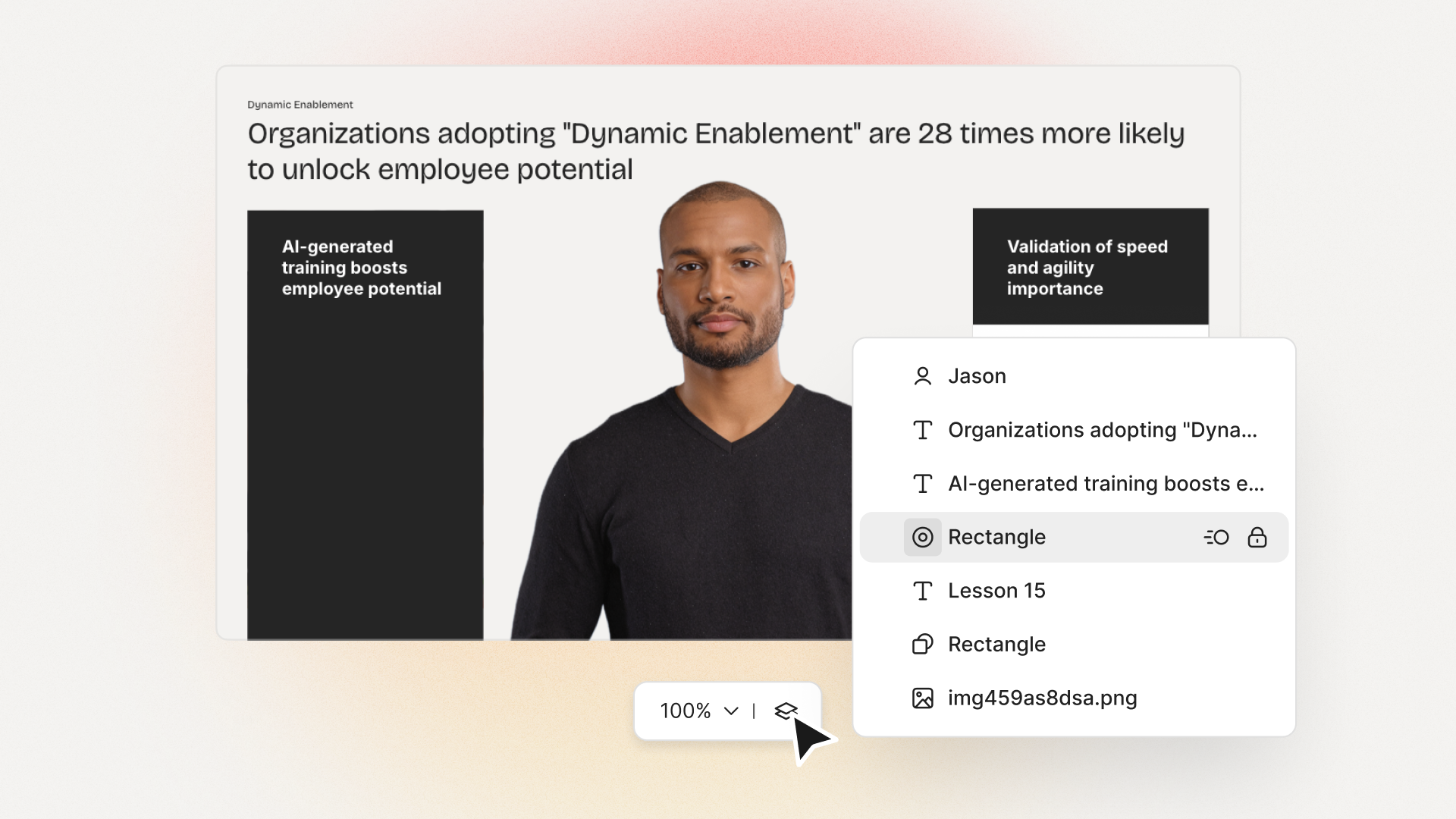
Colossyan uses AI for video creation. You upload a document, prompt, PPT, or even a PDF. It converts your specs into a video draft, breaking content into scenes for you. You can use AI avatars (or make one from video - say, your own PM’s face), and select from dozens of voices. If your brand has tough-to-pronounce acronyms, you add the right pronunciation.
We let you pick a Brand Kit so every demo follows your company fonts, colors, and logos, no fuss. Templates help non-designers get started with clean, on-brand layouts fast.
Want interaction? Add multiple-choice questions or branching - maybe you want viewers to follow the path that matches their job role (Admin vs. End User, for example). You track all of it with analytics: plays, time watched, quiz scores, and where people drop off. If you need multilingual variants, hit Instant Translation and we spin up a Spanish, French, or any other supported version without you redoing the entire video. If your demo is part of onboarding or compliance training, export to SCORM and upload into any LMS.
Example: You create a single master demo, branch it into paths for Admin, End User, and Exec Buyer. You track where people stop watching - if everyone bails at scene 5 for End Users, you know what to fix next.
When people on Reddit say “voiceovers keep messing up our branded terms,” or comment that “workflows feel clunky and slow,” this is what they’re struggling with - and this is how Colossyan helps.
Some real things you can do:
- Use Doc-to-Video to spin up a storyboard from your written documentation.
- Assign AI voices, fix pronunciation, and add pauses or animation markers so speech matches actions on screen.
- Set up branching for different persona paths.
- Instantly translate your demo into other languages.
- Stick to your style guide using Brand Kits and templates.
- Use analytics to see which scene gets skipped the most, and improve that step.
- Export for SCORM and get insights from your LMS about completion and scores.
The drag-and-drop, one-click workflow saves a lot of manual work you'd usually do in three or four different apps.
2) Loom
Loom is a simple way to record your screen (and optionally your face), then share the link right away. Works in the browser, desktop, or on mobile.
You get up to 4K resolution, fast trimming, comments right on the video, and even AI to remove filler words or assign action items. There’s a free plan; paid tiers start a little over $12/month if billed yearly. Teams like how quickly you can shoot, edit, and ship. According to Atlassian, Loom and similar tools save hours per video versus old-school production.
Typical use: Shoot a 1–2 minute highlight demo and reuse it in sales emails, onboarding, or on landing pages. You can reply to comments, track who watched. No need for specialized gear or post-production.
3) VEED
VEED is a web-based video editor that brings recording, captions, translations, and branding tools together.
Auto-captions speed up subtitle creation for accessibility and silent viewing. You can add your logo, pick your signature colors and fonts, and resize the same demo for different platforms (Instagram, LinkedIn, YouTube, etc.) - essential for companies posting the same video everywhere.
Enterprise brands use VEED for these reasons. Users report ~60% less time spent editing. The interface is simple: trim, add callouts, drop in branding, export in multiple aspect ratios at once.
Example: You keep your demo under 2 minutes, add lower-third text for each feature, auto-caption for accessibility, and resize for each social channel without recreating the video each time.
4) Supademo
Supademo focuses on interactive product tours: demos people can click through. Dynamic variables and branching guide viewers based on role, interest, or geography, with AI voiceovers and translation in 15+ languages.
Reported impact: VRIFY cut enablement content production time by 75% and saved $100k+ in staffing costs; Bullhorn saw 50% faster creation and 20% higher viewer engagement; beehiiv bumped conversions 50%, leading to thousands of new signups. These are strong numbers.
Supademo’s analytics track granular metrics - how many people started, finished, dropped off, or interacted with key steps.
Example: Instead of one-size-fits-all, you let viewers follow their own path and measure exactly where appetites drop. You fix/remove what isn’t working, and see viewership step counts improve the next week.
Runners-up
Some alternatives worth mentioning:
Clipchamp offers a fast 5-step workflow, easy brand kit, AI voice/subtitles, and works well for social videos that are 60–90 seconds. You can turn demos into GIFs for newsletters, or ads.
Screen Story (Mac-only) claims to cut demo creation from 3–5 weeks down to under 10 minutes, with 4K/60fps exports and AI captions.
When to pick which tool
Pick Supademo or Colossyan if you need interactivity and analytics for who watched, where - and you plan to improve based on this data.
Go with Loom if your main goal is to get something out the door fast.
Choose VEED or Clipchamp for consistent, branded videos across many social feeds.
If you want a human presenter (or multiple) in many languages with compliance controls, go with Colossyan.
Screen Story makes sense if you need Mac-based, high-frame-rate demos offline.
Step-by-step workflow for a modern product demo
1. Set a clear goal (length, who it’s for).
2. Write a concise script - hook early, show benefits, include proof, end with a call-to-action (use the scripting template below).
3. Capture your screen in 1080p or 4K, clear desktop, quiet background.
4. Use AI voice or a real mic; check pronunciations for tricky brand words.
5. Edit tightly: remove dead spots, add lower-thirds for key points, caption/translate for accessibility.
6. Export in all needed aspect ratios (16:9, square, vertical) for each channel.
7. Publish everywhere: embed on your site, in-app, via email, on social.
8. Track performance - views, completions, drop-off steps, engagement - and improve the slowest points.
Assets you can use
Minimal gear: USB mic, pop filter, basic lighting, 1080p screen, large cursor.
Script template:
- Scene 1 (0–10s): Hook - state pain and what gets fixed
- Scene 2 (10–30s): Feature/benefit
- Scene 3 (30–60s): Another feature + proof (quote, stat)
- Scene 4 (60–90s): Sum up, tell them what to do next
Post-production checklist: Tight cuts, on-brand lower thirds, cursor highlights, captions, translations, multiple aspect ratios, audio check, SEO transcript, hosting/embedding with tracked links.
How I use Colossyan to do this
I start by uploading a help doc or spec and use Doc-to-Video to break it into scenes. I pick a branded template, assign an AI avatar (or use an Instant Avatar for a real face), and let the auto-script write the lines. If our product name needs a weird pronunciation, I fix it up in our Pronunciations tool. For narration, I can adjust pauses or add animation markers so visuals and speech match up perfectly.
Next, I add branching - say, what the Admin should see versus what the End User should see. I check the preview scene by scene, tweak for pacing, and, if we need it in other countries, instantly translate and switch to a multilingual avatar/voice.
If something’s easier to show than to tell, I use the screen record tool to capture that part. All media, logos, and colors are handled by the Brand Kit section - I don’t have to restyle things for every video.
Once done, I share the draft with teammates for comments, store it in our organized folders, and manage team roles so the whole process stays clean.
After publishing, I pull analytics for plays, time watched, and quiz scores, and export them as a CSV for reports. If a certain path (say, End User) keeps getting skipped, I adjust that scene and re-publish. For training, I export a SCORM package for the LMS and track completion against compliance requirements.
We distribute everywhere - directly, embedded, or as download links with proper captions. The workflow keeps us fast and consistent, and the data tells us what’s working (or not).
Bottom line
Pick the tool that fits your priority: quick speed (Loom), consistent branding (VEED), interactive tour with data (Supademo, Colossyan), multilingual avatar-led scale (Colossyan), or on-brand demos with advanced analytics and full training output (Colossyan).
Use the workflow and checklist above to get from plan to published demo - as quickly and cleanly as possible. Don’t overthink it: pick, script, capture, caption, translate, and hit “publish.” Then measure and fix the weakest spot. That’s how good demo videos get made.






.avif)


%20(1).avif)



.webp)
.webp)