Many creators and teams want to add voice-overs to their videos without piecing together three or four apps. Whether you need your own narration, AI-generated voices, or even voice clones for consistent branding, your editor should let you work all in one place. This guide looks at seven video editors that give you those built-in voice-over features - without extra complexity or lots of manual syncing.
What matters in a voice-over video editor
For this list, I looked for tools that make the process simple. The best editors let you record or generate voices, add auto-subtitles for accessibility, handle multiple languages when needed, and give you strong audio controls like volume, speed, pitch, and fades. Some go further with AI-powered dubbing, brand voice cloning, advanced analytics, or direct SCORM export for training teams.
I’ve picked options for all skill levels - beginners on mobile or desktop, agencies, marketing, and especially organizations modernizing their learning videos.
Here’s what the best editors offer:
Record or create AI/text-to-speech voices right in the app
Auto-generated, accurate subtitles and easy caption exports
Tools for translating or localizing content to more than one language
Audio controls for fine-tuning the result
Simpler workflows: templates, script-to-VO syncing, stock media
Collaboration features for teams, analytics where needed
Cross-platform flexibility (web, desktop, mobile)
1) Colossyan - best for training teams who need scalable voice-over, localization, and analytics
If you need to build voice-over videos for training or learning at scale, you’ll run into problems most editors can’t handle: consistent brand pronunciation, instant translation, easy voice cloning, direct SCORM export, and analytics that measure real learning. This is where I think Colossyan stands out.
You don’t need to record your own narration. With Colossyan, you select from multilingual AI voices or even clone your own for consistency. Pronunciations for tricky names or acronyms are saved and instantly apply each time you reference them in a script.
You can also export audio-only narration or closed captions separately if you need those for compliance or accessibility.
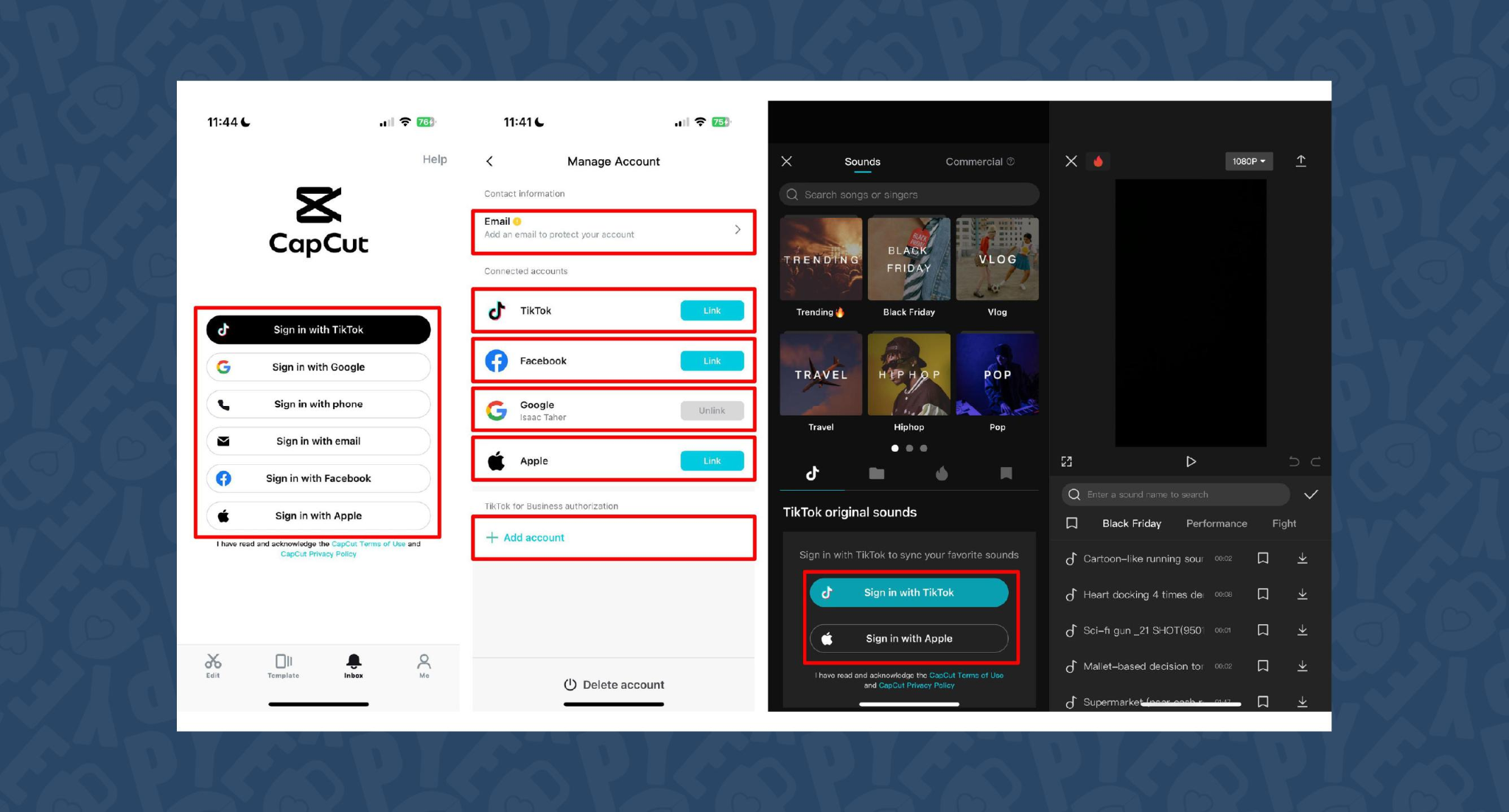
2) CapCut - best free pick with flexible recording, AI voices, and auto-subtitles
CapCut is popular because the basics are unlimited and easy. You can record voice-overs online, with no time limits, or use built-in AI for text-to-speech. It auto-generates subtitles even if the speaker’s not on screen. The editing controls let you adjust pitch, speed, volume, fades, and more, and you can mix several audio tracks. For global reach, you can use built-in AI dubbing to generate multi-language versions of your VO.
On mobile, the recording flow is in-app for iPhone (Sound > Microphone); on desktop or web, you script, record, add subtitles, edit, and export - all in one. This feels more like a professional tool than most free options.
You can use CapCut to clarify complex videos with on-screen captions, localize tutorials for other markets, or keep a consistent voice tone for social media videos.
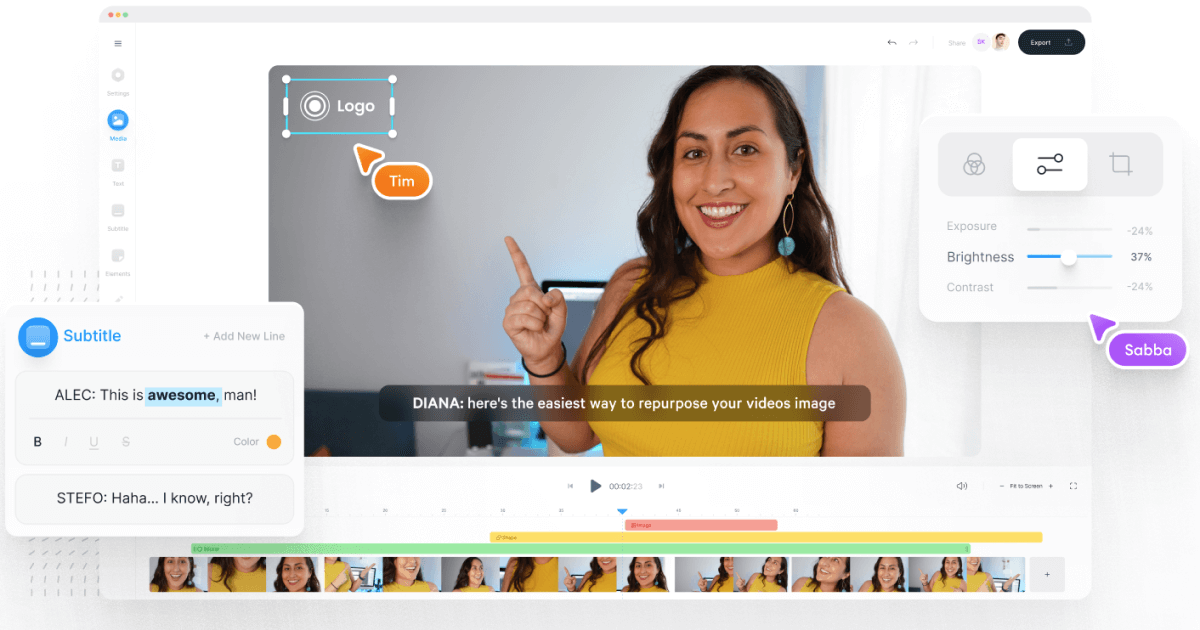
3) VEED - best for replacing multiple tools (recording, captions, storage, sharing)
VEED has built a reputation as an all-in-one workflow. Instead of bouncing between Loom, Rev, Google Drive, and YouTube, you get everything in one place: recording, AI text-to-speech, one-click subtitle generation, and automatic audio cleanup.
User reviews are strong (4.6/5, with about a 60% reduction in editing timeaccording to one testimonial). It’s aimed at teams who need consolidated workflows and secure sharing. You edit, subtitle, and publish in one tool - no more file shuffling or switching between apps.
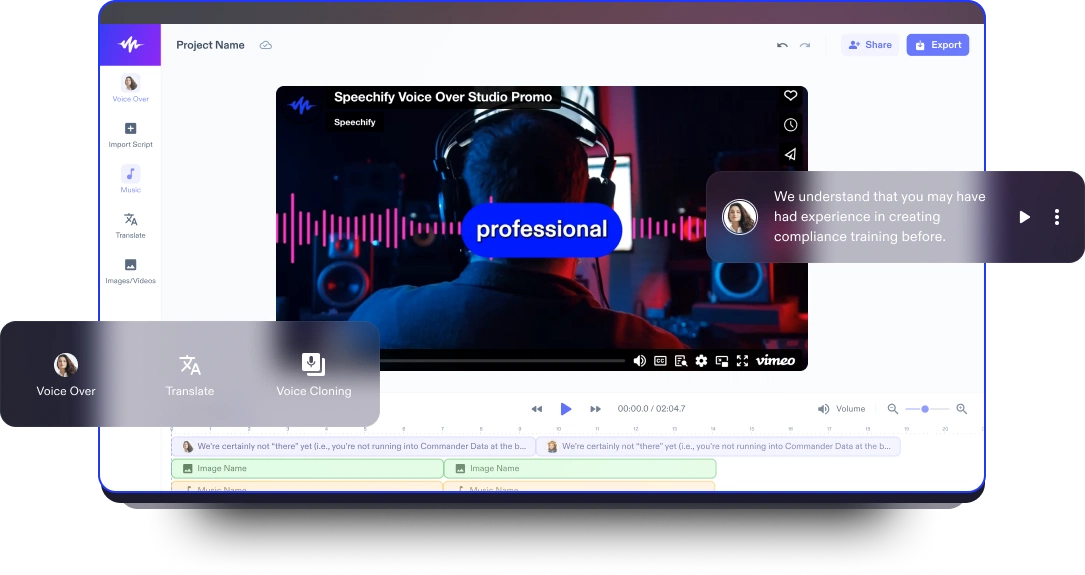
4) Speechify Studio - best for fast AI dubbing with a large voice library
Speechify Studio focuses on AI voice versatility. You get over 200 lifelike voices in multiple accents and languages, perfect for instant dubbing or easy localization. One click dubs into new languages and generates synchronized subtitles. The editor is drag-and-drop, with templates and a vast library of royalty-free music and video assets.
Everything happens in the browser, working across platforms. You can upload your own VO or just use the AI, mix in background tracks, and export in multiple sizes (for YouTube, Instagram, etc.). For YouTube, social teasers, or education, this is one of the fastest ways to get multi-language narration without hiring VO talent.
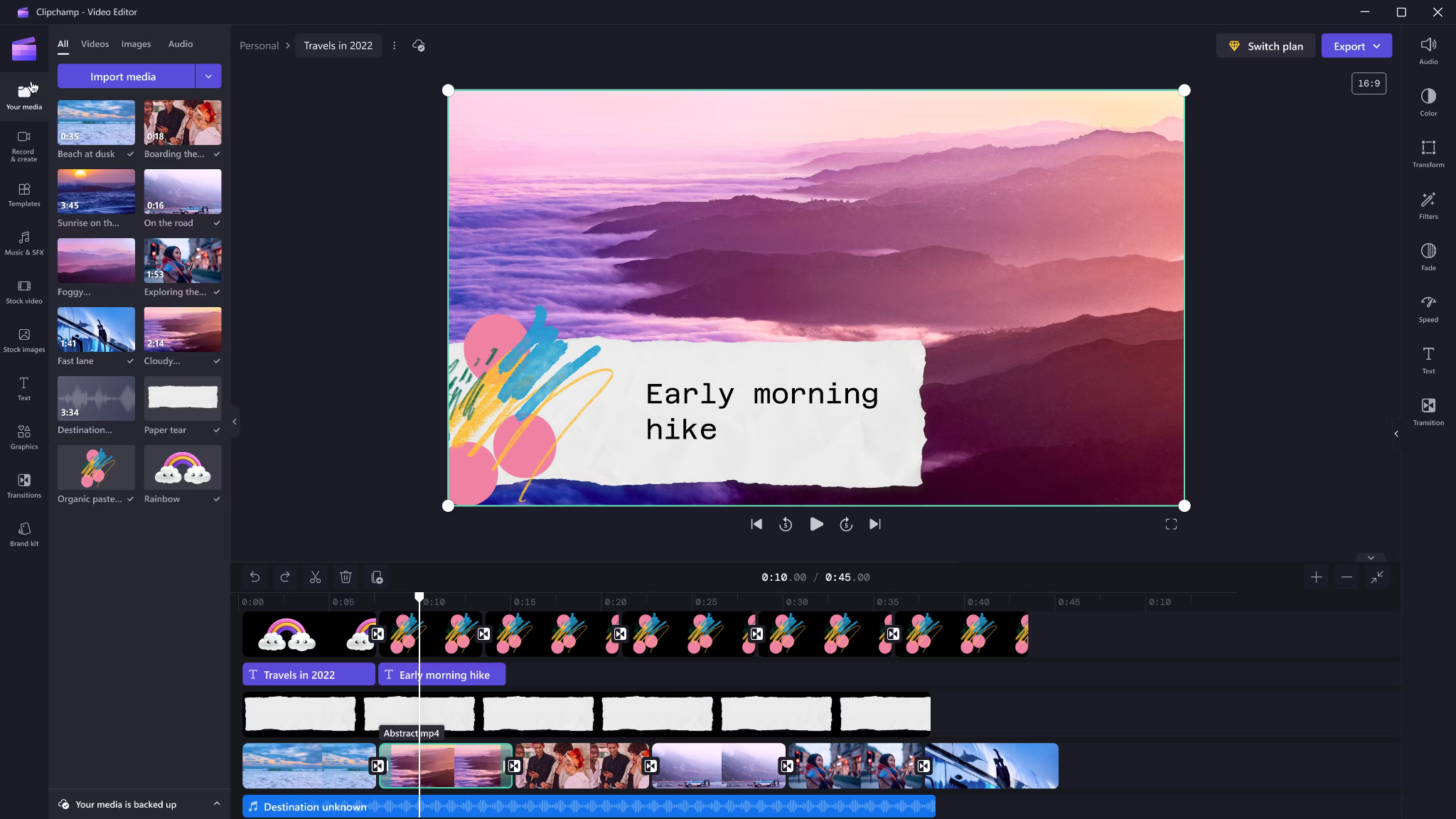
5) ClipChamp - best free TTS variety and easy script control
Clipchamp shines with variety and ease for AI voice-overs. It includes 400 AI voices (male, female, neutral) in 80 languages. You can tweak pitch, emotion, speed (0.5x to 2x) and control pauses/emphasis directly in your script by adding ellipses (“...”) or exclamation marks. If voices mispronounce a word, type it out phonetically.
Output options include transcript exports, subtitles, or just the audio as MP3. Every export is free and unlimited, and user reviews are high (4.8/5 from 9.5k reviews). This is a quick route for social videos, simple explainers, or business presentations.
6) Powtoon - best for animated explainers with built-in VO recording
Powtoon’s big advantage is simplicity for animated videos. It has built-in voice-over recording, lots of customizable templates, and a royalty-free music library. Major brands use it for onboarding and explainers, and it claims tens of millions of users.
You can record your narration directly in the editor, layer music, set up a branded look, and publish to social or business platforms straight from Powtoon. This works well if you want animations with matching narration, but don’t want to learn complex motion tools.
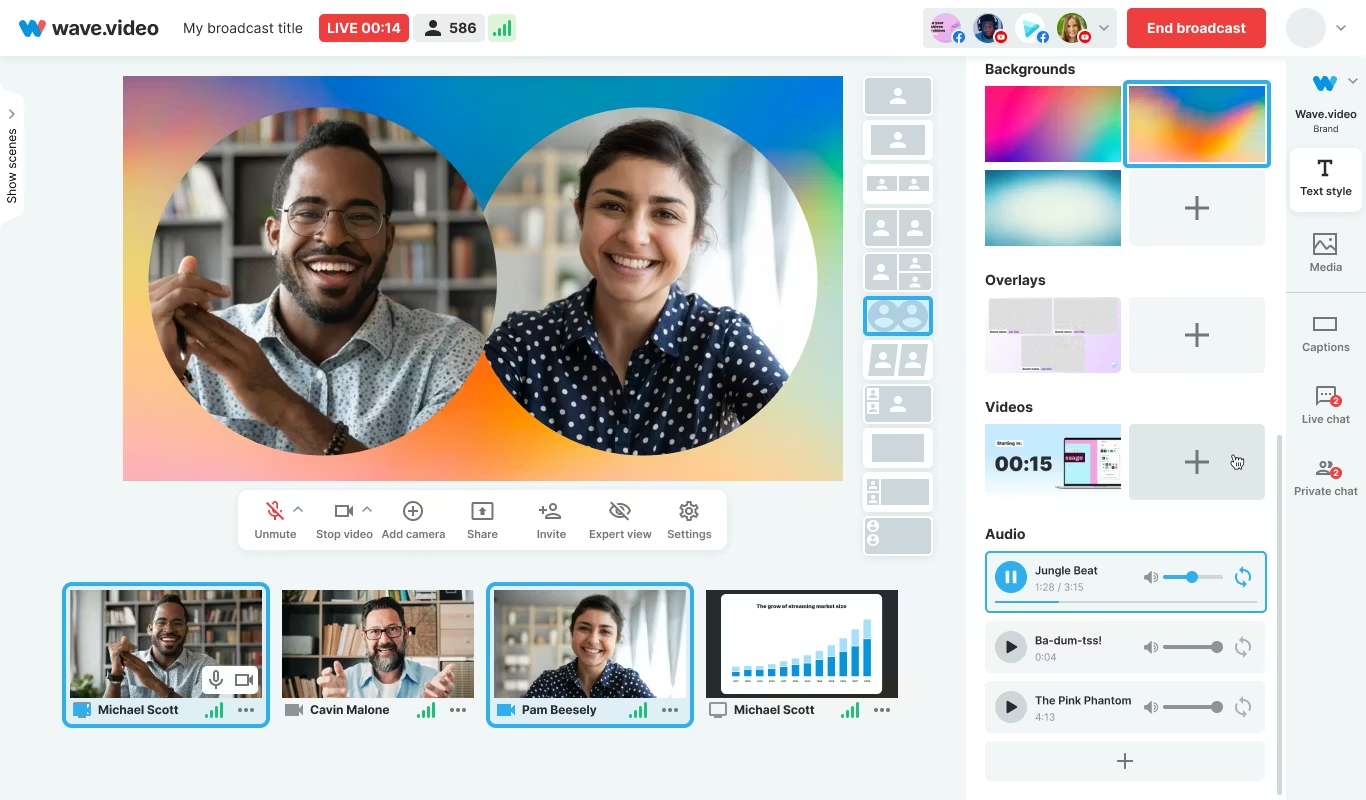
7) Wave.video - best for quick client-ready edits and layered audio tracks
Wave.video is designed for speed and easy audio layering. You can record or upload up to three audio tracks (voice, music, sound effects), then trim and sync each on a clear timeline. Automated captions let your video communicate even if played on mute. Users report getting client-ready videos in as little as 20–30 minutes, thanks to the streamlined process.
This tool fits agencies and freelancers who need regular, clear voice-over videos with quick turnarounds.
Honorable mentions and caveats
There’s also the Voice Over Video app for iOS/iPadOS. It handles multiple VO tracks and edits, and offers a cheap lifetime unlock. However, some users find problems with longer videos: slow playback, export glitches, or audio muting bugs. It’s okay for short clips - test it before using for multi-segment training pieces.
How Colossyan maps to the needs above
I’ll be clear - most editors focus on easy voice-over for marketing or social video. Colossyan stretches further for learning and enterprise.
If you need multilingual versions, Instant Translation creates new language drafts for the whole video (script, on-screen text, interactions), maintaining layout. You can use cloned voices for brand consistency, and our Pronunciations library does what some other editors only do for one-off cases: you save pronunciation settings for product names or technical terms, and every video stays correct.
Pauses, animation markers, and script editing give you fine control over delivery and pacing - a real edge if you want natural, accurate speech. And while Clipchamp lets you control delivery with punctuation, Colossyan lets you sync these to avatar gestures and on-screen animations for even more realism.
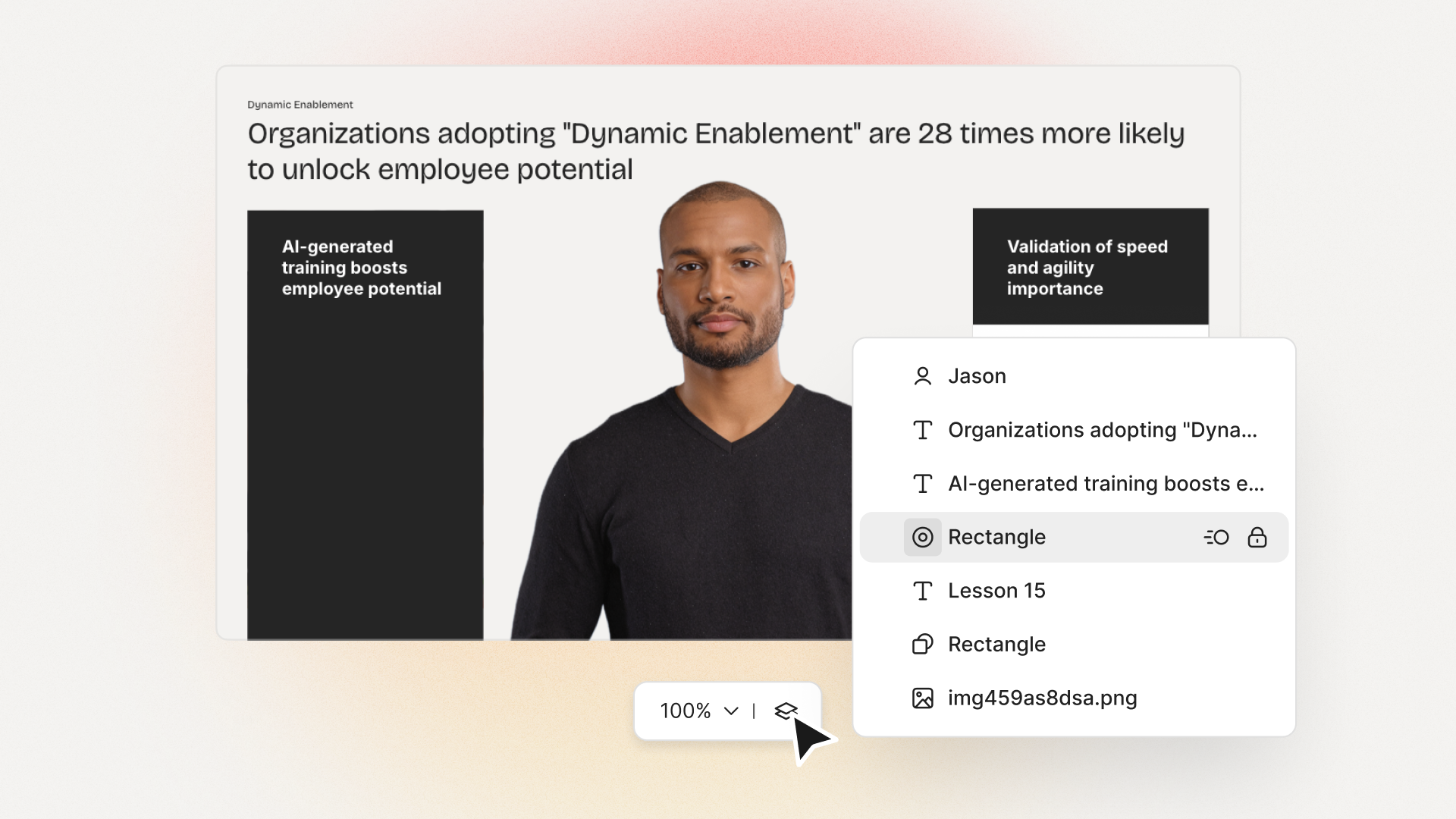
Large teams can import docs or PowerPoints and transform them into scenes with the narration built in - saves hours compared to manual scripting. Collaboration, brand kits, and workspace organization mean even non-designers or new team members can keep everything consistent.
We support interactive learning: quizzes and branching, tracked by analytics. SCORM export means your videos fit into any LMS or training system, and our analytics track real results (scores, time watched, drop-off points). For organizations, this is a serious step up from just generating a narrated video.
Example: For compliance learning, import a policy PDF, assign a voice clone, adjust pronunciations for terms like “HIPAA,” add quizzes, export SCORM, and get analytics on where learners struggle - a complete feedback loop.
For a multilingual product rollout, create an English master, translate to Spanish and Japanese, assign native accents or avatars, export closed captions and audio-only versions for other channels, and keep all assets in sync with your brand.
For scenario-based training, use Conversation Mode to create role-play videos with branching. Learners pick responses, and you measure the impact with analytics - something most consumer editors can’t do.
The right editor for your scenario
If you’re a beginner content creator or need simple, free TTS and subtitles, CapCut or Clipchamp is enough.
Marketing teams might prefer VEED to replace multiple tools and simplify sharing, or Powtoon if you need stylish explainers fast.
If you want fast, multi-language dubbing, Speechify Studio or Clipchamp do it, but for real global training with instant translation, on-screen adaptation, and analytics, Colossyan is the stronger choice.
For building e-learning, SCORM packages, compliance training, or videos for enterprise where accuracy and engagement matter, I’d pick Colossyan every time.
Want more guidance on scripting voice-overs, localizing training, or making sure your AI voice matches your brand? Book a demo with our team and we will run through the best ways you can.
Dominik founded Colossyan in 2020 with the mission of helping workplace learning teams leverage AI video to make knowledge transfer easy. With over 6 years of experience in the synthetic media space, Dominik is passionate about using AI to make high-quality content creation accessible to all.
Networking and Relationship Building
Use this template to produce videos on best practices for relationship building at work.
Oops! Something went wrong while submitting the form.
example
Thank you - your video is on its way!
If you’d like to try out Colossyan and create a video yourself, just visit our website on your desktop and sign up for a free account in seconds. Until then, feel free to check out our examples.
What’s the fastest way to add a voice-over to a video?
Most of these editors let you script your VO, record or generate it with AI, auto-caption the video, and export sync’d audio/subs in just a few steps.
How do you make AI voices sound more real?
Insert pauses (“...” in Clipchamp, Pauses in Colossyan), set emphasis, and fix tricky words using a pronunciation tool. Play with pacing and preview small chunks before exporting.
What if I need videos in more than one language?
Most tools above support AI TTS or dubbing in many languages, but only some (like Colossyan) will translate the whole project - script, on-screen text, and interactions - while keeping your original layout and timing.
Can I measure training impact from voice-over videos?
CapCut, Clipchamp, Speechify, and most consumer apps won’t provide analytics beyond simple view counts. In Colossyan, you can add quizzes, set pass marks, export SCORM, and get reports on learner engagement and scores - helping you improve future videos.







.avif)


%20(1).avif)



.webp)
.webp)