Why Translate Your Videos?
Most people want to learn in their own language. According to recent surveys, 72% of consumers say they’re more likely to buy if information is in their language. And it’s not just about sales. People remember and engage more when they understand what’s being said. Subtitles or voiceovers in a learner’s native language help them absorb content, especially when it’s complicated or technical.
This need is even bigger for younger audiences. 80% of Gen Z prefer video subtitles. The same research suggests 63% of Millennials and Gen Z watch videos with subtitles on, even if they speak the video’s original language. For training, e-learning, or onboarding, subtitles and translated audio aren’t nice-to-have they’re expected.
Moving Beyond Subtitles: Tools for Video Translation
In the past, translating a video meant sending files to an agency, waiting days for the job, and paying high costs for every revision. Today, several browser-based tools automate much of the work, bringing speed and lower costs. But there’s a trade-off: not every solution fits every use case.
Online Auto-Subtitle and Dubbing Tools
Many platforms now offer fast translation with auto-aligned subtitles and AI-generated voiceover. Clideo, for example, transcribes, translates, and can add AI voiceovers, supporting all major video formats for a low monthly fee. It keeps the video’s sync and quality, but is designed mainly for simple, one-off translations.
VEED supports subtitles in more than 125 languages, retains background audio, and claims up to 99.9% translation accuracy. You can generate audio translations, tweak voice settings, add lipsync, and export in many formats. One customer review claims their editing time dropped by 60%. Still, VEED (like similar tools) is meant for marketers or creators needing quick translations, not teams responsible for global workplace training or compliance.
Kapwing and Vidnoz both promise high accuracy and super-fast turnaround. Kapwing supports 100+ subtitle languages and 40+ dubbing languages, with 180+ AI voices. Vidnoz offers up to 140 languages and claims an 82% cost saving and “10x faster workflows” compared to traditional human translation services. Both provide basic voice personalization, but their main value is in automating the grunt work, not offering deep analytics or content control.
For live events or calls, tools like iTour’s Chrome extension enable real-time translation and subtitles during meetings or lectures. It’s simple and privacy-friendly a good fit for ad-hoc accessibility, but not for scalable training production or compliance needs.
What Most Video Translation Tools Lack
Automated video translators get your content into new languages fast. But speed isn’t everything. Here’s what often gets overlooked:
First, most tools handle subtitles and voice but not interactive elements or quizzes. For training videos, it’s not enough to just hear or read the information; you need to measure understanding. Most point solutions miss that entirely.
Second, learners don’t just want any translation. They want localized pronunciation, accurate handling of brand terms, and consistent tone especially in training for large organizations. Some tools let you tweak pronunciation, but only on a word-by-word basis, or not at all.
Third, content security and centralized management are limited. You can upload a file and download a translation, but you can’t build a library, manage users, or analyze results across a whole organization. For big teams or compliance-heavy industries, this is a problem.
How Colossyan Approaches Video Translation for Training
As someone who works on the Colossyan team, I see these challenges first-hand with L&D teams trying to scale learning in global organizations. Here’s how we tackle them.
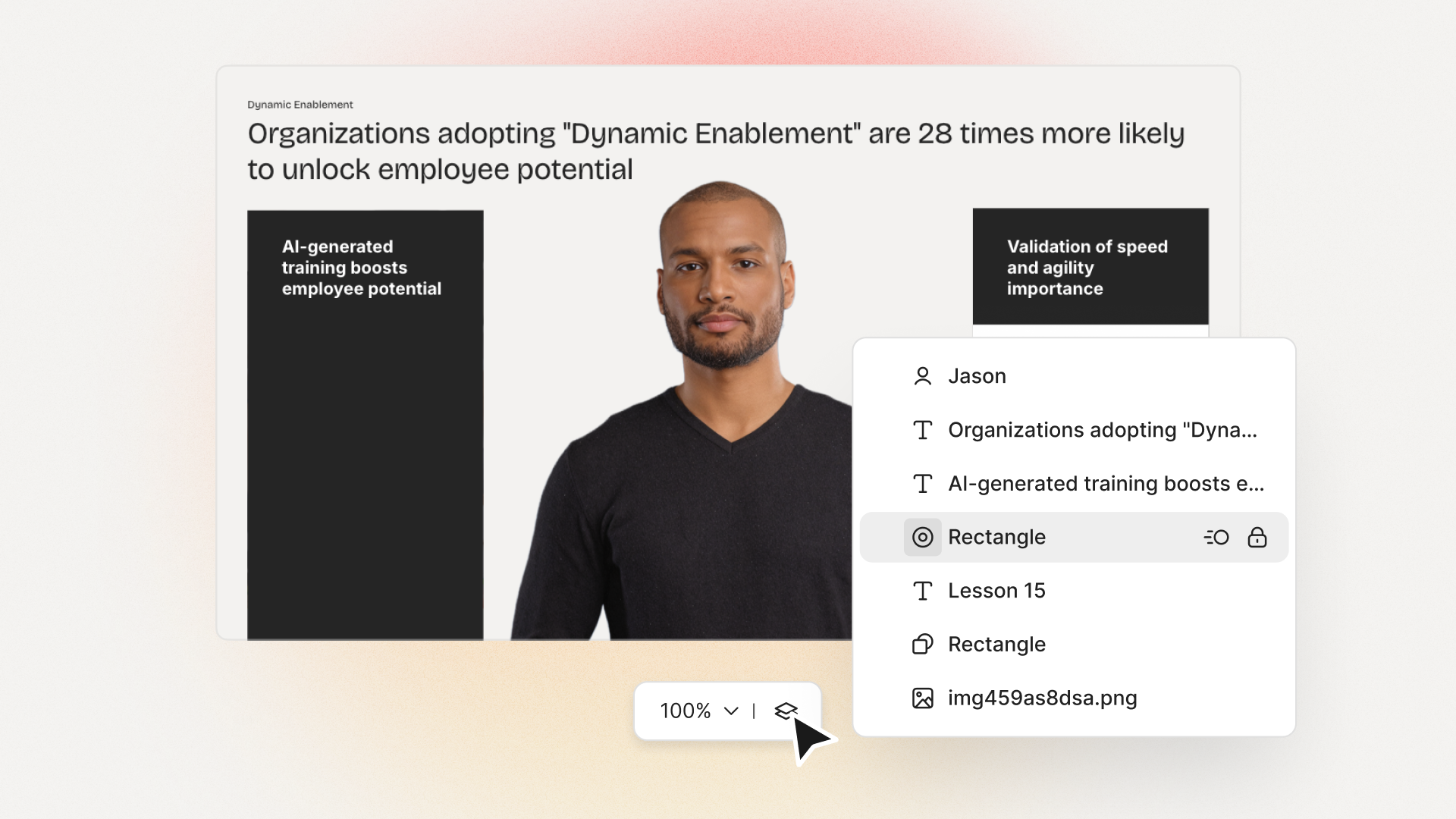
Instead of stopping at subtitles, Colossyan lets users generate a full translated version of a video including the voiceover, on-screen text, and even prompts in interactive quizzes. Our instant translation takes care of the heavy lifting, but you can still review and fine-tune the result. If you need to adjust timing for longer translated text, you can export it as a separate draft and tweak layout or scene length, instead of losing your design work.
For organizations with unique vocabulary or tricky brand names, our pronunciation feature lets you set custom phonetics. So the AI voice says your product name or location properly no more awkward mispronunciations in training. You can create a pronunciation guide for the whole team or limit it to specific voices or avatars.
We don’t think translation should end with the voice. All interactive elements and quiz prompts can be translated too. And if you need subtitles or closed captions, you can export these in SRT or VTT formats from the same workflow, which helps with accessibility and search optimization.
Some of the other tools mentioned earlier, like VEED, offer workflow speed and subtitle downloads, but they don’t support analytics, role-based user management, or exporting SCORM packages for enterprise LMS systems. With Colossyan, you can do all of that. Our analytics show how employees interact with videos, quiz results, completion rates, and even individual scores. This lets organizations see what’s working and what isn’t in every language.
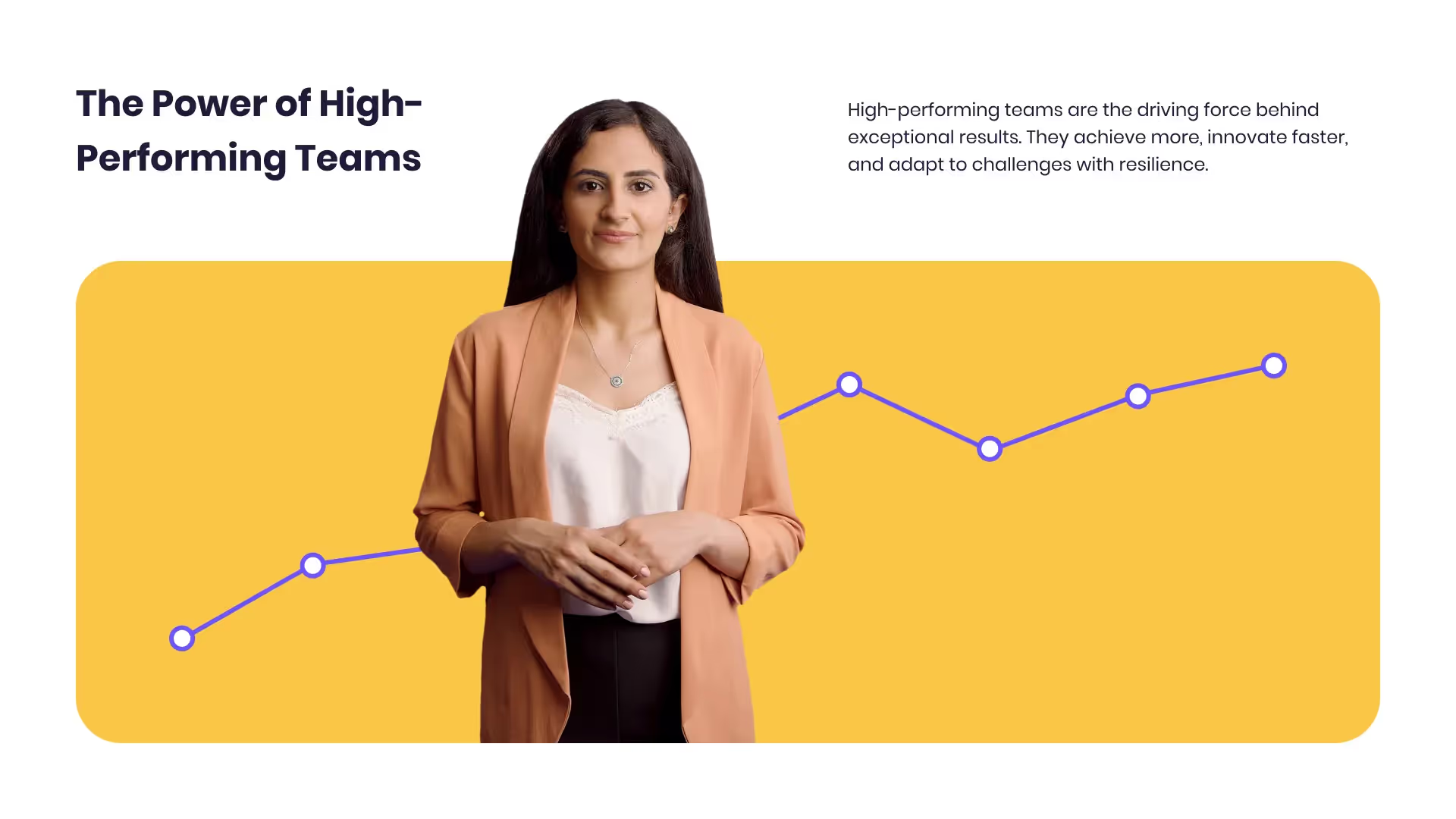
Especially for multinational teams, localization is more than just translation. Our tools let you assign different avatars or voices for regional content variants. For example, you can use a different presenter, outfit, or side-view conversation to reflect local culture and make the training feel more relevant.
And since Colossyan uses document, PowerPoint, and PDF imports, you can quickly take legacy materials and create engaging, interactive videos in multiple languages, eliminating the need to re-record voiceovers or re-design from scratch.
Steps and Best Practices for Adding Translation to Video
The process is straightforward, but attention to detail matters:
- Start with a clean, well-structured script. If the language is unclear, the translation will suffer.
- Use a platform that translates both the voiceover and all on-screen text including quiz or interaction prompts if you need compliance tracking.
- Review custom term pronunciation (product names, acronyms, technical jargon). Set phonetic rules as needed.
- If your video has interactive content, check every prompt and answer option in the translation, then preview for timing or layout issues.
- Test your translated video with native speakers. Don’t assume AI got every nuance right. Allow time for feedback and corrections.
- Export subtitles or captions as needed. This improves accessibility (especially for younger or international audiences) and can help SEO.
- Publish in your LMS or internal portal using compliant formats like SCORM, and track analytics to measure engagement and learning outcomes.
Opinion: Where Automated Video Translation Works, and Where It Falls Short
Automated tools have changed how fast organizations can serve learners in different languages. That’s important, and nobody wants to go back to the days of manual subtitle editing.
The downside: most point tools ignore the bigger picture of training at scale. Fast translation isn’t enough if nobody verifies the results, if quizzes remain untranslated, or if you can’t track outcomes. For a YouTube reel or a quick social post, standalone tools like Clideo, Kapwing, or Vidnoz are enough.
But if you work in learning or training where compliance, analytics, and brand standards matter those tools aren’t enough by themselves. That’s why at Colossyan, we focus on making translation part of a whole workflow: content creation, translation, personalization, compliance, and analytics, all in one system.
Most enterprises want fewer steps, not more. If you’re producing content for learners in different regions, you need a single place to manage scripts, avatars, voices, branding and see how people actually absorb the training. If you care about that, focus on tools that offer more than raw automation they should help you measure, personalize, and control quality as you scale.





.avif)


%20(1).avif)



.webp)
.webp)