Introduction: From Text to Animation in Minutes
Turning text into animated video used to take days and a lot of design work. With text-to-animation AI, you can now enter a script, pick a style, and get a complete video - usually in minutes. This isn’t just about speed. You get consistent branding, easier localization, and it’s simple to scale training or marketing across regions and departments.
At Colossyan, we focus on L&D - helping teams quickly convert handbooks, docs, and presentations into interactive, branded, SCORM-compliant video training. Everything gets faster. You customize avatars and voices, keep everything on-brand, add quizzes, see analytics, and manage versions at scale. Here’s what I’ve found after comparing the field.
What Is Text-to-Animation AI?
Text-to-animation AI is software that builds animated scenes, visuals, motion, and AI voice narration straight from your script or document. Most tools ask for either a prompt (e.g., "Show animated coins falling into a piggy bank") or let you upload a file. They then auto-match visuals, voices, music, and subtitles. You can tweak the results without being a designer.
Common uses: training videos, explainers, tutorials, onboarding content, social videos, and ads. These aren’t just talking heads. Tools like Colossyan support different animation styles, avatars, voice cloning, captions, and language dubbing. Steve.ai reads your script, picks visuals by context, and builds social clips or onboarding in minutes. It’s almost mindless - just prep your message, and the platform does the rest.
Quick Tool Landscape and When to Use Each
Every tool has a twist. Here’s what stands out:
- Colossyan: Auto-animated L&D videos from prompts - add words like "animated" or "cartoon-style" to control look. You can generate large scripts in one pass, customize avatars, voices, quizzes, translations, and SCORM export. Trusted by enterprise users for speed and compliance.
- Animaker: Good for choice - 100M+ assets, billions of avatars, and wide templates. A marketer reported double sales conversions and 80% less production time. Free plan is useful; paid plans unlock more features.
- Steve.ai: Anyone can go from script to animated or live-action video with zero prior experience. Three steps: enter script, pick template, customize.
- Renderforest: Turns short scripts into custom scenes you can adjust - speaker, tone, or colors in real time.
- Adobe Express: Simple cartoon animations. Auto-syncs lip and arm movements, but uploads limited to two minutes per recording.
- Powtoon: Covers doc-to-video, animated avatars, translation, scriptwriting, and more. Trusted globally for enterprise scale.
For L&D, Colossyan focuses on document-to-video, branded templates, interactive quizzes, branching, analytics, SCORM support, avatars, cloned voices, pronunciation, translation, and workspace management - all to modernize and measure training content at high volume.
Step-by-Step: Create an Animated Video from Text (Generic Process)
- Write your script (300-900 words is ideal). Each scene should handle one idea (2–4 sentences).
- Choose a style. Be specific in prompts (“animated,” “cartoon-style,” “watercolor,” etc.).
- Upload or paste your script; let the AI build scenes.
- Replace or adjust visuals. Swap automated graphics with better stock or your own uploads, tweak colors, backgrounds, or add music.
- Assign a voice. Pick natural voices, and teach the tool custom pronunciations if needed.
- Add captions and translations for accessibility and localization.
- Export the video in the format you need.
Step-by-Step: Building an L&D-Ready Animated Video in Colossyan
- Upload your policy PDF - Colossyan splits it into scenes and drafts narration.
- Apply your brand fonts, colors, logos using Brand Kits.
- Drag in avatars; use two on screen for role-play scenarios.
- Assign multilingual voices; add custom pronunciations or clone a trainer’s voice.
- Rephrase or cut narration with AI Assistant, insert pauses for natural speech.
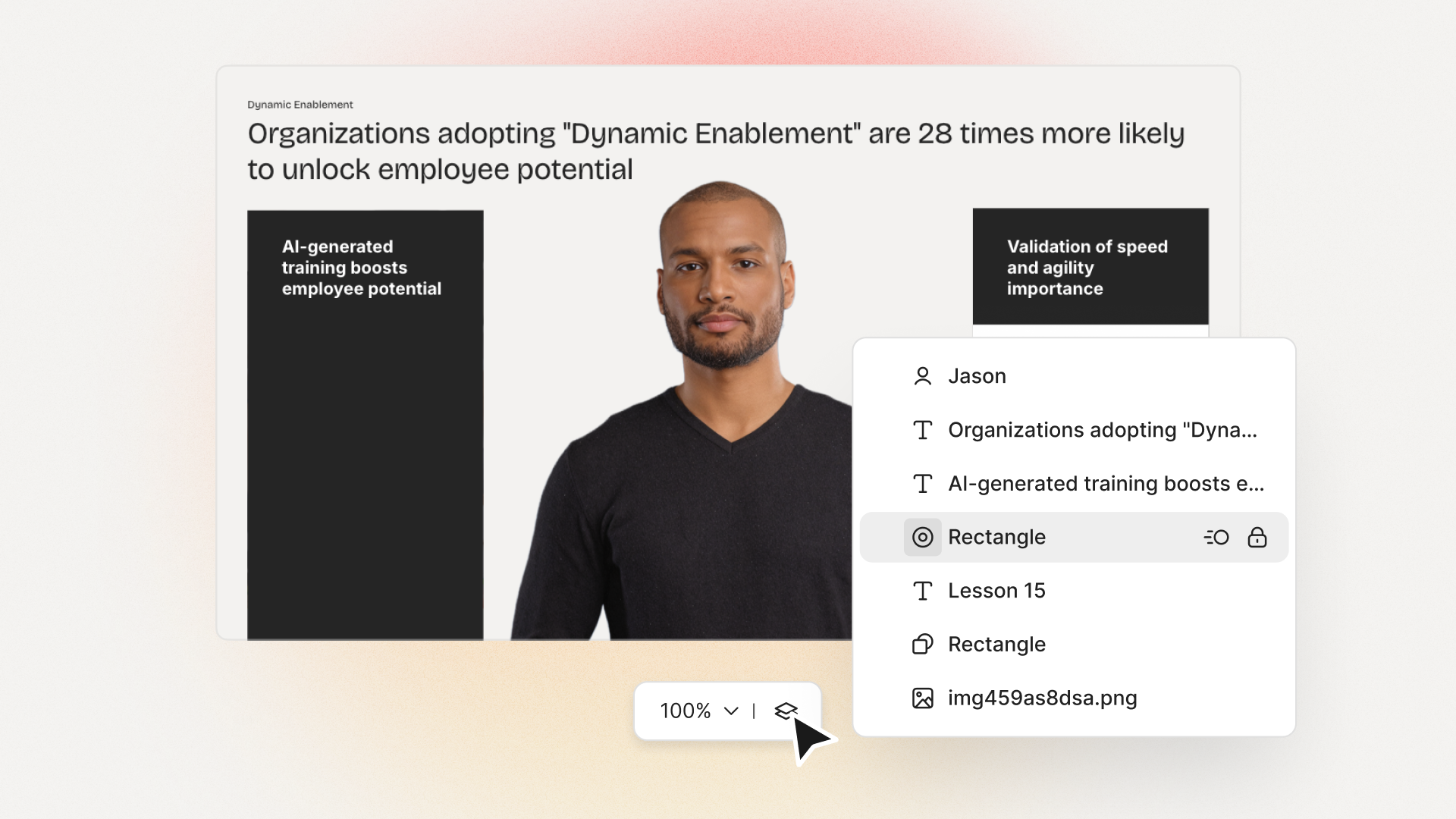
- Use animation markers for key visual timing; add shapes or icons.
- Insert stock images or screen recordings for clarity.
- Add interactive multiple-choice questions or branching scenarios.
- Translate instantly to another language while keeping timing and animations.
- Review analytics: who watched, duration, and quiz results.
- Export to SCORM for LMS tracking.
- Organize drafts, invite reviewers, manage permissions at scale.
Prompt Library You Can Adapt
- Finance: “Animated coins dropping into a piggy bank to demonstrate money-saving tips.”
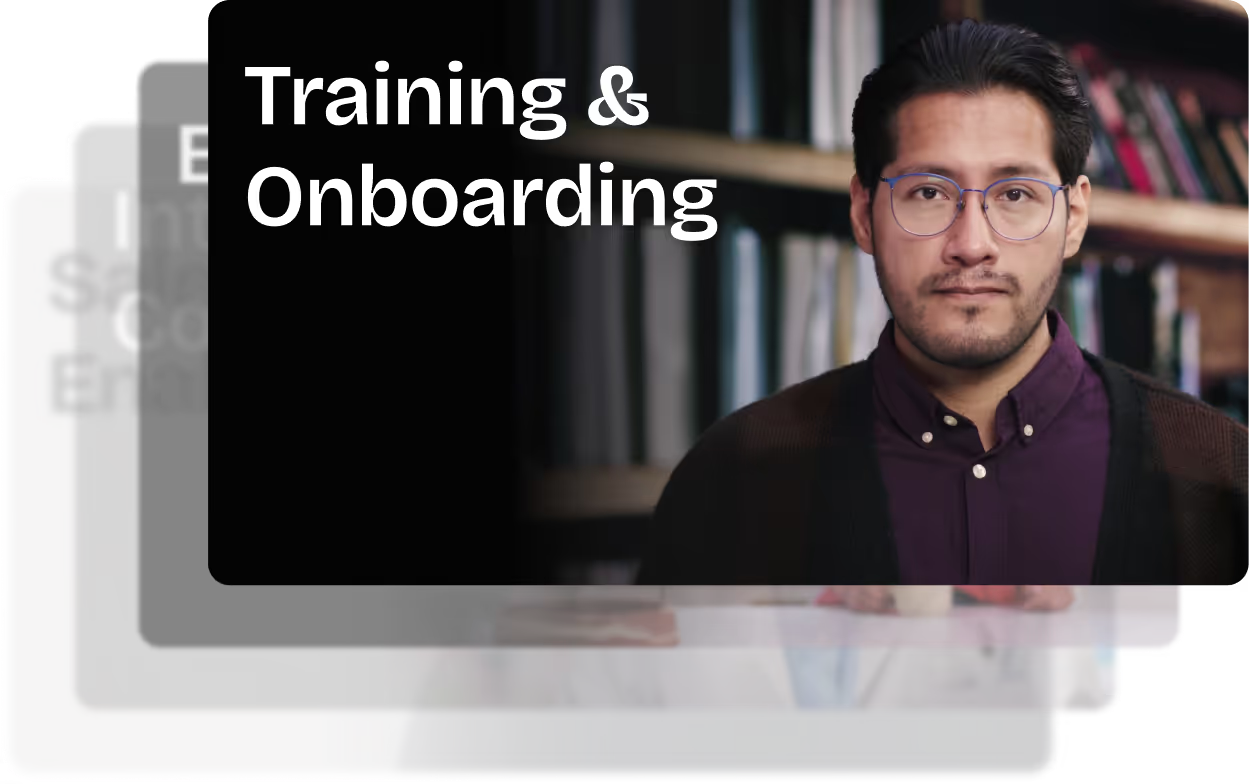
- HR onboarding: “Cartoon-style animation welcoming new hires, outlining 5 core values with icons.”
- Tutorial: “Animated step-by-step demo on resetting our device, with line-art graphics and callouts.”
- Compliance: “Branching scenario showing consequences for different employee actions.”
- Safety: “Cartoon-style forklift safety checklist with do/don’t sequences.”
- Cybersecurity: “Animated phishing vs legitimate email comparison.”
- Customer service: “Two animated characters role-play de-escalation.”
- Marketing: “Watercolor 30-second spring sale promo with moving text.”
- Executive update: “Animated KPI dashboard with bar/line animations.”
- Localization: “Animate password hygiene video in English and Spanish - visuals and timings unchanged.”
Script, Voice, and Pacing Best Practices
- Keep scenes short and focused (6–12 seconds, one idea per scene).
- Write clear, spoken sentences. Use pauses, highlight key terms, fix mispronunciations.
- In Colossyan, use Script Box for pauses, animation markers, and cloned voices.
Visual Design and Branding Tips
- Apply templates and Brand Kits from the start.
- Keep on-screen text high contrast and minimal.
- Use animated shapes to highlight points. Centralize assets in Colossyan’s Content Library.
Localization and Accessibility
- Colossyan supports avatars, multilingual voices, captions, dubbing, and Instant Translation.
Interactivity, Measurement, and LMS Delivery
- Branching and MCQs improve engagement.
- Analytics show view time, quiz results, and compliance tracking. Export to SCORM.
Scaling Production Across Teams
- Organize folders, drafts, review workflows, and user roles.
- Colossyan keeps high-volume production manageable.
Troubleshooting and Pitfalls
- Watch for free tier watermarks.
- Specify animation style in prompts.
- Break long scripts into multiple scenes.
- Store licensed media in the Content Library.
FAQs
- Can I turn documents into video? Yes. Upload Word, PDF, or PowerPoint in Colossyan.
- Can I have an on-screen presenter? Yes, up to 4 avatars in Colossyan.
- How do I localize a video? Instant Translation creates language variants.
- How do I track results? Analytics and SCORM export track everything.
- Can I mix live-action and animation? Yes, screen recordings and animated avatars can coexist.
Mini-Glossary
- Text-to-speech (TTS): Converts text to voice.
- SCORM: LMS tracking standard.
- Branching: Lets viewers choose paths in a video.
- Animation markers: Cues for timing visuals.
Suggested Visuals and Alt Text
- Prompt-to-video screenshot (alt: “Text-to-animation prompt using an AI tool”)
- Before/after scene board with branding (alt: “Auto-generated animated scenes with brand colors and fonts”)
- Interaction overlay with MCQ and branches (alt: “Interactive quiz and branching paths in training video”)
- Analytics dashboard (alt: “Video analytics showing learner engagement and scores”)
Opinion: Where All This Sits Now
AI animated video creation is fast, consistent, and nearly push-button for explainer or training needs. Colossyan is ideal for L&D or enterprises needing branding, interactivity, analytics, workspace management, and compliance. For one-off social videos, other tools might suffice, but for SCORM, analytics, and enterprise control, Colossyan leads.






.avif)


%20(1).avif)



.webp)
.webp)