To make effective software training videos: 1) Define learner outcomes and KPIs, 2) Break workflows into bite-sized tasks, 3) Script in a conversational, step-by-step format, 4) Choose a format like screencast, avatar, or hybrid, 5) Produce with clear branding, captions, and on-screen prompts, 6) Add interactivity like quizzes and branching, track results with SCORM, 7) Localize for key languages, 8) Publish to your LMS or knowledge base, 9) Analyze watch time and pass rates, 10) Update based on analytics.
Why software training videos matter now
A lot of employees say they need better training materials. Over half - 55% - report they need more training to do their jobs well source. And people actually look for video training: 91% have watched an explainer video to learn something in 2024 source. There’s good reason for this - e-learning videos can boost retention rates by up to 82% compared to traditional methods.
This isn’t just about feels or fads. U.S. companies spend about $1,286 per learner per year on training. That’s a big investment - so it should work. Some real examples back this up: Microsoft cut its learning and development costs by about 95% (from $320 to $17 per employee) when it launched an internal video portal. Zoom cut its video creation time by 90% after moving to AI-powered video production. Berlitz made 1,700 microlearning videos in six weeks, producing faster and cutting costs by two-thirds.
The lesson: shorter, purpose-built videos not only lower costs but actually help people learn more and stay with the company.
Pick the right training video format for software workflows
Not every video needs to look the same. Choosing the best format helps learners get what they need, faster.
Screencasts are great for point-and-click steps, UI changes, or any kind of hands-on walk-through. If you’re explaining a new feature or daily workflow, a screencast with clear voice-over covers it.
AI avatar or talking-head formats add a personal touch. Use these when you need to explain why a change matters, show empathy, discuss policy, or onboard new users.
Hybrid approaches are gaining ground: start with an avatar giving context, then cut to a screencast for hands-on steps - so learners get clarity plus a human connection.
Don’t forget interactive training videos. Adding quick quizzes or branching scenarios creates active learning and gives you feedback on who actually understood the lesson.
Keep most topics to 2–7 minutes. Under 5 minutes tends to work best for engagement. Microlearning for single tasks works well at 60–90 seconds. Change scenes every 10–20 seconds and keep intros short (about 10 seconds). Always use captions.
Step-by-step: how to make software training videos efficiently
Step 1: define outcomes and KPIs
Decide what the learner should be able to do. For example: “Submit a bug ticket,” “Configure SSO,” or “Export a sales report.” KPIs might be quiz pass rate, average time to completion, watch time, or rate of errors after training.
If you use Colossyan, you can set up projects in organized folders for each workflow and use built-in analytics to track quiz scores and viewing time - especially useful if you want SCORM compliance.
Step 2: break the software workflow into micro-tasks
Split every workflow into the smallest possible tasks. This speeds up production and makes learning less overwhelming. For example, “Create a support ticket” is really several steps: open app, select project, fill summary, choose priority, submit.
With Colossyan, Templates help you scaffold these microlearning modules fast and keep things consistent, even if you don’t have a design background.
Step 3: gather your source content and SME notes
Scripts should always be based on company manuals, SOPs, or input from actual subject matter experts. Cut any fluff or redundant info.
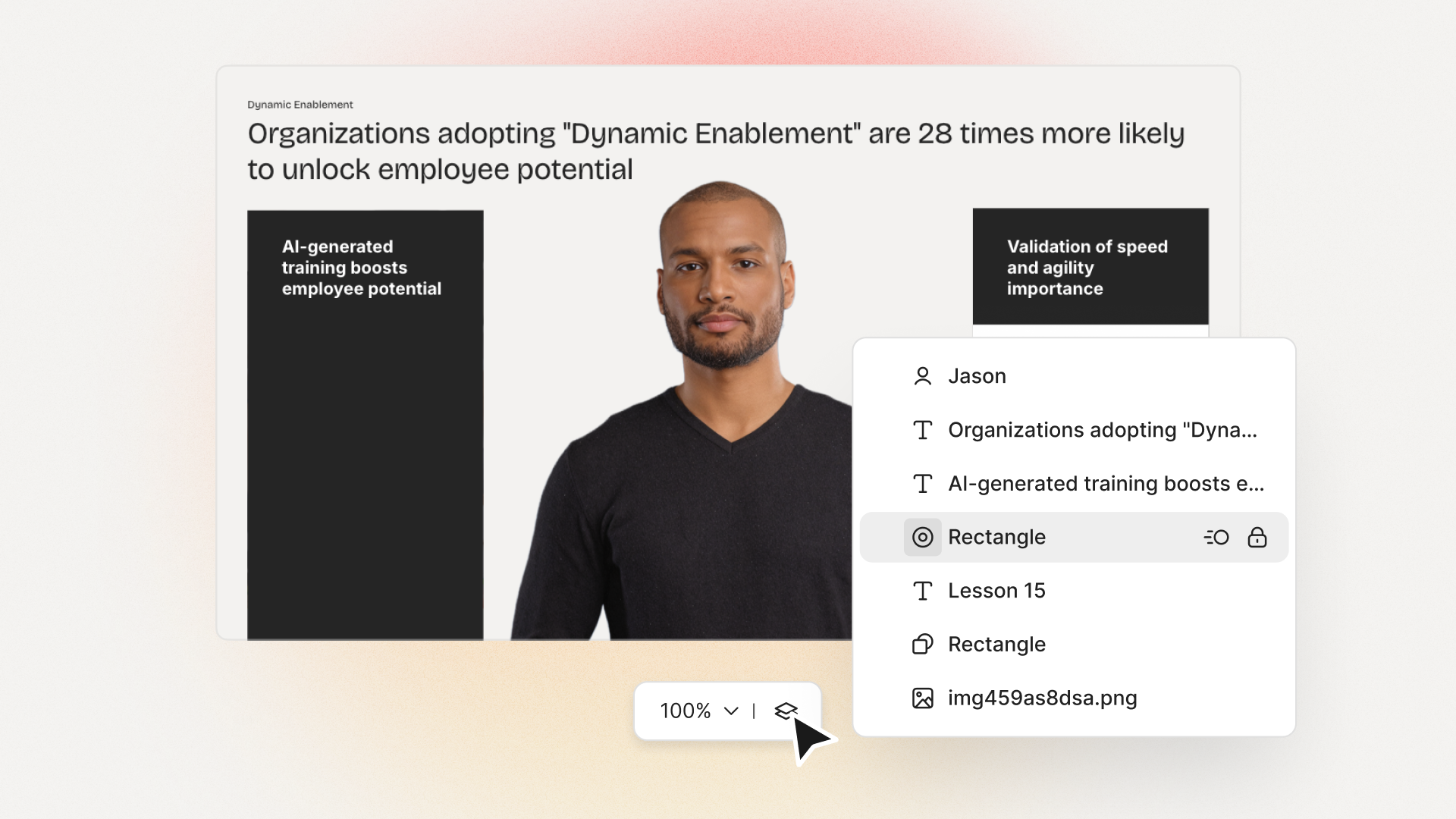
Our Doc to video feature allows you to upload SOPs, PDFs, or even PowerPoint files; the platform then splits them into scenes, pulling out speaker notes and draft scripts.
Step 4: script a conversational, step-by-step narrative
Focus the language on step-by-step actions - don’t use confusing jargon. Keep each script to 1–3 learning objectives. Plan to include on-screen text for key steps and definitions, and change scenes quickly.
I usually rely on our AI Assistant to tighten up scripts, add Pauses for pacing, and set up Pronunciations so brand acronyms are said correctly.
Step 5: set brand and structure before recording
People trust materials that look consistent. Using Brand Kits in Colossyan, I apply the right fonts, colors, and logos across all video modules. I resize drafts to match the destination - 16:9 for LMS, 9:16 for mobile.
Step 6: produce visuals (screencast + presenter)
For actual workflows, I capture a screen recording to show the clicks and UI. Whenever possible, I add an avatar as presenter to introduce context or call out tricky steps.
In Colossyan, our Media tab supports quick screen recordings, and avatars (with custom or stock voices) let you give a consistent face/voice to the training. Conversation Mode is handy for simulating help desk chats or scenarios. Animation Markers and Shapes allow precise callouts and UI highlights.
Step 7: voice, clarity, and audio polish
Audio should be clean and clear, with no awkward pauses or filler. Colossyan has a Voices library or lets you Clone Your Voice so all videos sound consistently on-brand. You can tweak intonation and stability or download audio snippets for SME approval. A quiet music bed helps with focus, but keep it low.
Step 8: make it interactive to drive retention
Adding a quiz or decision branch makes the training stick. Interactive checks turn passive watching into active learning.
In Colossyan, you can insert Multiple Choice Questions, set branching paths (“what would you do next?”), and set pass marks that connect to SCORM tracking.
Step 9: accessibility and localization
Always include captions or transcripts - not everyone can listen, and localization helps scale training globally. Colossyan exports closed captions (SRT/VTT) and has Instant Translation to spin up language variants, matching voices and animation timing.
Step 10: review and approvals
Expect several rounds of feedback, especially in compliance-heavy orgs. You want time-stamped comments, version control, and clear roles.
Colossyan supports video commenting and workspace management - assign editor/reviewer roles to keep it structured.
Step 11: publish to LMS, portal, or knowledge base
When a module is ready, I export it as MP4 for wider compatibility or SCORM 1.2/2004 for the LMS, set up pass marks, and embed where needed. Our Analytics panel shows watch time and quiz results; you can export all this as CSV for reporting if needed.
Step 12: iterate with data
Check where people drop off or fail quizzes. Tweak scripts, visuals, or interaction. In Colossyan, you can compare video performance side by side and roll improvements out by updating Templates or Brand Kits for large programs.
Real-world patterns and examples you can use
For onboarding, I build microlearning tasks (about 60–90 seconds each): “Sign in,” “Create record,” or “Export report.” Typical structure: 8-second objective, 40-second demo, 10-second recap plus a quiz. I use Doc to video for scene drafts, add avatar intros, screen-record steps, set an 80% pass mark on the MCQ, export as SCORM, and track who completed what.
For a product rollout, the avatar explains why a new feature matters, then a screencast shows how to enable it, with branching for “Which plan are you on?” Colossyan’s Conversation Mode and Instant Translation help cover more teams with less work.
In a compliance-critical workflow (like masking PII), I use on-screen checklists, captions, and a final quiz. Shapes highlight sensitive areas. SCORM export keeps audits easy since pass/fail is tracked, and results can be exported as CSV.
How long should software training videos be?
Stick to 2–7 minutes per topic. Most people lose focus in anything longer than 20 minutes. Microlearning modules (about 60 seconds each) help people find and review single tasks fast.
Tool and budget considerations (what teams actually weigh)
Teams without heavy design skills want fast, simple tools. Expensive or complicated solutions are a nonstarter source. Platforms like Vyond are powerful but can cost more. Simple tools like Powtoon or Canva keep learning curves short.
With Colossyan, you don’t need editing or design background. Doc/PPT-to-video conversion and AI avatars keep things moving quickly - just fix the script and go. You get quizzes, SCORM export, analytics, captions, and instant translation all in one spot. Brand Kits and Templates mean everything stays consistent as the program grows.
Production checklist (ready-to-use)
Pre-production:
- Define audience, outcome, and KPIs.
- Choose format and length.
- Gather source SOPs and SME notes.
- Storyboard objectives and scenes.
- In Colossyan: Set up folder, apply Brand Kit, import doc/PPT.
Production:
- Record screens, add avatar.
- Polish scripts; add Pronunciations, Pauses, Markers.
- Add on-screen text, set up captions.
- In Colossyan: Add MCQ/Branching, music, and role-play if needed.
Post-production:
- Preview, edit pacing.
- Export captions, generate language versions.
- Collect stakeholder sign-off using comments.
- Export MP4/SCORM, upload to LMS, set pass mark.
- Review analytics, iterate.
Sample micro-script you can adapt (“create a ticket”)
Scene 1 (10 sec): Avatar intro: “In under a minute, you’ll learn to create a high-priority support ticket.”
Scene 2 (35 sec): Screencast steps, on-screen labels: “Click Create, add a clear summary, choose Priority: High. In Description, include steps to reproduce and screenshots.”
Scene 3 (10 sec): Recap + MCQ: “Which field determines escalation SLA?” Choices: Priority (correct), Reporter, Label.
Colossyan makes it easy to add Pauses, highlight fields, set quiz pass marks, captions, and export to SCORM for tracking.
Measuring success and iterating
Track watch time and where people drop off. Look at quiz pass rates - are people passing the first time or not? If possible, watch operational KPIs like error rates after training.
With Colossyan, you can review analytics by video and by learner. Export to CSV for reports, then update underperforming modules quickly using Templates.
If you’re looking to turn manuals and processes into clear, trackable, and brand-consistent training videos, it’s possible to do all of it in one platform - and you don’t need to be an expert. That’s how I build, localize, and measure software training programs at Colossyan.





.avif)


%20(1).avif)


.webp)
.webp)