Editing video used to mean hours of dragging clips on timelines, endless cuts, and tedious voiceovers. Now you can automate huge chunks of the work-and skip most of the technical headaches. If you’re new to this, here’s how to use AI to edit video, Step by Step. I’m also going to share honest opinions on which tools make the process easiest, what still needs human input, and where my company Colossyan fits for training or educational videos.
What “AI video editing” actually means in 2025
There’s not just one kind of “AI video editor.” The big guide from Zapier shows three major categories:
AI-enhanced editors: These are classic video editors with AI features. For example, Adobe Premiere’s Object Mask beta can automatically detect and mask people, pets, and objects across frames, so you don’t have to rotoscope anything by hand. Wondershare Filmora offers smart silence detection, background removal, and other AI power-ups-even if the old-school timeline still hides underneath.
Fully generative text-to-video: These tools create entire videos “from scratch” based on a prompt-think Runway’s Gen-4 model or Google Veo. You tell the tool what story or scene you want, and it tries to generate visuals, transitions, sound, and sometimes even dialogue. Note: Many of these export with watermarks or credit limits, and not every result hits the mark.
Productivity/repurposing: These AI tools let you edit video by text (not timeline), auto-create clips, or use templates. Descript is a good example-you cut the video by editing the transcript. Riverside’s Magic Clips break up podcasts into social-ready clips. In this category, Colossyan converts a document or PPT straight into a narrated training video with scenes and AI avatars.
Bottom line: For talking head or L&D content, script-first editors save the most time. For GoPro or action footage, auto cleanup and template-based tools work best. For social marketing explainer videos, prompt-to-video systems are usually faster than starting from scratch.
Step-by-Step: Edit your first AI video (beginner friendly)
Step 1 - define the goal, audience, and channel
Before you start, decide what you’re making and who it’s for.
Are you building new-hire security training, a 60-second TikTok, or a YouTube GoPro highlights reel? Your goal determines your workflow, video style, and what AI features matter.
If you want to hit SEO, think about intent-driven keywords like “automatic video editing,” “AI GoPro editor,” or “AI training video creator.”
Step 2 - choose the right AI workflow
If you have docs or slides: In Colossyan, you can upload a PDF, PPT, or Word doc. Each page or slide becomes a scene with narration; speaker notes import automatically.
If you have a long recorded talk: Riverside turns video into a transcript and lets you edit the video by editing text. It even supports 100+ languages at high accuracy. Gling auto-removes silences and filler words and can save literal days of editing.
If you need to create from a prompt: Invideo AI builds scripts, finds stock clips, voiceovers, and music. You edit with short commands (“delete scene 2,” “switch 16:9 to 9:16,” “translate to French”).
If you want instant, mobile-friendly editing: Captions by Mirage auto-adds zooms, transitions, B-roll, and music, and can even generate a photorealistic AI twin from just a selfie.
Step 3 - bring in your source content
Colossyan: Upload your training PDF or slide deck; every slide turns into a new video scene.
Riverside: Record or import footage up to 4K and high-quality audio.
Gling: Drag in your raw talking head video or tutorial.
Invideo and Renderforest: Paste scripts or prompts, select a visual style.
Step 4 - auto-clean the rough cut (save hours)
Let AI strip away filler words, long silences, and background noise.
With Gling, this removes “many hours to whole days” of work according to creators with over 6M combined subscribers. Riverside and Captions correct eye contact and clean up noise.
If you’re a beginner-always do this before making creative edits. It’s the single largest time-saver.
Step 5 - edit by text (no timeline stress)
You don’t need to drag around timeline clips. With tools like Descript, you edit the video by editing the transcript: Cut a line of text and that chunk disappears from the video.
Invideo’s “Magic Box” lets you issue chat-like commands: delete scenes, mute audio, change up voiceover and aspect ratio in seconds.
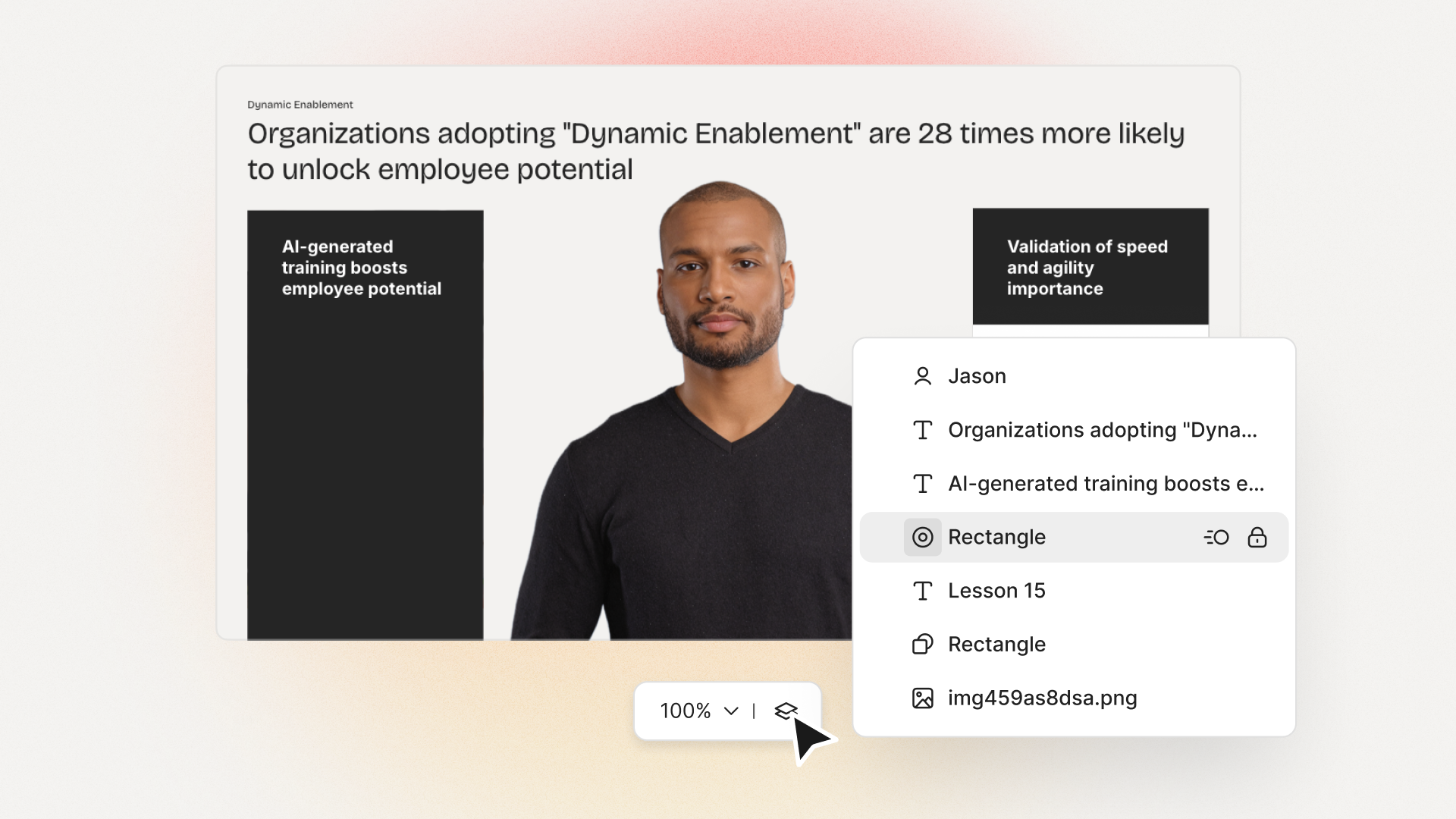
In Colossyan, I can rewrite my training script in the AI Assistant, insert pauses or animation markers, and update the whole video instantly. Zero timeline fiddling.
Step 6 - add voice, presenters, and correct pronunciations
Colossyan makes this straightforward. Assign a voice in any language (or clone your own voice for branding) and pick from our avatar library-or make an “Instant Avatar” from a short video of yourself.
This matters for training. If you need exact pronunciation (brand names, acronyms), add custom Pronunciations so the AI gets it right every time.
Scenario example: a compliance video where two avatars do a phishing awareness role-play, using a cloned company voice for intros and prompts.
Step 7 - style with templates, brand kit, B-roll, and music
Colossyan’s Templates + Brand Kits lock in your fonts/colors/logos for every video. Add on-screen shapes, upload product footage, insert stock clips, layer music.
Captions by Mirage will automatically insert B-roll, transitions, and zooms to fit the rhythm of TikToks or Shorts.
Step 8 - add captions and accessibility
Subtitles boost accessibility and global reach.
Captions, Riverside, and Colossyan all support auto-captions with high precision in dozens of languages. Export subtitles as SRT/VTT files if you need.
With Colossyan, use Pronunciations and Brand Kits to ensure names and technical terms stay correct on screen and in narration.
Step 9 - resize for each platform
Invideo can flip from 16:9 landscape to 9:16 vertical for TikTok or Instagram Reels by prompt.
In Colossyan, resize your canvas in the editor, and the grid helps align all elements cleanly for every aspect ratio.
Step 10 - localize and scale
Want your training in 10 languages? With Colossyan Instant Translation, you duplicate the video draft and everything-scripts, on-screen text, voices-gets auto-translated. You can assign multilingual presenters and voices. Each draft stays editable if you need to adjust layouts for longer/shorter text.
Step 11 - make it interactive and track results (training use case)
Colossyan lets you add MCQs (multiple-choice) or branching scenarios for interactive learning. Export the final video to SCORM format (1.2/2004) so your LMS will track completion and pass rates.
In Analytics, see how many learners started, finished, passed, and where they dropped off.
Step 12 - export and share
Colossyan supports MP4, audio-only, SCORM, or subtitles. Share via link, embed in your LMS, or download. Note that on free plans in Invideo, Renderforest, and some others, videos might carry watermarks or be limited in length/minutes.
Real-world beginner workflows (copy-and-adapt)
A: Turning a 10-page security policy into a training video
Upload to Colossyan as Doc/PDF, auto-generate scenes, add an avatar intro, sprinkle in MCQs, style with Brand Kit, and export SCORM for the LMS. Check analytics for pass rates.
B: Making Shorts and highlights from a Zoom presentation
Use Riverside to strip filler, output Magic Clips for Reels/TikTok, then Colossyan to create branded intros/outros and final captions.
C: GoPro “one-click” edit reality
Creators on Reddit say there’s no truly one-and-done solution yet. The best stack: Gling for sync/cleanup; Captions for automated transitions and B-roll; Invideo for script and music polish; Colossyan to add a quick avatar intro if you need a personal touch or safety note.
Tool quick picks and market examples
Captions by Mirage: Fast mobile edits; photorealistic AI twins; styled AI captions; auto B-roll/zoom; end-to-end in minutes for creators and small businesses. See feature list.
Riverside: Studio + editor; 4K/48kHz; AI Producer; Magic Clips; transcript editing; 99% caption accuracy.
Invideo AI: Command-based prompt editing; 50+ styles; 16M+ stock assets; instant translation and aspect ratio adjustment.
Adobe Premiere (AI): Classic editor with smart AI masking and "object find" in beta; gets tedious manual work out of the way.
Gling: Auto-cuts bad takes/silences for YouTubers; saves hours per edit; integrates with major NLEs. Endorsed by large creators.
Renderforest: Browser-based; thousands of templates; prompt-to-video generation; 34M+ users.
How Colossyan helps beginners specifically (L&D and beyond)
With Colossyan, I don’t need any video background to make professional learning content. I can upload a policy doc or training PPT and turn it into a narrated, scene-based video in minutes. Applying a Brand Kit means every video is instantly on-brand, no fiddling with colors or logos.
AI avatars deliver the script-either from a diverse stock library or an Instant Avatar based on one of our real trainers or execs. With Pronunciations, exact product or compliance terms come out right every time.
I can drop in interactive quizzes (multiple choice or branching), export as SCORM for our LMS, and track analytics: who watched, how long, who passed. Instant Translation lets us scale globally, duplicating a module into 10+ languages while keeping the flows and visuals consistent.
Most importantly, I don’t have to start from scratch or waste time re-recording if a policy changes. I edit the script, regenerate, and it’s done.
Beginner tips, pitfalls, and performance notes
Free tool versions may watermark or cap exports-removing these often costs more than expected.
Filmora and similar editors may lag on low-end PCs; test short edits before big workloads.
“Fully generative” tools can look generic if you don’t tweak; mix in branded assets and custom layouts where possible.
AI avatars can feel slightly uncanny at large/fullscreen sizes. For best results in training, I keep avatars smaller beside slides or UI walkthroughs.
A true “one-click” AI GoPro editor doesn’t really exist yet, despite market hype. For now, combine auto cleanup and templating for best results.




.avif)


%20(1).avif)


.webp)
.webp)