Transforming static images into engaging video is no longer just a creative exercise—it's a strategic necessity. Whether for training, marketing, or internal communications, dynamic content consistently outperforms static visuals. The challenge, however, is that while high-quality video production was once a barrier, a new problem has emerged: the fragmentation of the creative process. Today, you might use one tool to generate an image, another to animate it into a short clip, and yet another to add a voiceover. This disjointed workflow is inefficient, difficult to scale, and often results in inconsistent, off-brand content.
The real goal isn't just to make a single image move; it's to build a cohesive, professional video. This guide presents the best free image-to-video tools as essential components in a larger content strategy. We will evaluate each tool not just on its standalone features but on how it can serve as a starting point—a way to generate visual assets that can then be unified and elevated. The argument we will build is that while these free tools are powerful for creating individual video clips, a dedicated platform like Colossyan is necessary to assemble these disparate elements into a polished, scalable, and brand-aligned final product.
As you begin creating, remember that managing file sizes is crucial for seamless delivery across learning management systems. For a detailed breakdown on optimization, explore our ultimate guide to compressing video without losing quality. Let's dive into the tools that will form the building blocks of your new video strategy.
1. Colossyan – Image to Video for Professionals
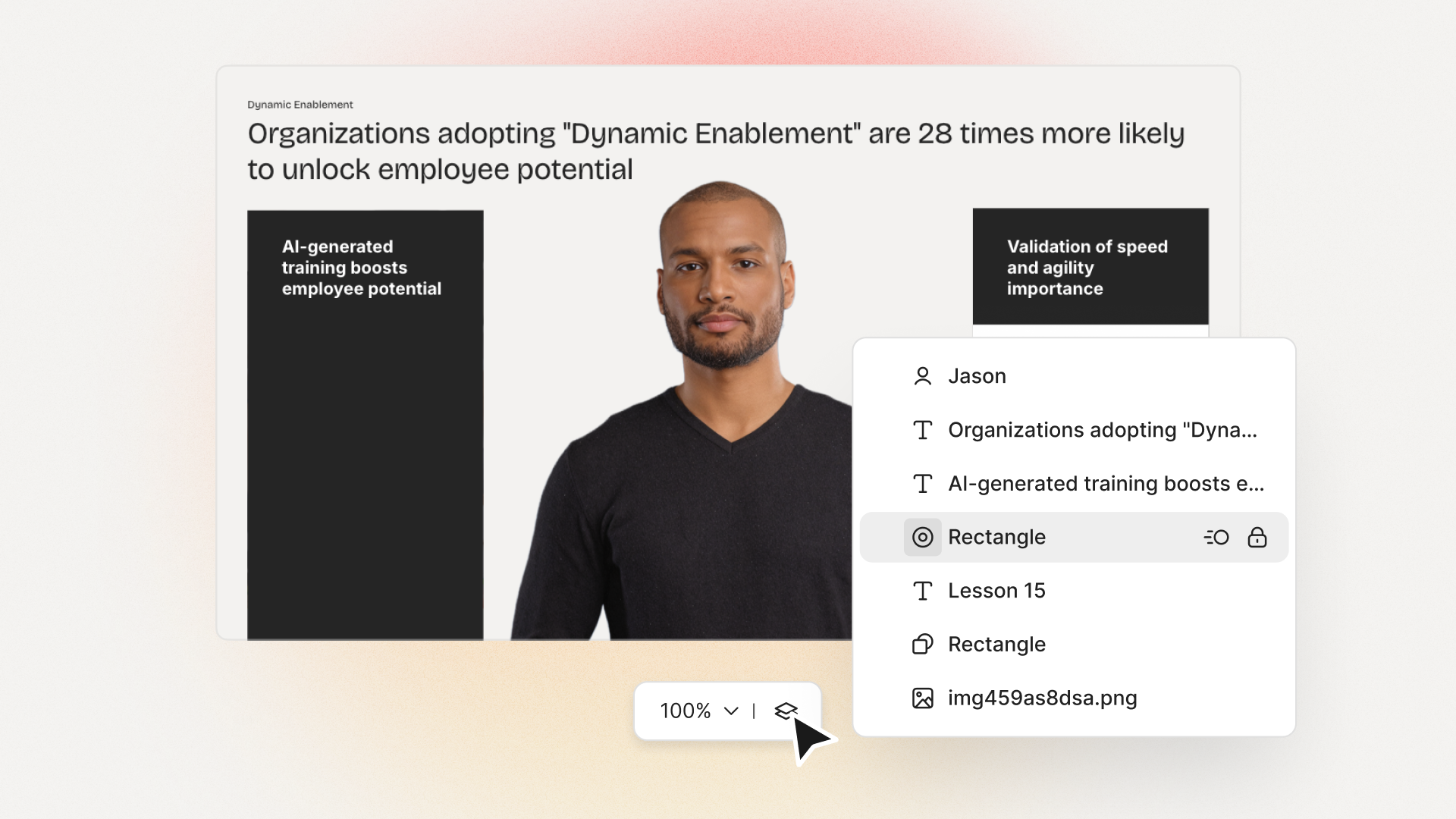
Colossyan isn’t just another image-to-video generator—it’s the platform that turns visual assets into fully produced, professional-grade videos. While most free tools help you generate motion from static images, Colossyan allows you to take that output and transform it into complete, on-brand videos with AI avatars, voiceovers, and translations. Rather than focusing solely on short animated clips, Colossyan is designed for corporate training, learning and development (L&D), and enterprise communications, providing the infrastructure to scale video creation across teams and languages.
Use Cases & Limitations
For L&D and corporate teams, Colossyan shines when you need more than motion—you need message consistency and scalability. You can import static images or animated clips (from tools like Luma AI, Pika, or Runway) directly into Colossyan, then script your narration, select lifelike AI presenters, and instantly generate videos in multiple languages. This makes it perfect for creating onboarding videos, policy explainers, or step-by-step training content without studio resources. The only limitation is that its free tier focuses on trial-scale creation; full scalability and brand customization require a paid plan.
Key Details: Best For: Creating full-length, branded training and communication videos from static or animated images. Pros: Professional AI avatars and voiceovers, multi-language translation, brand kit integration, collaborative workflows, and enterprise security. Cons: Free plan is limited to trial projects; advanced branding and collaboration features are available on paid tiers.
2. Luma AI – Dream Machine
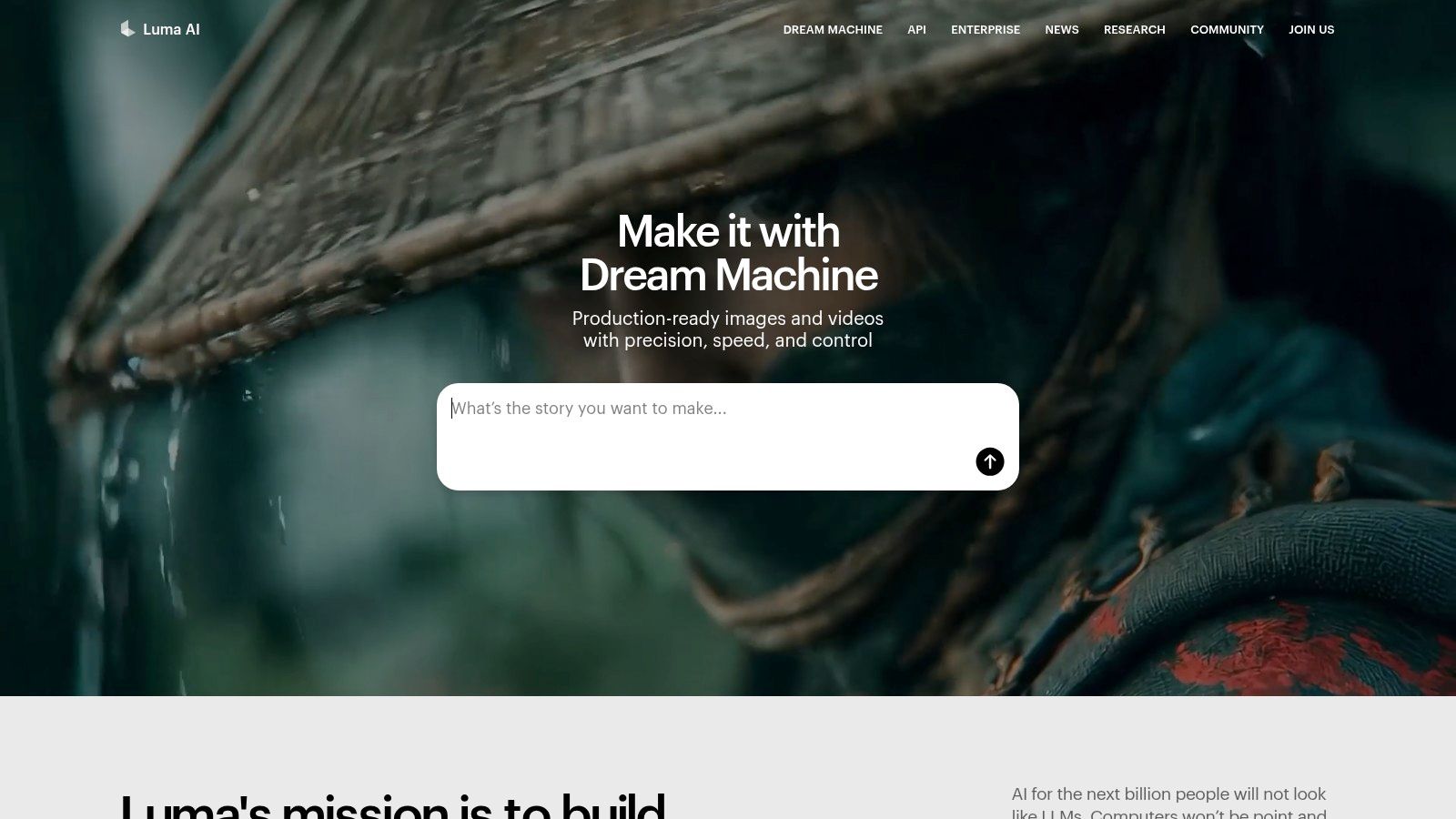
Luma AI’s Dream Machine is a powerful tool for anyone looking to generate short, high-fidelity video clips from a single image. It excels at creating realistic, physics-aware motion, making it an excellent choice for turning static product shots, concept art, or training illustrations into dynamic, engaging content. The platform's direct, prompt-based interface makes it simple to animate an image by describing the desired action, making it a strong contender for generating high-quality image to video free assets.
Use Cases & Limitations
For L&D teams, Dream Machine is ideal for creating brief, eye-catching video snippets to introduce a new training module or illustrate a key concept. For example, you could animate a static diagram of a new software interface to show a button being clicked. However, its primary limitation is the short clip length (5-10 seconds), which means it’s best for supplementary B-roll rather than a complete training video. While it is one of the best AI image to video generators, for longer-form narrative content, you'll need to combine its output with a platform like Colossyan to build a full-fledged educational video.
Key Details:
Best For: Creating high-quality, short animated clips with realistic motion for social media, presentations, or as B-roll in larger training videos.
Pros: Exceptional motion realism, transparent credit-based system, active model development.
Cons: Free plan has generation limits and watermarks; short clip length requires additional tools for creating full videos.
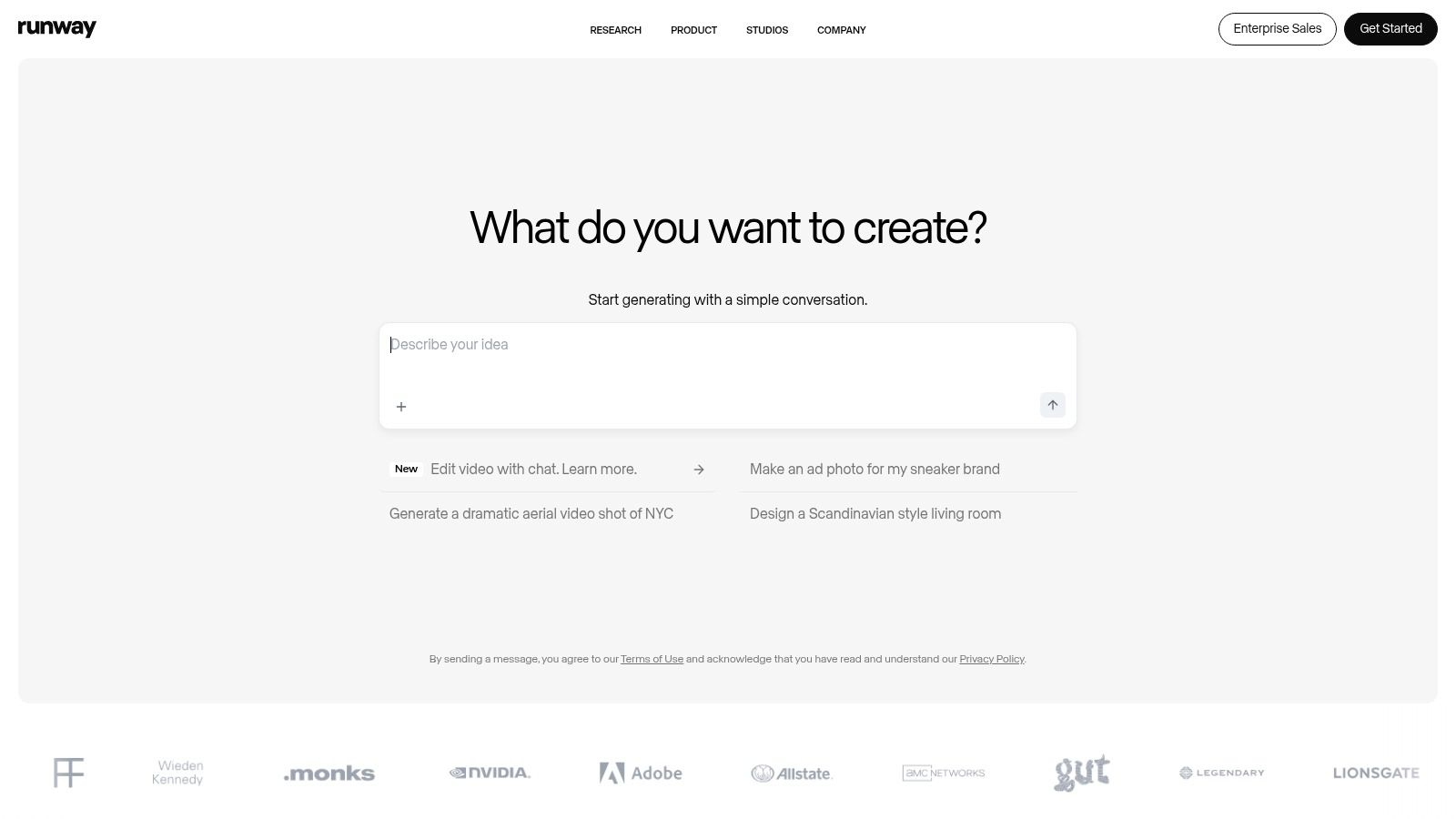
Runway is a comprehensive creative suite where professional-grade video editing tools meet powerful AI generation. It's designed for creators who need more than a simple generator, offering an integrated workflow to turn a static image into a polished video clip. With its state-of-the-art models like Gen-3, users can animate images with precise control, making it a go-to platform for producing high-quality image to video free content within a familiar editor interface.
Use Cases & Limitations
For L&D teams, Runway is excellent for creating detailed animated sequences, such as showing a complex mechanical process or bringing a static product illustration to life for a sales enablement video. Its studio-like environment allows for more granular control over the final output. However, the free one-time credit allocation is quickly depleted, and the full suite has a steeper learning curve than simpler tools. For building comprehensive training modules, creators can use Runway to generate key visual assets and then import them into a platform like Colossyan to add narration, quizzes, and structure.
Key Details:
Best For: Creative professionals and L&D teams needing an all-in-one platform for generating and editing high-fidelity video clips.
Pros: Studio-grade editor combined with AI generation, transparent per-second credit costs, access to multiple state-of-the-art models.
Cons: Free credits are a one-time grant, the platform can be complex for beginners, and costs can escalate for longer videos.
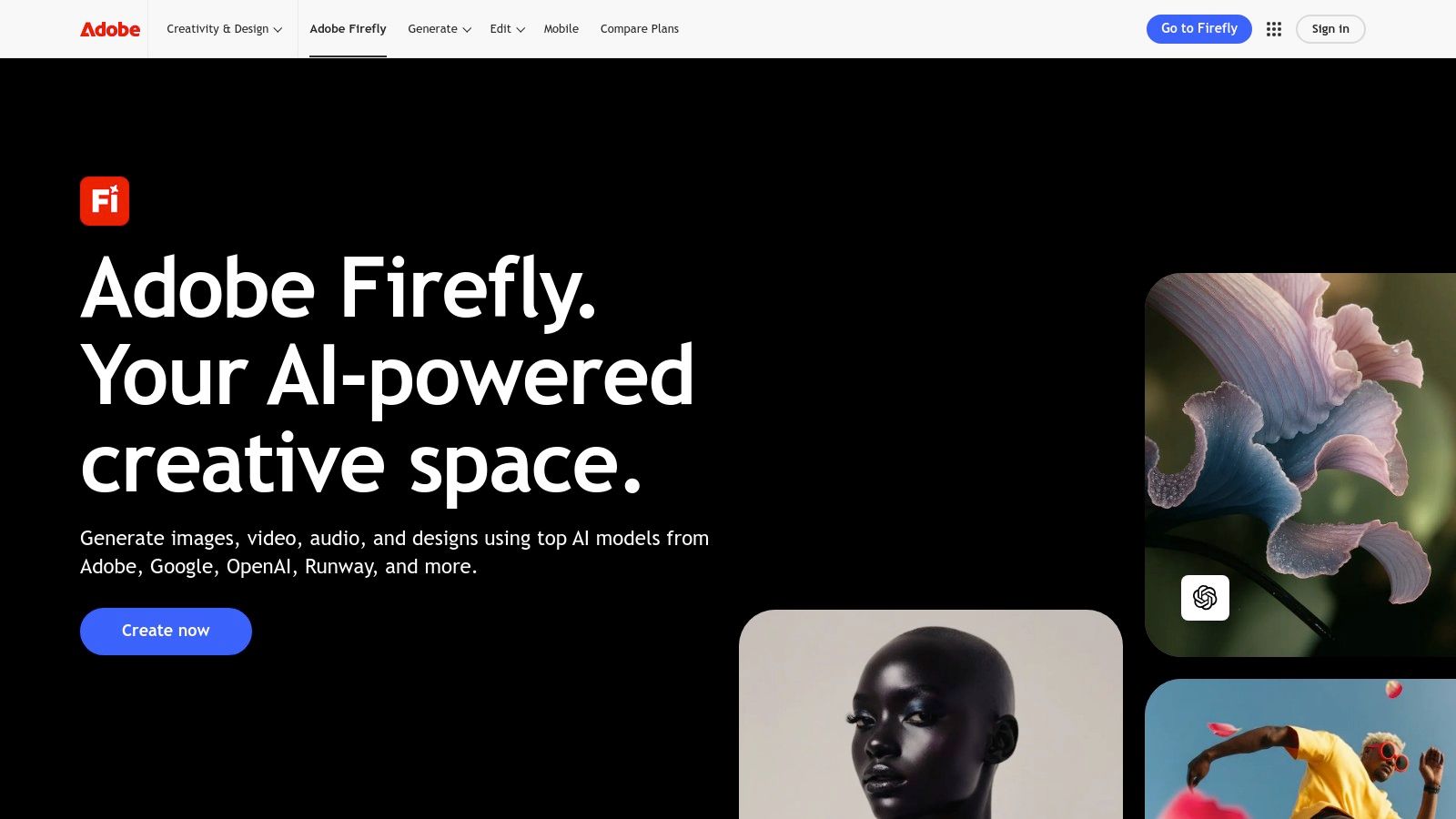
Adobe Firefly’s Generate Video function is a powerful addition to the Creative Cloud ecosystem, allowing users to create short 1080p video clips from a single image or text prompt. Its key advantage is its deep integration with applications like Photoshop, Premiere, and Express. This makes it a seamless choice for creative and L&D teams already invested in Adobe’s software, providing a streamlined workflow from image creation to video editing. The platform emphasizes its commercially safe model, offering legal and commercial safeguards for content generated, which is crucial for enterprise use cases.
Use Cases & Limitations
For corporate training, Firefly is excellent for animating static assets like product images or workflow diagrams to create brief, explanatory clips. You could animate a screenshot to illustrate a new software feature for an onboarding tutorial. However, with a clip duration of around 5 seconds, it's not suited for creating comprehensive training modules on its own. While you can learn more about how it stacks up against other image to video AI converters, the best workflow involves using these Firefly clips as B-roll and assembling them into a longer, more structured educational video with a platform like Colossyan.
Key Details:
Best For: Creative Cloud users needing to quickly animate static images for use in larger video projects, presentations, or social media.
Pros: Strong ecosystem integration, legal/commercial guardrails provided, well-documented credit system and plans.
Cons: Short clip durations (≈5 seconds); video generation consumes premium credits and best features are on paid tiers.
Leonardo.ai is an all-in-one generative art suite that includes a powerful image-to-video feature called Motion. This platform is built for creators who need fine-tuned control over their generative workflows, offering different motion models and a flexible token-based system. Its integration within a broader creative toolkit makes it a strong choice for teams looking to generate initial visual concepts and animate them without leaving a single ecosystem, making it a versatile tool for creating image to video free assets on its daily free credit allowance.
Use Cases & Limitations
For L&D professionals, Leonardo is excellent for generating and animating custom illustrations or concept art for training materials, such as visualizing a hypothetical customer interaction or a complex safety procedure. The ability to create an image and immediately animate it streamlines content creation. However, like other generative tools, it produces short, isolated clips. For comprehensive training modules, these animated visuals serve best as B-roll. They can be imported into a platform like Colossyan to be sequenced, narrated, and transformed into a structured, full-length educational video.
Key Details:
Best For: Creative teams and artists who want an integrated suite for generating and animating their own AI-created images.
Pros: Flexible token economy with daily free credits, choice between different motion models, integrated within a full generative art platform.
Cons: Higher-quality motion models consume more credits and can be costly; free plan has limits and lacks privacy features.
PixVerse is a dedicated AI video generator that excels in offering users transparent, resolution-based credit pricing for its image-to-video capabilities. Its interface allows for straightforward generation of 5- to 8-second clips at various quality levels, from Turbo to full 1080p. This makes it a great choice for teams that need to produce consistent visual assets and want to precisely forecast costs, standing out as a practical image to video free option thanks to its daily credit allowance.
Use Cases & Limitations
For L&D professionals, PixVerse is useful for creating quick, animated visuals to explain a process or highlight a feature in a product tutorial. For instance, animating a static screenshot of an ERP system can demonstrate a workflow step. However, like other short-form generators, its output is best used as B-roll. To create a comprehensive training module, these short clips should be imported into a platform like Colossyan, where they can be sequenced with narration, text, and other media to build a complete instructional video.
Key Details:
Best For: Teams needing clear, predictable pricing for creating short, high-resolution animated clips for product explainers or training intros.
Pros: Transparent per-clip pricing by resolution, frequent model updates, and a free daily credit allowance.
Cons: Varied plans across different storefronts can be confusing; highest-quality outputs consume credits quickly.
Haiper is an accessible AI video platform designed for creators who need both a straightforward web interface and the flexibility of an API. It offers reliable image-to-video and text-to-video generation with a transparent, per-second credit system, making it easy to predict costs for projects. Its standout feature is its simplicity and clear pricing, which appeals to developers and teams looking to integrate automated video creation into their workflows or create quick, animated visuals without complex tools.
Use Cases & Limitations
For L&D teams, Haiper is a practical tool for generating short, animated clips to visualize a concept or add motion to a static slide. You could, for example, animate a product photo to show it in a new context for a sales enablement video. However, like many specialized AI tools, it generates short clips, not full-fledged training modules. The platform’s output is best used as supplementary material within a larger project. To build a comprehensive educational video, you would need to import these clips into a platform like Colossyan, where you can add narration, structure, and interactive elements.
Key Details:
Best For: Developers and creators needing a simple API and transparent pricing for generating short video clips for integration or social media.
Pros: Clear per-second credit system, competitive entry-level pricing, and API access for programmatic video generation.
Cons: Primarily focused on short clips with limited long-form editing features; the free tier has generation limits and watermarks.
CapCut is an all-in-one video editor from ByteDance that has become a powerhouse for rapid content creation, particularly for social media and e-commerce. Its AI image-to-video feature is seamlessly integrated into a broader suite of tools, including a massive template library, AI script generation, voiceovers, and auto-captioning. This makes it an incredibly efficient solution for turning a static product image or promotional graphic into a polished, trend-driven video clip in minutes.
Use Cases & Limitations
For L&D teams needing to create quick, informal training snippets or social-style announcements for internal channels, CapCut is a fantastic tool. You can easily animate a key slide from a presentation to create a promotional teaser for an upcoming webinar. However, its strength in template-based, short-form content is also its limitation for structured corporate training. While you can produce an engaging clip, building a comprehensive, brand-compliant learning module requires a more robust platform. For that, you would use CapCut for quick asset creation and then import those clips into a tool like Colossyan to add professional avatars, consistent branding, and interactive course elements.
Key Details:
Best For: Rapidly creating short, template-driven videos from images for social media marketing, e-commerce ads, and informal internal communications.
Pros: Extensive free features and templates, all-in-one editing environment, available on web, desktop, and mobile.
Cons: Feature availability can be inconsistent across regions and app versions; primarily designed for consumer trends, not corporate L&D standards.
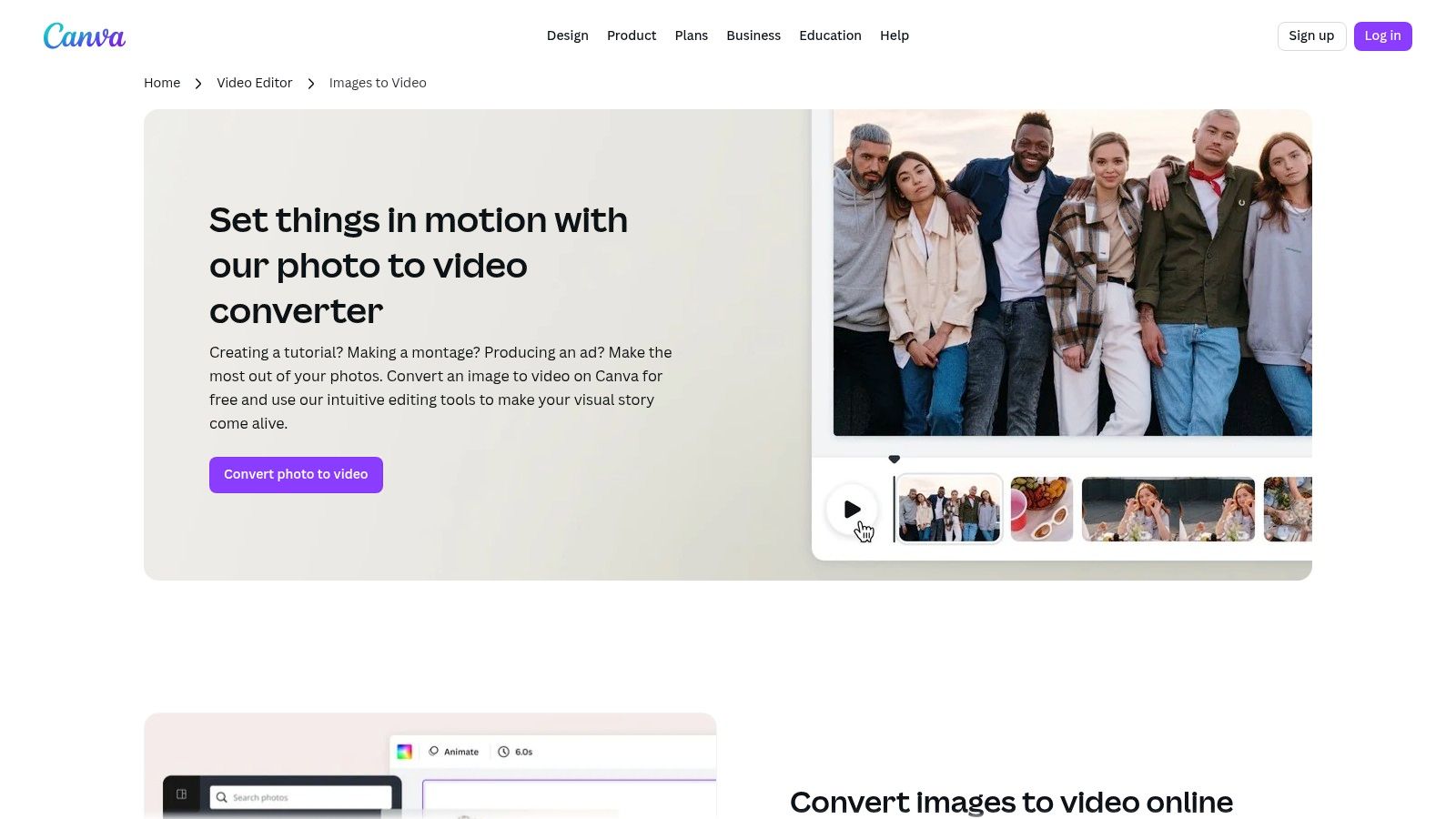
Canva has evolved from a simple graphic design tool into a comprehensive content creation suite, and its video features are a testament to that growth. With tools like Magic Media, users can generate short video clips from images and text prompts, while the core Photo to Video editor allows for assembling multiple static images into a cohesive video narrative. This makes it a fantastic starting point for L&D teams needing to create simple, template-driven, and image to video free content like onboarding slideshows or explainer videos quickly.
Use Cases & Limitations
Canva is ideal for creating visually appealing internal communications, social media-style training announcements, or simple step-by-step guides using a series of static images. For instance, an HR team could quickly assemble an animated video explaining a new company policy using pre-designed templates and stock assets. However, its AI video capabilities are less advanced than dedicated generators, and it lacks features like professional voiceovers or customizable AI avatars. For more polished, professional training modules, teams can use Canva to create the initial visual assets and then import them into a specialized platform like Colossyan to add narration and interactive elements.
Key Details:
Best For: Quickly assembling multiple images into a single video narrative for social media, internal comms, or simple instructional content.
Pros: Extremely easy to use with a vast library of templates and assets, seamless mobile and desktop experience, watermark-free MP4 exports on the free plan.
Cons: AI video generation features are limited on the free tier; lacks advanced narration and avatar features needed for professional L&D content.
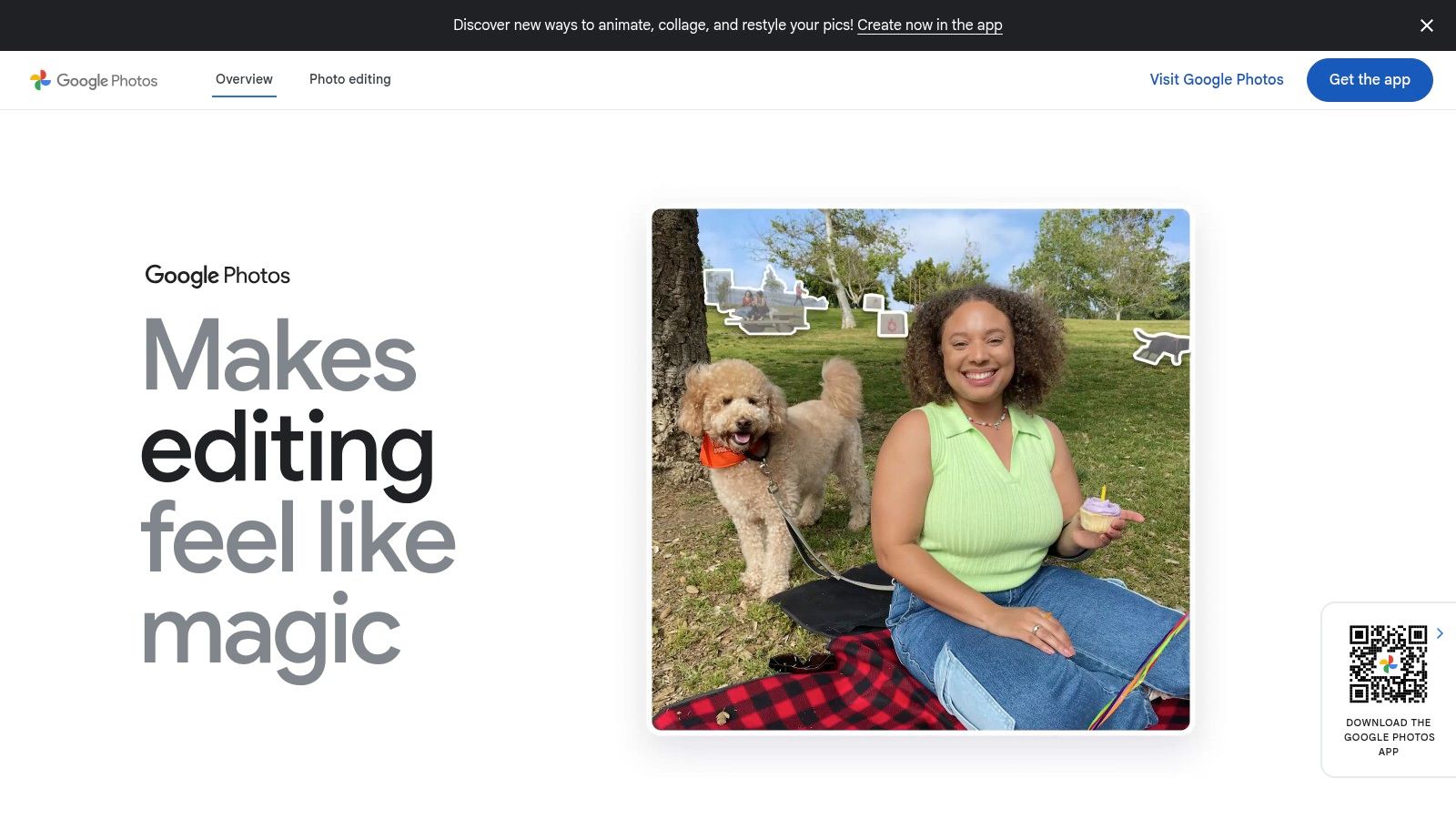
Google Photos is rolling out a consumer-focused feature that brings simple animation directly to your camera roll. This tool allows users to animate a still image with subtle, preset movements with a single tap, making it one of the most accessible options for quick, personal video creation. For L&D professionals, this provides a zero-friction way to add a touch of motion to an otherwise static photo, perfect for informal communications or quick social media updates. The integrated approach makes it an incredibly convenient image to video free tool for anyone already using the Google ecosystem.
Use Cases & Limitations
In a corporate training context, Google Photos can be used to quickly animate an image of a team event for an internal newsletter or add gentle motion to a headshot for an introductory slide. Its biggest strength is its simplicity; there is no learning curve. However, this simplicity is also its main limitation. The creative controls are minimal, and clip lengths are very short. While useful for creating simple assets, those interested in making video content from photos with more narrative depth will need a dedicated platform like Colossyan to integrate these clips into a structured, professional training module.
Key Details:
Best For: Creating quick, simple animations from personal photos for informal social posts or internal communications without leaving your photo gallery.
Pros: Completely free and integrated into a widely used app, requires zero technical skill, includes safety features like SynthID.
Cons: Extremely limited creative control and short clip duration, feature availability is currently restricted by region (US-first rollout).
Kapwing is an accessible, browser-based video editor that excels at turning static images into polished video content. It offers a comprehensive suite of tools, including AI-powered animations, a full timeline editor, and robust options for adding subtitles and translations. This makes it a fantastic tool for creating packaged social media content or short instructional segments. For those looking for an all-in-one platform to take an image to video free of charge and immediately add professional touches like text overlays and audio, Kapwing is a strong contender.
Use Cases & Limitations
For L&D teams, Kapwing is ideal for quickly assembling a series of static diagrams or screenshots into a simple slideshow-style video with voiceovers and captions. Its strength lies in packaging and accessibility, not advanced AI animation. While the editor is robust, the free version limits exports to 720p and includes a watermark. For creating more dynamic, AI-driven training content without watermarks and with professional voice actors, integrating a specialized tool like Colossyan is necessary to elevate the final product for corporate learning environments.
Key Details:
Best For: Creating social media-ready videos from images, adding subtitles, and performing basic timeline edits in a browser.
Pros: No installation required, strong subtitle and translation features, user-friendly editor with stock assets.
Cons: Free exports are watermarked and limited to 720p; advanced features and higher-resolution exports require a paid plan.
Microsoft Clipchamp is a robust, user-friendly video editor that serves as an excellent tool for turning a series of images into a professional-looking video. Integrated directly into the Windows and Microsoft 365 ecosystem, it excels at creating polished slideshow-style videos using templates, titles, transitions, and music. Its most compelling feature is the unlimited watermark-free 1080p exports on its free tier, making it a standout choice for creating high-quality image to video free content without intrusive branding.
Use Cases & Limitations
For L&D teams, Clipchamp is perfect for building onboarding presentations, photo-based explainers, or step-by-step visual guides. You can easily combine product screenshots and stock photos to create a cohesive training module. However, Clipchamp lacks the advanced generative AI features found in specialized tools. To elevate its output, you can create a base video in Clipchamp and then import it into a platform like Colossyan to add a professional AI-generated voiceover, making the training content more engaging and accessible for a global audience.
Key Details:
Best For: Creating polished slideshows, simple marketing videos, and training presentations from static images with professional titles and transitions.
Pros: Truly free 1080p exports without watermarks, easy-to-use timeline editor, and seamless integration with the Microsoft ecosystem.
Cons: Advanced features like 4K exports and premium stock are locked behind a Microsoft 365 subscription; lacks cutting-edge generative AI capabilities.
Creative Cloud users and post-production workflows
Deep CC integration; legal/commercial safety
Leonardo.ai
Motion 1.0 / Motion 2.0 models; team/API features
Variable fidelity; relaxed/unlimited tiers
Token-based economy with rollover
Artists & teams needing model choice & API
Flexible token system; private generations
PixVerse
Image→Video with resolution tiers (Turbo/1080)
5s/8s clips; resolution-based output
Transparent per-resolution credit pricing
Teams/devs needing predictable API costs
Clear pricing; easy cost estimation
Beyond Free Tools: When to Scale Your Video Strategy with Colossyan
As we've seen, the world of image to video free tools is filled with powerful options for creating short, dynamic clips. Tools like Luma AI, Pika, and Runway excel at generating eye-catching B-roll, while platforms like Canva and Microsoft Clipchamp make it easy to assemble static images into simple, narrative videos. Each serves a valuable purpose in the initial stages of content creation, allowing you to experiment and produce individual assets quickly and without cost.
However, this is where the journey with free tools ends and the real challenge for businesses begins. The core problem is that these tools create fragments, not finished products. You end up with a folder of disparate video clips, each with a different style, quality, and no unifying voice or message. Assembling these pieces into a coherent, professional, and on-brand training module or marketing video requires a different class of solution—one that moves beyond simple asset generation to true video synthesis.
From Asset Generation to a Unified Video Strategy
The limitations of a fragmented workflow become clear when you need to scale. Watermarks, resolution caps, short clip lengths, and a lack of brand controls make it impossible to maintain consistency across a library of corporate content. More importantly, these tools lack the essential features for professional communication:
Consistent Narration: Adding a clear, professional voiceover across multiple clips is difficult and time-consuming.
Brand Alignment: Enforcing brand kits, logos, and fonts consistently is a manual, error-prone process.
Scalable Localization: Translating content into multiple languages requires re-editing every single video asset from scratch.
Collaborative Workflows: There is no centralized place for stakeholders to review, comment, and approve content, leading to endless email chains and version control issues.
This is the critical gap that a platform like Colossyan is designed to fill. While you can continue to use the Best UGC Creator Tools or the free generators on this list to create initial visual concepts and B-roll, Colossyan acts as the central hub where these assets are transformed into a complete, professional video.
Colossyan: The Solution to a Fragmented Workflow
Think of the free tools as your raw material suppliers. They provide the animated backgrounds, the dynamic product shots, and the illustrative clips. Colossyan is the factory where these materials are assembled, refined, and packaged into a final product ready for enterprise distribution.
Instead of just animating a single image, Colossyan allows you to:
Unify Your Content: Import your generated clips and images, arranging them into scenes within a single, cohesive project.
Add a Professional Voice: Use lifelike AI avatars and voiceovers to provide consistent, clear narration across your entire video, instantly localizing it into dozens of languages with the click of a button.
Enforce Brand Standards: Apply brand kits, custom fonts, and logos automatically to ensure every video is perfectly aligned with your corporate identity.
Streamline Collaboration: Work within a single platform where your team can collaborate, review, and finalize content efficiently.
The argument is simple: free tools are for making parts; Colossyan is for building the whole. By leveraging the creativity of image to video free generators for asset creation and the power of Colossyan for production and finalization, you can build a scalable, efficient, and professional video strategy that overcomes the limitations of a fragmented workflow.
Ready to move beyond the limitations of free tools and build a scalable, professional video training program? Colossyan Inc. provides a secure, enterprise-ready AI video platform designed for L&D and training teams. Transform your scripts and static content into high-quality, branded videos with AI avatars in minutes, not weeks. Explore Colossyan Inc. today and see how you can elevate your corporate learning strategy.
As a product manager at Colossyan, David develops interactive features that help workplace learning teams produce more engaging video content. Outside of work, David enjoys singing and nerding out over fantasy books. He lives in London.
Networking and Relationship Building
Use this template to produce videos on best practices for relationship building at work.
Oops! Something went wrong while submitting the form.
example
Thank you - your video is on its way!
If you’d like to try out Colossyan and create a video yourself, just visit our website on your desktop and sign up for a free account in seconds. Until then, feel free to check out our examples.










.avif)


%20(1).avif)



.webp)
.webp)