The video waits for the viewer
Each scene stops until the viewer clicks the right spot, so they do it instead of watching it.
Colossyan Screen Capture is a free Chrome and Edge extension. Narrate as you click, review every step, then turn it into an interactive video, a full course* or a step-by-step PDF guide.
*Course conversion is coming soon.



Colossyan Screen Capture records your clicks, screenshots and narration in any website or web app, then builds an interactive video where each step waits for the viewer to click.
It lands as an editable Colossyan video. Add a presenter, translate it into 100+ languages, and share it as a link, an embed or a SCORM package with completion tracking. Or turn the same capture into a full course*, with nothing to rebuild in another tool.
Each scene stops until the viewer clicks the right spot, so they do it instead of watching it.
Click any part of the screen to hide it. The capture pauses while you pick.
Resize a hotspot, rewrite a line, add an avatar or translate it. It is a normal draft, not a locked file.
Every step shows its screenshot, its click and its script. Reorder or delete steps, paste in a better screenshot, zoom in, or drag a click to the right spot.
Need it on paper too? Turn the same capture into a PDF with every screenshot, click and instruction in order.
Capture the process once and turn it into a complete course, without rebuilding it in another tool.
Training teams rate
Colossyan 4.6 on G2.

The ease of content update and cost savings are remarkable.
 Kristin B.Lecturer and Programme Developer, QAQF
The AI technology they’ve built into their software is truly cutting-edge and has significantly improved our new hire training program productivity.
 Franklina T.HR Project Manager, DSV
The ease of using Colossyan Creator to create engaging learning materials has been a game changer.
 Jill E.Curriculum Manager, HIIT Training
The capture builds a draft you can edit, not a recording you have to accept.
Add the extension to Chrome or Edge, start a capture and click through the flow as your viewer would. Each click becomes a step. Pause, restart or blur at any time.

Check each step's screenshot, click marker and script, which fills in from your narration. Reorder, duplicate or delete steps, replace a screenshot, zoom and pan, or move a click that landed wrong.
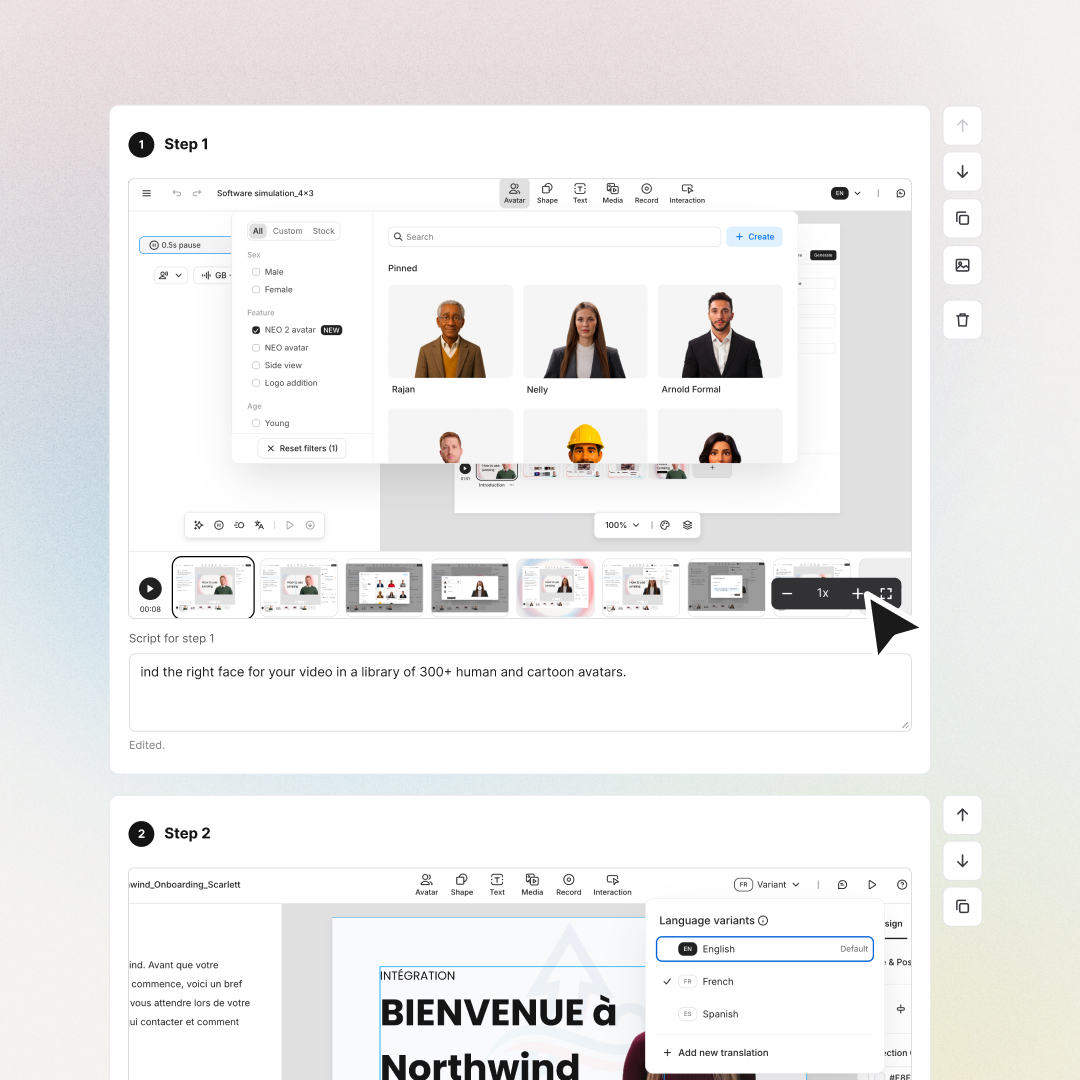
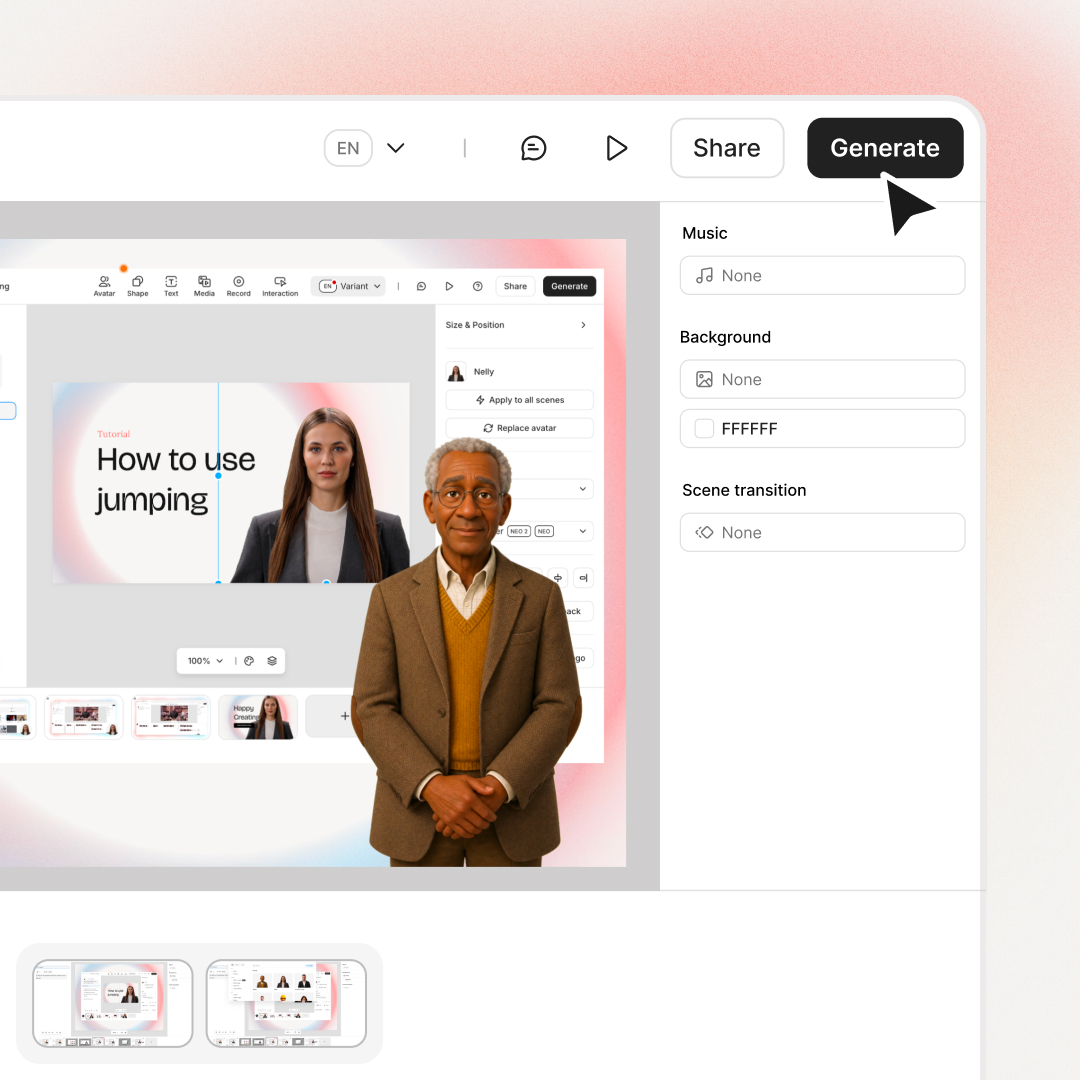
Convert it to an interactive video or a full course*, then share a link, embed it or export it to your LMS as SCORM. Need it on paper too? Export the same capture as a step-by-step PDF guide.
If you can show it in a browser, you can capture it. Software training is where most teams start.
Every walkthrough is a normal Colossyan draft, so the whole
editor works on it.
A screen recording and a text to video give people something to watch. An interactive walkthrough makes them do it.
Still building click-box simulations in Adobe Captivate? Colossyan Screen Capture covers the core: invisible hotspots, hints, branching and SCORM completion, plus AI narration, avatars and translation. One library, not two.
Browser extensions get reviewed before approval. Check every vendor, including us.
Listed on the Chrome Web Store and Edge Add-ons, so admins manage it with their usual browser policies.
It needs access to the sites you record to capture clicks and screenshots. We’ll walk your security team through each permission.
Blur any part of the screen during a capture to keep sensitive data out.
Covered by the Colossyan platform: SOC 2 Type II, GDPR, SAML SSO and EU or US data residency.
Walkthroughs you create are yours to use commercially, like every other Colossyan video.
Colossyan Screen Capture is a free Chrome and Edge extension that turns a narrated click-through of any website or web app into an interactive walkthrough video. Each click becomes a scene, your narration becomes the script, and viewers click the right spot to move on. You can also export the capture as a PDF guide.
Install Colossyan Screen Capture in Chrome or Edge, start a capture, and click through the process while you narrate. When you stop, review each step's screenshot, click and script. Then convert it to an interactive video that you can edit, translate into 100+ languages and share.
A software simulation is an interactive training video that walks learners through a system step by step. Each step pauses until the learner clicks the right place, so they practice the task instead of watching it. Colossyan Screen Capture builds software simulations from a narrated click-through, as a draft you can edit.
A screen recording is a video viewers watch from start to finish. An interactive walkthrough pauses at every step until the viewer clicks the right place, so they complete the task themselves. Colossyan Screen Capture creates interactive walkthroughs that can report completion to your LMS through SCORM.
Soon. Turning a Colossyan Screen Capture walkthrough into a full course is coming to the extension. Today, you can convert a capture into an interactive video, add a knowledge check, and export it to your LMS as SCORM 1.2 or 2004 with completion.
Colossyan Screen Capture works for anything you would show someone in a browser. Teams use it for software training and simulations, product tours, customer onboarding, help center how-tos, sales demos, SOPs and job aids.
Yes. Colossyan Screen Capture is free for everyone. Install it from the Chrome Web Store or Microsoft Edge Add-ons, sign in to your Colossyan account, and start capturing.
Colossyan Screen Capture works in Chrome and Edge, on any website or web app that opens at a web address, including internal tools. It cannot capture desktop applications, files opened straight from your computer, or anything outside the browser.
Yes. When you stop a Colossyan Screen Capture recording, a review screen shows every step with its screenshot, click and script. You can edit the script, reorder, duplicate or delete steps, replace a screenshot, zoom and pan, or drag a click that landed in the wrong place.
Yes. After reviewing a capture, choose Export as PDF to get a step-by-step guide with every screenshot, click and instruction in order. The same Colossyan Screen Capture recording can also become an interactive video, so the guide and the walkthrough always match.
Open the draft and start a new Colossyan Screen Capture recording from inside it. Capture only the step that changed, and the new scenes are added to the draft. Swap them in for the old ones, and the rest of the walkthrough stays as it was.
Share a Colossyan Screen Capture walkthrough as a link, embed it on a web page, or export it to your LMS as SCORM 1.2 or 2004 with completion. If someone prefers to read, send the PDF guide exported from the same capture.
Yes. Select Blur during a Colossyan Screen Capture recording and click any part of the screen to hide it. The capture pauses while you choose, then resumes, so your narration stays uninterrupted.
No. Narration is optional in Colossyan Screen Capture. If you click without speaking, each step is still captured, and you can write the script on the review screen or later in the editor.
Not yet. Today, Colossyan Screen Capture captures clicks, screenshots and narration, which is everything an interactive walkthrough needs. Screen recording is coming to the extension soon.
For click-through software simulations, Colossyan Screen Capture covers the core Adobe Captivate workflow: invisible hotspots, hints, branching and SCORM completion. It adds AI narration, avatars and translation into 100+ languages in the same tool, so teams keep one library instead of two.
Free to install. Capture once, then turn it into a video, a course* or a PDF guide.