Record what you need
Capture a tab, a window or your whole screen, with your camera and microphone on or off.
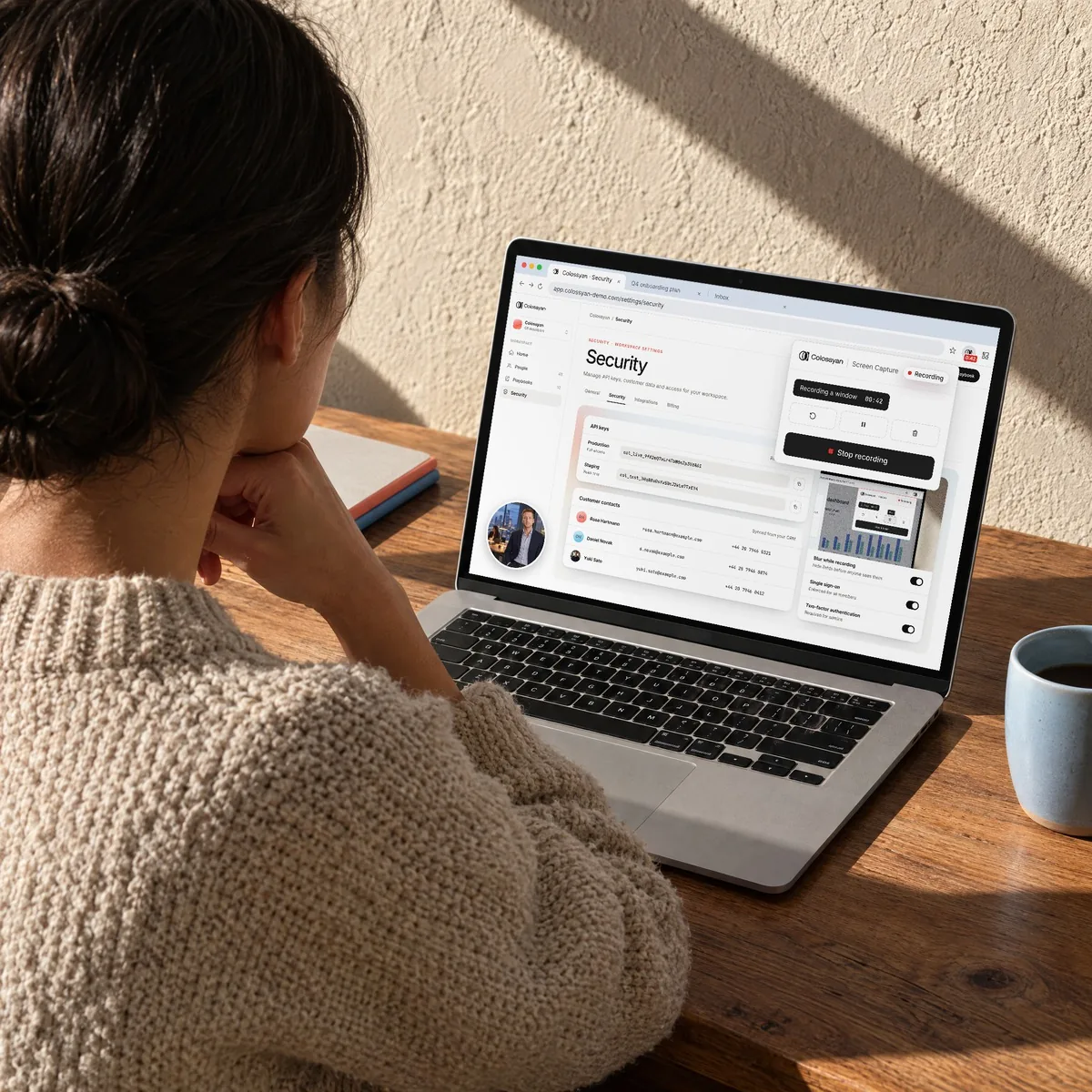

Colossyan Screen Recorder is a free Chrome and Edge extension. Record a tab, a window or your whole screen, add zooms, blurs and highlights in your browser, and download it as an MP4. When you want more, send it to Colossyan for a presenter, a voice and 120+ languages.


Most screen recordings show everything and point at nothing. Colossyan Screen Recorder lets you guide the eye after you record, so viewers see the click that matters instead of hunting for it.
Capture a tab, a window or your whole screen, with your camera and microphone on or off.
Add a zoom to any moment on the timeline, so small buttons and settings are easy to read.
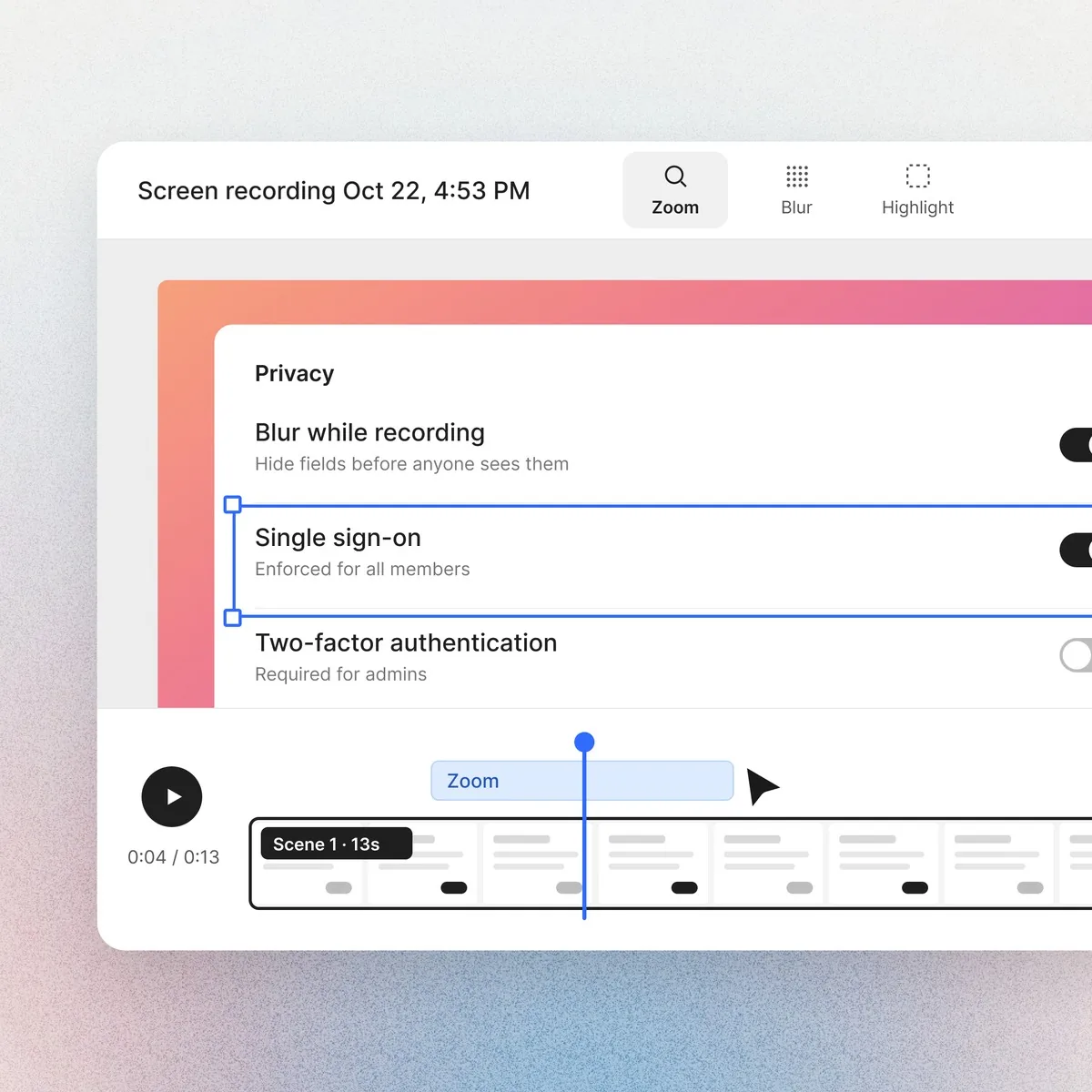
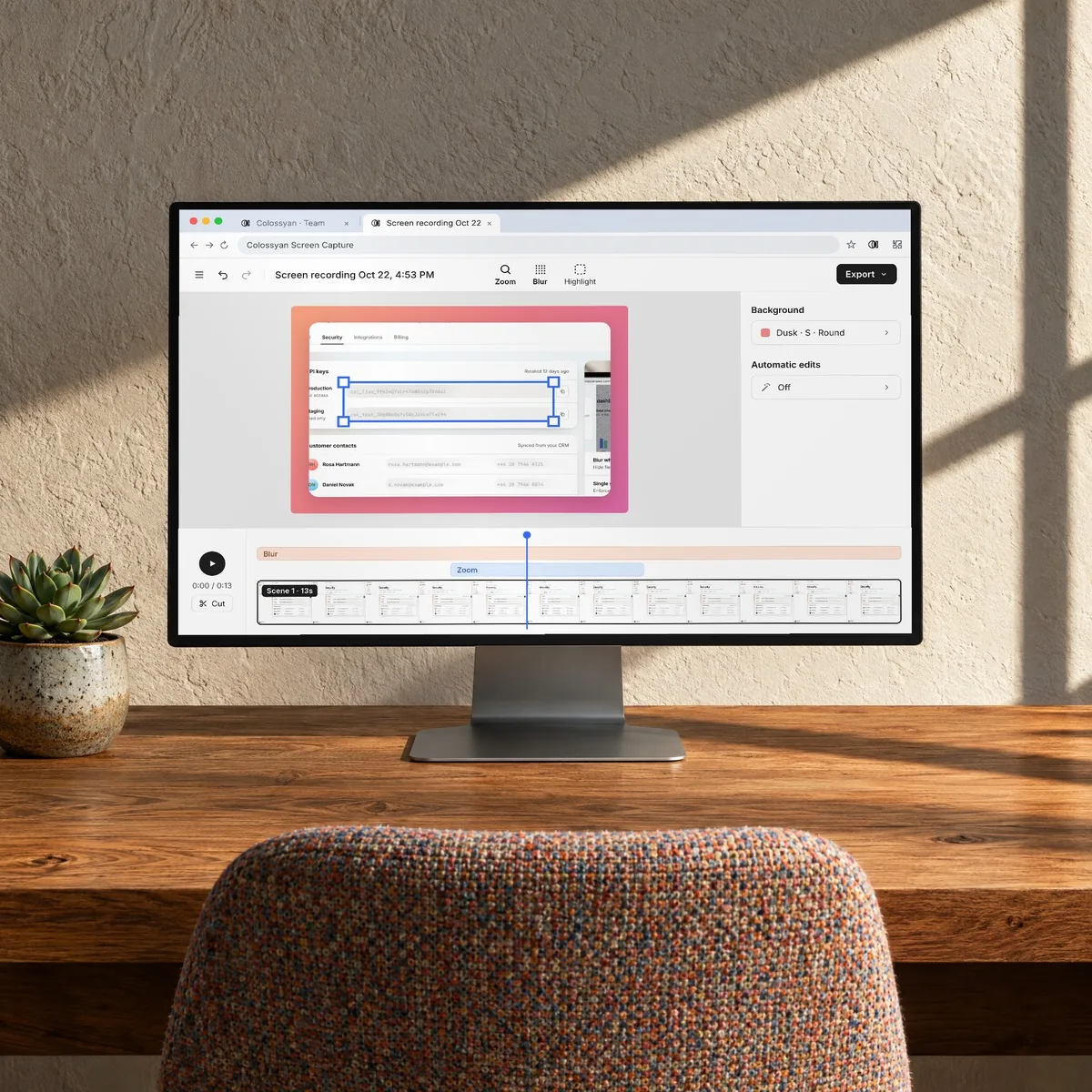
Hide API keys, customer details and anything private before anyone else sees the recording.
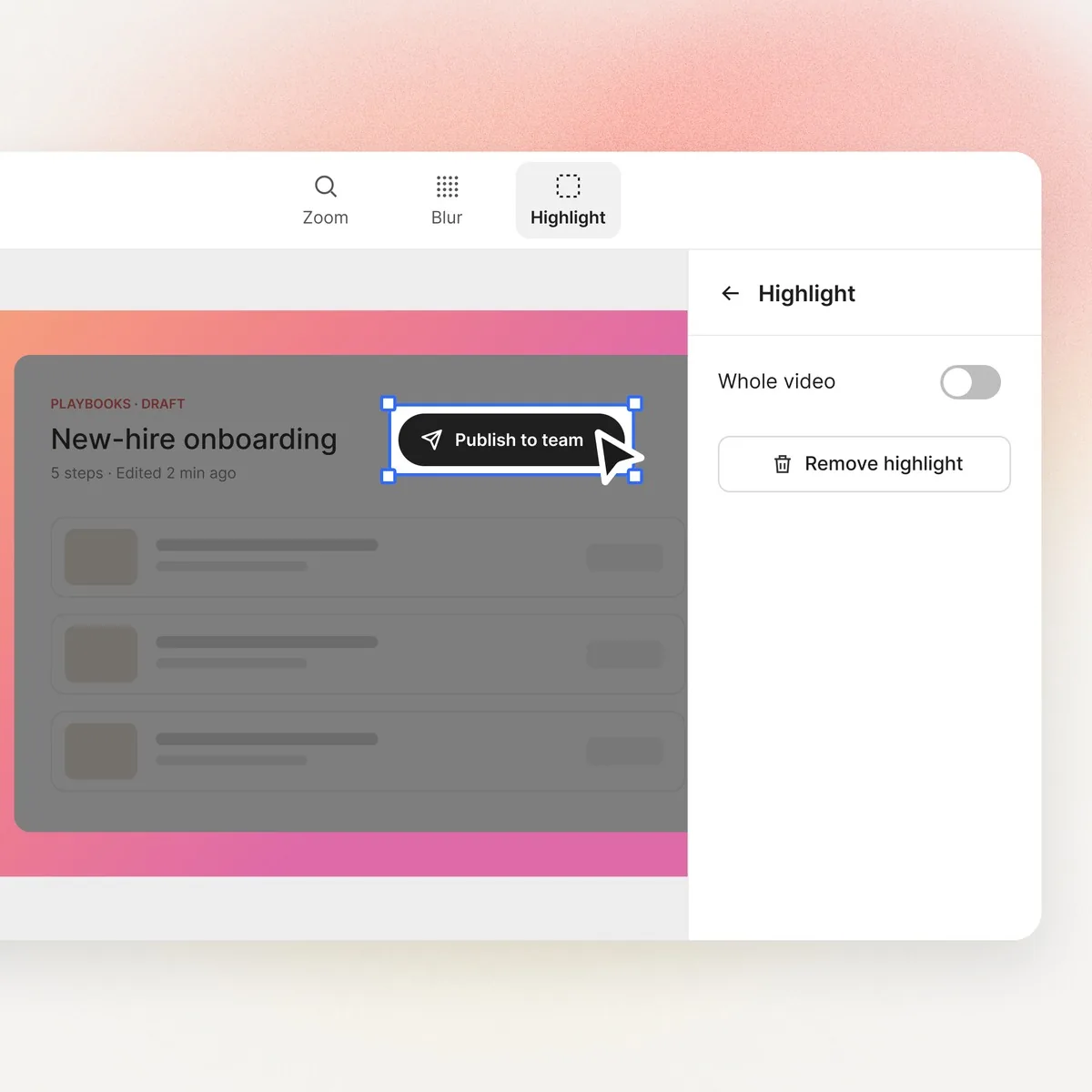
Dim everything else on screen so viewers know exactly where to look.
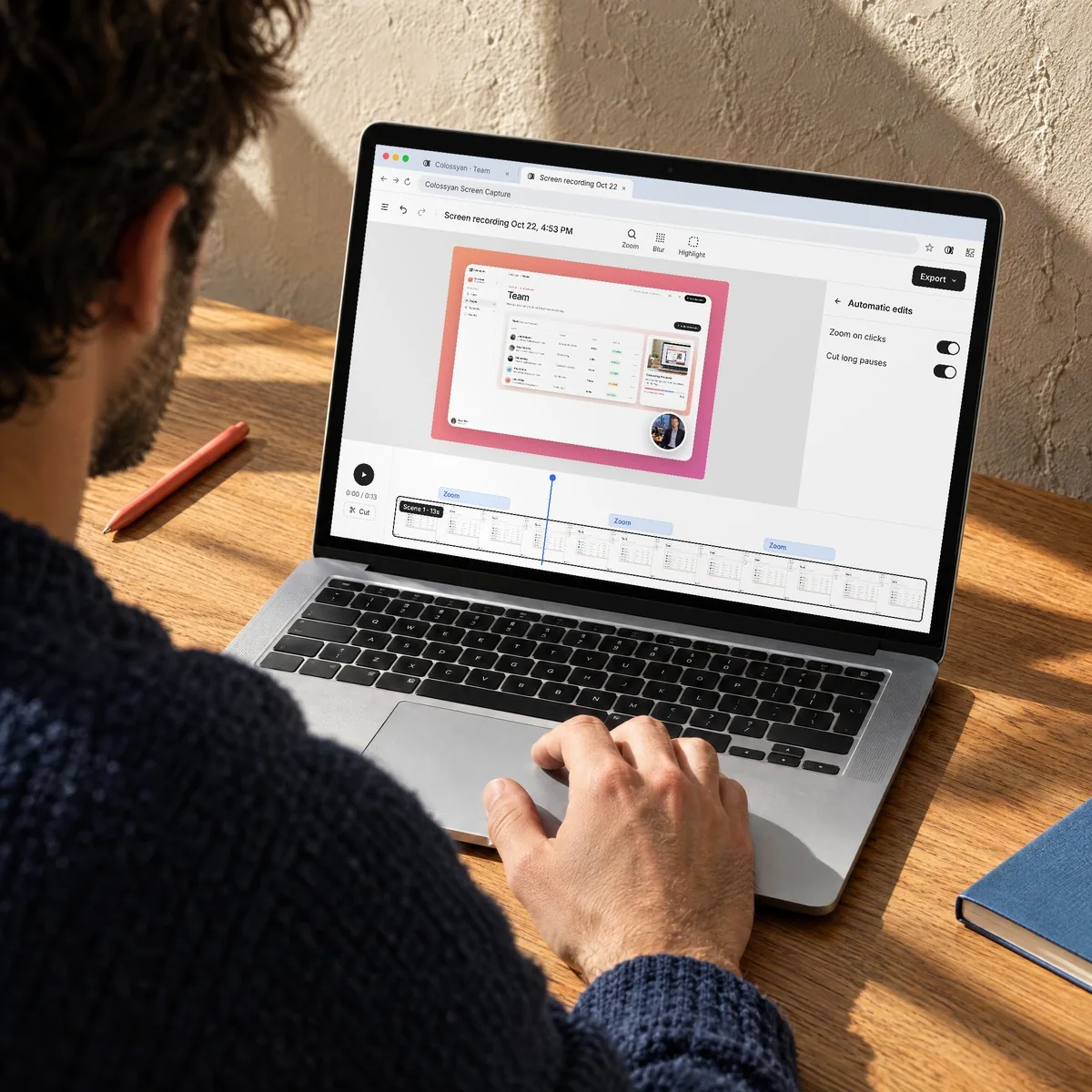
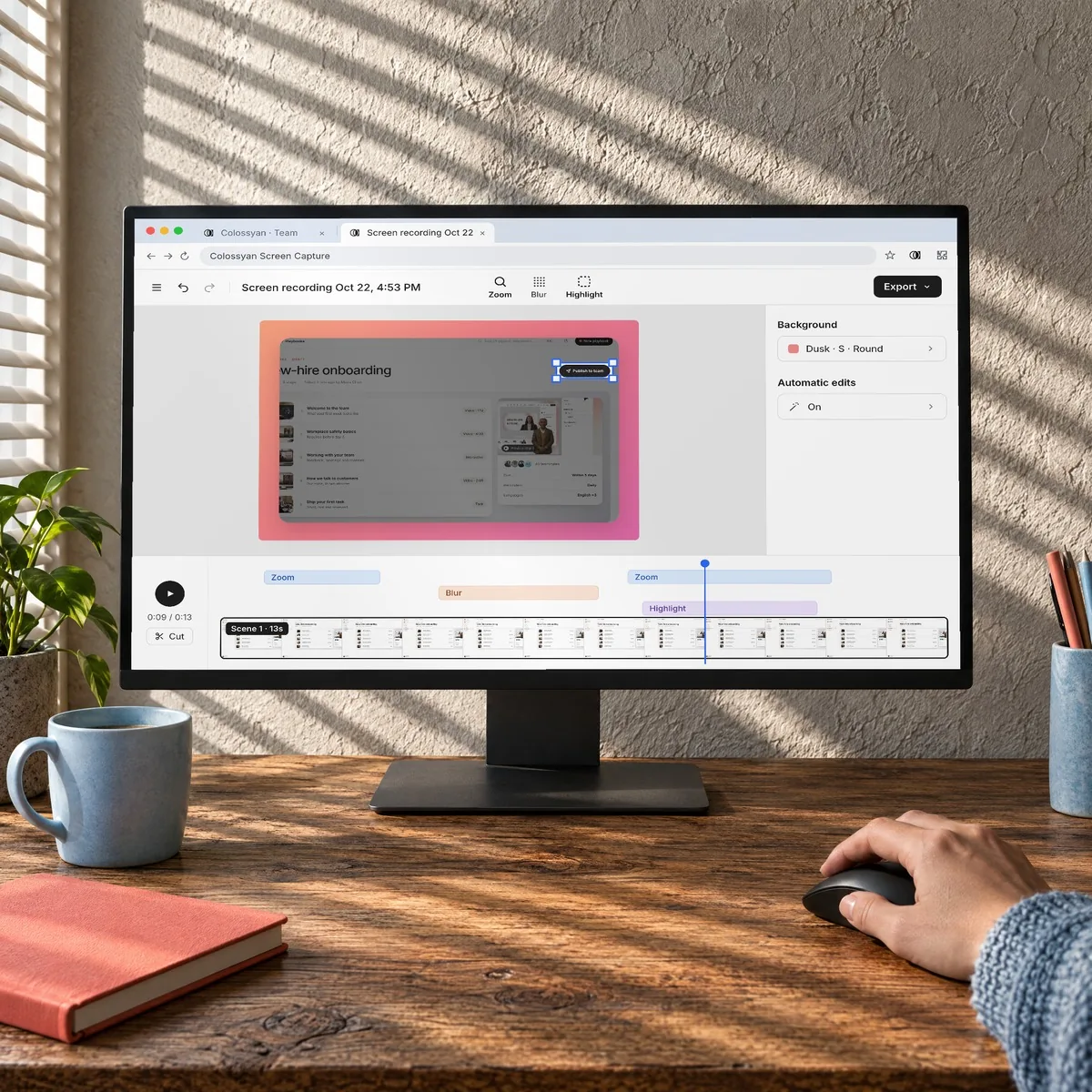
Trim, cut mistakes, change the background and undo anything. Or switch on automatic edits to zoom on every click and cut long pauses for you.
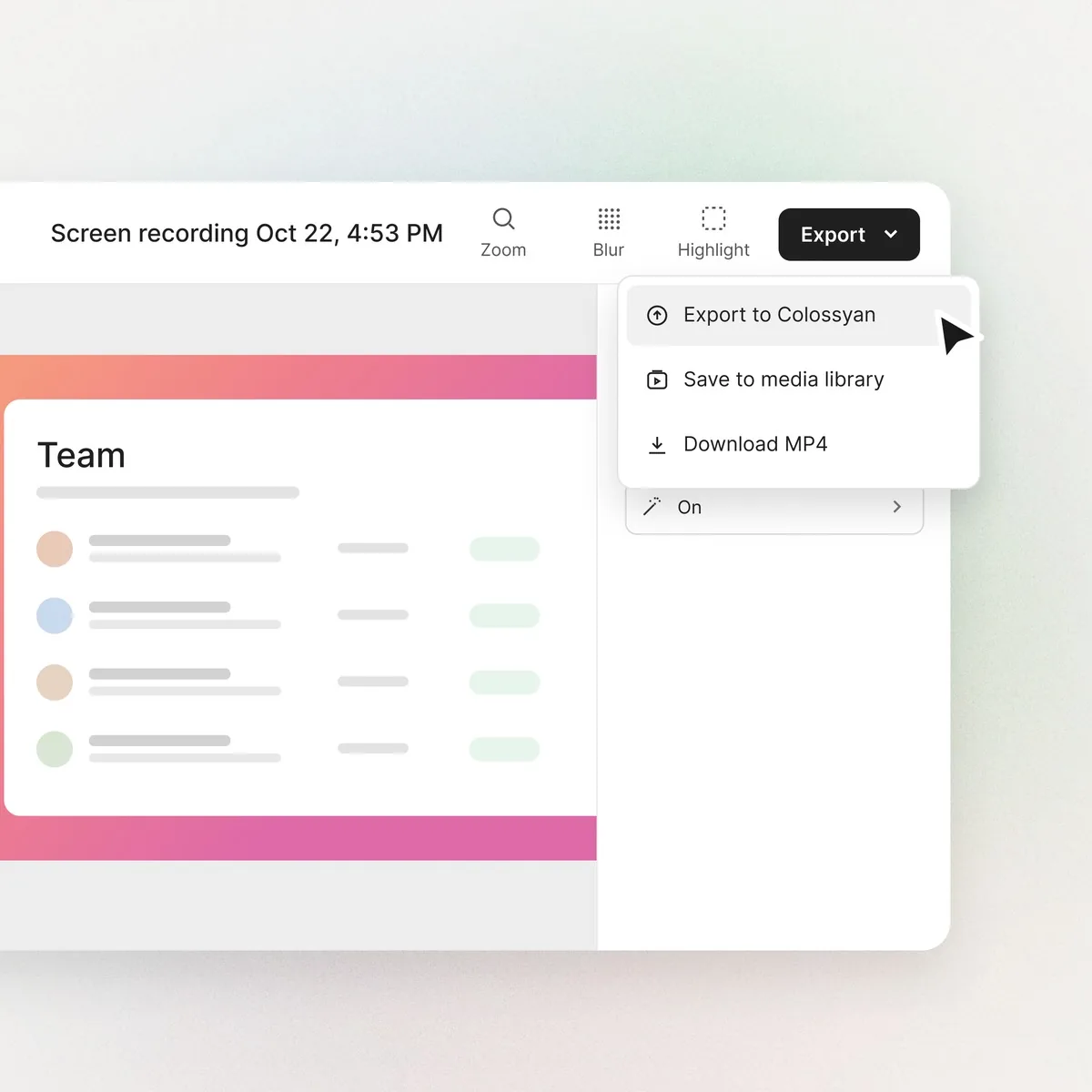
Send it straight to Colossyan as a new draft, save it to your media library, or download an MP4.
Training teams rate
Colossyan 4.6 on G2.

“Colossyan’s AI technology and its translation capabilities have revolutionized our training processes, especially in a multi-lingual environment like ours.”
 Kristin BroadheadDirector of Learning & Development, SonestaRead the case study →
“Before Colossyan, our process required a lot of steps, and was very expensive and complicated: we needed translation, production studios, and post-production work. The whole process would take us a month. Now, we can get everything done in 1–2 days.”
 Torsten SeelbachFounder, AFNBRead the case study →
“Instead of showing dry PowerPoint slides over a long period of time and having team members become less attentive, we can have an avatar with an engaging voice, and even use our own trainers as avatars.”
 Magesh SarmaChief Information Officer, AmeriSaveRead the case study →
 Colossyan · One extension0:00
The same free extension records in two ways. Pick the one that fits what you are teaching.3
One continuous recording of your screen, edited with zooms, blurs and highlights. Best for walkthroughs, product demos, updates and explainers.
Every click becomes a step, and the video waits for the viewer to click the right spot. Best for software simulations, SOPs and PDF guides.
Explore Screen CaptureSend any recording to Colossyan and the whole editor works on it.
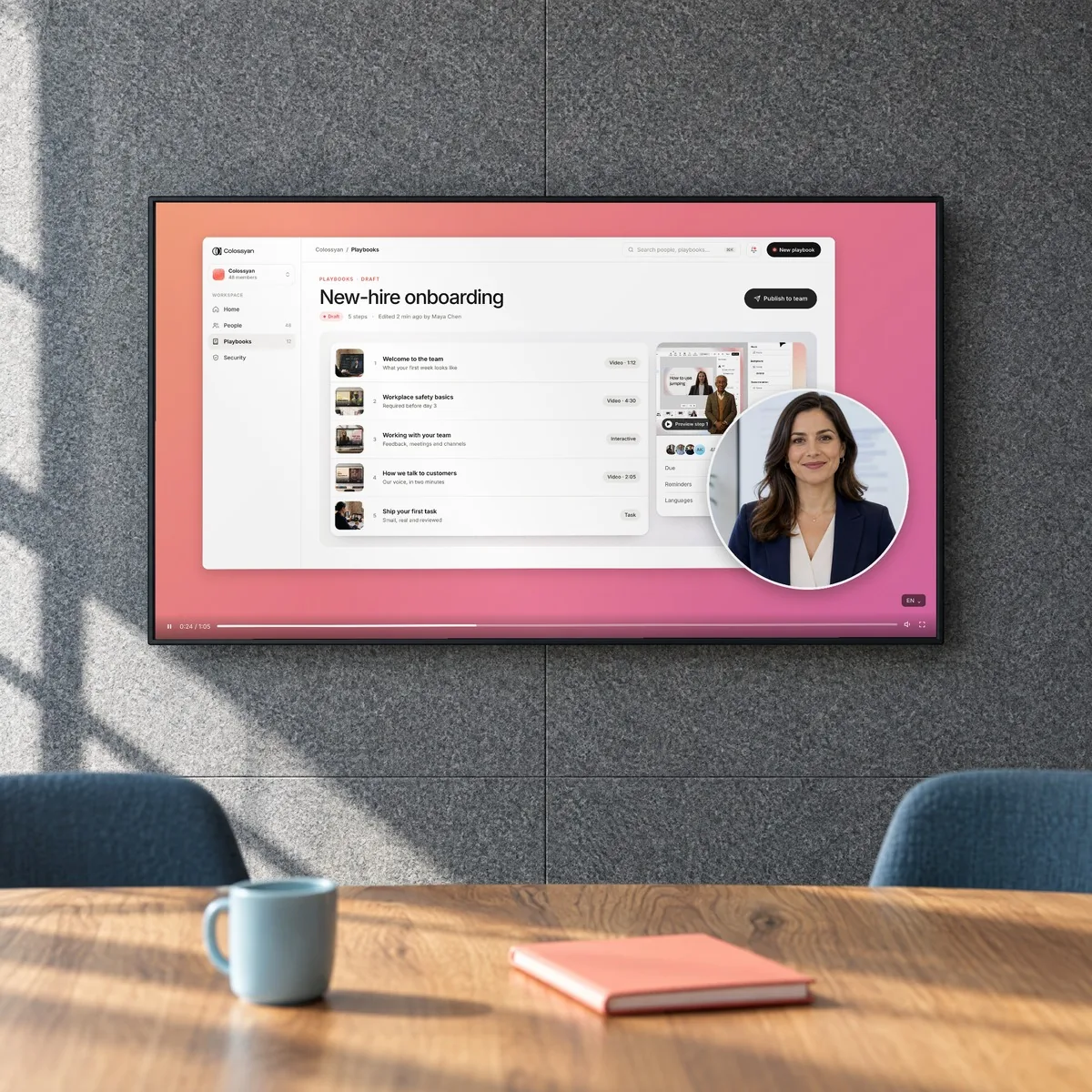
Record it, polish it, then export it the way you need. All in the browser.
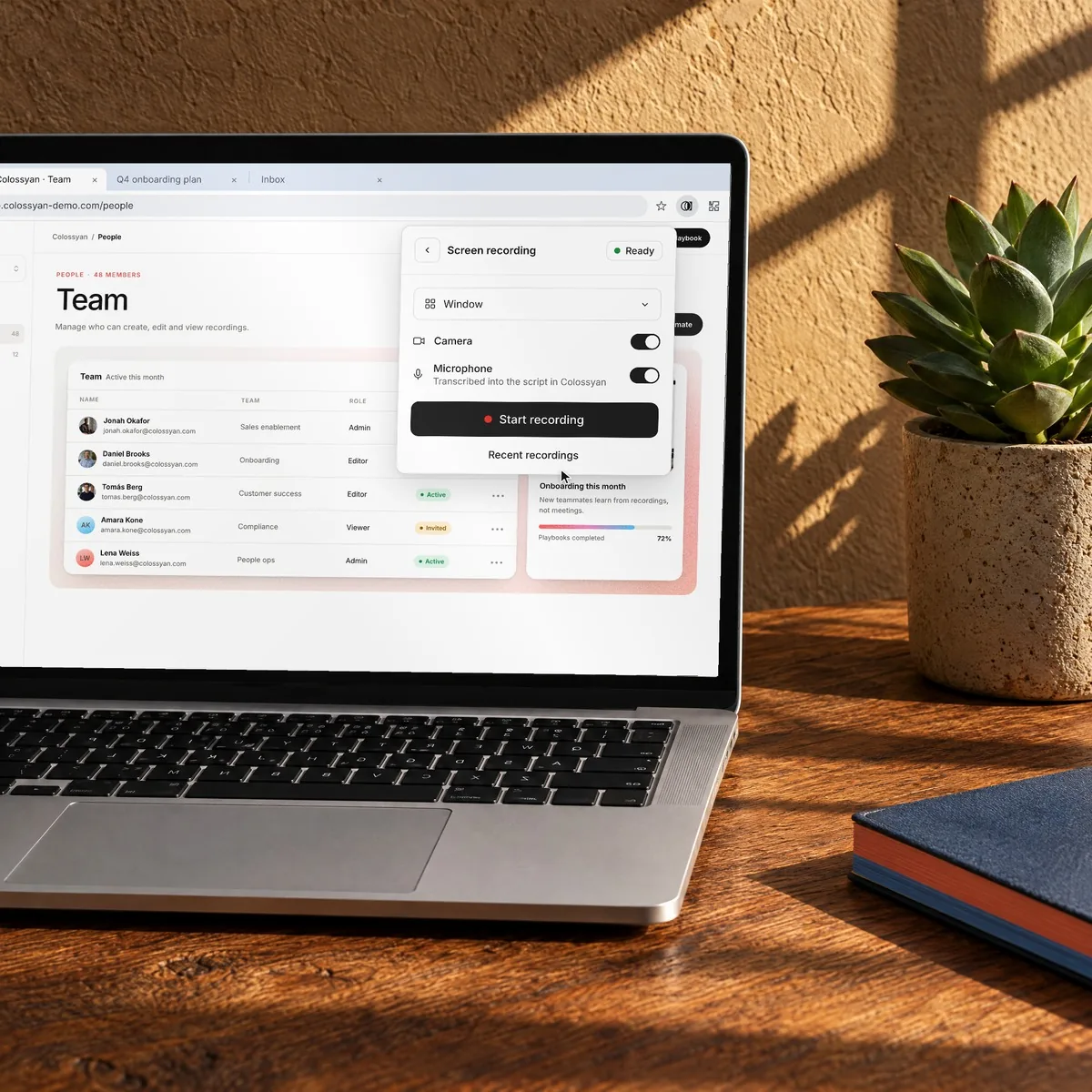
Open the extension, choose Screen recording and hit record. Walk through the process the way you would show a colleague. Turn your camera and microphone on, or leave them off and add a voice later.
Your recording opens in the editor in your browser. Switch on automatic edits to zoom on every click and cut long pauses, or make your own tweaks: trim, zoom, blur and highlight on the timeline, and set a background so it looks finished.
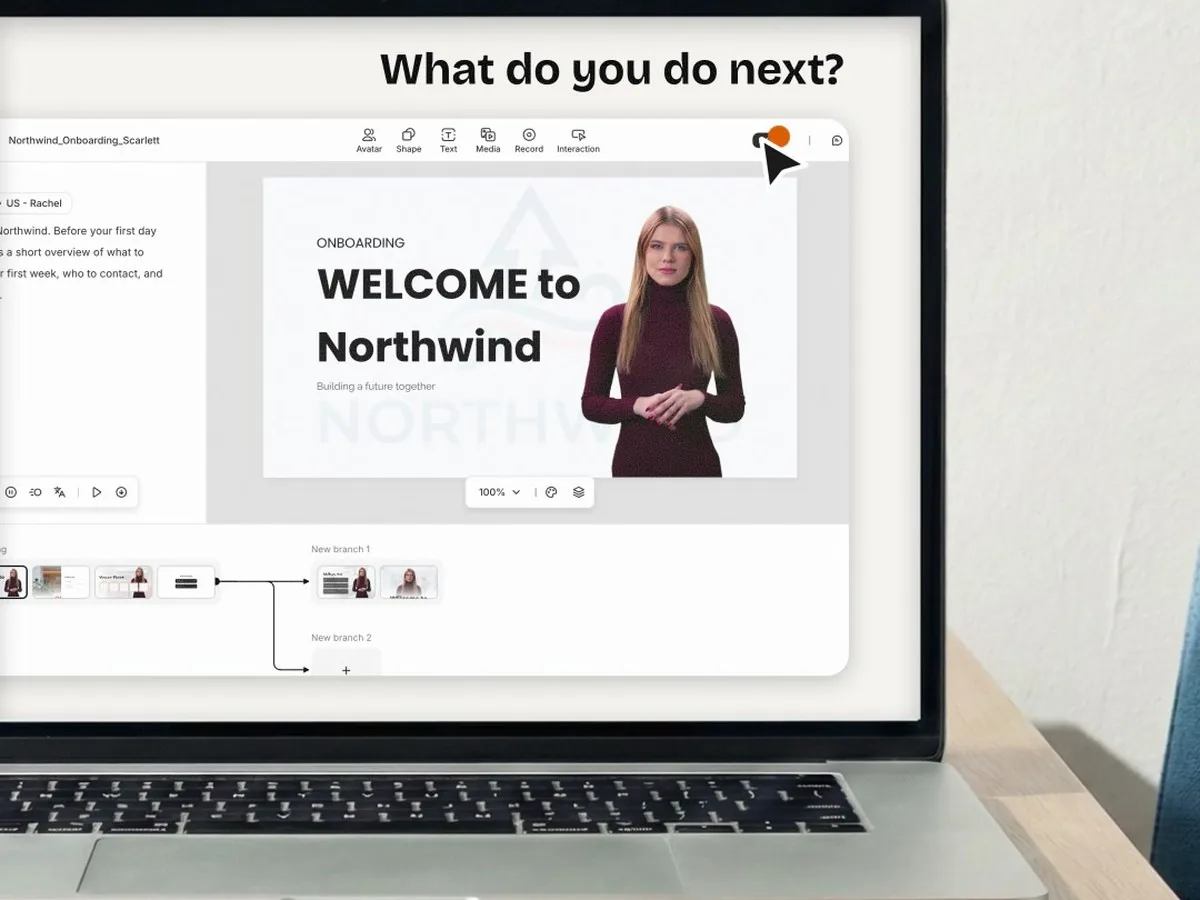
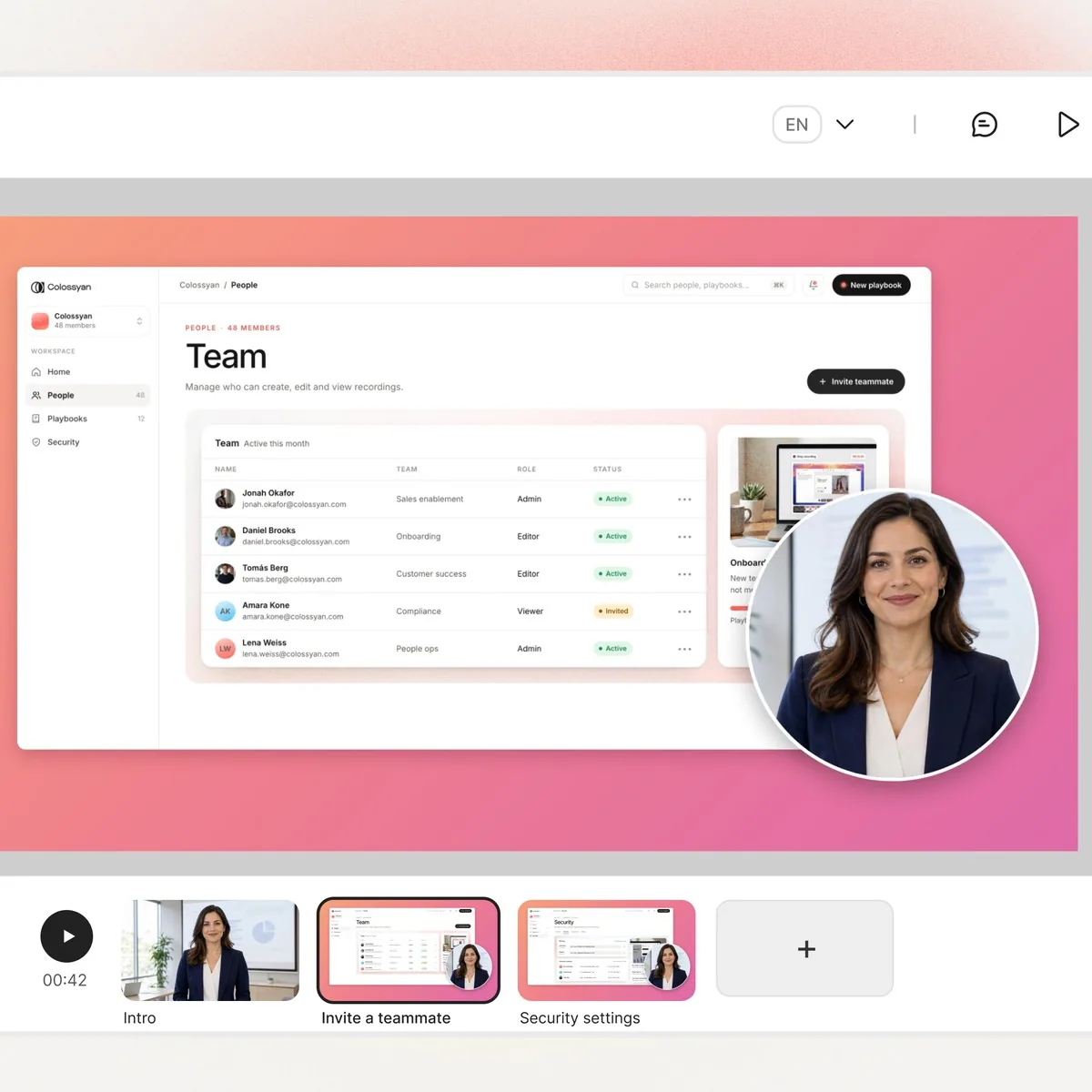
Choose where it goes: download it as an MP4, save it to your Colossyan media library, or send it to Colossyan as a new draft. In the draft, your narration becomes the script, so you can add an AI presenter, change the voice, translate it and share it as a link, an embed or SCORM.
A raw recording shows everything. A finished training video shows what matters.
| Basic screen recorder | Screen Recorder | |
|---|---|---|
| Record your screen and camera for free | Yes | Yes |
| Zooms in on your clicks automatically | No | Yes |
| Blur sensitive data | No | Yes |
| Edit it without other software | No | Yes |
| Add an AI voice in 120+ languages | No | Yes |
| Tracked in your LMS (SCORM) | No | Yes |
Browser extensions get reviewed before approval. Check every vendor, including us.
Yes, Colossyan Screen Recorder is free. Install the extension from the Chrome Web Store or Microsoft Edge Add-ons and sign in to your Colossyan account. The Starter plan is free forever, with no credit card required, and every plan, including Starter, comes with unlimited viewers. You can compare what each plan includes on the Colossyan pricing page.
Colossyan Screen Recorder is a free Chrome and Edge extension for recording and editing your screen. You record a tab, a window or your whole screen, edit it in your browser with zooms, blurs and highlights, then export it to Colossyan, your media library or an MP4. In Colossyan, the recording becomes a normal draft, so you can add an AI avatar presenter and a voice.
Colossyan Screen Recorder and Screen Capture live in the same free extension but make different videos. Screen Recorder makes one continuous video of your screen that you edit and narrate. Screen Capture turns each click into a step and builds an interactive walkthrough the viewer clicks through. Use Screen Recorder to show how something is done, and Screen Capture when people should practice it, such as software simulations, SOPs and PDF guides.
Yes, Colossyan Screen Recorder lets you add zoom, blur and highlights after you record. Your recording opens in the editor in your browser. Add a zoom, a blur or a highlight to any part of the timeline, trim the pauses, cut mistakes and change the background before you export. A highlight dims everything else on screen, so viewers know exactly where to look.
Yes, Colossyan Screen Recorder can make the first edits for you. In the editor, open Automatic edits and switch on Zoom on clicks, Cut long pauses, or both. Screen Recorder zooms in wherever you clicked and removes the long silences, so you start from a tighter cut. Then add your own zooms, blurs and highlights on top, and undo anything you don't want.
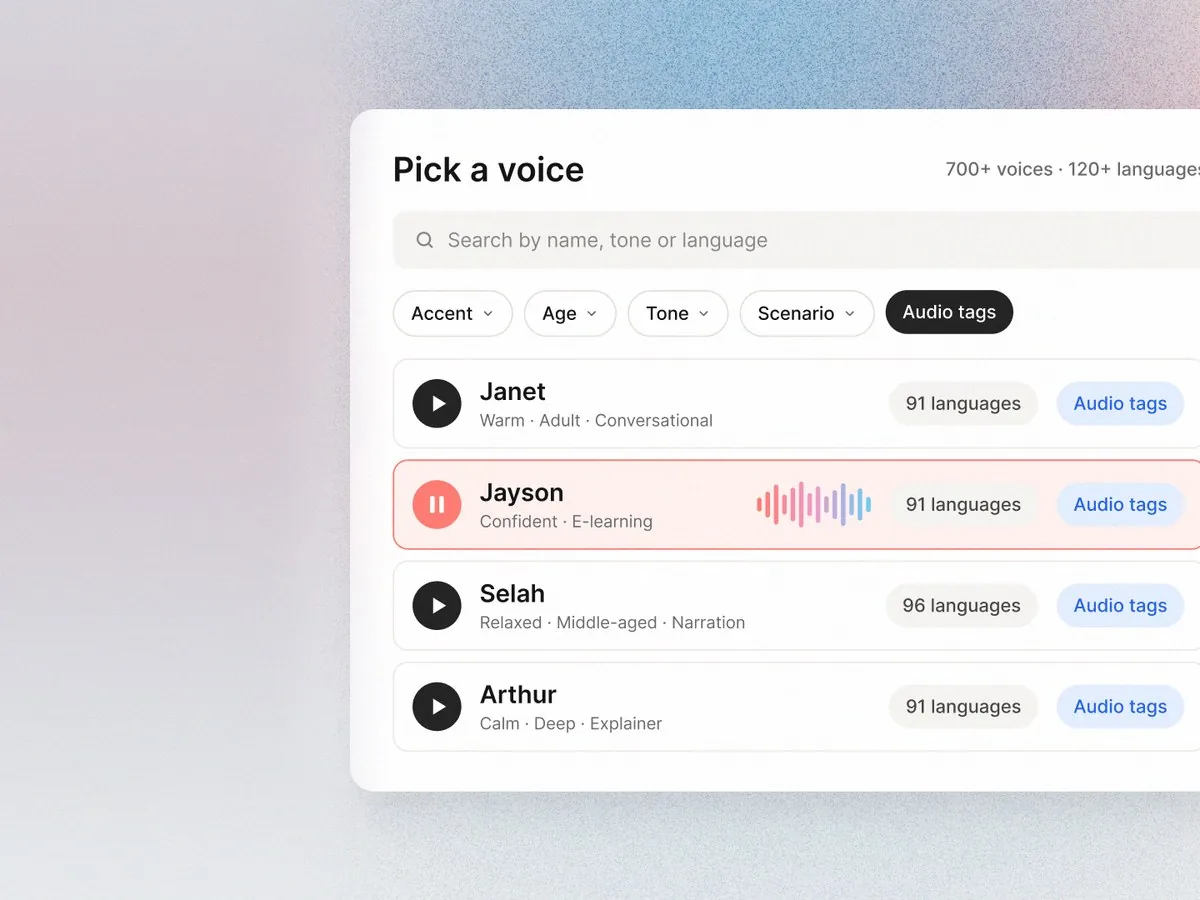
No, Colossyan Screen Recorder doesn't need your voice or your camera. Camera and microphone are optional, and the extension only uses them when you turn them on. If you record without them, export the recording to Colossyan, write the script and choose from 700+ AI voices, or add one of 300+ stock avatars or your own custom avatar to present it.
To hide sensitive information in Colossyan Screen Recorder, add a blur over the area in the editor, such as API keys, emails or customer details. The blur stays in place in every export, so nothing private leaves your screen and you don't have to record again. If IT needs to approve the extension, Colossyan's SOC 2 Type II, GDPR and SAML SSO details are on the security page.
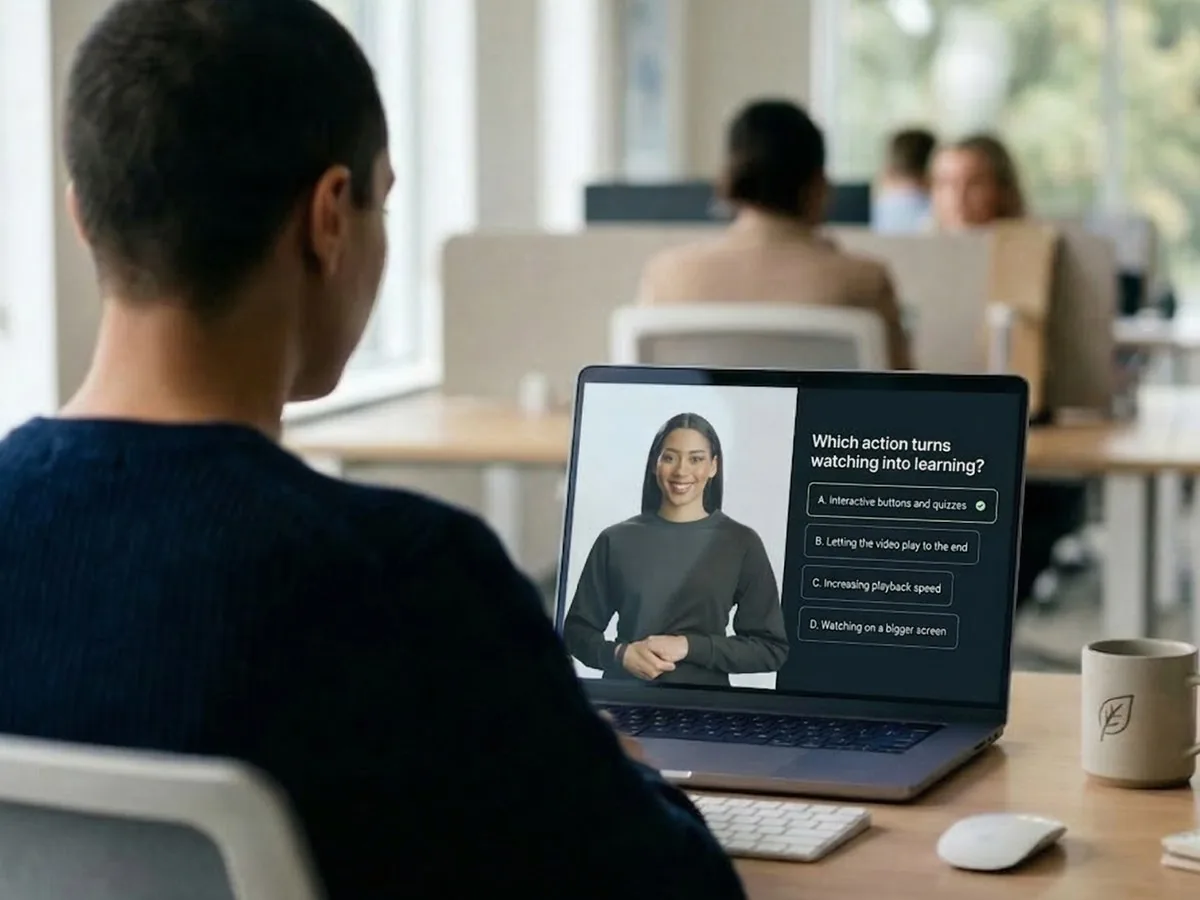
To export from Colossyan Screen Recorder, choose Export in the editor. Send it to Colossyan as a new draft with your narration as the script, save it to your Colossyan media library, or download it as an MP4. A Colossyan draft opens in the full editor, so you can add a quiz or branching question, apply your brand kit and share it as a link or an embed.
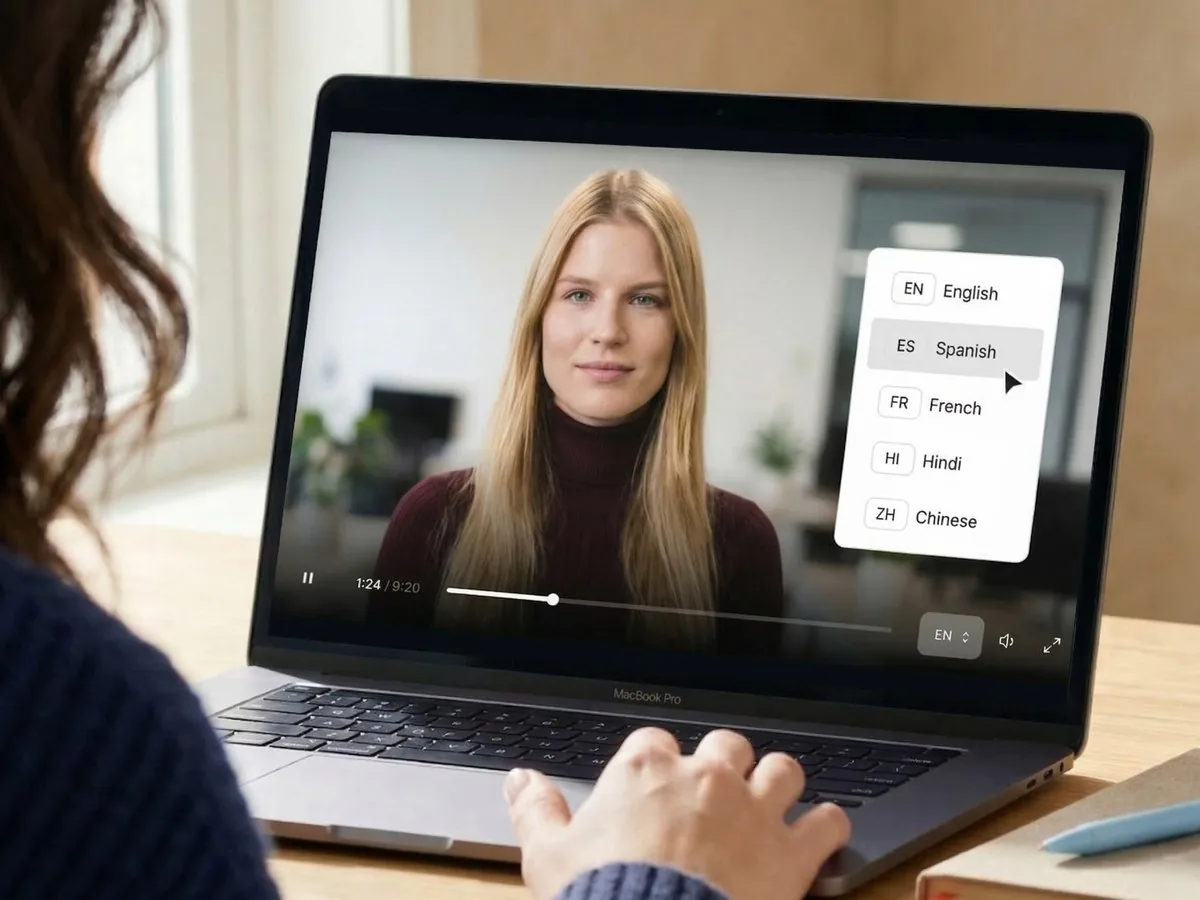
Yes, you can translate a Colossyan Screen Recorder recording once it is a Colossyan draft. Use the Colossyan video translator to translate the narration into 120+ languages without recording again. The screen stays the same while the voice and script change, and on-screen text and quizzes translate along with the narration. Each language becomes a variant in the editor that you can review and edit.
Colossyan Screen Recorder works in Google Chrome and Microsoft Edge on desktop. Install it from the Chrome Web Store or Microsoft Edge Add-ons, and IT teams can manage installs from the admin side. Start recordings from a normal website tab. Browsers block recording on their own settings pages and extension stores, so the extension can't record there.
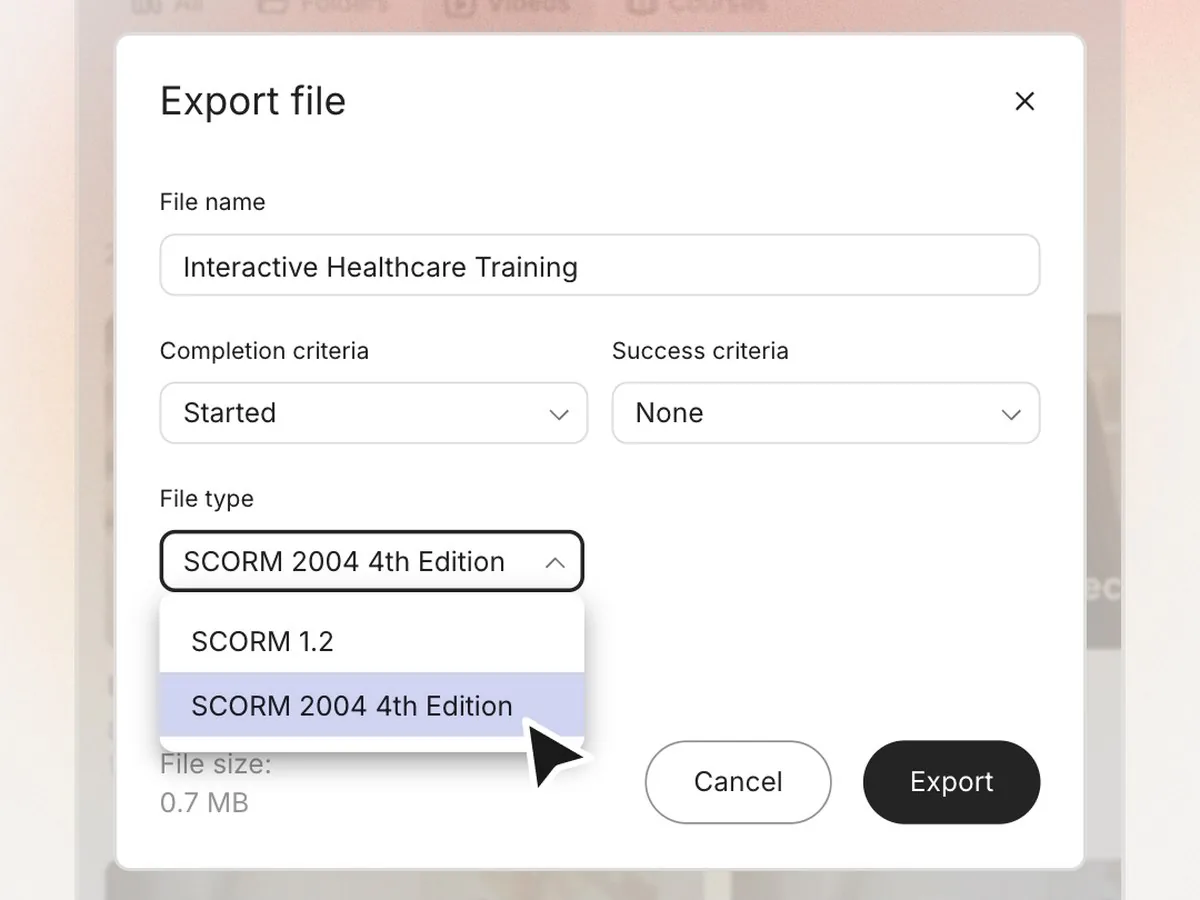
Yes, you can add a Colossyan Screen Recorder recording to your LMS. Turn the recording into a Colossyan video and export it as SCORM 1.2 or 2004 with completion tracking, available on Pro and Enterprise plans. If you add a quiz, scores are reported through SCORM too. You can also share the video as a link or an embed.
Install it, record, and edit in your browser. Send it to Colossyan whenever you want a presenter, a voice or another language.