


Blog
7 Best Video Editors With Built-In Voice-Over Features

Many creators and teams want to add voice-overs to their videos without piecing together three or four apps. Whether you need your own narration, AI-generated voices, or even voice clones for consistent branding, your editor should let you work all in one place. This guide looks at seven video editors that give you those built-in voice-over features - without extra complexity or lots of manual syncing.
What matters in a voice-over video editor
For this list, I looked for tools that make the process simple. The best editors let you record or generate voices, add auto-subtitles for accessibility, handle multiple languages when needed, and give you strong audio controls like volume, speed, pitch, and fades. Some go further with AI-powered dubbing, brand voice cloning, advanced analytics, or direct SCORM export for training teams.
I’ve picked options for all skill levels - beginners on mobile or desktop, agencies, marketing, and especially organizations modernizing their learning videos.
Here’s what the best editors offer:
- Record or create AI/text-to-speech voices right in the app
- Auto-generated, accurate subtitles and easy caption exports
- Tools for translating or localizing content to more than one language
- Audio controls for fine-tuning the result
- Simpler workflows: templates, script-to-VO syncing, stock media
- Collaboration features for teams, analytics where needed
- Cross-platform flexibility (web, desktop, mobile)
1) Colossyan - best for training teams who need scalable voice-over, localization, and analytics

If you need to build voice-over videos for training or learning at scale, you’ll run into problems most editors can’t handle: consistent brand pronunciation, instant translation, easy voice cloning, direct SCORM export, and analytics that measure real learning. This is where I think Colossyan stands out.
You don’t need to record your own narration. With Colossyan, you select from multilingual AI voices or even clone your own for consistency. Pronunciations for tricky names or acronyms are saved and instantly apply each time you reference them in a script.
If you’re localizing, you can use the Instant Translation feature to switch an entire video - voice, on-screen text, and all interactions - to a new language and export separate drafts for each version - a step beyond simple TTS dubbing. Timing stays in sync; you only adjust visual layout if the new language changes text length.
You can import documents, PowerPoints, or PDFs and have them auto-converted to scenes, with speaker notes turning into voice-over script instantly, which is much quicker than manual workflows found in most editors. Add pauses and script block previews to get natural delivery.
For interactivity, you can insert quizzes and branching dialogue into the video itself, set pass marks, and export as SCORM 1.2/2004 for use in any standard LMS. Real analytics track who is watching, for how long, and which questions they answer correctly.
You can also export audio-only narration or closed captions separately if you need those for compliance or accessibility.
2) CapCut - best free pick with flexible recording, AI voices, and auto-subtitles
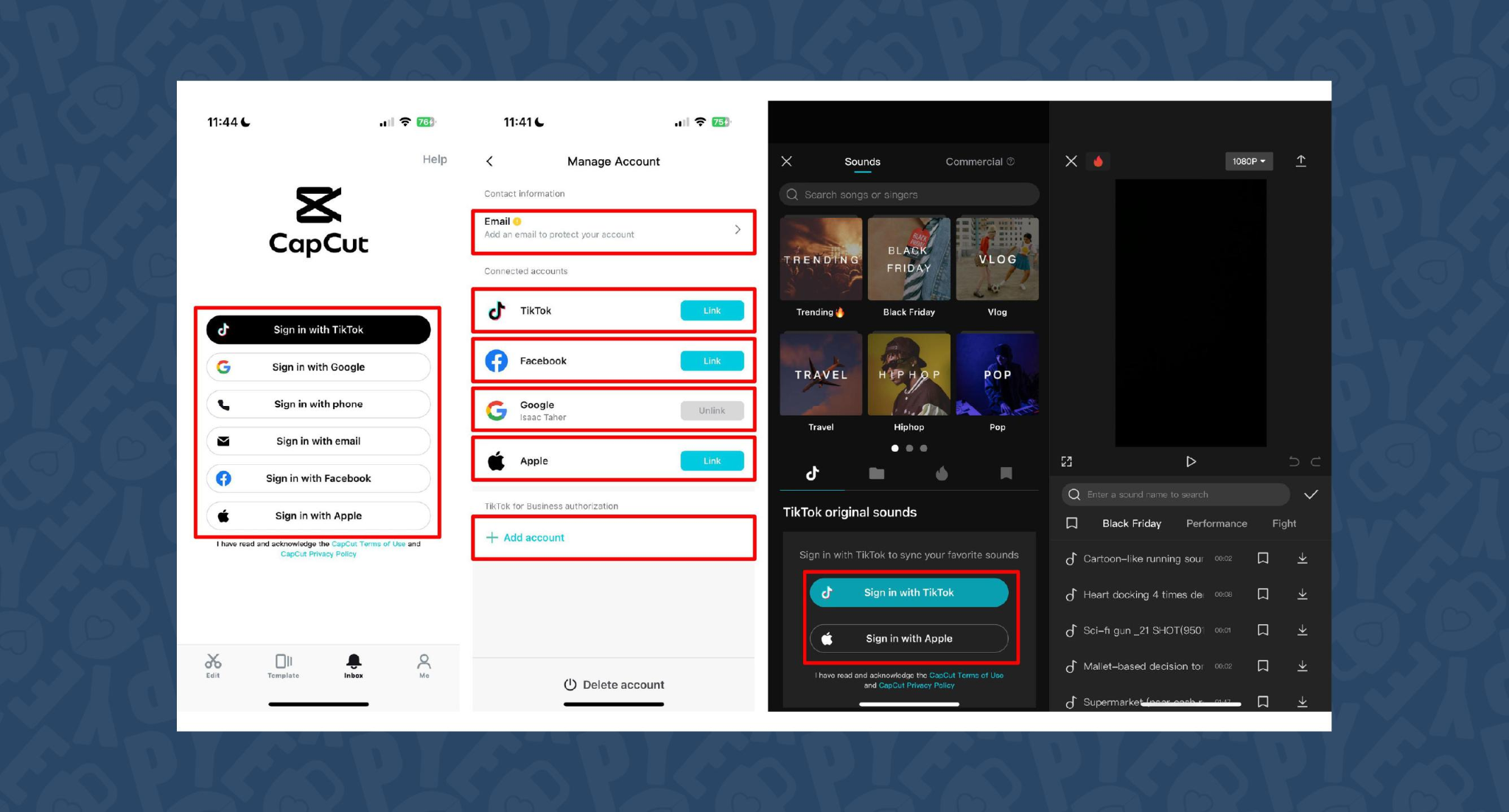
CapCut is popular because the basics are unlimited and easy. You can record voice-overs online, with no time limits, or use built-in AI for text-to-speech. It auto-generates subtitles even if the speaker’s not on screen. The editing controls let you adjust pitch, speed, volume, fades, and more, and you can mix several audio tracks. For global reach, you can use built-in AI dubbing to generate multi-language versions of your VO.
On mobile, the recording flow is in-app for iPhone (Sound > Microphone); on desktop or web, you script, record, add subtitles, edit, and export - all in one. This feels more like a professional tool than most free options.
You can use CapCut to clarify complex videos with on-screen captions, localize tutorials for other markets, or keep a consistent voice tone for social media videos.
3) VEED - best for replacing multiple tools (recording, captions, storage, sharing)
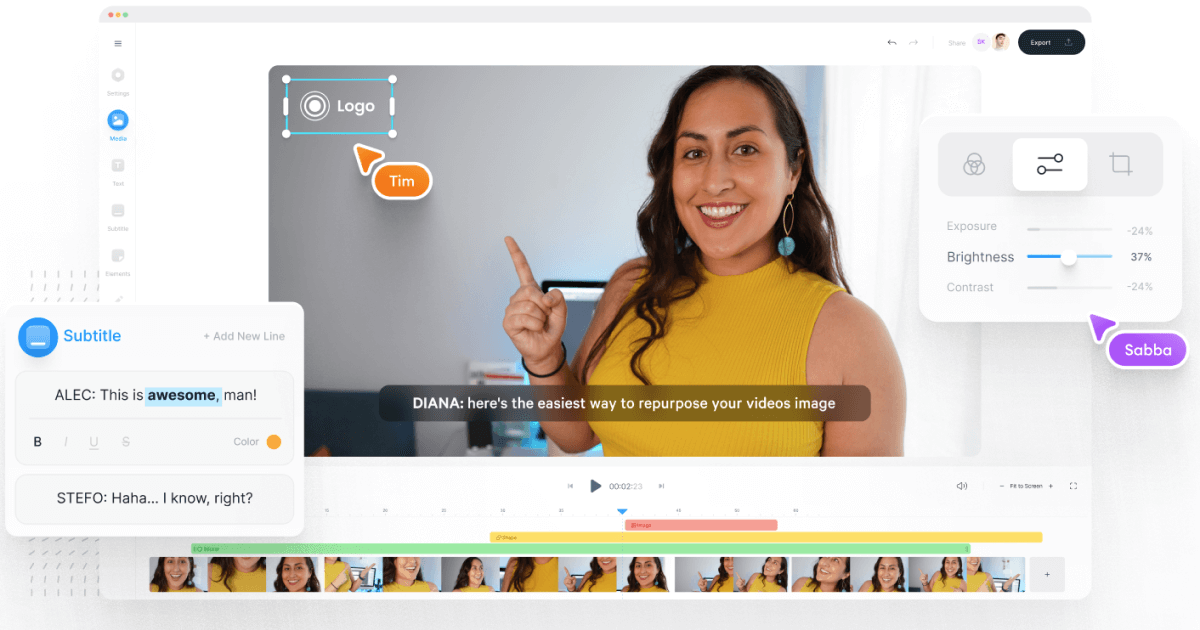
VEED has built a reputation as an all-in-one workflow. Instead of bouncing between Loom, Rev, Google Drive, and YouTube, you get everything in one place: recording, AI text-to-speech, one-click subtitle generation, and automatic audio cleanup.
User reviews are strong (4.6/5, with about a 60% reduction in editing timeaccording to one testimonial). It’s aimed at teams who need consolidated workflows and secure sharing. You edit, subtitle, and publish in one tool - no more file shuffling or switching between apps.
4) Speechify Studio - best for fast AI dubbing with a large voice library
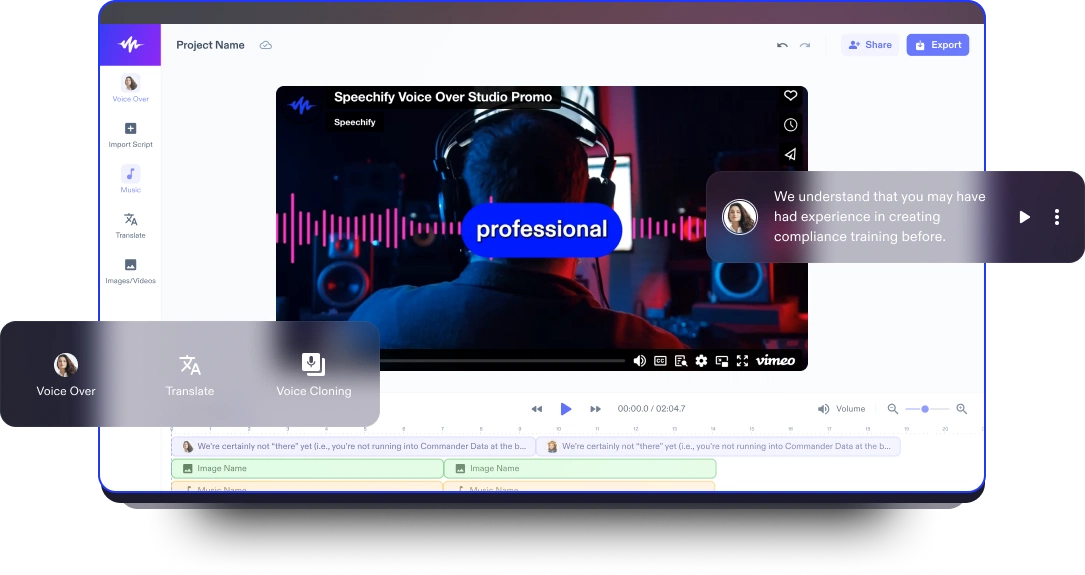
Speechify Studio focuses on AI voice versatility. You get over 200 lifelike voices in multiple accents and languages, perfect for instant dubbing or easy localization. One click dubs into new languages and generates synchronized subtitles. The editor is drag-and-drop, with templates and a vast library of royalty-free music and video assets.
Everything happens in the browser, working across platforms. You can upload your own VO or just use the AI, mix in background tracks, and export in multiple sizes (for YouTube, Instagram, etc.). For YouTube, social teasers, or education, this is one of the fastest ways to get multi-language narration without hiring VO talent.
5) ClipChamp - best free TTS variety and easy script control
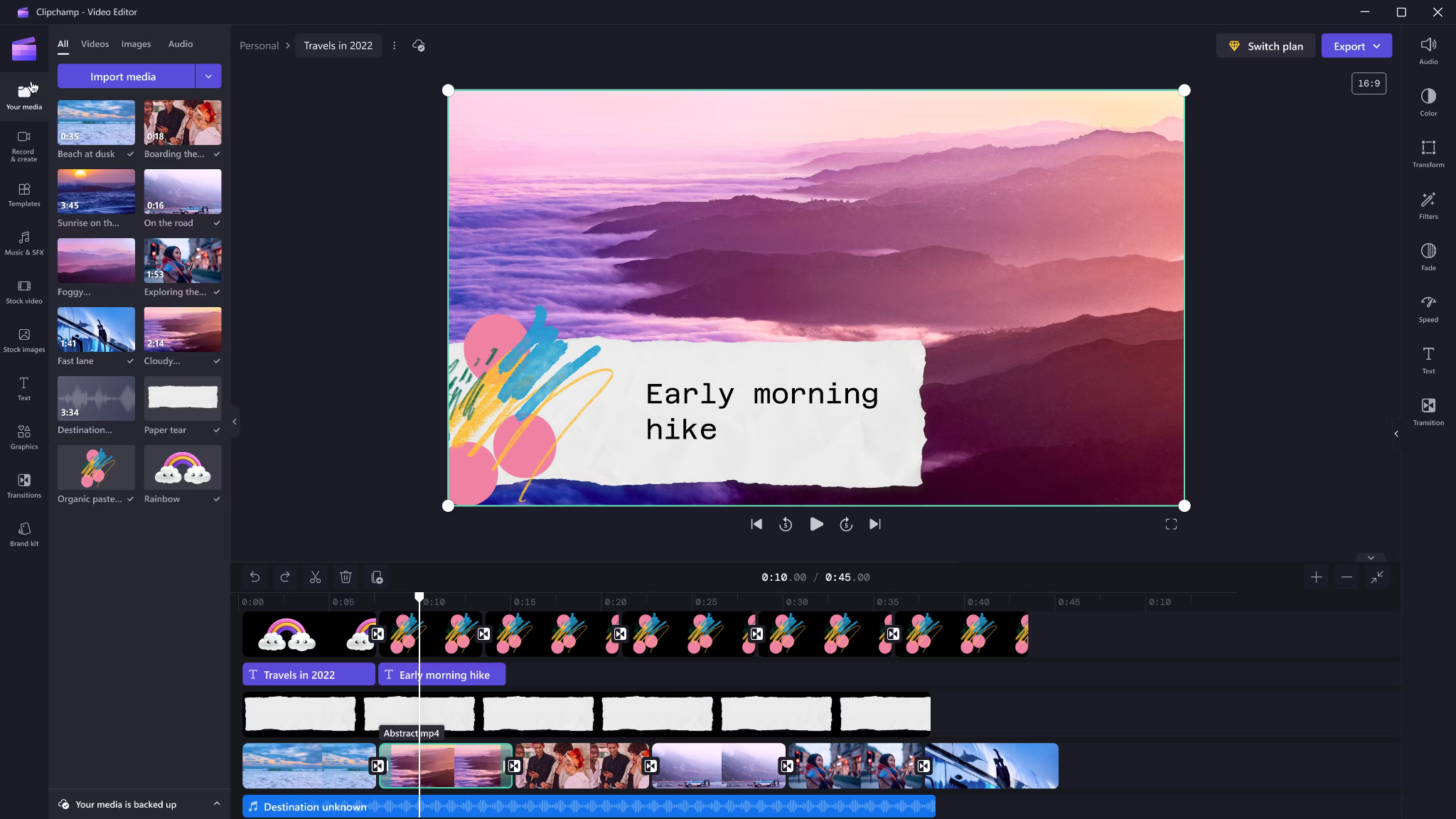
Clipchamp shines with variety and ease for AI voice-overs. It includes 400 AI voices (male, female, neutral) in 80 languages. You can tweak pitch, emotion, speed (0.5x to 2x) and control pauses/emphasis directly in your script by adding ellipses (“...”) or exclamation marks. If voices mispronounce a word, type it out phonetically.
Output options include transcript exports, subtitles, or just the audio as MP3. Every export is free and unlimited, and user reviews are high (4.8/5 from 9.5k reviews). This is a quick route for social videos, simple explainers, or business presentations.
6) Powtoon - best for animated explainers with built-in VO recording

Powtoon’s big advantage is simplicity for animated videos. It has built-in voice-over recording, lots of customizable templates, and a royalty-free music library. Major brands use it for onboarding and explainers, and it claims tens of millions of users.
You can record your narration directly in the editor, layer music, set up a branded look, and publish to social or business platforms straight from Powtoon. This works well if you want animations with matching narration, but don’t want to learn complex motion tools.
7) Wave.video - best for quick client-ready edits and layered audio tracks
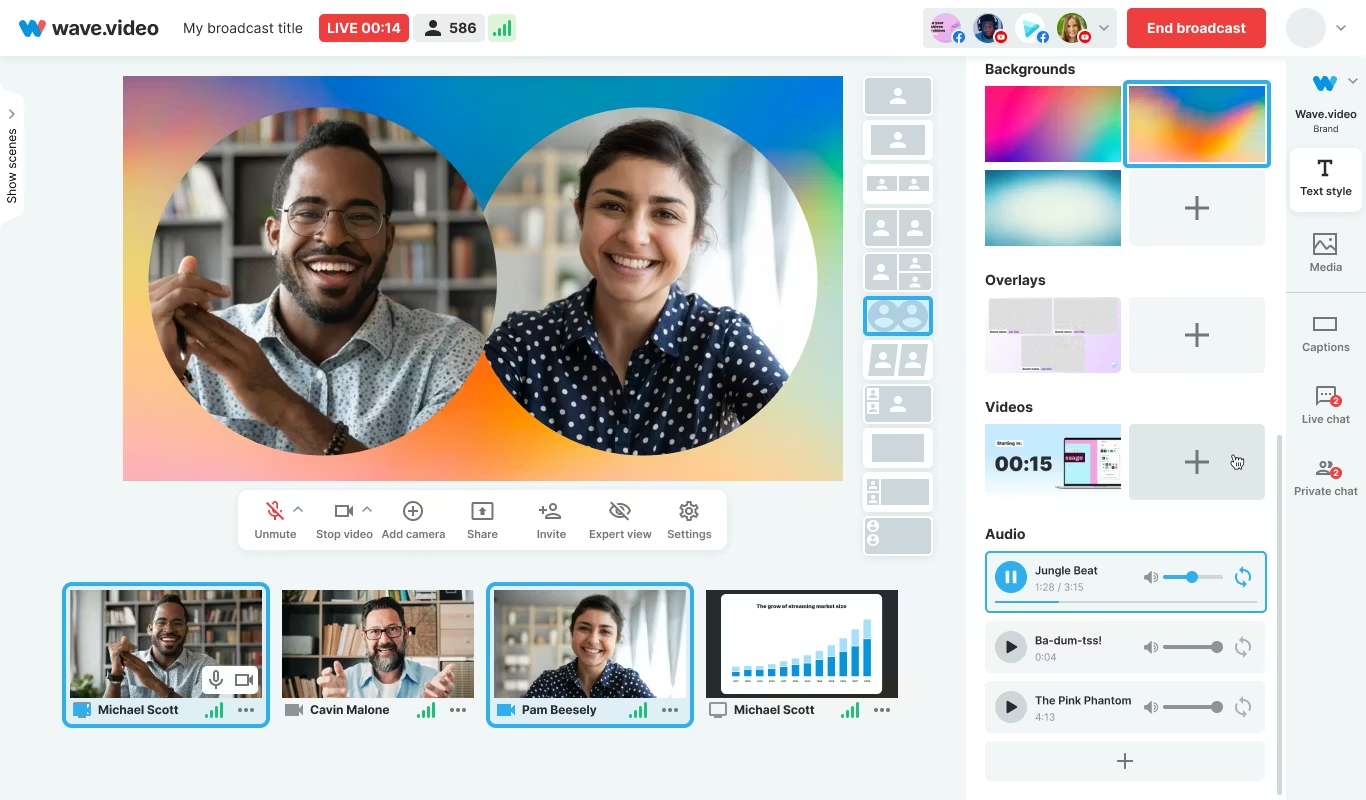
Wave.video is designed for speed and easy audio layering. You can record or upload up to three audio tracks (voice, music, sound effects), then trim and sync each on a clear timeline. Automated captions let your video communicate even if played on mute. Users report getting client-ready videos in as little as 20–30 minutes, thanks to the streamlined process.
This tool fits agencies and freelancers who need regular, clear voice-over videos with quick turnarounds.
Honorable mentions and caveats
There’s also the Voice Over Video app for iOS/iPadOS. It handles multiple VO tracks and edits, and offers a cheap lifetime unlock. However, some users find problems with longer videos: slow playback, export glitches, or audio muting bugs. It’s okay for short clips - test it before using for multi-segment training pieces.
How Colossyan maps to the needs above
I’ll be clear - most editors focus on easy voice-over for marketing or social video. Colossyan stretches further for learning and enterprise.
If you need multilingual versions, Instant Translation creates new language drafts for the whole video (script, on-screen text, interactions), maintaining layout. You can use cloned voices for brand consistency, and our Pronunciations library does what some other editors only do for one-off cases: you save pronunciation settings for product names or technical terms, and every video stays correct.
Pauses, animation markers, and script editing give you fine control over delivery and pacing - a real edge if you want natural, accurate speech. And while Clipchamp lets you control delivery with punctuation, Colossyan lets you sync these to avatar gestures and on-screen animations for even more realism.
Large teams can import docs or PowerPoints and transform them into scenes with the narration built in - saves hours compared to manual scripting. Collaboration, brand kits, and workspace organization mean even non-designers or new team members can keep everything consistent.
We support interactive learning: quizzes and branching, tracked by analytics. SCORM export means your videos fit into any LMS or training system, and our analytics track real results (scores, time watched, drop-off points). For organizations, this is a serious step up from just generating a narrated video.
Example: For compliance learning, import a policy PDF, assign a voice clone, adjust pronunciations for terms like “HIPAA,” add quizzes, export SCORM, and get analytics on where learners struggle - a complete feedback loop.
For a multilingual product rollout, create an English master, translate to Spanish and Japanese, assign native accents or avatars, export closed captions and audio-only versions for other channels, and keep all assets in sync with your brand.
For scenario-based training, use Conversation Mode to create role-play videos with branching. Learners pick responses, and you measure the impact with analytics - something most consumer editors can’t do.
The right editor for your scenario
If you’re a beginner content creator or need simple, free TTS and subtitles, CapCut or Clipchamp is enough.
Marketing teams might prefer VEED to replace multiple tools and simplify sharing, or Powtoon if you need stylish explainers fast.
If you want fast, multi-language dubbing, Speechify Studio or Clipchamp do it, but for real global training with instant translation, on-screen adaptation, and analytics, Colossyan is the stronger choice.
For building e-learning, SCORM packages, compliance training, or videos for enterprise where accuracy and engagement matter, I’d pick Colossyan every time.
Want more guidance on scripting voice-overs, localizing training, or making sure your AI voice matches your brand? Book a demo with our team and we will run through the best ways you can.
How To Make Software Training Videos: A Step-By-Step Guide

To make effective software training videos: 1) Define learner outcomes and KPIs, 2) Break workflows into bite-sized tasks, 3) Script in a conversational, step-by-step format, 4) Choose a format like screencast, avatar, or hybrid, 5) Produce with clear branding, captions, and on-screen prompts, 6) Add interactivity like quizzes and branching, track results with SCORM, 7) Localize for key languages, 8) Publish to your LMS or knowledge base, 9) Analyze watch time and pass rates, 10) Update based on analytics.
Why software training videos matter now
A lot of employees say they need better training materials. Over half - 55% - report they need more training to do their jobs well source. And people actually look for video training: 91% have watched an explainer video to learn something in 2024 source. There’s good reason for this - e-learning videos can boost retention rates by up to 82% compared to traditional methods.
This isn’t just about feels or fads. U.S. companies spend about $1,286 per learner per year on training. That’s a big investment - so it should work. Some real examples back this up: Microsoft cut its learning and development costs by about 95% (from $320 to $17 per employee) when it launched an internal video portal. Zoom cut its video creation time by 90% after moving to AI-powered video production. Berlitz made 1,700 microlearning videos in six weeks, producing faster and cutting costs by two-thirds.
The lesson: shorter, purpose-built videos not only lower costs but actually help people learn more and stay with the company.
Pick the right training video format for software workflows
Not every video needs to look the same. Choosing the best format helps learners get what they need, faster.
Screencasts are great for point-and-click steps, UI changes, or any kind of hands-on walk-through. If you’re explaining a new feature or daily workflow, a screencast with clear voice-over covers it.
AI avatar or talking-head formats add a personal touch. Use these when you need to explain why a change matters, show empathy, discuss policy, or onboard new users.
Hybrid approaches are gaining ground: start with an avatar giving context, then cut to a screencast for hands-on steps - so learners get clarity plus a human connection.
Don’t forget interactive training videos. Adding quick quizzes or branching scenarios creates active learning and gives you feedback on who actually understood the lesson.
Keep most topics to 2–7 minutes. Under 5 minutes tends to work best for engagement. Microlearning for single tasks works well at 60–90 seconds. Change scenes every 10–20 seconds and keep intros short (about 10 seconds). Always use captions.
Step-by-step: how to make software training videos efficiently
Step 1: define outcomes and KPIs
Decide what the learner should be able to do. For example: “Submit a bug ticket,” “Configure SSO,” or “Export a sales report.” KPIs might be quiz pass rate, average time to completion, watch time, or rate of errors after training.
If you use Colossyan, you can set up projects in organized folders for each workflow and use built-in analytics to track quiz scores and viewing time - especially useful if you want SCORM compliance.
Step 2: break the software workflow into micro-tasks
Split every workflow into the smallest possible tasks. This speeds up production and makes learning less overwhelming. For example, “Create a support ticket” is really several steps: open app, select project, fill summary, choose priority, submit.
With Colossyan, Templates help you scaffold these microlearning modules fast and keep things consistent, even if you don’t have a design background.
Step 3: gather your source content and SME notes
Scripts should always be based on company manuals, SOPs, or input from actual subject matter experts. Cut any fluff or redundant info.
Our Doc to video feature allows you to upload SOPs, PDFs, or even PowerPoint files; the platform then splits them into scenes, pulling out speaker notes and draft scripts.
Step 4: script a conversational, step-by-step narrative
Focus the language on step-by-step actions - don’t use confusing jargon. Keep each script to 1–3 learning objectives. Plan to include on-screen text for key steps and definitions, and change scenes quickly.
I usually rely on our AI Assistant to tighten up scripts, add Pauses for pacing, and set up Pronunciations so brand acronyms are said correctly.
Step 5: set brand and structure before recording
People trust materials that look consistent. Using Brand Kits in Colossyan, I apply the right fonts, colors, and logos across all video modules. I resize drafts to match the destination - 16:9 for LMS, 9:16 for mobile.
Step 6: produce visuals (screencast + presenter)
For actual workflows, I capture a screen recording to show the clicks and UI. Whenever possible, I add an avatar as presenter to introduce context or call out tricky steps.
In Colossyan, our Media tab supports quick screen recordings, and avatars (with custom or stock voices) let you give a consistent face/voice to the training. Conversation Mode is handy for simulating help desk chats or scenarios. Animation Markers and Shapes allow precise callouts and UI highlights.
Step 7: voice, clarity, and audio polish
Audio should be clean and clear, with no awkward pauses or filler. Colossyan has a Voices library or lets you Clone Your Voice so all videos sound consistently on-brand. You can tweak intonation and stability or download audio snippets for SME approval. A quiet music bed helps with focus, but keep it low.
Step 8: make it interactive to drive retention
Adding a quiz or decision branch makes the training stick. Interactive checks turn passive watching into active learning.
In Colossyan, you can insert Multiple Choice Questions, set branching paths (“what would you do next?”), and set pass marks that connect to SCORM tracking.
Step 9: accessibility and localization
Always include captions or transcripts - not everyone can listen, and localization helps scale training globally. Colossyan exports closed captions (SRT/VTT) and has Instant Translation to spin up language variants, matching voices and animation timing.
Step 10: review and approvals
Expect several rounds of feedback, especially in compliance-heavy orgs. You want time-stamped comments, version control, and clear roles.
Colossyan supports video commenting and workspace management - assign editor/reviewer roles to keep it structured.
Step 11: publish to LMS, portal, or knowledge base
When a module is ready, I export it as MP4 for wider compatibility or SCORM 1.2/2004 for the LMS, set up pass marks, and embed where needed. Our Analytics panel shows watch time and quiz results; you can export all this as CSV for reporting if needed.
Step 12: iterate with data
Check where people drop off or fail quizzes. Tweak scripts, visuals, or interaction. In Colossyan, you can compare video performance side by side and roll improvements out by updating Templates or Brand Kits for large programs.
Real-world patterns and examples you can use
For onboarding, I build microlearning tasks (about 60–90 seconds each): “Sign in,” “Create record,” or “Export report.” Typical structure: 8-second objective, 40-second demo, 10-second recap plus a quiz. I use Doc to video for scene drafts, add avatar intros, screen-record steps, set an 80% pass mark on the MCQ, export as SCORM, and track who completed what.
For a product rollout, the avatar explains why a new feature matters, then a screencast shows how to enable it, with branching for “Which plan are you on?” Colossyan’s Conversation Mode and Instant Translation help cover more teams with less work.
In a compliance-critical workflow (like masking PII), I use on-screen checklists, captions, and a final quiz. Shapes highlight sensitive areas. SCORM export keeps audits easy since pass/fail is tracked, and results can be exported as CSV.
How long should software training videos be?
Stick to 2–7 minutes per topic. Most people lose focus in anything longer than 20 minutes. Microlearning modules (about 60 seconds each) help people find and review single tasks fast.
Tool and budget considerations (what teams actually weigh)
Teams without heavy design skills want fast, simple tools. Expensive or complicated solutions are a nonstarter source. Platforms like Vyond are powerful but can cost more. Simple tools like Powtoon or Canva keep learning curves short.
With Colossyan, you don’t need editing or design background. Doc/PPT-to-video conversion and AI avatars keep things moving quickly - just fix the script and go. You get quizzes, SCORM export, analytics, captions, and instant translation all in one spot. Brand Kits and Templates mean everything stays consistent as the program grows.
Production checklist (ready-to-use)
Pre-production:
- Define audience, outcome, and KPIs.
- Choose format and length.
- Gather source SOPs and SME notes.
- Storyboard objectives and scenes.
- In Colossyan: Set up folder, apply Brand Kit, import doc/PPT.
Production:
- Record screens, add avatar.
- Polish scripts; add Pronunciations, Pauses, Markers.
- Add on-screen text, set up captions.
- In Colossyan: Add MCQ/Branching, music, and role-play if needed.
Post-production:
- Preview, edit pacing.
- Export captions, generate language versions.
- Collect stakeholder sign-off using comments.
- Export MP4/SCORM, upload to LMS, set pass mark.
- Review analytics, iterate.
Sample micro-script you can adapt (“create a ticket”)
Scene 1 (10 sec): Avatar intro: “In under a minute, you’ll learn to create a high-priority support ticket.”
Scene 2 (35 sec): Screencast steps, on-screen labels: “Click Create, add a clear summary, choose Priority: High. In Description, include steps to reproduce and screenshots.”
Scene 3 (10 sec): Recap + MCQ: “Which field determines escalation SLA?” Choices: Priority (correct), Reporter, Label.
Colossyan makes it easy to add Pauses, highlight fields, set quiz pass marks, captions, and export to SCORM for tracking.
Measuring success and iterating
Track watch time and where people drop off. Look at quiz pass rates - are people passing the first time or not? If possible, watch operational KPIs like error rates after training.
With Colossyan, you can review analytics by video and by learner. Export to CSV for reports, then update underperforming modules quickly using Templates.
If you’re looking to turn manuals and processes into clear, trackable, and brand-consistent training videos, it’s possible to do all of it in one platform - and you don’t need to be an expert. That’s how I build, localize, and measure software training programs at Colossyan.
How To Create Animated Videos From Text Using AI Tools
Introduction: From Text to Animation in Minutes
Turning text into animated video used to take days and a lot of design work. With text-to-animation AI, you can now enter a script, pick a style, and get a complete video - usually in minutes. This isn’t just about speed. You get consistent branding, easier localization, and it’s simple to scale training or marketing across regions and departments.
At Colossyan, we focus on L&D - helping teams quickly convert handbooks, docs, and presentations into interactive, branded, SCORM-compliant video training. Everything gets faster. You customize avatars and voices, keep everything on-brand, add quizzes, see analytics, and manage versions at scale. Here’s what I’ve found after comparing the field.
What Is Text-to-Animation AI?
Text-to-animation AI is software that builds animated scenes, visuals, motion, and AI voice narration straight from your script or document. Most tools ask for either a prompt (e.g., "Show animated coins falling into a piggy bank") or let you upload a file. They then auto-match visuals, voices, music, and subtitles. You can tweak the results without being a designer.
Common uses: training videos, explainers, tutorials, onboarding content, social videos, and ads. These aren’t just talking heads. Tools like Colossyan support different animation styles, avatars, voice cloning, captions, and language dubbing. Steve.ai reads your script, picks visuals by context, and builds social clips or onboarding in minutes. It’s almost mindless - just prep your message, and the platform does the rest.
Quick Tool Landscape and When to Use Each
Every tool has a twist. Here’s what stands out:
- Colossyan: Auto-animated L&D videos from prompts - add words like "animated" or "cartoon-style" to control look. You can generate large scripts in one pass, customize avatars, voices, quizzes, translations, and SCORM export. Trusted by enterprise users for speed and compliance.
- Animaker: Good for choice - 100M+ assets, billions of avatars, and wide templates. A marketer reported double sales conversions and 80% less production time. Free plan is useful; paid plans unlock more features.
- Steve.ai: Anyone can go from script to animated or live-action video with zero prior experience. Three steps: enter script, pick template, customize.
- Renderforest: Turns short scripts into custom scenes you can adjust - speaker, tone, or colors in real time.
- Adobe Express: Simple cartoon animations. Auto-syncs lip and arm movements, but uploads limited to two minutes per recording.
- Powtoon: Covers doc-to-video, animated avatars, translation, scriptwriting, and more. Trusted globally for enterprise scale.
For L&D, Colossyan focuses on document-to-video, branded templates, interactive quizzes, branching, analytics, SCORM support, avatars, cloned voices, pronunciation, translation, and workspace management - all to modernize and measure training content at high volume.
Step-by-Step: Create an Animated Video from Text (Generic Process)
- Write your script (300-900 words is ideal). Each scene should handle one idea (2–4 sentences).
- Choose a style. Be specific in prompts (“animated,” “cartoon-style,” “watercolor,” etc.).
- Upload or paste your script; let the AI build scenes.
- Replace or adjust visuals. Swap automated graphics with better stock or your own uploads, tweak colors, backgrounds, or add music.
- Assign a voice. Pick natural voices, and teach the tool custom pronunciations if needed.
- Add captions and translations for accessibility and localization.
- Export the video in the format you need.
Step-by-Step: Building an L&D-Ready Animated Video in Colossyan
- Upload your policy PDF - Colossyan splits it into scenes and drafts narration.
- Apply your brand fonts, colors, logos using Brand Kits.
- Drag in avatars; use two on screen for role-play scenarios.
- Assign multilingual voices; add custom pronunciations or clone a trainer’s voice.
- Rephrase or cut narration with AI Assistant, insert pauses for natural speech.
- Use animation markers for key visual timing; add shapes or icons.
- Insert stock images or screen recordings for clarity.
- Add interactive multiple-choice questions or branching scenarios.
- Translate instantly to another language while keeping timing and animations.
- Review analytics: who watched, duration, and quiz results.
- Export to SCORM for LMS tracking.
- Organize drafts, invite reviewers, manage permissions at scale.
Prompt Library You Can Adapt
- Finance: “Animated coins dropping into a piggy bank to demonstrate money-saving tips.”
- HR onboarding: “Cartoon-style animation welcoming new hires, outlining 5 core values with icons.”
- Tutorial: “Animated step-by-step demo on resetting our device, with line-art graphics and callouts.”
- Compliance: “Branching scenario showing consequences for different employee actions.”
- Safety: “Cartoon-style forklift safety checklist with do/don’t sequences.”
- Cybersecurity: “Animated phishing vs legitimate email comparison.”
- Customer service: “Two animated characters role-play de-escalation.”
- Marketing: “Watercolor 30-second spring sale promo with moving text.”
- Executive update: “Animated KPI dashboard with bar/line animations.”
- Localization: “Animate password hygiene video in English and Spanish - visuals and timings unchanged.”
Script, Voice, and Pacing Best Practices
- Keep scenes short and focused (6–12 seconds, one idea per scene).
- Write clear, spoken sentences. Use pauses, highlight key terms, fix mispronunciations.
- In Colossyan, use Script Box for pauses, animation markers, and cloned voices.
Visual Design and Branding Tips
- Apply templates and Brand Kits from the start.
- Keep on-screen text high contrast and minimal.
- Use animated shapes to highlight points. Centralize assets in Colossyan’s Content Library.
Localization and Accessibility
- Colossyan supports avatars, multilingual voices, captions, dubbing, and Instant Translation.
Interactivity, Measurement, and LMS Delivery
- Branching and MCQs improve engagement.
- Analytics show view time, quiz results, and compliance tracking. Export to SCORM.
Scaling Production Across Teams
- Organize folders, drafts, review workflows, and user roles.
- Colossyan keeps high-volume production manageable.
Troubleshooting and Pitfalls
- Watch for free tier watermarks.
- Specify animation style in prompts.
- Break long scripts into multiple scenes.
- Store licensed media in the Content Library.
FAQs
- Can I turn documents into video? Yes. Upload Word, PDF, or PowerPoint in Colossyan.
- Can I have an on-screen presenter? Yes, up to 4 avatars in Colossyan.
- How do I localize a video? Instant Translation creates language variants.
- How do I track results? Analytics and SCORM export track everything.
- Can I mix live-action and animation? Yes, screen recordings and animated avatars can coexist.
Mini-Glossary
- Text-to-speech (TTS): Converts text to voice.
- SCORM: LMS tracking standard.
- Branching: Lets viewers choose paths in a video.
- Animation markers: Cues for timing visuals.
Suggested Visuals and Alt Text
- Prompt-to-video screenshot (alt: “Text-to-animation prompt using an AI tool”)
- Before/after scene board with branding (alt: “Auto-generated animated scenes with brand colors and fonts”)
- Interaction overlay with MCQ and branches (alt: “Interactive quiz and branching paths in training video”)
- Analytics dashboard (alt: “Video analytics showing learner engagement and scores”)
Opinion: Where All This Sits Now
AI animated video creation is fast, consistent, and nearly push-button for explainer or training needs. Colossyan is ideal for L&D or enterprises needing branding, interactivity, analytics, workspace management, and compliance. For one-off social videos, other tools might suffice, but for SCORM, analytics, and enterprise control, Colossyan leads.
AI-Generated Explainer Videos: Best Tools + Examples That Convert
Why AI explainers convert in 2025
Explainer videos hold people’s attention longer than most formats - about 70% of their total length, especially if they’re short and focused. The sweet spot is 60–90 seconds [source]. That staying power is what makes AI-generated explainer videos so effective for both marketing and training.
AI tools have changed the process. Instead of days editing or filming, you can now turn a prompt or a document into a finished video in minutes. These videos support multiple languages, have natural-sounding AI presenters, and even include interactive questions. You can see exactly who watched, how long they stayed, and whether they learned anything.
When people talk about “conversion” with explainers, the meaning shifts by context:
- If it’s marketing, conversion is whether viewers sign up, request a demo, or understand what your product does.
- In L&D and training, it’s about who finishes the video, how they score on questions, and whether learning sticks. Did people pass the compliance test? Did they remember the new process change?
You don’t need to hire a studio. Platforms like Invideo AI now generate full explainer videos with voiceover, background music, product screencasts, and subtitles from a single prompt - no cameras, no actors, just a few clicks.
At Colossyan, I see L&D teams take slide decks or long SOPs and convert them straight into branded, interactive videos. With Doc to video, Templates, and Brand Kits, it’s easy to keep every video on-message. And because we track plays, watch time, quiz scores, and SCORM pass/fail data, you know exactly what’s working - and what needs a rewrite.
What makes a high-converting AI explainer
If you want explainer videos that don’t just get watched, but actually change behavior, here’s what matters.
- Keep it short: 60–90 seconds works best. Hook viewers in the first 3–5 seconds. Focus on one problem and its solution.
- Structure is key: Set up a problem, show your solution, offer proof, and end with a clear next step. Leave the hard sales pitch for another time, especially with internal training.
- Accessibility widens your reach: Add captions and create separate versions for each language. Don’t mix languages in one video; split them for clarity.
- High-quality visuals help: Natural audio, real or realistic avatars (not uncanny valley robots), clear graphics. Use stock footage and animation markers to match the voiceover with visuals.
- Make it interactive: Training videos with a quiz or branching scenario get more engagement. Good analytics let you fix weak spots fast.
A simple checklist:
- 60–90s total
- Problem/outcome in first line (the hook)
- Captions always on
- One language per version
- Clean, matched visuals
- Conclude with one clear outcome
With Colossyan, I can script out pauses and add animation cues so visuals match up with the narration exactly. If there’s a tricky product name, the Pronunciations tool gets it right every time. Voice cloning keeps the delivery consistent. And Instant Translation spins out a new language variant - script, captions, interactions - in minutes.
Interactive MCQs and branching scenarios turn passive viewers into active learners. Our Analytics panel tells you exactly how long people watched, what quiz scores they got, and which scenes you might need to tighten up.
Best AI explainer video tools (and who they’re best for)
There’s a tool for every use case. Here’s a rundown:
Invideo AI: best for quick, stock-heavy explainers with AI actors. Trusted by 25M+ users, supports 50+ languages, loads of studio-quality footage, and even lets you make your own digital twin. It’s ideal for rapid 60–90s marketing videos with real human avatars, b-roll, and subtitles. Free plan is limited but fine for light use.
simpleshow: best for turning dense topics into short, clear explainers. Their Explainer Engine generates scripts, chooses simple visuals, and adds timed narration and music. One-click translation to 20 languages. Made for anyone, no production skills needed.
Steve.AI: best for fast story-driven shorts. With over 1,000 templates and cross-device collaboration, it’s built to keep videos at the high-retention 60–90 second range. Great for social explainers with punchy hooks.
NoteGPT: best for one-click document-to-animation. Converts PDFs or Word files into animated explainers - auto voiceover, subtitles, editable scripts. Complete a training or lesson video in under 10 minutes. Used widely in education.
Synthesia: best for enterprise avatars, languages, and compliance. Has over 230 avatars, 140 languages, and top-tier compliance. Screen recording, AI dubbing, and closed captions included. If you need consistent presenters and solid security, this is it.
Imagine Explainers: best for instant, social-first explainers. You can tag @createexplainer in a tweet, and it’ll auto-generate a video from that thread. Perfect for trend-reactive marketing.
Pictory.ai: best for boiling long content into snappy explainers. Turn webinars or articles into concise, subtitled highlight videos. Huge stock library and compliance focus.
Colossyan: best for interactive, SCORM-compliant training explainers at scale. Designed for L&D to turn docs and slides into interactive, on-brand videos - quizzes, branching, analytics, full SCORM compliance, and quick brand customization. Instant Avatars and voice cloning make it easy to personalize content across large, global teams.
Real examples that convert (scripts you can adapt)
Example 1: 60-second SaaS feature explainer
Hook: “Teams lose hours each week on [problem].”
Problem: Show the frustrating workflow (screen recording helps).
Solution: Demo the streamlined steps.
Proof: Drop a client quote or key metric.
Close: Restate the outcome (“Now your team saves 5 hours a week.”).
In Colossyan, I’d import the feature’s PPT, use the built-in screen recording for the demo, then pick a template and sync animation markers to highlight UI clicks. Captions on by default, and after launch, I’d check Analytics to see where viewers dropped off or replayed.
Example 2: 90-second compliance microlearning
Hook: “Three decisions determine whether this action is compliant.”
Walk viewers through a branching scenario: each choice links to an outcome, a quick explanation, then a final quiz.
Recap the single rule at the end.
At Colossyan, I’d use Doc to video for the policy PDF, add a branching interaction for decision points, set a pass mark on the quiz, and export as SCORM to track completions in the LMS. Analytics would show which choices or wording confuse most learners.
Example 3: 75-second onboarding explainer
Hook: “New hires finish setup in under 5 minutes.”
Steps 1–3 with over-the-shoulder narration from a recognizable avatar.
Captions and translated variants for different regions.
I’d import speaker notes from the HR deck, build an Instant Avatar from the HR lead, fix system names with Pronunciations, clone the HR’s voice, and spin out Spanish/German variants for each region.
Example 4: Social explainer from a thread
Hook: “You’re doing X in 10 steps; do it in 2.”
30–45 seconds, bold text overlays, jumpy transitions.
In Colossyan, I’d start from scratch, heavy on text and shapes for emphasis, then tweak music and pacing for a vertical mobile feed.
The storyboard-to-animation gap (and practical workarounds)
A lot of creators want true “script or storyboard in, Pixar-like animated video out.” Reality: most tools still don’t hit that. Synthesia has the best avatars, but doesn’t do complex animation. Steve.AI gets closer for animation but you lose some visual polish and control.
Right now, the fastest and cleanest results come by sticking to templates, using animation markers to time scene changes, and prioritizing clear visuals over complex motion. Stock, AI-generated images, bold text, and light motion go a long way.
At Colossyan, we can tighten scenes with animation cues, use gestures (where avatars support it), and role-play conversations using Conversation Mode (two avatars, simple back-and-forth) for more dynamic scenarios - without a full animation crew.
Buyer’s checklist: pick the right AI explainer tool for your team
Languages: Need broad coverage? Synthesia, Invideo, and Colossyan all offer 20–140+ languages; Colossyan translates script, on-screen text, and interactive elements in one workflow.
Avatars/voices: Want custom avatars and consistent voices? Invideo, Synthesia, and Colossyan have depth. Instant Avatars and easy voice cloning are strengths in Colossyan.
Compliance/training: If SCORM and LMS tracking matter, Colossyan stands out: direct SCORM 1.2/2004 export with pass marks, play/quiz Analytics, CSV exports.
Speed from docs: For one-click doc-to-video, NoteGPT and Colossyan’s Doc/PPT/PDF Import take in almost any source.
Stock/assets: If you need a massive media library, Invideo and Pictory lead, but Colossyan’s Content Library keeps assets on-brand and organized for the whole team.
Collaboration/scale: Enterprise workspaces, roles, and approval are easier in Invideo’s Enterprise and Colossyan’s Workspace Management.
Free plans: Invideo free tier has limits on minutes and watermarks; Synthesia allows 36 minutes/year; NoteGPT is free to start and edit at the script/voice/subtitle level.
Step-by-step: build a high-converting explainer in Colossyan
Step 1: Start with your source material. Upload a manual, deck, or brief through Doc to video or PPT/PDF Import - Colossyan breaks it into scenes and drafts a first script.
Step 2: Apply Brand Kit - fonts, colors, logos - so even the first draft looks on-brand.
Step 3: Pick an Avatar or record an Instant Avatar from your team. Clone your presenter’s voice, and set custom Pronunciations for product or policy names.
Step 4: Don’t just tell - show. Screen record tricky software steps, then add animation markers to sync highlights with the narration.
Step 5: Insert a quiz (MCQ) or Branching scenario to make viewers think. Preview scene by scene, set pass marks, export as SCORM for the LMS, and check Analytics for engagement.
Step 6: Ready for multiple markets? Instant Translation turns a finished video into over 80 languages - script, captions, interactions - while keeping the look and structure.
Optimization tips from real-world learnings
One outcome per video works best. If you can’t compress the story to 60–90s, you’re trying to cover too much. Start with a punchy problem - don’t ease in. Use text overlays to hammer the point.
Always turn on captions - for both accessibility and higher completion. Most platforms, Colossyan included, generate these automatically.
Translate for your biggest markets. Colossyan translates everything at once and keeps the scenes clean, saving hours of reformatting.
Use analytics for continuous improvement:
- For courses: if scores are low or people drop out, rethink those scenes.
- For product demos: test new hooks or visuals and see what holds attention.
AI-generated explainers make it possible to move fast without cutting corners - whether for marketing, onboarding, or compliance. With the right approach and the right tool, you get measurable engagement and training outcomes, even as needs or languages scale. If you want on-brand, interactive L&D videos that deliver real results, I’ve seen Colossyan do it at speed and at scale.
AI Animation Video Generators From Text: 5 Tools That Actually Work

The AI boom has brought text-to-animation from science fiction into daily workflows. But with dozens of tools promising "make a video instantly from text," how do you know what actually gets results? Here, I’m cutting through the noise. These are the five best AI animation video generators from text. Each one delivers on critical points: real on-brief visuals from plain prompts, editable output, clear export and rights, and most important, actual user proof.
This isn’t a hype list. Every tool here makes text-to-video easy without constant manual fixes. If you need to turn a script into something polished fast, these are the platforms that work. Plus, if you’re building learning, onboarding, or policy explainers and need your output SCORM-ready, I’ll show you exactly where Colossyan fits.
How We Evaluated
I looked beyond the marketing pages. Each tool on this list had to meet high standards:
- Quality and control: Can you guide visual style, animation, lighting, and pacing?
- Speed and scale: How long do clips take? Are there character or scene limits? Can you batch projects?
- Audio: Are there real voice options, not just monotone bots? Is text-to-speech (TTS) language support strong?
- Editing depth: Can you swap scenes, voices, visual style, and update single scenes without starting over?
- Rights and safety: Is commercial use clear-cut, or riddled with fine print or dataset risks?
- Training readiness: Can you turn raw video into interactive, SCORM-compliant modules? (Where Colossyan shines.)
For every tool, you’ll see what it’s genuinely best at, plus practical prompt recipes and real-world results.
The Shortlist: 5 AI Text-to-Animation Tools That Deliver
- Colossyan - best for quick, automated animation videos with multilingual voiceovers
- Adobe Firefly Video - best for short, cinematic, 5-second motion with granular style controls
- Renderforest - best for template-driven explainers and branded promos
- Animaker - best for character-centric animation with a huge asset library
- InVideo - best for scene-specific edits and localized voiceover at scale
Colossyan Text-to-Animation - Fast From Prompt to Full Video
Colossyan’s text-to-animation generator stands out because it truly automates the process. You give it a script or prompt and get a video complete with AI voices, stock animation, background music, and captions. It’s quick - you might cut your editing time by 60%, according to power users.
Here’s how it works: plug in your script and use descriptors like "animated," "cartoon-style," or "graphics" to get animation (not just stock video). You get up to 5,000 TTS characters per run. Colossyan supports multiple languages and accents, so localization is simple.
Where it works best is when you need an explainer, policy video, or onboarding module fast. You can swap default footage for different animated looks—realistic, watercolor, even cyberpunk - plus add influencer-style AI avatars.
Limitations? Free exports are watermarked, and you need explicit prompts to avoid mixed stock assets. Paid unlocks more features and watermark removal.
Example prompt:
"Create a 60-second animated, cartoon-style safety explainer with bold graphics, friendly tone, and clear on-screen captions. Include watercolor-style transitions and upbeat background music. Language: Spanish."
Adapting it for training in Colossyan is simple. Turn your standard operating procedure into a module with Doc to Video. Import your assets from Colossyan drafts, apply your Brand Kit for consistent visuals, add avatars to speak the script (with multilingual output), and embed quizzes or MCQs. When it’s time to launch, export as SCORM and track real results in Colossyan Analytics.
Adobe Firefly Video - Cinematic 5-Second Motion With Precision
Adobe Firefly is about quality over quantity. It outputs five-second, 1080p clips, perfect for cinematic intro shots, product spins, or animated inserts. You get deep control over style, lighting, camera motion, and timing, so if you care about visual fidelity and brand consistency, Firefly excels.
You prompt with either text or a single image, and Firefly can animate objects into lifelike sequences. All clips are commercially usable and trained on Adobe Stock/public domain materials.
Where it excels: When you need perfect motion for product cutaways, micro-explainers, or branded short social content. Key limitation: each clip is capped at five seconds, so it’s not for full walkthroughs or longer training pieces.
Workflow: animate a 2D product render for a glossy hero shot, export, and import into your main video sequence. With Colossyan, use Firefly for motion graphics inserts, import it as a scene background, add AI avatar explanation, sync voice and visuals with Animation Markers, and drop it into an interactive scenario with Branching. Track knowledge checks via SCORM export.
Renderforest - Guided Text-to-Animation for Explainers and Promos
Renderforest is a go-to for non-designers looking for clear guidance and fast results. You go from idea or script to choosing your style and speaker, then let the AI suggest scenes. You can edit voiceover, transitions, and fonts before exporting - already in the right format for social, marketing, or internal explainers.
Their workflow is streamlined, supporting both animations and realistic videos. They’ve got big customer proof - 34 million users, 100,000+ businesses. Free to start (watermarked), then paid for higher export quality.
Use it when you want a plug-and-play template: onboarding, product demo, or startup pitch. The real value is in its guided approach. It means less choice overload, more speed.
Sample prompt:
"Text-to-animation explainer in a flat, modern style. 45 seconds. Topic: New-hire security basics. Calm, authoritative female voiceover. Include scene transitions every 7-8 seconds and bold on-screen tips."
For training, import Renderforest drafts into Colossyan’s Content Library, break up your script into slides/scenes, assign avatars for each section, and drop in MCQs. Interactive, tracked, and ready for export to any LMS.
Animaker - Character-Focused Animation at Scale
Animaker gives you sheer breadth. You can build almost any scenario - character animations for compliance, deep-dive explainers, or company-wide campaigns. The asset library is massive: over 100 million stock items, 70,000 icons, and billions of unique character options. You also get advanced tools like green screen and avatar presentations.
Real-world results stand out: GSK built 2,000+ videos, saving $1.4M. Others doubled sales or produced 70+ training modules with major time savings.
Best fit: HR, L&D, or marketing teams running recurring series with ongoing updates (e.g., new policy explainer every month, departmental updates).
Potential downside: with so many options, some users can feel lost. But for teams with a plan, it’s unmatched for animation variety.
If you’re pairing this with Colossyan, keep your visual storytelling/character arcs in Animaker, but move scripts into Colossyan for tracking, quizzes, Conversations (multi-avatar role-play), and LMS compliance.
InVideo - Scene-Specific Regeneration and Global Reach
InVideo brings scale and iteration. You can regenerate single scenes without touching the rest of the video, which is a real timesaver for last-minute tweaks. The platform covers 16 million licensed clips, AI avatars/actors in 50+ languages, and offers full commercial rights.
User reports highlight both speed and financial impact - production drops from hours to minutes, and some creators are monetizing channels in under two months.
If you want to localize, personalize, and test variants quickly, like marketing teasers or global product intros, InVideo is set up for it.
Prompt example:
"Create a 30-second animated product teaser. Energetic pacing, bold kinetic text, English narration with Spanish subtitles. Prepare variants for 1:1 and 9:16."
Use InVideo for teaser scenes or snackable intros, then build full training modules in Colossyan with your brand’s color and voice, localize at scale with Instant Translation, and add your assessment layers before SCORM export.
How These Tools Compare (Fast Facts You Can Use)
- Output length:
- Adobe Firefly: 5s, high-res
- Colossyan: full videos (TTS up to 5,000 chars/run)
- Renderforest/Animaker/InVideo: support longer storyboards
- Editing:
- Firefly: precise camera/lighting/motion
- InVideo: per-scene regeneration
- Colossyan/Renderforest/Animaker: edit scenes, swap voices, hundreds of style templates
- Voices & Languages:
- Colossyan, InVideo, Animaker: multilingual, neural TTS, subtitle/voiceover built-in
- Rights & Exports:
- Firefly: brand-safe (Adobe Stock)
- InVideo: commercial rights standard
- Others: paid plans remove watermark, unlock full exports
- Speed/Scale:
- Colossyan and Animaker users report 60–80% time savings
- Renderforest and InVideo tuned for quick, batch projects
Tip: In Colossyan, include "animated, cartoon-style" in your prompt to force animation. In Firefly, add details like "1080p, 5 seconds, slow dolly-in" for cinematic cutaways.
When You Need Training Outcomes and LMS Data, Layer in Colossyan
If you’re in Learning & Development, marketing, or HR, video is a means to an end. What really matters is how fast you can turn policy docs, safety SOPs, or onboarding decks into engaging, branded, and measurable learning.
That’s where Colossyan really helps. You can:
- Convert documents or slides into video instantly, split into scenes, generate script, apply animation, and assign an avatar for narration
- Use Brand Kits for instant visual consistency
- Add assessments (MCQs, Branching) for actual knowledge checks
- Export as SCORM (1.2/2004) and set pass marks, so every outcome is tracked in your own LMS
- Get analytics by user, video, scene - track who watched, how far, and how they scored
Example: Upload a 15-page security policy as a PDF, each page becomes a scene, assign script to avatars, and insert three knowledge checks. Create instant translations for global rollout. Export SCORM, upload to your LMS, and track completions in real time.
The Complete Guide To Choosing An e-Learning Maker In 2026
Choosing an e-learning maker in 2026 isn’t easy. There are now more than 200 tools listed on industry directories, and every product page claims a new AI breakthrough or localization milestone. The good news is certain trends have become clear. Cloud-based, AI-native tools with instant collaboration, scalable translation, and reliable SCORM/xAPI tracking are taking over - and the market is moving from slow, high-touch custom builds to simple, reusable workflows and quick updates.
This guide lays out how to navigate the choices, what matters now, how to judge features, and where video-first tools like Colossyan fit.
The 2026 landscape: why making the right choice is hard
The pace of change is the first challenge. The authoring tool market listed over 200 products by late 2025. AI isn’t a checkbox now; it's embedded everywhere. Tools like Articulate 360 use agentic AI to turn static materials into courses in minutes. Others let you upload a policy document or slide deck and see an interactive course ready almost instantly.
Cloud-native platforms are now the baseline. Their speed comes from shared asset libraries, in-tool review, and “no re-upload” updates - features that desktop tools just can’t match (Elucidat’s breakdown).
Localization quickly shifted from nice-to-have to critical. Some tools handle 30 languages, others hit 75 or 250+, and all claim “one-click” translation. Yet the quality, workflow, and voice options vary a lot.
And analytics still lag. Most systems push data to your LMS, but not all have native dashboards or support deeper learning records like xAPI.
When people compare on Reddit or in buyer guides, the same priorities keep coming up: a clean interface, fair pricing, SCORM tracking everywhere, help with translation, and the option to pilot before you buy.
What is an “e-learning maker” now?
It’s a broad term, but most fall into three camps:
- All-in-one authoring platforms: Examples are Articulate Rise/Storyline, Adobe Captivate, Elucidat, Gomo, dominKnow | ONE, Lectora, iSpring, Easygenerator, Genially, Mindsmith. These let you build, localize, and (sometimes) distribute learning modules of all types.
- Video-first or interactive video platforms: Colossyan turns Word docs, SOPs, or slides into videos with avatars, voiceovers, and quizzes, ready for LMS use. Camtasia is video-first too, but it focuses more on screen capture.
- LMS suites or hybrids: Some are bundling in authoring and distribution, but most organizations still export SCORM or xAPI to their own LMS/LXP.
Know what you need: authoring, distribution, analytics, or a mix? Map this before you start shortlisting.
A decision framework: twelve checks that matter
1. Speed to create and update.
AI script generation, document import, templates, and instant updates are the gold standard. Elucidat says templates make modules up to 4x faster; Mindsmith claims 12x. With Colossyan, you upload a doc or slide deck and get a polished video draft with avatars and voice in minutes.
2. Scale and collaboration.
Look for: simultaneous authoring, real-time comments, roles and folders, asset libraries. Colossyan lets you assign admin/editor/viewer roles and keep teams organized with shared folders.
3. Localization and translation workflow.
Don’t just count languages; check workflow. Gomo touts 250+ languages; Easygenerator does 75; Genially covers 100+; others less. Colossyan applies Instant Translation across script, screen text, and interactions, and you get control over pronunciation.
4. Distribution and update mechanism.
SCORM support is non-negotiable: 1.2 or 2004. Dynamic SCORM lets you update content in place without re-exporting (Easygenerator/Genially); Mindsmith pushes auto-updating SCORM/xAPI. Colossyan exports standard SCORM with quiz pass/fail and share links for fast access.
5. Analytics and effectiveness.
Genially provides real-time view and quiz analytics; Mindsmith reports completions and scores. Many tools still rely on the LMS. Colossyan tracks video plays, quiz scores, and time watched, and exports to CSV for reporting.
6. Interactivity and gamification.
Genially shows 83% of employees are more motivated by gamified learning; branching, simulated conversations, MCQs are now table stakes. On Colossyan, you build quizzes and branching scenarios, plus multi-avatar conversations for real-world skills practice.
7. Mobile responsiveness and UX.
True responsiveness avoids reauthoring for every screen size. Rise 360 and Captivate do this well. Colossyan lets you set canvas ratios (16:9, 9:16, 1:1) to fit device and channel.
8. Video and multimedia.
Expect slide-to-video conversion, automatic voiceover, avatars, brand kits. With Colossyan, you drag in slides, choose avatars (including your own), auto-generate script, and add music, stock video, or AI-generated images.
9. Security and privacy.
ISO 27001, GDPR, SSO, domain controls - must-haves for any regulated environment. Colossyan lets you manage user roles and permissions; check your infosec rules for more details.
10. Accessibility.
Support for closed captions, WCAG/508, high contrast, keyboard nav. Mindsmith is WCAG 2.2; Genially and Gomo publish accessibility statements. Colossyan exports SRT/VTT captions and can fine-tune pronunciations for clear audio.
11. Pricing and TCO.
Subscription, perpetual, or free/open source - factor in content volume, translation, asset limits, and hidden support costs. Open eLearning is free but manual. BHP cut risk-training spend by 80%+ using Easygenerator; Captivate is $33.99/month; iSpring is $720/year.
12. Integration with your stack.
Check for SCORM, xAPI, LTI, analytics export, SSO, and content embedding. Colossyan’s SCORM export, share links, and analytics CSV make integration straightforward.
Quick vendor snapshots: strengths and trade-offs
Articulate 360 is great for a big organization that wants AI-powered authoring and built-in distribution, but Rise 360 is limited for deeper customization. Adobe Captivate offers advanced simulations and strong responsive layouts but takes longer to learn. Elucidat is all about enterprise-scale and speed, while Mindsmith leads for AI-native authoring and multi-language packages. Genially stands out for gamified interactivity and analytics, and Gomo wins on localization breadth (250+ languages) and accessibility.
Colossyan’s core value is rapid, on-brand video creation from documents and slides - useful if you want to turn existing SOPs or decks into avatar videos for scalable training, with quizzes and analytics built in. For basic software simulation or deeply gamified paths, you might pair Colossyan with another specialized authoring tool.
Distribution, tracking, and update headaches
SCORM 1.2/2004 is still the standard - you want it for LMS tracking. Dynamic SCORM (Easygenerator, Genially) or auto-updating SCORM (Mindsmith) kill the pain of re-exports. If your LMS analytics are basic, pick a tool with at least simple dashboards and CSV export. Colossyan handles standard SCORM, as well as direct link/embed and built-in analytics.
Localization at scale
Language support ranges from 30+ to 250+ now. But don’t just count flags: test the voice quality, terminology, and whether layouts survive language expansion. Colossyan lets you generate variants with Instant Translation, pick the right AI voice, and edit separate drafts for each country. Brand terms won’t be mispronounced if you manage Pronunciations per language.
Interactivity and realism
Gamification is provable: the University of Madrid found a 13% jump in student grades and 83% of employee learners say gamified modules are more motivating. For compliance, use branching scenarios. Skills training works better with scenario practice or “conversation mode” - something you can build with multi-avatar videos in Colossyan.
Security, governance, and accessibility
Always confirm certifications and standards - ISO 27001, SOC 2, GDPR. Use role-based permissions and asset libraries to keep governance tight. Colossyan’s workspace management and access controls were built for this, but final oversight depends on your own team.
TCO and budgeting
Subscription may seem cheaper, but annual content, translation, and update workloads matter more. Easygenerator cut BHP’s risk training spend from AU$500k to under AU$100k. The real gain comes from reusable templates and dynamic update paths. Colossyan reduces ongoing spend by slashing video creation time and letting anyone with docs or slides drive production.
Picking your use cases and matching tools
Compliance needs detailed tracking and branching, so think Gomo or Captivate. For onboarding or sales, speed and multi-language are key; Colossyan lets you push out consistent playbooks across markets. Software training means screen demos - Captivate is strong here; Colossyan’s screen recording plus avatars is a good fit for guided walk-throughs.
Implementation: a 90-day plan
Start small: pilot 3–5 doc-to-video builds, test export to LMS, check analytics and language variants. Next, standardize templates, set up brand kits and permissions, integrate with your analytics. Expand to 10–20 full modules, add branching, and run A/B tests on engagement.
FAQs and final reality checks
SCORM is still necessary. Authoring tools aren’t the same as an LMS. Agentic AI means auto-structuring your content, like turning a manual into an interactive video with quizzes. Cloud is standard unless you need offline creation for rare cases. Always test your translations for voice and terminology.
Colossyan’s place in the stack
I work at Colossyan, where our focus is helping L&D and training teams turn existing content - documents, SOPs, slides - into engaging, on-brand, interactive videos quickly. You upload a file, choose an AI avatar (even your own), select a brand kit, add quizzes or branches, translate in a click, and export a SCORM module to plug into your LMS. Analytics reporting, closed captions, and branded voice controls are part of the workflow. For teams who want to move fast, localize easily, track outcomes, and deliver visually consistent training without specialist design skills, Colossyan is a strong complement or even main workhorse - with the caveat that for very deep gamification or advanced simulations, you might connect with a more specialized authoring tool.
The bottom line
Match your tool to your needs: speed, collaboration, scalable translation, interactivity, and analytics matter most. Use pilots and a detailed RFP checklist to separate real value from feature noise. And if quick, scalable, high-quality corporate training video is a core use case, Colossyan is ready to help - especially when you need to go from static resources to interactive, trackable videos without hassle.
Top Avatar Software For Training, Marketing & Personal Branding
Choosing the best avatar software comes down to what you need: live interaction, game or app development, mass video content for training or marketing, or a focus on privacy. There’s a lot out there, and most options cater to a specific use case. Here are the main categories, who they're best for, and strong examples from the market—including how we use Colossyan to streamline and scale enterprise video training.
Real-time streaming and VTubing
If you need your avatar to appear live on a stream or in a webinar, VTubing and avatar streaming tools are your answer. Animaze is one of the most mature. Over 1 million streamers, VTubers, and YouTubers use it. It works with standard webcams or even iPhones, so no special 3D setup is required. You can stream as an animated character on Twitch, YouTube, TikTok, or use it in Zoom meetings.
Animaze offers broad integration—think OBS, Streamlabs, Discord, Google Meet. It accepts lots of avatar formats, like Live2D or Ready Player Me. Advanced tracking (Leap Motion, Tobii Eye Tracker) means your digital persona can even match your hand or eye movements. You also get props, backgrounds, emotes, and a built-in editor to bring in custom 2D/3D models.
If you want free, no-frills real-time facial animation for quick Zoom or Teams sessions, Avatarify does the job. But VTubing tools aren’t made for learning management (LMS), SCORM, or detailed analytics. They’re about being “live” and engaging your audience on the spot.
Developer-grade 3D avatars for apps, games, and the metaverse
Building your own app, metaverse, or game? You need a developer ecosystem that can generate and manage custom avatars across platforms. Ready Player Me is built for exactly this—25,000+ developers use their infrastructure to get avatars to work in Unity, Unreal, and many other engines. Their value is in asset portability: you can import avatars or cosmetics without having to rebuild them for each project. Their AI will auto-fit, rig, and style assets to match.
Want a user to build an avatar from a selfie that can go straight into your game? That’s Avatar SDK. Their MetaPerson Creator runs in the browser; snap a single photo and get a full animatable 3D avatar, customizable down to facial features and clothes. There’s an SDK for Unity and Unreal, or you can run the pipeline on-premises for privacy.
Avaturn is similar. One selfie, 10,000 possible customizations, instant export to Blender, Unity, Unreal, and more. The difference is that Avaturn also focuses on making avatars instantly usable for animation and VTubing, with ARKit and Mixamo compatibility. For apps or virtual worlds needing embedded user-created avatars, either SDK will work.
But unless you’re running an app or game platform, these are usually overkill for standard L&D, marketing, or HR needs.
AI video avatar generators for training, marketing, and branding
This is where things get interesting for teams who need to modernize training, make scalable marketing explainers, or give a consistent face to brand/customer comms—especially at global scale.
Synthesia, HeyGen, D-ID, Colossyan, Elai, and Deepbrain AI are leading the way here. Colossyan stands out for training at enterprise scale. Here’s what I actually do with Colossyan to help organizations transform their process:
Imagine you have to turn a new company policy into interactive training for 12 markets in a tight timeframe. Here’s my workflow:
- I import the policy as a PDF; each slide becomes a scene.
- Doc-to-Video auto-generates narration scripts and scenes.
- I turn on Conversation Mode, so two avatars role-play employee/manager dialog—with real, recognizable faces thanks to Instant Avatars (recorded or uploaded short clips).
- For key compliance moments, I insert quiz questions and branching. Learner answers shape what happens next.
- Need terms read a certain way? I set custom pronunciations and use voice cloning to capture the real subject-matter expert's style.
- I apply the brand kit for logos, colors, and fonts, switch to 9:16 aspect for mobile delivery, and add interaction markers for well-timed visuals.
- Instant Translation lets me spin out Spanish, German, or Japanese variants, each with a native voice and consistent timing.
- I export as SCORM 2004, with pass/fail set for quizzes, upload to the LMS, and analytics show me who watched, finished, or passed—down to the name and score.
This workflow easily drops production time for interactive, localized training from weeks to hours.
Marketing teams also use Colossyan by scripting updates with Prompt-to-Video, building product explainers using the CEO’s Instant Avatar and cloned voice, and batch localizing variants with translation, all while keeping the brand visuals fixed. I can download MP4s for web or extract SRT captions. Engagement analytics let me pause (or change) production if viewers drop off early.
Privacy-first or on-device generation
Sometimes privacy matters most. RemoteFace keeps everything on your machine—images never leave the device, but you can still appear as an avatar in Zoom, Teams, or Meet. This is best for healthcare, government, or any sector with sensitive data.
How to decide: pick by use case
If you want live engagement—webinars, virtual meetups, streaming—stick to tools like Animaze or Avatarify.
If you want avatars in your product or game, Ready Player Me, Avatar SDK, or Avaturn will provide SDKs, asset management, and portability that generic “video avatar” services can’t.
If you need training videos, onboarding, multi-lingual explainer content, or standardized messaging—focus on AI video avatar generators. I’ve seen the fastest results and simplest LMS integration come from Colossyan. Features like SCORM export, quizzes, branching, analytics, and one-click translation are must-haves for compliance and L&D.
If you’re a creator or marketer focused on “digital twin” effects—i.e., your own look and cloned voice—Colossyan, HeyGen, and Synthesia all support it, but the workflow and speed are different. Colossyan’s Instant Avatars + voice lets you create a real brand spokesperson in minutes; Synthesia requires a more formal shoot, but matches on security/compliance.
On budget or just want a cool new profile image? Try creative tools like Fotor or Magic AI. Read community threads if you want to see how others stack up tools—a recent Reddit thread showed people still search for affordable AI avatar generators, VRChat options, and quick animated character tools.
Real examples
"Animaze supports advanced tracking with Leap Motion and Tobii Eye Tracker, and it integrates with OBS, Streamlabs, and Zoom—ideal for live webinars or VTubing."
"Avatar SDK’s MetaPerson Creator turns a single selfie into an in-browser, animatable 3D avatar recognizable from your photo, with Unity and Unreal integrations."
"Ready Player Me’s ‘any asset, any avatar’ infrastructure helps studios import external avatars and cosmetics without rebuilding pipelines, extending asset lifetime value."
From a 2025 industry roundup: D-ID enables real-time interactive agents with RAG and >90% response accuracy in under two seconds; Colossyan emphasizes scenario-based training, quizzes, and SCORM export; Deepbrain AI reports up to 80% time and cost reductions.
HeyGen lists 1,000+ stock avatars and a Digital Twin mode to record once and generate new videos on demand; language claims vary by source, so verify current coverage.
Which avatar software is best for corporate training?
Look for SCORM, quizzes/branching, analytics, and brand controls. Colossyan is purpose-built for this, combining document-to-video, scenario creation, instant translation, and LMS-ready exports.
What’s the difference between VTubing tools and ai video avatar generators?
VTubing is live, for streaming and engagement. AI video avatar generators like Colossyan or Synthesia create scripted, on-demand videos for structured training or marketing.
How can I create a digital twin for my brand?
In Colossyan, record a short clip to create an Instant Avatar and clone your voice. In HeyGen, use Digital Twin mode. In Synthesia, order a custom avatar; it takes about 24 hours.
How do I add avatars to my LMS course?
Produce interactive video in Colossyan, insert quizzes and branching. Export as SCORM 1.2/2004, set pass criteria, upload to your LMS, and monitor completions with Analytics.
Final thoughts
Most teams fall into one of three needs: live avatar presence for dynamic meetings and streams, developer infrastructure for in-app avatars, or scaled video creation for L&D and marketing. Colossyan is where I’ve seen L&D and comms teams get the most value. Document-to-video, customizable avatars, quizzes, instant translation, and SCORM/analytics make it possible to build, localize, and track on-brand interactive content at scale, without a production studio.
Check current pricing and language features before you commit - these change fast. And always match the tool to your real use case, not just the trend.
AI Ad Video Generators Ranked: 5 Tools That Boost Conversions
AI ad video generators have changed how businesses, agencies, and creators make ads. Five minutes of footage can mean thousands in revenue - if you get the details right. But with so many platforms, it’s easy to get lost in stats, features, and vendor promises. Here’s my honest look at the best AI video ad makers for conversion lift, what actually makes them work, and why operationalizing with your team matters as much as the software itself.
The top 5 ai ad video generators
Arcads.ai - best for direct-response teams chasing revenue
Arcads.ai stands out for teams who want scale and numbers to back it up. It offers a library of 1,000+ AI actors and localizes ads in 30+ languages, allowing you to launch, iterate, and test quickly in multiple markets. Their sponsored results are bold: campaigns like Coursiv saw 18.5K views and $90K revenue (+195%), and MellowFlow notched 25.2K views and a reported +270% revenue lift. These are vendor-reported, but the direction is clear - Arcads is built for people who want to track every click and dollar.
The fit is strongest for fast-growth D2C brands, app studios, or agencies hungry for ROI and creative scale. Arcads cards show influencer metrics too, with some accounts reporting up to +195% growth in followers.
One gap: What you see is based on what's shared by the vendor. Always validate with your own testing and attribution.
How does Colossyan help here? If your team, or your creator network, needs to follow a repeatable playbook to get similar results, we make it easy. I can turn your latest ad brief or testing framework into an interactive, trackable training video. Want your creators certified before running global campaigns? Add MCQs and analytics to ensure every market knows which hooks and formats to run. And, with Instant Translation, your training adapts as easily as Arcads’ output does - no more copy-paste errors or lost-in-translation creative.
Invideo AI - best for global scale and brand safety
Invideo AI covers the globe, with support for more than 50 languages and over 16 million licensed clips built in. You get an actor marketplace spanning the Americas, Europe, India, and more, and their privacy guardrails are layered: think consent-first avatars, actor-controlled usage blocks, face-matching to prevent unauthorized likeness, and live moderation.
If you need to avoid copyright headaches or want to ship ad variants safely to dozens of markets, you’ll find most needs covered. Invideo’s anecdotal case study claims a customer cut ad production time from six hours to thirty minutes and doubled sales. Is that a lock for every business? No. But it shows the workflow is fast.
In practice, Invideo is best for larger teams or brands who need a single system to manage rights, scale, and creative quickly.
Colossyan fits in by making your training process match this scale. I can import your playbooks from PDF or PPT and turn them into video lessons, branching based on region or campaign logic. Voices and Pronunciations features guarantee your AI actors say every branded term just the way your markets expect. And all these assets remain on-brand, thanks to Brand Kits and centralized management.
Deevid AI - best for rapid, flexible testing
Deevid AI markets itself as the no-crew, no-delay solution. You put in text, images, or even just a product URL, and get out a video with visuals, voiceover, and animation. Its most original offer is AI Outfit Changer - instantly swap clothes on your AI presenter - which means you can refresh ads for different seasons, regions, or A/B tests without a re-shoot. It’s especially useful for ecommerce, explainers, and UGC-style ads optimized for TikTok, Reels, or Shorts.
Speed is Deevid’s promise - ad variants go from idea to output in minutes. This is for marketers or agencies needing new creative every week, not once a quarter.
Brand fit may require some extra work compared to pricier, bespoke editing; and if you’re in a category where realism matters for virtual try-ons, you’ll want to validate that feature first.
When your goal is to enable your own team, or creators, to test and report on dozens of variants rapidly, Colossyan helps by translating your creative testing matrix into a micro-course. I use our interactive video and Conversation Mode to role-play feedback cycles, embed certified naming conventions, and standardize review checkpoints - all while keeping assets easy to find in our Content Library.
Amazon Ads AI video generator - best for sponsored brands speed
Amazon Ads’ AI Video Generator is purpose-built for one job: churning out Sponsored Brands ad videos at scale. It’s free, English-only (for now), and claims to generate six SB videos in up to five minutes per request. No editing skills required, and it leverages your product detail page to produce platform-ready variants.
This tool is best for U.S.-only Amazon sellers and vendors working to fill the Sponsored Brands shelf with heaps of quick, on-brand video creative. Its creative control is lighter than paid tools, but nothing matches the time-to-first-ad for this format.
Colossyan lets you bottle this repeatability for your teams - make a single spec training on what a good SB ad looks like, translate it instantly for later expansion, and track which teams complete their onboarding. LMS (SCORM) export is built in so you meet compliance or knowledge check standards.
VEED - best for ugc and model versatility
VEED stands apart for its support of multiple video AI models: talking-heads, deepfakes with lip-sync, and visually rich short clips. You can blend scenes, add narration, captions, and brand, plus pick avatars and dub into multiple languages. For user-generated content (UGC), testimonials, or rapid variant generation, the workflow is fluid and flexible. One user testimonial reports up to 60% time saved on project editing.
Its free tier comes with a watermark, and the most advanced models and exports require credits, so budget accordingly. Also, max lengths for some models are short (as little as 10 or 12 seconds), so this isn’t your full-length video suite.
If your ad workflow includes lots of short, social-first video and you need to iterate quickly, VEED covers your bases. To train your UGC creators or internal content team, I use Colossyan to turn your playbook into interactive video, with Branching to quiz when to pick which model or approach.
Why creators need more than just the tool
There’s a theme in all these platforms: Speed, variant testing, and local language support are no longer optional. But the best AI ad video generator isn’t enough if your team (or content creators) are guessing at what makes a good hook, or what passes as on-brand. That’s where I see most brands trip up - the workflows fall apart after hand-off, or scale exposes cracks in training and compliance.
This is why, at Colossyan, I focus as much on enablement as creative. We let you convert your own playbooks, test matrices, and safety protocols (no matter the format) into videos people watch and interact with. Our analytics show you who’s up to speed and who needs help, allowing you to close those gaps fast.
A few stats to remember
Don’t ignore the numbers: 78% of marketers say video has directly increased sales; 85% of consumers have decided to purchase after watching a brand video. Ideal ad length? Stick to 5-15 seconds unless you’re telling a really strong story. And remember: Speed matters, but only if you maintain quality and compliance.
Colossyan’s take: operationalizing your ad machine
The platforms above are strong - some for performance, some for speed, some for brand safety. But no tool will guarantee results if the people behind the campaigns aren’t enabled.
This is where Colossyan comes in. I use our platform to:
- Turn briefs and guidelines into interactive, certifiable training so teams and creators execute faster and with fewer errors.
- Use Instant Translation and Pronunciations so every market and language gets it right - even with complex product names.
- Keep all training and creative assets on-brand with Brand Kits and centralized content management.
- Track and audit readiness with built-in Analytics and SCORM exports.
If you want to scale conversion-winning ads, get the right generator. But if you want those results every month, pair it with a platform that enables your whole team to deliver - again and again.
Final thought
AI ad video generators are getting faster, smarter, and more powerful. Arcads gives you data-driven optimism. Invideo nails global workflows and rights. Deevid rushes ideas to production. Amazon gives you speed for SBs at no cost. VEED lets you tackle any UGC format with ease. Pair any of these with actual operational rigor - like what Colossyan brings to internal enablement - and your next campaign will lift not just conversions, but your entire creative team’s impact.
How To Make A Business Video: A Practical, Repeatable Framework
Most companies can crank out a video or two. But making business videos that are on-brand, repeatable, and work for different audiences and platforms? That’s hard. Teams get stuck coordinating scripts, branding, translations, and compliance. One video takes weeks, then needs to be completely rebuilt for next quarter or another country.
There’s a better way. Instead of reinventing the wheel for every new asset, you need a clear, ten-step framework - one you can use for explainers, compliance, product, or L&D. This framework aligns with your tools, and highlights where AI-native video creation (like Colossyan) removes bottlenecks in training and internal comms.
Here’s a complete approach that lets you plan, produce, localize, and ship business videos at scale.
The 10-step repeatable framework
1) Define the business goal and single success metric
Don’t start with the visuals or fancy script. Know why you’re making the video and how you’ll measure success. Otherwise, you get nice-looking videos that don't matter. Write a one-line goal and pick a metric - completion rate, demo signups, policy acknowledgment, or something else you can track.
Wistia’s deep video analytics that sync with HubSpot, Marketo, or Salesforce are an example - perfect when your goal is driving MQLs from video. At Colossyan, we support real measurement: set up interactive quizzes, set SCORM pass/fail rules, and monitor completion rates and scores right inside Analytics or your LMS.
2) Pinpoint audience, channel, and aspect ratio early
You need to know: Who are you targeting? Where will this run - TikTok, website, LMS? Is it vertical, square, or widescreen? If you get this wrong, you’ll redo your work later.
Invideo (with 25 million users) supports all common aspect ratios with real-time previews, so you don’t waste time reformatting. Adobe Express lets you resize for Reels, TikTok, Stories, and YouTube in the same project. In Colossyan, you just set the Canvas to 16:9, 9:16, or 1:1, and use grid alignment to keep everything sharp as you generate different platform versions.
3) Draft the script structure before visuals
Most teams jump into visuals too soon. Script clarity means less wasted effort later. Write your outline. Tools like FlexClip can auto-generate scripts or turn text/PPT/PDFs into video, and voiceover with AI. Adobe Express is built for quick script tweaks and speed changes for rough cuts.
At Colossyan, you can use Doc to video or Prompt to video to generate the first draft from a Word/PDF. With the AI Assistant, you can rewrite or simplify, and even fix grammar. Add pauses and pronunciation rules for brand or technical terms early on to avoid headaches during review.
4) Lock brand identity and visual system
Inconsistent branding slows approvals and hurts trust. Stick to your brand kit from the beginning. Invideo has thousands of customizable templates and access to 16 million+ stock assets. Adobe Express adds their own template library plus rights-cleared media.
For extra polish, MakeWebVideo lets you start with 3,500+ After Effects templates - no After Effects skills needed. In Colossyan, we use Brand Kits to auto-apply fonts, colors, and logos. All assets are stored centrally in our Content Library, and we rely on templates and shapes to keep everything visually aligned.
5) Choose voice and on-screen talent
Your narrator sets the tone, and global business often means working in multiple languages. Vimeo can translate audio and captions into dozens of languages in minutes. Wistia records and polishes your webinars and marketing content with AI.
With Colossyan, you pick from dozens of voices or even clone your own - helpful when subject matter experts or execs need to “present” without being filmed. You can create Instant Avatars from real people, correct tricky words with the Pronunciations tool, and even run up to 4 avatars in conversation mode for dialogue scenes or role-plays.
6) Assemble scenes and motion in the editor
Good pacing keeps people watching. Adobe Express handles animation, filters, and fast B-roll cuts. MakeWebVideo delivers full-HD cinematic openers in about 15 minutes.
In Colossyan, Animation Markers let you precisely time entrances or exits. Add transitions, text layers, and media, or screen record demos. Preview scene by scene or full video to tighten your pacing before publishing.
7) Add interaction for retention and assessment
Passive watching doesn’t work for training or compliance. People forget. Wistia makes webinars evergreen and interactive. Vimeo’s in-player Q&A pins answers to the exact timestamp - a lifesaver for long trainings.
At Colossyan, we add Multiple Choice Questions and Branching, set pass marks, and export videos as SCORM packages (1.2/2004) for your LMS. This makes completion and learning measurable, not just a guess.
8) Localize and make it accessible
If your workforce or customers are global, translations and accessibility can’t be an afterthought. Vimeo automates captions, SEO titles, descriptions, and more; Wistia localizes in 50+ languages.
For us at Colossyan, Instant Translation lets you adapt on-screen text, voice, and interactions. You just pick the language, choose a native-sounding voice, and export closed captions in SRT/VTT formats.
9) Collaborate, review, and version
Review cycles drag down most projects. Adobe Express solves this with real-time edits, commenting, and autosave. Vimeo offers granular privacy, time-coded comments, and version control. Invideo is built for team collaboration with 24/7 support.
In Colossyan, feedback is baked in - just comment directly on drafts or generated videos. Organize content with folders, manage access with Workspace Management, and control who sees what with roles and permissions.
10) Publish, host, and measure
You’re not done until you measure real results. Vimeo plays your videos at max resolution, ad-free, in a customizable player. Enterprise accounts get privacy (password, SSO), full compliance (SOC 2, ISO 27001, GDPR), and monetization options.
Wistia’s player gives you deep analytics and syncs to your marketing stack. Adobe Express includes a Content Scheduler for planning social posts.
At Colossyan, you can share by link or embed, export in MP4 or audio, and always get captions. Our Analytics show plays, watch time, quiz scores, or you can export CSVs for reporting. For learning, SCORM lets you track completion and scores in your LMS.
Example workflows you can reuse
A repeatable framework means you get predictable, fast results. Here’s what it looks like in practice:
48-hour compliance update: Upload your new policy PDF, import into Colossyan, use Brand Kit, correct legal terms via Pronunciations, add quiz, set pass mark, and export as SCORM. Host longer-form Q&A on Vimeo for reference. This cuts turnaround and ensures tracking.
Product launch explainer + social cutdowns: Start with a one-pager and a demo screen recording. Colossyan converts your doc to video with an Instant Avatar presenter, screen-record the demo, and quickly resize for all platforms. Use Adobe Express for a social variant and schedule the campaign. Invideo’s templates speed up teaser production using stock music and B-roll.
CEO town hall recap for global teams: Gather highlights, generate an Instant Avatar for the CEO in Colossyan, clone the voice, translate scripts into major languages, and export captions. If sharing externally, Wistia hosts the recap and ties viewer analytics back to CRM engagement.
Tooling blueprint: when to use what
- Fast edits and scheduling for social: Adobe Express
- Template-heavy, stock-rich marketing: Invideo
- Secure hosting, privacy, and compliance: Vimeo
- Cinematic After Effects look without software: MakeWebVideo
- AI-speed for converting docs and URLs: FlexClip
- Interactive training and measured compliance: Colossyan
checklists for repeatability
Pre-production: Define the goal and the metric. Decide audience and channel, aspect ratio. Sketch the script. Get brand assets and ensure accessibility is part of the plan.
Production: Import and generate your draft (Colossyan is perfect here). Assign avatars or voices. Insert media, apply style, use Animation Markers.
Interactivity and localization: Add quizzes or branching, configure SCORM, generate captions, and run Instant Translation.
Review and approvals: Use comments for feedback, control versions, and lock branded elements. Check legal and terminology.
Publish and measure: Export files, embed, upload to LMS, and monitor analytics.
Metrics that matter and how to instrument them
Measure what counts: Engagement (views, watch time), learning (quiz and completion), localization coverage (languages, captions), and speed (cycle time). Use Colossyan Analytics or export CSVs; for deep hosting analytics, look to Vimeo or Wistia.
Common pitfalls and quick fixes
- Off-brand visuals: Stick to Brand Kits and locked templates.
- Mispronunciations: Set them with Pronunciations.
- Low retention: Add Interactions, shorten scenes, use Animation Markers.
- Wrong aspect ratios: Decide up-front and preview.
- Slow localization: Run Instant Translation and use multilingual avatars.
Real-world examples from the market
Adobe Express gives you a free, browser-based editor that exports watermark-free MP4s and resizes for every channel - work with your team in real time and schedule posts (see product).
Invideo has 25 million customers, 7,000+ templates, and 16 million+ stock assets across iStock and Shutterstock - great for global teams who need content fast (see product).
Vimeo powers 287 million+ users with secure, ad-free playback, perfect privacy, and SOC/ISO compliance. Host your business videos and monetize if you need (see product).
MakeWebVideo’s 3,600+ After Effects templates get you cinematic quality without new software - Full HD downloads in minutes (see product).
FlexClip turns text, PPT, PDF, or URLs into scripts and videos with AI tools, and promises content 10x faster (see product).
Wistia is trusted by 375,000+ customers, with an ad-free player, webinars, and deep analytics for CRM attribution (see product).
Where Colossyan fits best
We see the biggest impact where training and internal communication need to scale. With Colossyan you can:
- Convert docs or PPTs straight into video, saving hours.
- Apply your Brand Kit for consistency every time.
- Use AI avatars (even your execs) or instant voice clones to keep content fresh and personal.
- Add interactive quizzes and branching for knowledge checks and feedback.
- Export SCORM and track completion/scores - critical for compliance and L&D.
- Roll out content in any language, with Instant Translation and closed captions in a few clicks.
- Keep content organized, collaborate quickly, and manage access with Workspace Management and folders.
- Pull reports and monitor engagement with detailed Analytics or CSV exports.
30-minute script template
- Hook (15 sec): “If you’re struggling with [pain], this will show you how to [outcome].”
- Problem (30 sec): Biggest friction and its cost.
- Solution (60–90 sec): Three steps with supporting visuals.
- Proof (30–45 sec): Use a data point or fast case.
- Next step (15–30 sec): Explain what to do next (quiz, review, action).
- Mark terms for Pronunciations and regional lines for localization.
Appendix: repeatable production sprint (Mon–Fri)
- Mon: Set the goal/metric, script outline, gather assets.
- Tue: Generate draft (Colossyan), style it, pick avatar/voice, preview.
- Wed: Add interaction, translate, captions, gather feedback.
- Thu: Address feedback, finalize versions, export.
- Fri: Publish, review analytics, plan next improvements.
Final thoughts
Making business videos that fit every channel, stay on-brand, and scale doesn’t have to be slow or complicated. Use this ten-step framework, choose the right tool for the job, and let smart AI platforms like Colossyan handle the grunt work. Measure what matters, iterate fast, and focus energy where your team brings the most value.
7 Best Video Editors With Built-In Voice-Over Features
Many creators and teams want to add voice-overs to their videos without piecing together three or four apps. Whether you need your own narration, AI-generated voices, or even voice clones for consistent branding, your editor should let you work all in one place. This guide looks at seven video editors that give you those built-in voice-over features - without extra complexity or lots of manual syncing.
What matters in a voice-over video editor
For this list, I looked for tools that make the process simple. The best editors let you record or generate voices, add auto-subtitles for accessibility, handle multiple languages when needed, and give you strong audio controls like volume, speed, pitch, and fades. Some go further with AI-powered dubbing, brand voice cloning, advanced analytics, or direct SCORM export for training teams.
I’ve picked options for all skill levels - beginners on mobile or desktop, agencies, marketing, and especially organizations modernizing their learning videos.
Here’s what the best editors offer:
- Record or create AI/text-to-speech voices right in the app
- Auto-generated, accurate subtitles and easy caption exports
- Tools for translating or localizing content to more than one language
- Audio controls for fine-tuning the result
- Simpler workflows: templates, script-to-VO syncing, stock media
- Collaboration features for teams, analytics where needed
- Cross-platform flexibility (web, desktop, mobile)
1) Colossyan - best for training teams who need scalable voice-over, localization, and analytics
If you need to build voice-over videos for training or learning at scale, you’ll run into problems most editors can’t handle: consistent brand pronunciation, instant translation, easy voice cloning, direct SCORM export, and analytics that measure real learning. This is where I think Colossyan stands out.
You don’t need to record your own narration. With Colossyan, you select from multilingual AI voices or even clone your own for consistency. Pronunciations for tricky names or acronyms are saved and instantly apply each time you reference them in a script.
If you’re localizing, you can use the Instant Translation feature to switch an entire video - voice, on-screen text, and all interactions - to a new language and export separate drafts for each version - a step beyond simple TTS dubbing. Timing stays in sync; you only adjust visual layout if the new language changes text length.
You can import documents, PowerPoints, or PDFs and have them auto-converted to scenes, with speaker notes turning into voice-over script instantly, which is much quicker than manual workflows found in most editors. Add pauses and script block previews to get natural delivery.
For interactivity, you can insert quizzes and branching dialogue into the video itself, set pass marks, and export as SCORM 1.2/2004 for use in any standard LMS. Real analytics track who is watching, for how long, and which questions they answer correctly.
You can also export audio-only narration or closed captions separately if you need those for compliance or accessibility.
2) CapCut - best free pick with flexible recording, AI voices, and auto-subtitles
CapCut is popular because the basics are unlimited and easy. You can record voice-overs online, with no time limits, or use built-in AI for text-to-speech. It auto-generates subtitles even if the speaker’s not on screen. The editing controls let you adjust pitch, speed, volume, fades, and more, and you can mix several audio tracks. For global reach, you can use built-in AI dubbing to generate multi-language versions of your VO.
On mobile, the recording flow is in-app for iPhone (Sound > Microphone); on desktop or web, you script, record, add subtitles, edit, and export - all in one. This feels more like a professional tool than most free options.
You can use CapCut to clarify complex videos with on-screen captions, localize tutorials for other markets, or keep a consistent voice tone for social media videos.
3) VEED - best for replacing multiple tools (recording, captions, storage, sharing)
VEED has built a reputation as an all-in-one workflow. Instead of bouncing between Loom, Rev, Google Drive, and YouTube, you get everything in one place: recording, AI text-to-speech, one-click subtitle generation, and automatic audio cleanup.
User reviews are strong (4.6/5, with about a 60% reduction in editing timeaccording to one testimonial). It’s aimed at teams who need consolidated workflows and secure sharing. You edit, subtitle, and publish in one tool - no more file shuffling or switching between apps.
4) Speechify Studio - best for fast AI dubbing with a large voice library
Speechify Studio focuses on AI voice versatility. You get over 200 lifelike voices in multiple accents and languages, perfect for instant dubbing or easy localization. One click dubs into new languages and generates synchronized subtitles. The editor is drag-and-drop, with templates and a vast library of royalty-free music and video assets.
Everything happens in the browser, working across platforms. You can upload your own VO or just use the AI, mix in background tracks, and export in multiple sizes (for YouTube, Instagram, etc.). For YouTube, social teasers, or education, this is one of the fastest ways to get multi-language narration without hiring VO talent.
5) ClipChamp - best free TTS variety and easy script control
Clipchamp shines with variety and ease for AI voice-overs. It includes 400 AI voices (male, female, neutral) in 80 languages. You can tweak pitch, emotion, speed (0.5x to 2x) and control pauses/emphasis directly in your script by adding ellipses (“...”) or exclamation marks. If voices mispronounce a word, type it out phonetically.
Output options include transcript exports, subtitles, or just the audio as MP3. Every export is free and unlimited, and user reviews are high (4.8/5 from 9.5k reviews). This is a quick route for social videos, simple explainers, or business presentations.
6) Powtoon - best for animated explainers with built-in VO recording
Powtoon’s big advantage is simplicity for animated videos. It has built-in voice-over recording, lots of customizable templates, and a royalty-free music library. Major brands use it for onboarding and explainers, and it claims tens of millions of users.
You can record your narration directly in the editor, layer music, set up a branded look, and publish to social or business platforms straight from Powtoon. This works well if you want animations with matching narration, but don’t want to learn complex motion tools.
7) Wave.video - best for quick client-ready edits and layered audio tracks
Wave.video is designed for speed and easy audio layering. You can record or upload up to three audio tracks (voice, music, sound effects), then trim and sync each on a clear timeline. Automated captions let your video communicate even if played on mute. Users report getting client-ready videos in as little as 20–30 minutes, thanks to the streamlined process.
This tool fits agencies and freelancers who need regular, clear voice-over videos with quick turnarounds.
Honorable mentions and caveats
There’s also the Voice Over Video app for iOS/iPadOS. It handles multiple VO tracks and edits, and offers a cheap lifetime unlock. However, some users find problems with longer videos: slow playback, export glitches, or audio muting bugs. It’s okay for short clips - test it before using for multi-segment training pieces.
How Colossyan maps to the needs above
I’ll be clear - most editors focus on easy voice-over for marketing or social video. Colossyan stretches further for learning and enterprise.
If you need multilingual versions, Instant Translation creates new language drafts for the whole video (script, on-screen text, interactions), maintaining layout. You can use cloned voices for brand consistency, and our Pronunciations library does what some other editors only do for one-off cases: you save pronunciation settings for product names or technical terms, and every video stays correct.
Pauses, animation markers, and script editing give you fine control over delivery and pacing - a real edge if you want natural, accurate speech. And while Clipchamp lets you control delivery with punctuation, Colossyan lets you sync these to avatar gestures and on-screen animations for even more realism.
Large teams can import docs or PowerPoints and transform them into scenes with the narration built in - saves hours compared to manual scripting. Collaboration, brand kits, and workspace organization mean even non-designers or new team members can keep everything consistent.
We support interactive learning: quizzes and branching, tracked by analytics. SCORM export means your videos fit into any LMS or training system, and our analytics track real results (scores, time watched, drop-off points). For organizations, this is a serious step up from just generating a narrated video.
Example: For compliance learning, import a policy PDF, assign a voice clone, adjust pronunciations for terms like “HIPAA,” add quizzes, export SCORM, and get analytics on where learners struggle - a complete feedback loop.
For a multilingual product rollout, create an English master, translate to Spanish and Japanese, assign native accents or avatars, export closed captions and audio-only versions for other channels, and keep all assets in sync with your brand.
For scenario-based training, use Conversation Mode to create role-play videos with branching. Learners pick responses, and you measure the impact with analytics - something most consumer editors can’t do.
The right editor for your scenario
If you’re a beginner content creator or need simple, free TTS and subtitles, CapCut or Clipchamp is enough.
Marketing teams might prefer VEED to replace multiple tools and simplify sharing, or Powtoon if you need stylish explainers fast.
If you want fast, multi-language dubbing, Speechify Studio or Clipchamp do it, but for real global training with instant translation, on-screen adaptation, and analytics, Colossyan is the stronger choice.
For building e-learning, SCORM packages, compliance training, or videos for enterprise where accuracy and engagement matter, I’d pick Colossyan every time.
Want more guidance on scripting voice-overs, localizing training, or making sure your AI voice matches your brand? Book a demo with our team and we will run through the best ways you can.
How To Make Software Training Videos: A Step-By-Step Guide
To make effective software training videos: 1) Define learner outcomes and KPIs, 2) Break workflows into bite-sized tasks, 3) Script in a conversational, step-by-step format, 4) Choose a format like screencast, avatar, or hybrid, 5) Produce with clear branding, captions, and on-screen prompts, 6) Add interactivity like quizzes and branching, track results with SCORM, 7) Localize for key languages, 8) Publish to your LMS or knowledge base, 9) Analyze watch time and pass rates, 10) Update based on analytics.
Why software training videos matter now
A lot of employees say they need better training materials. Over half - 55% - report they need more training to do their jobs well source. And people actually look for video training: 91% have watched an explainer video to learn something in 2024 source. There’s good reason for this - e-learning videos can boost retention rates by up to 82% compared to traditional methods.
This isn’t just about feels or fads. U.S. companies spend about $1,286 per learner per year on training. That’s a big investment - so it should work. Some real examples back this up: Microsoft cut its learning and development costs by about 95% (from $320 to $17 per employee) when it launched an internal video portal. Zoom cut its video creation time by 90% after moving to AI-powered video production. Berlitz made 1,700 microlearning videos in six weeks, producing faster and cutting costs by two-thirds.
The lesson: shorter, purpose-built videos not only lower costs but actually help people learn more and stay with the company.
Pick the right training video format for software workflows
Not every video needs to look the same. Choosing the best format helps learners get what they need, faster.
Screencasts are great for point-and-click steps, UI changes, or any kind of hands-on walk-through. If you’re explaining a new feature or daily workflow, a screencast with clear voice-over covers it.
AI avatar or talking-head formats add a personal touch. Use these when you need to explain why a change matters, show empathy, discuss policy, or onboard new users.
Hybrid approaches are gaining ground: start with an avatar giving context, then cut to a screencast for hands-on steps - so learners get clarity plus a human connection.
Don’t forget interactive training videos. Adding quick quizzes or branching scenarios creates active learning and gives you feedback on who actually understood the lesson.
Keep most topics to 2–7 minutes. Under 5 minutes tends to work best for engagement. Microlearning for single tasks works well at 60–90 seconds. Change scenes every 10–20 seconds and keep intros short (about 10 seconds). Always use captions.
Step-by-step: how to make software training videos efficiently
Step 1: define outcomes and KPIs
Decide what the learner should be able to do. For example: “Submit a bug ticket,” “Configure SSO,” or “Export a sales report.” KPIs might be quiz pass rate, average time to completion, watch time, or rate of errors after training.
If you use Colossyan, you can set up projects in organized folders for each workflow and use built-in analytics to track quiz scores and viewing time - especially useful if you want SCORM compliance.
Step 2: break the software workflow into micro-tasks
Split every workflow into the smallest possible tasks. This speeds up production and makes learning less overwhelming. For example, “Create a support ticket” is really several steps: open app, select project, fill summary, choose priority, submit.
With Colossyan, Templates help you scaffold these microlearning modules fast and keep things consistent, even if you don’t have a design background.
Step 3: gather your source content and SME notes
Scripts should always be based on company manuals, SOPs, or input from actual subject matter experts. Cut any fluff or redundant info.
Our Doc to video feature allows you to upload SOPs, PDFs, or even PowerPoint files; the platform then splits them into scenes, pulling out speaker notes and draft scripts.
Step 4: script a conversational, step-by-step narrative
Focus the language on step-by-step actions - don’t use confusing jargon. Keep each script to 1–3 learning objectives. Plan to include on-screen text for key steps and definitions, and change scenes quickly.
I usually rely on our AI Assistant to tighten up scripts, add Pauses for pacing, and set up Pronunciations so brand acronyms are said correctly.
Step 5: set brand and structure before recording
People trust materials that look consistent. Using Brand Kits in Colossyan, I apply the right fonts, colors, and logos across all video modules. I resize drafts to match the destination - 16:9 for LMS, 9:16 for mobile.
Step 6: produce visuals (screencast + presenter)
For actual workflows, I capture a screen recording to show the clicks and UI. Whenever possible, I add an avatar as presenter to introduce context or call out tricky steps.
In Colossyan, our Media tab supports quick screen recordings, and avatars (with custom or stock voices) let you give a consistent face/voice to the training. Conversation Mode is handy for simulating help desk chats or scenarios. Animation Markers and Shapes allow precise callouts and UI highlights.
Step 7: voice, clarity, and audio polish
Audio should be clean and clear, with no awkward pauses or filler. Colossyan has a Voices library or lets you Clone Your Voice so all videos sound consistently on-brand. You can tweak intonation and stability or download audio snippets for SME approval. A quiet music bed helps with focus, but keep it low.
Step 8: make it interactive to drive retention
Adding a quiz or decision branch makes the training stick. Interactive checks turn passive watching into active learning.
In Colossyan, you can insert Multiple Choice Questions, set branching paths (“what would you do next?”), and set pass marks that connect to SCORM tracking.
Step 9: accessibility and localization
Always include captions or transcripts - not everyone can listen, and localization helps scale training globally. Colossyan exports closed captions (SRT/VTT) and has Instant Translation to spin up language variants, matching voices and animation timing.
Step 10: review and approvals
Expect several rounds of feedback, especially in compliance-heavy orgs. You want time-stamped comments, version control, and clear roles.
Colossyan supports video commenting and workspace management - assign editor/reviewer roles to keep it structured.
Step 11: publish to LMS, portal, or knowledge base
When a module is ready, I export it as MP4 for wider compatibility or SCORM 1.2/2004 for the LMS, set up pass marks, and embed where needed. Our Analytics panel shows watch time and quiz results; you can export all this as CSV for reporting if needed.
Step 12: iterate with data
Check where people drop off or fail quizzes. Tweak scripts, visuals, or interaction. In Colossyan, you can compare video performance side by side and roll improvements out by updating Templates or Brand Kits for large programs.
Real-world patterns and examples you can use
For onboarding, I build microlearning tasks (about 60–90 seconds each): “Sign in,” “Create record,” or “Export report.” Typical structure: 8-second objective, 40-second demo, 10-second recap plus a quiz. I use Doc to video for scene drafts, add avatar intros, screen-record steps, set an 80% pass mark on the MCQ, export as SCORM, and track who completed what.
For a product rollout, the avatar explains why a new feature matters, then a screencast shows how to enable it, with branching for “Which plan are you on?” Colossyan’s Conversation Mode and Instant Translation help cover more teams with less work.
In a compliance-critical workflow (like masking PII), I use on-screen checklists, captions, and a final quiz. Shapes highlight sensitive areas. SCORM export keeps audits easy since pass/fail is tracked, and results can be exported as CSV.
How long should software training videos be?
Stick to 2–7 minutes per topic. Most people lose focus in anything longer than 20 minutes. Microlearning modules (about 60 seconds each) help people find and review single tasks fast.
Tool and budget considerations (what teams actually weigh)
Teams without heavy design skills want fast, simple tools. Expensive or complicated solutions are a nonstarter source. Platforms like Vyond are powerful but can cost more. Simple tools like Powtoon or Canva keep learning curves short.
With Colossyan, you don’t need editing or design background. Doc/PPT-to-video conversion and AI avatars keep things moving quickly - just fix the script and go. You get quizzes, SCORM export, analytics, captions, and instant translation all in one spot. Brand Kits and Templates mean everything stays consistent as the program grows.
Production checklist (ready-to-use)
Pre-production:
- Define audience, outcome, and KPIs.
- Choose format and length.
- Gather source SOPs and SME notes.
- Storyboard objectives and scenes.
- In Colossyan: Set up folder, apply Brand Kit, import doc/PPT.
Production:
- Record screens, add avatar.
- Polish scripts; add Pronunciations, Pauses, Markers.
- Add on-screen text, set up captions.
- In Colossyan: Add MCQ/Branching, music, and role-play if needed.
Post-production:
- Preview, edit pacing.
- Export captions, generate language versions.
- Collect stakeholder sign-off using comments.
- Export MP4/SCORM, upload to LMS, set pass mark.
- Review analytics, iterate.
Sample micro-script you can adapt (“create a ticket”)
Scene 1 (10 sec): Avatar intro: “In under a minute, you’ll learn to create a high-priority support ticket.”
Scene 2 (35 sec): Screencast steps, on-screen labels: “Click Create, add a clear summary, choose Priority: High. In Description, include steps to reproduce and screenshots.”
Scene 3 (10 sec): Recap + MCQ: “Which field determines escalation SLA?” Choices: Priority (correct), Reporter, Label.
Colossyan makes it easy to add Pauses, highlight fields, set quiz pass marks, captions, and export to SCORM for tracking.
Measuring success and iterating
Track watch time and where people drop off. Look at quiz pass rates - are people passing the first time or not? If possible, watch operational KPIs like error rates after training.
With Colossyan, you can review analytics by video and by learner. Export to CSV for reports, then update underperforming modules quickly using Templates.
If you’re looking to turn manuals and processes into clear, trackable, and brand-consistent training videos, it’s possible to do all of it in one platform - and you don’t need to be an expert. That’s how I build, localize, and measure software training programs at Colossyan.
How To Create Animated Videos From Text Using AI Tools
Introduction: From Text to Animation in Minutes
Turning text into animated video used to take days and a lot of design work. With text-to-animation AI, you can now enter a script, pick a style, and get a complete video - usually in minutes. This isn’t just about speed. You get consistent branding, easier localization, and it’s simple to scale training or marketing across regions and departments.
At Colossyan, we focus on L&D - helping teams quickly convert handbooks, docs, and presentations into interactive, branded, SCORM-compliant video training. Everything gets faster. You customize avatars and voices, keep everything on-brand, add quizzes, see analytics, and manage versions at scale. Here’s what I’ve found after comparing the field.
What Is Text-to-Animation AI?
Text-to-animation AI is software that builds animated scenes, visuals, motion, and AI voice narration straight from your script or document. Most tools ask for either a prompt (e.g., "Show animated coins falling into a piggy bank") or let you upload a file. They then auto-match visuals, voices, music, and subtitles. You can tweak the results without being a designer.
Common uses: training videos, explainers, tutorials, onboarding content, social videos, and ads. These aren’t just talking heads. Tools like Colossyan support different animation styles, avatars, voice cloning, captions, and language dubbing. Steve.ai reads your script, picks visuals by context, and builds social clips or onboarding in minutes. It’s almost mindless - just prep your message, and the platform does the rest.
Quick Tool Landscape and When to Use Each
Every tool has a twist. Here’s what stands out:
- Colossyan: Auto-animated L&D videos from prompts - add words like "animated" or "cartoon-style" to control look. You can generate large scripts in one pass, customize avatars, voices, quizzes, translations, and SCORM export. Trusted by enterprise users for speed and compliance.
- Animaker: Good for choice - 100M+ assets, billions of avatars, and wide templates. A marketer reported double sales conversions and 80% less production time. Free plan is useful; paid plans unlock more features.
- Steve.ai: Anyone can go from script to animated or live-action video with zero prior experience. Three steps: enter script, pick template, customize.
- Renderforest: Turns short scripts into custom scenes you can adjust - speaker, tone, or colors in real time.
- Adobe Express: Simple cartoon animations. Auto-syncs lip and arm movements, but uploads limited to two minutes per recording.
- Powtoon: Covers doc-to-video, animated avatars, translation, scriptwriting, and more. Trusted globally for enterprise scale.
For L&D, Colossyan focuses on document-to-video, branded templates, interactive quizzes, branching, analytics, SCORM support, avatars, cloned voices, pronunciation, translation, and workspace management - all to modernize and measure training content at high volume.
Step-by-Step: Create an Animated Video from Text (Generic Process)
- Write your script (300-900 words is ideal). Each scene should handle one idea (2–4 sentences).
- Choose a style. Be specific in prompts (“animated,” “cartoon-style,” “watercolor,” etc.).
- Upload or paste your script; let the AI build scenes.
- Replace or adjust visuals. Swap automated graphics with better stock or your own uploads, tweak colors, backgrounds, or add music.
- Assign a voice. Pick natural voices, and teach the tool custom pronunciations if needed.
- Add captions and translations for accessibility and localization.
- Export the video in the format you need.
Step-by-Step: Building an L&D-Ready Animated Video in Colossyan
- Upload your policy PDF - Colossyan splits it into scenes and drafts narration.
- Apply your brand fonts, colors, logos using Brand Kits.
- Drag in avatars; use two on screen for role-play scenarios.
- Assign multilingual voices; add custom pronunciations or clone a trainer’s voice.
- Rephrase or cut narration with AI Assistant, insert pauses for natural speech.
- Use animation markers for key visual timing; add shapes or icons.
- Insert stock images or screen recordings for clarity.
- Add interactive multiple-choice questions or branching scenarios.
- Translate instantly to another language while keeping timing and animations.
- Review analytics: who watched, duration, and quiz results.
- Export to SCORM for LMS tracking.
- Organize drafts, invite reviewers, manage permissions at scale.
Prompt Library You Can Adapt
- Finance: “Animated coins dropping into a piggy bank to demonstrate money-saving tips.”
- HR onboarding: “Cartoon-style animation welcoming new hires, outlining 5 core values with icons.”
- Tutorial: “Animated step-by-step demo on resetting our device, with line-art graphics and callouts.”
- Compliance: “Branching scenario showing consequences for different employee actions.”
- Safety: “Cartoon-style forklift safety checklist with do/don’t sequences.”
- Cybersecurity: “Animated phishing vs legitimate email comparison.”
- Customer service: “Two animated characters role-play de-escalation.”
- Marketing: “Watercolor 30-second spring sale promo with moving text.”
- Executive update: “Animated KPI dashboard with bar/line animations.”
- Localization: “Animate password hygiene video in English and Spanish - visuals and timings unchanged.”
Script, Voice, and Pacing Best Practices
- Keep scenes short and focused (6–12 seconds, one idea per scene).
- Write clear, spoken sentences. Use pauses, highlight key terms, fix mispronunciations.
- In Colossyan, use Script Box for pauses, animation markers, and cloned voices.
Visual Design and Branding Tips
- Apply templates and Brand Kits from the start.
- Keep on-screen text high contrast and minimal.
- Use animated shapes to highlight points. Centralize assets in Colossyan’s Content Library.
Localization and Accessibility
- Colossyan supports avatars, multilingual voices, captions, dubbing, and Instant Translation.
Interactivity, Measurement, and LMS Delivery
- Branching and MCQs improve engagement.
- Analytics show view time, quiz results, and compliance tracking. Export to SCORM.
Scaling Production Across Teams
- Organize folders, drafts, review workflows, and user roles.
- Colossyan keeps high-volume production manageable.
Troubleshooting and Pitfalls
- Watch for free tier watermarks.
- Specify animation style in prompts.
- Break long scripts into multiple scenes.
- Store licensed media in the Content Library.
FAQs
- Can I turn documents into video? Yes. Upload Word, PDF, or PowerPoint in Colossyan.
- Can I have an on-screen presenter? Yes, up to 4 avatars in Colossyan.
- How do I localize a video? Instant Translation creates language variants.
- How do I track results? Analytics and SCORM export track everything.
- Can I mix live-action and animation? Yes, screen recordings and animated avatars can coexist.
Mini-Glossary
- Text-to-speech (TTS): Converts text to voice.
- SCORM: LMS tracking standard.
- Branching: Lets viewers choose paths in a video.
- Animation markers: Cues for timing visuals.
Suggested Visuals and Alt Text
- Prompt-to-video screenshot (alt: “Text-to-animation prompt using an AI tool”)
- Before/after scene board with branding (alt: “Auto-generated animated scenes with brand colors and fonts”)
- Interaction overlay with MCQ and branches (alt: “Interactive quiz and branching paths in training video”)
- Analytics dashboard (alt: “Video analytics showing learner engagement and scores”)
Opinion: Where All This Sits Now
AI animated video creation is fast, consistent, and nearly push-button for explainer or training needs. Colossyan is ideal for L&D or enterprises needing branding, interactivity, analytics, workspace management, and compliance. For one-off social videos, other tools might suffice, but for SCORM, analytics, and enterprise control, Colossyan leads.
AI-Generated Explainer Videos: Best Tools + Examples That Convert
Why AI explainers convert in 2025
Explainer videos hold people’s attention longer than most formats - about 70% of their total length, especially if they’re short and focused. The sweet spot is 60–90 seconds [source]. That staying power is what makes AI-generated explainer videos so effective for both marketing and training.
AI tools have changed the process. Instead of days editing or filming, you can now turn a prompt or a document into a finished video in minutes. These videos support multiple languages, have natural-sounding AI presenters, and even include interactive questions. You can see exactly who watched, how long they stayed, and whether they learned anything.
When people talk about “conversion” with explainers, the meaning shifts by context:
- If it’s marketing, conversion is whether viewers sign up, request a demo, or understand what your product does.
- In L&D and training, it’s about who finishes the video, how they score on questions, and whether learning sticks. Did people pass the compliance test? Did they remember the new process change?
You don’t need to hire a studio. Platforms like Invideo AI now generate full explainer videos with voiceover, background music, product screencasts, and subtitles from a single prompt - no cameras, no actors, just a few clicks.
At Colossyan, I see L&D teams take slide decks or long SOPs and convert them straight into branded, interactive videos. With Doc to video, Templates, and Brand Kits, it’s easy to keep every video on-message. And because we track plays, watch time, quiz scores, and SCORM pass/fail data, you know exactly what’s working - and what needs a rewrite.
What makes a high-converting AI explainer
If you want explainer videos that don’t just get watched, but actually change behavior, here’s what matters.
- Keep it short: 60–90 seconds works best. Hook viewers in the first 3–5 seconds. Focus on one problem and its solution.
- Structure is key: Set up a problem, show your solution, offer proof, and end with a clear next step. Leave the hard sales pitch for another time, especially with internal training.
- Accessibility widens your reach: Add captions and create separate versions for each language. Don’t mix languages in one video; split them for clarity.
- High-quality visuals help: Natural audio, real or realistic avatars (not uncanny valley robots), clear graphics. Use stock footage and animation markers to match the voiceover with visuals.
- Make it interactive: Training videos with a quiz or branching scenario get more engagement. Good analytics let you fix weak spots fast.
A simple checklist:
- 60–90s total
- Problem/outcome in first line (the hook)
- Captions always on
- One language per version
- Clean, matched visuals
- Conclude with one clear outcome
With Colossyan, I can script out pauses and add animation cues so visuals match up with the narration exactly. If there’s a tricky product name, the Pronunciations tool gets it right every time. Voice cloning keeps the delivery consistent. And Instant Translation spins out a new language variant - script, captions, interactions - in minutes.
Interactive MCQs and branching scenarios turn passive viewers into active learners. Our Analytics panel tells you exactly how long people watched, what quiz scores they got, and which scenes you might need to tighten up.
Best AI explainer video tools (and who they’re best for)
There’s a tool for every use case. Here’s a rundown:
Invideo AI: best for quick, stock-heavy explainers with AI actors. Trusted by 25M+ users, supports 50+ languages, loads of studio-quality footage, and even lets you make your own digital twin. It’s ideal for rapid 60–90s marketing videos with real human avatars, b-roll, and subtitles. Free plan is limited but fine for light use.
simpleshow: best for turning dense topics into short, clear explainers. Their Explainer Engine generates scripts, chooses simple visuals, and adds timed narration and music. One-click translation to 20 languages. Made for anyone, no production skills needed.
Steve.AI: best for fast story-driven shorts. With over 1,000 templates and cross-device collaboration, it’s built to keep videos at the high-retention 60–90 second range. Great for social explainers with punchy hooks.
NoteGPT: best for one-click document-to-animation. Converts PDFs or Word files into animated explainers - auto voiceover, subtitles, editable scripts. Complete a training or lesson video in under 10 minutes. Used widely in education.
Synthesia: best for enterprise avatars, languages, and compliance. Has over 230 avatars, 140 languages, and top-tier compliance. Screen recording, AI dubbing, and closed captions included. If you need consistent presenters and solid security, this is it.
Imagine Explainers: best for instant, social-first explainers. You can tag @createexplainer in a tweet, and it’ll auto-generate a video from that thread. Perfect for trend-reactive marketing.
Pictory.ai: best for boiling long content into snappy explainers. Turn webinars or articles into concise, subtitled highlight videos. Huge stock library and compliance focus.
Colossyan: best for interactive, SCORM-compliant training explainers at scale. Designed for L&D to turn docs and slides into interactive, on-brand videos - quizzes, branching, analytics, full SCORM compliance, and quick brand customization. Instant Avatars and voice cloning make it easy to personalize content across large, global teams.
Real examples that convert (scripts you can adapt)
Example 1: 60-second SaaS feature explainer
Hook: “Teams lose hours each week on [problem].”
Problem: Show the frustrating workflow (screen recording helps).
Solution: Demo the streamlined steps.
Proof: Drop a client quote or key metric.
Close: Restate the outcome (“Now your team saves 5 hours a week.”).
In Colossyan, I’d import the feature’s PPT, use the built-in screen recording for the demo, then pick a template and sync animation markers to highlight UI clicks. Captions on by default, and after launch, I’d check Analytics to see where viewers dropped off or replayed.
Example 2: 90-second compliance microlearning
Hook: “Three decisions determine whether this action is compliant.”
Walk viewers through a branching scenario: each choice links to an outcome, a quick explanation, then a final quiz.
Recap the single rule at the end.
At Colossyan, I’d use Doc to video for the policy PDF, add a branching interaction for decision points, set a pass mark on the quiz, and export as SCORM to track completions in the LMS. Analytics would show which choices or wording confuse most learners.
Example 3: 75-second onboarding explainer
Hook: “New hires finish setup in under 5 minutes.”
Steps 1–3 with over-the-shoulder narration from a recognizable avatar.
Captions and translated variants for different regions.
I’d import speaker notes from the HR deck, build an Instant Avatar from the HR lead, fix system names with Pronunciations, clone the HR’s voice, and spin out Spanish/German variants for each region.
Example 4: Social explainer from a thread
Hook: “You’re doing X in 10 steps; do it in 2.”
30–45 seconds, bold text overlays, jumpy transitions.
In Colossyan, I’d start from scratch, heavy on text and shapes for emphasis, then tweak music and pacing for a vertical mobile feed.
The storyboard-to-animation gap (and practical workarounds)
A lot of creators want true “script or storyboard in, Pixar-like animated video out.” Reality: most tools still don’t hit that. Synthesia has the best avatars, but doesn’t do complex animation. Steve.AI gets closer for animation but you lose some visual polish and control.
Right now, the fastest and cleanest results come by sticking to templates, using animation markers to time scene changes, and prioritizing clear visuals over complex motion. Stock, AI-generated images, bold text, and light motion go a long way.
At Colossyan, we can tighten scenes with animation cues, use gestures (where avatars support it), and role-play conversations using Conversation Mode (two avatars, simple back-and-forth) for more dynamic scenarios - without a full animation crew.
Buyer’s checklist: pick the right AI explainer tool for your team
Languages: Need broad coverage? Synthesia, Invideo, and Colossyan all offer 20–140+ languages; Colossyan translates script, on-screen text, and interactive elements in one workflow.
Avatars/voices: Want custom avatars and consistent voices? Invideo, Synthesia, and Colossyan have depth. Instant Avatars and easy voice cloning are strengths in Colossyan.
Compliance/training: If SCORM and LMS tracking matter, Colossyan stands out: direct SCORM 1.2/2004 export with pass marks, play/quiz Analytics, CSV exports.
Speed from docs: For one-click doc-to-video, NoteGPT and Colossyan’s Doc/PPT/PDF Import take in almost any source.
Stock/assets: If you need a massive media library, Invideo and Pictory lead, but Colossyan’s Content Library keeps assets on-brand and organized for the whole team.
Collaboration/scale: Enterprise workspaces, roles, and approval are easier in Invideo’s Enterprise and Colossyan’s Workspace Management.
Free plans: Invideo free tier has limits on minutes and watermarks; Synthesia allows 36 minutes/year; NoteGPT is free to start and edit at the script/voice/subtitle level.
Step-by-step: build a high-converting explainer in Colossyan
Step 1: Start with your source material. Upload a manual, deck, or brief through Doc to video or PPT/PDF Import - Colossyan breaks it into scenes and drafts a first script.
Step 2: Apply Brand Kit - fonts, colors, logos - so even the first draft looks on-brand.
Step 3: Pick an Avatar or record an Instant Avatar from your team. Clone your presenter’s voice, and set custom Pronunciations for product or policy names.
Step 4: Don’t just tell - show. Screen record tricky software steps, then add animation markers to sync highlights with the narration.
Step 5: Insert a quiz (MCQ) or Branching scenario to make viewers think. Preview scene by scene, set pass marks, export as SCORM for the LMS, and check Analytics for engagement.
Step 6: Ready for multiple markets? Instant Translation turns a finished video into over 80 languages - script, captions, interactions - while keeping the look and structure.
Optimization tips from real-world learnings
One outcome per video works best. If you can’t compress the story to 60–90s, you’re trying to cover too much. Start with a punchy problem - don’t ease in. Use text overlays to hammer the point.
Always turn on captions - for both accessibility and higher completion. Most platforms, Colossyan included, generate these automatically.
Translate for your biggest markets. Colossyan translates everything at once and keeps the scenes clean, saving hours of reformatting.
Use analytics for continuous improvement:
- For courses: if scores are low or people drop out, rethink those scenes.
- For product demos: test new hooks or visuals and see what holds attention.
AI-generated explainers make it possible to move fast without cutting corners - whether for marketing, onboarding, or compliance. With the right approach and the right tool, you get measurable engagement and training outcomes, even as needs or languages scale. If you want on-brand, interactive L&D videos that deliver real results, I’ve seen Colossyan do it at speed and at scale.
AI Animation Video Generators From Text: 5 Tools That Actually Work
The AI boom has brought text-to-animation from science fiction into daily workflows. But with dozens of tools promising "make a video instantly from text," how do you know what actually gets results? Here, I’m cutting through the noise. These are the five best AI animation video generators from text. Each one delivers on critical points: real on-brief visuals from plain prompts, editable output, clear export and rights, and most important, actual user proof.
This isn’t a hype list. Every tool here makes text-to-video easy without constant manual fixes. If you need to turn a script into something polished fast, these are the platforms that work. Plus, if you’re building learning, onboarding, or policy explainers and need your output SCORM-ready, I’ll show you exactly where Colossyan fits.
How We Evaluated
I looked beyond the marketing pages. Each tool on this list had to meet high standards:
- Quality and control: Can you guide visual style, animation, lighting, and pacing?
- Speed and scale: How long do clips take? Are there character or scene limits? Can you batch projects?
- Audio: Are there real voice options, not just monotone bots? Is text-to-speech (TTS) language support strong?
- Editing depth: Can you swap scenes, voices, visual style, and update single scenes without starting over?
- Rights and safety: Is commercial use clear-cut, or riddled with fine print or dataset risks?
- Training readiness: Can you turn raw video into interactive, SCORM-compliant modules? (Where Colossyan shines.)
For every tool, you’ll see what it’s genuinely best at, plus practical prompt recipes and real-world results.
The Shortlist: 5 AI Text-to-Animation Tools That Deliver
- Colossyan - best for quick, automated animation videos with multilingual voiceovers
- Adobe Firefly Video - best for short, cinematic, 5-second motion with granular style controls
- Renderforest - best for template-driven explainers and branded promos
- Animaker - best for character-centric animation with a huge asset library
- InVideo - best for scene-specific edits and localized voiceover at scale
Colossyan Text-to-Animation - Fast From Prompt to Full Video
Colossyan’s text-to-animation generator stands out because it truly automates the process. You give it a script or prompt and get a video complete with AI voices, stock animation, background music, and captions. It’s quick - you might cut your editing time by 60%, according to power users.
Here’s how it works: plug in your script and use descriptors like "animated," "cartoon-style," or "graphics" to get animation (not just stock video). You get up to 5,000 TTS characters per run. Colossyan supports multiple languages and accents, so localization is simple.
Where it works best is when you need an explainer, policy video, or onboarding module fast. You can swap default footage for different animated looks—realistic, watercolor, even cyberpunk - plus add influencer-style AI avatars.
Limitations? Free exports are watermarked, and you need explicit prompts to avoid mixed stock assets. Paid unlocks more features and watermark removal.
Example prompt:
"Create a 60-second animated, cartoon-style safety explainer with bold graphics, friendly tone, and clear on-screen captions. Include watercolor-style transitions and upbeat background music. Language: Spanish."
Adapting it for training in Colossyan is simple. Turn your standard operating procedure into a module with Doc to Video. Import your assets from Colossyan drafts, apply your Brand Kit for consistent visuals, add avatars to speak the script (with multilingual output), and embed quizzes or MCQs. When it’s time to launch, export as SCORM and track real results in Colossyan Analytics.
Adobe Firefly Video - Cinematic 5-Second Motion With Precision
Adobe Firefly is about quality over quantity. It outputs five-second, 1080p clips, perfect for cinematic intro shots, product spins, or animated inserts. You get deep control over style, lighting, camera motion, and timing, so if you care about visual fidelity and brand consistency, Firefly excels.
You prompt with either text or a single image, and Firefly can animate objects into lifelike sequences. All clips are commercially usable and trained on Adobe Stock/public domain materials.
Where it excels: When you need perfect motion for product cutaways, micro-explainers, or branded short social content. Key limitation: each clip is capped at five seconds, so it’s not for full walkthroughs or longer training pieces.
Workflow: animate a 2D product render for a glossy hero shot, export, and import into your main video sequence. With Colossyan, use Firefly for motion graphics inserts, import it as a scene background, add AI avatar explanation, sync voice and visuals with Animation Markers, and drop it into an interactive scenario with Branching. Track knowledge checks via SCORM export.
Renderforest - Guided Text-to-Animation for Explainers and Promos
Renderforest is a go-to for non-designers looking for clear guidance and fast results. You go from idea or script to choosing your style and speaker, then let the AI suggest scenes. You can edit voiceover, transitions, and fonts before exporting - already in the right format for social, marketing, or internal explainers.
Their workflow is streamlined, supporting both animations and realistic videos. They’ve got big customer proof - 34 million users, 100,000+ businesses. Free to start (watermarked), then paid for higher export quality.
Use it when you want a plug-and-play template: onboarding, product demo, or startup pitch. The real value is in its guided approach. It means less choice overload, more speed.
Sample prompt:
"Text-to-animation explainer in a flat, modern style. 45 seconds. Topic: New-hire security basics. Calm, authoritative female voiceover. Include scene transitions every 7-8 seconds and bold on-screen tips."
For training, import Renderforest drafts into Colossyan’s Content Library, break up your script into slides/scenes, assign avatars for each section, and drop in MCQs. Interactive, tracked, and ready for export to any LMS.
Animaker - Character-Focused Animation at Scale
Animaker gives you sheer breadth. You can build almost any scenario - character animations for compliance, deep-dive explainers, or company-wide campaigns. The asset library is massive: over 100 million stock items, 70,000 icons, and billions of unique character options. You also get advanced tools like green screen and avatar presentations.
Real-world results stand out: GSK built 2,000+ videos, saving $1.4M. Others doubled sales or produced 70+ training modules with major time savings.
Best fit: HR, L&D, or marketing teams running recurring series with ongoing updates (e.g., new policy explainer every month, departmental updates).
Potential downside: with so many options, some users can feel lost. But for teams with a plan, it’s unmatched for animation variety.
If you’re pairing this with Colossyan, keep your visual storytelling/character arcs in Animaker, but move scripts into Colossyan for tracking, quizzes, Conversations (multi-avatar role-play), and LMS compliance.
InVideo - Scene-Specific Regeneration and Global Reach
InVideo brings scale and iteration. You can regenerate single scenes without touching the rest of the video, which is a real timesaver for last-minute tweaks. The platform covers 16 million licensed clips, AI avatars/actors in 50+ languages, and offers full commercial rights.
User reports highlight both speed and financial impact - production drops from hours to minutes, and some creators are monetizing channels in under two months.
If you want to localize, personalize, and test variants quickly, like marketing teasers or global product intros, InVideo is set up for it.
Prompt example:
"Create a 30-second animated product teaser. Energetic pacing, bold kinetic text, English narration with Spanish subtitles. Prepare variants for 1:1 and 9:16."
Use InVideo for teaser scenes or snackable intros, then build full training modules in Colossyan with your brand’s color and voice, localize at scale with Instant Translation, and add your assessment layers before SCORM export.
How These Tools Compare (Fast Facts You Can Use)
- Output length:
- Adobe Firefly: 5s, high-res
- Colossyan: full videos (TTS up to 5,000 chars/run)
- Renderforest/Animaker/InVideo: support longer storyboards
- Editing:
- Firefly: precise camera/lighting/motion
- InVideo: per-scene regeneration
- Colossyan/Renderforest/Animaker: edit scenes, swap voices, hundreds of style templates
- Voices & Languages:
- Colossyan, InVideo, Animaker: multilingual, neural TTS, subtitle/voiceover built-in
- Rights & Exports:
- Firefly: brand-safe (Adobe Stock)
- InVideo: commercial rights standard
- Others: paid plans remove watermark, unlock full exports
- Speed/Scale:
- Colossyan and Animaker users report 60–80% time savings
- Renderforest and InVideo tuned for quick, batch projects
Tip: In Colossyan, include "animated, cartoon-style" in your prompt to force animation. In Firefly, add details like "1080p, 5 seconds, slow dolly-in" for cinematic cutaways.
When You Need Training Outcomes and LMS Data, Layer in Colossyan
If you’re in Learning & Development, marketing, or HR, video is a means to an end. What really matters is how fast you can turn policy docs, safety SOPs, or onboarding decks into engaging, branded, and measurable learning.
That’s where Colossyan really helps. You can:
- Convert documents or slides into video instantly, split into scenes, generate script, apply animation, and assign an avatar for narration
- Use Brand Kits for instant visual consistency
- Add assessments (MCQs, Branching) for actual knowledge checks
- Export as SCORM (1.2/2004) and set pass marks, so every outcome is tracked in your own LMS
- Get analytics by user, video, scene - track who watched, how far, and how they scored
Example: Upload a 15-page security policy as a PDF, each page becomes a scene, assign script to avatars, and insert three knowledge checks. Create instant translations for global rollout. Export SCORM, upload to your LMS, and track completions in real time.
The Complete Guide To Choosing An e-Learning Maker In 2026
Choosing an e-learning maker in 2026 isn’t easy. There are now more than 200 tools listed on industry directories, and every product page claims a new AI breakthrough or localization milestone. The good news is certain trends have become clear. Cloud-based, AI-native tools with instant collaboration, scalable translation, and reliable SCORM/xAPI tracking are taking over - and the market is moving from slow, high-touch custom builds to simple, reusable workflows and quick updates.
This guide lays out how to navigate the choices, what matters now, how to judge features, and where video-first tools like Colossyan fit.
The 2026 landscape: why making the right choice is hard
The pace of change is the first challenge. The authoring tool market listed over 200 products by late 2025. AI isn’t a checkbox now; it's embedded everywhere. Tools like Articulate 360 use agentic AI to turn static materials into courses in minutes. Others let you upload a policy document or slide deck and see an interactive course ready almost instantly.
Cloud-native platforms are now the baseline. Their speed comes from shared asset libraries, in-tool review, and “no re-upload” updates - features that desktop tools just can’t match (Elucidat’s breakdown).
Localization quickly shifted from nice-to-have to critical. Some tools handle 30 languages, others hit 75 or 250+, and all claim “one-click” translation. Yet the quality, workflow, and voice options vary a lot.
And analytics still lag. Most systems push data to your LMS, but not all have native dashboards or support deeper learning records like xAPI.
When people compare on Reddit or in buyer guides, the same priorities keep coming up: a clean interface, fair pricing, SCORM tracking everywhere, help with translation, and the option to pilot before you buy.
What is an “e-learning maker” now?
It’s a broad term, but most fall into three camps:
- All-in-one authoring platforms: Examples are Articulate Rise/Storyline, Adobe Captivate, Elucidat, Gomo, dominKnow | ONE, Lectora, iSpring, Easygenerator, Genially, Mindsmith. These let you build, localize, and (sometimes) distribute learning modules of all types.
- Video-first or interactive video platforms: Colossyan turns Word docs, SOPs, or slides into videos with avatars, voiceovers, and quizzes, ready for LMS use. Camtasia is video-first too, but it focuses more on screen capture.
- LMS suites or hybrids: Some are bundling in authoring and distribution, but most organizations still export SCORM or xAPI to their own LMS/LXP.
Know what you need: authoring, distribution, analytics, or a mix? Map this before you start shortlisting.
A decision framework: twelve checks that matter
1. Speed to create and update.
AI script generation, document import, templates, and instant updates are the gold standard. Elucidat says templates make modules up to 4x faster; Mindsmith claims 12x. With Colossyan, you upload a doc or slide deck and get a polished video draft with avatars and voice in minutes.
2. Scale and collaboration.
Look for: simultaneous authoring, real-time comments, roles and folders, asset libraries. Colossyan lets you assign admin/editor/viewer roles and keep teams organized with shared folders.
3. Localization and translation workflow.
Don’t just count languages; check workflow. Gomo touts 250+ languages; Easygenerator does 75; Genially covers 100+; others less. Colossyan applies Instant Translation across script, screen text, and interactions, and you get control over pronunciation.
4. Distribution and update mechanism.
SCORM support is non-negotiable: 1.2 or 2004. Dynamic SCORM lets you update content in place without re-exporting (Easygenerator/Genially); Mindsmith pushes auto-updating SCORM/xAPI. Colossyan exports standard SCORM with quiz pass/fail and share links for fast access.
5. Analytics and effectiveness.
Genially provides real-time view and quiz analytics; Mindsmith reports completions and scores. Many tools still rely on the LMS. Colossyan tracks video plays, quiz scores, and time watched, and exports to CSV for reporting.
6. Interactivity and gamification.
Genially shows 83% of employees are more motivated by gamified learning; branching, simulated conversations, MCQs are now table stakes. On Colossyan, you build quizzes and branching scenarios, plus multi-avatar conversations for real-world skills practice.
7. Mobile responsiveness and UX.
True responsiveness avoids reauthoring for every screen size. Rise 360 and Captivate do this well. Colossyan lets you set canvas ratios (16:9, 9:16, 1:1) to fit device and channel.
8. Video and multimedia.
Expect slide-to-video conversion, automatic voiceover, avatars, brand kits. With Colossyan, you drag in slides, choose avatars (including your own), auto-generate script, and add music, stock video, or AI-generated images.
9. Security and privacy.
ISO 27001, GDPR, SSO, domain controls - must-haves for any regulated environment. Colossyan lets you manage user roles and permissions; check your infosec rules for more details.
10. Accessibility.
Support for closed captions, WCAG/508, high contrast, keyboard nav. Mindsmith is WCAG 2.2; Genially and Gomo publish accessibility statements. Colossyan exports SRT/VTT captions and can fine-tune pronunciations for clear audio.
11. Pricing and TCO.
Subscription, perpetual, or free/open source - factor in content volume, translation, asset limits, and hidden support costs. Open eLearning is free but manual. BHP cut risk-training spend by 80%+ using Easygenerator; Captivate is $33.99/month; iSpring is $720/year.
12. Integration with your stack.
Check for SCORM, xAPI, LTI, analytics export, SSO, and content embedding. Colossyan’s SCORM export, share links, and analytics CSV make integration straightforward.
Quick vendor snapshots: strengths and trade-offs
Articulate 360 is great for a big organization that wants AI-powered authoring and built-in distribution, but Rise 360 is limited for deeper customization. Adobe Captivate offers advanced simulations and strong responsive layouts but takes longer to learn. Elucidat is all about enterprise-scale and speed, while Mindsmith leads for AI-native authoring and multi-language packages. Genially stands out for gamified interactivity and analytics, and Gomo wins on localization breadth (250+ languages) and accessibility.
Colossyan’s core value is rapid, on-brand video creation from documents and slides - useful if you want to turn existing SOPs or decks into avatar videos for scalable training, with quizzes and analytics built in. For basic software simulation or deeply gamified paths, you might pair Colossyan with another specialized authoring tool.
Distribution, tracking, and update headaches
SCORM 1.2/2004 is still the standard - you want it for LMS tracking. Dynamic SCORM (Easygenerator, Genially) or auto-updating SCORM (Mindsmith) kill the pain of re-exports. If your LMS analytics are basic, pick a tool with at least simple dashboards and CSV export. Colossyan handles standard SCORM, as well as direct link/embed and built-in analytics.
Localization at scale
Language support ranges from 30+ to 250+ now. But don’t just count flags: test the voice quality, terminology, and whether layouts survive language expansion. Colossyan lets you generate variants with Instant Translation, pick the right AI voice, and edit separate drafts for each country. Brand terms won’t be mispronounced if you manage Pronunciations per language.
Interactivity and realism
Gamification is provable: the University of Madrid found a 13% jump in student grades and 83% of employee learners say gamified modules are more motivating. For compliance, use branching scenarios. Skills training works better with scenario practice or “conversation mode” - something you can build with multi-avatar videos in Colossyan.
Security, governance, and accessibility
Always confirm certifications and standards - ISO 27001, SOC 2, GDPR. Use role-based permissions and asset libraries to keep governance tight. Colossyan’s workspace management and access controls were built for this, but final oversight depends on your own team.
TCO and budgeting
Subscription may seem cheaper, but annual content, translation, and update workloads matter more. Easygenerator cut BHP’s risk training spend from AU$500k to under AU$100k. The real gain comes from reusable templates and dynamic update paths. Colossyan reduces ongoing spend by slashing video creation time and letting anyone with docs or slides drive production.
Picking your use cases and matching tools
Compliance needs detailed tracking and branching, so think Gomo or Captivate. For onboarding or sales, speed and multi-language are key; Colossyan lets you push out consistent playbooks across markets. Software training means screen demos - Captivate is strong here; Colossyan’s screen recording plus avatars is a good fit for guided walk-throughs.
Implementation: a 90-day plan
Start small: pilot 3–5 doc-to-video builds, test export to LMS, check analytics and language variants. Next, standardize templates, set up brand kits and permissions, integrate with your analytics. Expand to 10–20 full modules, add branching, and run A/B tests on engagement.
FAQs and final reality checks
SCORM is still necessary. Authoring tools aren’t the same as an LMS. Agentic AI means auto-structuring your content, like turning a manual into an interactive video with quizzes. Cloud is standard unless you need offline creation for rare cases. Always test your translations for voice and terminology.
Colossyan’s place in the stack
I work at Colossyan, where our focus is helping L&D and training teams turn existing content - documents, SOPs, slides - into engaging, on-brand, interactive videos quickly. You upload a file, choose an AI avatar (even your own), select a brand kit, add quizzes or branches, translate in a click, and export a SCORM module to plug into your LMS. Analytics reporting, closed captions, and branded voice controls are part of the workflow. For teams who want to move fast, localize easily, track outcomes, and deliver visually consistent training without specialist design skills, Colossyan is a strong complement or even main workhorse - with the caveat that for very deep gamification or advanced simulations, you might connect with a more specialized authoring tool.
The bottom line
Match your tool to your needs: speed, collaboration, scalable translation, interactivity, and analytics matter most. Use pilots and a detailed RFP checklist to separate real value from feature noise. And if quick, scalable, high-quality corporate training video is a core use case, Colossyan is ready to help - especially when you need to go from static resources to interactive, trackable videos without hassle.
Top Avatar Software For Training, Marketing & Personal Branding
Choosing the best avatar software comes down to what you need: live interaction, game or app development, mass video content for training or marketing, or a focus on privacy. There’s a lot out there, and most options cater to a specific use case. Here are the main categories, who they're best for, and strong examples from the market—including how we use Colossyan to streamline and scale enterprise video training.
Real-time streaming and VTubing
If you need your avatar to appear live on a stream or in a webinar, VTubing and avatar streaming tools are your answer. Animaze is one of the most mature. Over 1 million streamers, VTubers, and YouTubers use it. It works with standard webcams or even iPhones, so no special 3D setup is required. You can stream as an animated character on Twitch, YouTube, TikTok, or use it in Zoom meetings.
Animaze offers broad integration—think OBS, Streamlabs, Discord, Google Meet. It accepts lots of avatar formats, like Live2D or Ready Player Me. Advanced tracking (Leap Motion, Tobii Eye Tracker) means your digital persona can even match your hand or eye movements. You also get props, backgrounds, emotes, and a built-in editor to bring in custom 2D/3D models.
If you want free, no-frills real-time facial animation for quick Zoom or Teams sessions, Avatarify does the job. But VTubing tools aren’t made for learning management (LMS), SCORM, or detailed analytics. They’re about being “live” and engaging your audience on the spot.
Developer-grade 3D avatars for apps, games, and the metaverse
Building your own app, metaverse, or game? You need a developer ecosystem that can generate and manage custom avatars across platforms. Ready Player Me is built for exactly this—25,000+ developers use their infrastructure to get avatars to work in Unity, Unreal, and many other engines. Their value is in asset portability: you can import avatars or cosmetics without having to rebuild them for each project. Their AI will auto-fit, rig, and style assets to match.
Want a user to build an avatar from a selfie that can go straight into your game? That’s Avatar SDK. Their MetaPerson Creator runs in the browser; snap a single photo and get a full animatable 3D avatar, customizable down to facial features and clothes. There’s an SDK for Unity and Unreal, or you can run the pipeline on-premises for privacy.
Avaturn is similar. One selfie, 10,000 possible customizations, instant export to Blender, Unity, Unreal, and more. The difference is that Avaturn also focuses on making avatars instantly usable for animation and VTubing, with ARKit and Mixamo compatibility. For apps or virtual worlds needing embedded user-created avatars, either SDK will work.
But unless you’re running an app or game platform, these are usually overkill for standard L&D, marketing, or HR needs.
AI video avatar generators for training, marketing, and branding
This is where things get interesting for teams who need to modernize training, make scalable marketing explainers, or give a consistent face to brand/customer comms—especially at global scale.
Synthesia, HeyGen, D-ID, Colossyan, Elai, and Deepbrain AI are leading the way here. Colossyan stands out for training at enterprise scale. Here’s what I actually do with Colossyan to help organizations transform their process:
Imagine you have to turn a new company policy into interactive training for 12 markets in a tight timeframe. Here’s my workflow:
- I import the policy as a PDF; each slide becomes a scene.
- Doc-to-Video auto-generates narration scripts and scenes.
- I turn on Conversation Mode, so two avatars role-play employee/manager dialog—with real, recognizable faces thanks to Instant Avatars (recorded or uploaded short clips).
- For key compliance moments, I insert quiz questions and branching. Learner answers shape what happens next.
- Need terms read a certain way? I set custom pronunciations and use voice cloning to capture the real subject-matter expert's style.
- I apply the brand kit for logos, colors, and fonts, switch to 9:16 aspect for mobile delivery, and add interaction markers for well-timed visuals.
- Instant Translation lets me spin out Spanish, German, or Japanese variants, each with a native voice and consistent timing.
- I export as SCORM 2004, with pass/fail set for quizzes, upload to the LMS, and analytics show me who watched, finished, or passed—down to the name and score.
This workflow easily drops production time for interactive, localized training from weeks to hours.
Marketing teams also use Colossyan by scripting updates with Prompt-to-Video, building product explainers using the CEO’s Instant Avatar and cloned voice, and batch localizing variants with translation, all while keeping the brand visuals fixed. I can download MP4s for web or extract SRT captions. Engagement analytics let me pause (or change) production if viewers drop off early.
Privacy-first or on-device generation
Sometimes privacy matters most. RemoteFace keeps everything on your machine—images never leave the device, but you can still appear as an avatar in Zoom, Teams, or Meet. This is best for healthcare, government, or any sector with sensitive data.
How to decide: pick by use case
If you want live engagement—webinars, virtual meetups, streaming—stick to tools like Animaze or Avatarify.
If you want avatars in your product or game, Ready Player Me, Avatar SDK, or Avaturn will provide SDKs, asset management, and portability that generic “video avatar” services can’t.
If you need training videos, onboarding, multi-lingual explainer content, or standardized messaging—focus on AI video avatar generators. I’ve seen the fastest results and simplest LMS integration come from Colossyan. Features like SCORM export, quizzes, branching, analytics, and one-click translation are must-haves for compliance and L&D.
If you’re a creator or marketer focused on “digital twin” effects—i.e., your own look and cloned voice—Colossyan, HeyGen, and Synthesia all support it, but the workflow and speed are different. Colossyan’s Instant Avatars + voice lets you create a real brand spokesperson in minutes; Synthesia requires a more formal shoot, but matches on security/compliance.
On budget or just want a cool new profile image? Try creative tools like Fotor or Magic AI. Read community threads if you want to see how others stack up tools—a recent Reddit thread showed people still search for affordable AI avatar generators, VRChat options, and quick animated character tools.
Real examples
"Animaze supports advanced tracking with Leap Motion and Tobii Eye Tracker, and it integrates with OBS, Streamlabs, and Zoom—ideal for live webinars or VTubing."
"Avatar SDK’s MetaPerson Creator turns a single selfie into an in-browser, animatable 3D avatar recognizable from your photo, with Unity and Unreal integrations."
"Ready Player Me’s ‘any asset, any avatar’ infrastructure helps studios import external avatars and cosmetics without rebuilding pipelines, extending asset lifetime value."
From a 2025 industry roundup: D-ID enables real-time interactive agents with RAG and >90% response accuracy in under two seconds; Colossyan emphasizes scenario-based training, quizzes, and SCORM export; Deepbrain AI reports up to 80% time and cost reductions.
HeyGen lists 1,000+ stock avatars and a Digital Twin mode to record once and generate new videos on demand; language claims vary by source, so verify current coverage.
Which avatar software is best for corporate training?
Look for SCORM, quizzes/branching, analytics, and brand controls. Colossyan is purpose-built for this, combining document-to-video, scenario creation, instant translation, and LMS-ready exports.
What’s the difference between VTubing tools and ai video avatar generators?
VTubing is live, for streaming and engagement. AI video avatar generators like Colossyan or Synthesia create scripted, on-demand videos for structured training or marketing.
How can I create a digital twin for my brand?
In Colossyan, record a short clip to create an Instant Avatar and clone your voice. In HeyGen, use Digital Twin mode. In Synthesia, order a custom avatar; it takes about 24 hours.
How do I add avatars to my LMS course?
Produce interactive video in Colossyan, insert quizzes and branching. Export as SCORM 1.2/2004, set pass criteria, upload to your LMS, and monitor completions with Analytics.
Final thoughts
Most teams fall into one of three needs: live avatar presence for dynamic meetings and streams, developer infrastructure for in-app avatars, or scaled video creation for L&D and marketing. Colossyan is where I’ve seen L&D and comms teams get the most value. Document-to-video, customizable avatars, quizzes, instant translation, and SCORM/analytics make it possible to build, localize, and track on-brand interactive content at scale, without a production studio.
Check current pricing and language features before you commit - these change fast. And always match the tool to your real use case, not just the trend.
AI Ad Video Generators Ranked: 5 Tools That Boost Conversions
AI ad video generators have changed how businesses, agencies, and creators make ads. Five minutes of footage can mean thousands in revenue - if you get the details right. But with so many platforms, it’s easy to get lost in stats, features, and vendor promises. Here’s my honest look at the best AI video ad makers for conversion lift, what actually makes them work, and why operationalizing with your team matters as much as the software itself.
The top 5 ai ad video generators
Arcads.ai - best for direct-response teams chasing revenue
Arcads.ai stands out for teams who want scale and numbers to back it up. It offers a library of 1,000+ AI actors and localizes ads in 30+ languages, allowing you to launch, iterate, and test quickly in multiple markets. Their sponsored results are bold: campaigns like Coursiv saw 18.5K views and $90K revenue (+195%), and MellowFlow notched 25.2K views and a reported +270% revenue lift. These are vendor-reported, but the direction is clear - Arcads is built for people who want to track every click and dollar.
The fit is strongest for fast-growth D2C brands, app studios, or agencies hungry for ROI and creative scale. Arcads cards show influencer metrics too, with some accounts reporting up to +195% growth in followers.
One gap: What you see is based on what's shared by the vendor. Always validate with your own testing and attribution.
How does Colossyan help here? If your team, or your creator network, needs to follow a repeatable playbook to get similar results, we make it easy. I can turn your latest ad brief or testing framework into an interactive, trackable training video. Want your creators certified before running global campaigns? Add MCQs and analytics to ensure every market knows which hooks and formats to run. And, with Instant Translation, your training adapts as easily as Arcads’ output does - no more copy-paste errors or lost-in-translation creative.
Invideo AI - best for global scale and brand safety
Invideo AI covers the globe, with support for more than 50 languages and over 16 million licensed clips built in. You get an actor marketplace spanning the Americas, Europe, India, and more, and their privacy guardrails are layered: think consent-first avatars, actor-controlled usage blocks, face-matching to prevent unauthorized likeness, and live moderation.
If you need to avoid copyright headaches or want to ship ad variants safely to dozens of markets, you’ll find most needs covered. Invideo’s anecdotal case study claims a customer cut ad production time from six hours to thirty minutes and doubled sales. Is that a lock for every business? No. But it shows the workflow is fast.
In practice, Invideo is best for larger teams or brands who need a single system to manage rights, scale, and creative quickly.
Colossyan fits in by making your training process match this scale. I can import your playbooks from PDF or PPT and turn them into video lessons, branching based on region or campaign logic. Voices and Pronunciations features guarantee your AI actors say every branded term just the way your markets expect. And all these assets remain on-brand, thanks to Brand Kits and centralized management.
Deevid AI - best for rapid, flexible testing
Deevid AI markets itself as the no-crew, no-delay solution. You put in text, images, or even just a product URL, and get out a video with visuals, voiceover, and animation. Its most original offer is AI Outfit Changer - instantly swap clothes on your AI presenter - which means you can refresh ads for different seasons, regions, or A/B tests without a re-shoot. It’s especially useful for ecommerce, explainers, and UGC-style ads optimized for TikTok, Reels, or Shorts.
Speed is Deevid’s promise - ad variants go from idea to output in minutes. This is for marketers or agencies needing new creative every week, not once a quarter.
Brand fit may require some extra work compared to pricier, bespoke editing; and if you’re in a category where realism matters for virtual try-ons, you’ll want to validate that feature first.
When your goal is to enable your own team, or creators, to test and report on dozens of variants rapidly, Colossyan helps by translating your creative testing matrix into a micro-course. I use our interactive video and Conversation Mode to role-play feedback cycles, embed certified naming conventions, and standardize review checkpoints - all while keeping assets easy to find in our Content Library.
Amazon Ads AI video generator - best for sponsored brands speed
Amazon Ads’ AI Video Generator is purpose-built for one job: churning out Sponsored Brands ad videos at scale. It’s free, English-only (for now), and claims to generate six SB videos in up to five minutes per request. No editing skills required, and it leverages your product detail page to produce platform-ready variants.
This tool is best for U.S.-only Amazon sellers and vendors working to fill the Sponsored Brands shelf with heaps of quick, on-brand video creative. Its creative control is lighter than paid tools, but nothing matches the time-to-first-ad for this format.
Colossyan lets you bottle this repeatability for your teams - make a single spec training on what a good SB ad looks like, translate it instantly for later expansion, and track which teams complete their onboarding. LMS (SCORM) export is built in so you meet compliance or knowledge check standards.
VEED - best for ugc and model versatility
VEED stands apart for its support of multiple video AI models: talking-heads, deepfakes with lip-sync, and visually rich short clips. You can blend scenes, add narration, captions, and brand, plus pick avatars and dub into multiple languages. For user-generated content (UGC), testimonials, or rapid variant generation, the workflow is fluid and flexible. One user testimonial reports up to 60% time saved on project editing.
Its free tier comes with a watermark, and the most advanced models and exports require credits, so budget accordingly. Also, max lengths for some models are short (as little as 10 or 12 seconds), so this isn’t your full-length video suite.
If your ad workflow includes lots of short, social-first video and you need to iterate quickly, VEED covers your bases. To train your UGC creators or internal content team, I use Colossyan to turn your playbook into interactive video, with Branching to quiz when to pick which model or approach.
Why creators need more than just the tool
There’s a theme in all these platforms: Speed, variant testing, and local language support are no longer optional. But the best AI ad video generator isn’t enough if your team (or content creators) are guessing at what makes a good hook, or what passes as on-brand. That’s where I see most brands trip up - the workflows fall apart after hand-off, or scale exposes cracks in training and compliance.
This is why, at Colossyan, I focus as much on enablement as creative. We let you convert your own playbooks, test matrices, and safety protocols (no matter the format) into videos people watch and interact with. Our analytics show you who’s up to speed and who needs help, allowing you to close those gaps fast.
A few stats to remember
Don’t ignore the numbers: 78% of marketers say video has directly increased sales; 85% of consumers have decided to purchase after watching a brand video. Ideal ad length? Stick to 5-15 seconds unless you’re telling a really strong story. And remember: Speed matters, but only if you maintain quality and compliance.
Colossyan’s take: operationalizing your ad machine
The platforms above are strong - some for performance, some for speed, some for brand safety. But no tool will guarantee results if the people behind the campaigns aren’t enabled.
This is where Colossyan comes in. I use our platform to:
- Turn briefs and guidelines into interactive, certifiable training so teams and creators execute faster and with fewer errors.
- Use Instant Translation and Pronunciations so every market and language gets it right - even with complex product names.
- Keep all training and creative assets on-brand with Brand Kits and centralized content management.
- Track and audit readiness with built-in Analytics and SCORM exports.
If you want to scale conversion-winning ads, get the right generator. But if you want those results every month, pair it with a platform that enables your whole team to deliver - again and again.
Final thought
AI ad video generators are getting faster, smarter, and more powerful. Arcads gives you data-driven optimism. Invideo nails global workflows and rights. Deevid rushes ideas to production. Amazon gives you speed for SBs at no cost. VEED lets you tackle any UGC format with ease. Pair any of these with actual operational rigor - like what Colossyan brings to internal enablement - and your next campaign will lift not just conversions, but your entire creative team’s impact.
How To Make A Business Video: A Practical, Repeatable Framework
Most companies can crank out a video or two. But making business videos that are on-brand, repeatable, and work for different audiences and platforms? That’s hard. Teams get stuck coordinating scripts, branding, translations, and compliance. One video takes weeks, then needs to be completely rebuilt for next quarter or another country.
There’s a better way. Instead of reinventing the wheel for every new asset, you need a clear, ten-step framework - one you can use for explainers, compliance, product, or L&D. This framework aligns with your tools, and highlights where AI-native video creation (like Colossyan) removes bottlenecks in training and internal comms.
Here’s a complete approach that lets you plan, produce, localize, and ship business videos at scale.
The 10-step repeatable framework
1) Define the business goal and single success metric
Don’t start with the visuals or fancy script. Know why you’re making the video and how you’ll measure success. Otherwise, you get nice-looking videos that don't matter. Write a one-line goal and pick a metric - completion rate, demo signups, policy acknowledgment, or something else you can track.
Wistia’s deep video analytics that sync with HubSpot, Marketo, or Salesforce are an example - perfect when your goal is driving MQLs from video. At Colossyan, we support real measurement: set up interactive quizzes, set SCORM pass/fail rules, and monitor completion rates and scores right inside Analytics or your LMS.
2) Pinpoint audience, channel, and aspect ratio early
You need to know: Who are you targeting? Where will this run - TikTok, website, LMS? Is it vertical, square, or widescreen? If you get this wrong, you’ll redo your work later.
Invideo (with 25 million users) supports all common aspect ratios with real-time previews, so you don’t waste time reformatting. Adobe Express lets you resize for Reels, TikTok, Stories, and YouTube in the same project. In Colossyan, you just set the Canvas to 16:9, 9:16, or 1:1, and use grid alignment to keep everything sharp as you generate different platform versions.
3) Draft the script structure before visuals
Most teams jump into visuals too soon. Script clarity means less wasted effort later. Write your outline. Tools like FlexClip can auto-generate scripts or turn text/PPT/PDFs into video, and voiceover with AI. Adobe Express is built for quick script tweaks and speed changes for rough cuts.
At Colossyan, you can use Doc to video or Prompt to video to generate the first draft from a Word/PDF. With the AI Assistant, you can rewrite or simplify, and even fix grammar. Add pauses and pronunciation rules for brand or technical terms early on to avoid headaches during review.
4) Lock brand identity and visual system
Inconsistent branding slows approvals and hurts trust. Stick to your brand kit from the beginning. Invideo has thousands of customizable templates and access to 16 million+ stock assets. Adobe Express adds their own template library plus rights-cleared media.
For extra polish, MakeWebVideo lets you start with 3,500+ After Effects templates - no After Effects skills needed. In Colossyan, we use Brand Kits to auto-apply fonts, colors, and logos. All assets are stored centrally in our Content Library, and we rely on templates and shapes to keep everything visually aligned.
5) Choose voice and on-screen talent
Your narrator sets the tone, and global business often means working in multiple languages. Vimeo can translate audio and captions into dozens of languages in minutes. Wistia records and polishes your webinars and marketing content with AI.
With Colossyan, you pick from dozens of voices or even clone your own - helpful when subject matter experts or execs need to “present” without being filmed. You can create Instant Avatars from real people, correct tricky words with the Pronunciations tool, and even run up to 4 avatars in conversation mode for dialogue scenes or role-plays.
6) Assemble scenes and motion in the editor
Good pacing keeps people watching. Adobe Express handles animation, filters, and fast B-roll cuts. MakeWebVideo delivers full-HD cinematic openers in about 15 minutes.
In Colossyan, Animation Markers let you precisely time entrances or exits. Add transitions, text layers, and media, or screen record demos. Preview scene by scene or full video to tighten your pacing before publishing.
7) Add interaction for retention and assessment
Passive watching doesn’t work for training or compliance. People forget. Wistia makes webinars evergreen and interactive. Vimeo’s in-player Q&A pins answers to the exact timestamp - a lifesaver for long trainings.
At Colossyan, we add Multiple Choice Questions and Branching, set pass marks, and export videos as SCORM packages (1.2/2004) for your LMS. This makes completion and learning measurable, not just a guess.
8) Localize and make it accessible
If your workforce or customers are global, translations and accessibility can’t be an afterthought. Vimeo automates captions, SEO titles, descriptions, and more; Wistia localizes in 50+ languages.
For us at Colossyan, Instant Translation lets you adapt on-screen text, voice, and interactions. You just pick the language, choose a native-sounding voice, and export closed captions in SRT/VTT formats.
9) Collaborate, review, and version
Review cycles drag down most projects. Adobe Express solves this with real-time edits, commenting, and autosave. Vimeo offers granular privacy, time-coded comments, and version control. Invideo is built for team collaboration with 24/7 support.
In Colossyan, feedback is baked in - just comment directly on drafts or generated videos. Organize content with folders, manage access with Workspace Management, and control who sees what with roles and permissions.
10) Publish, host, and measure
You’re not done until you measure real results. Vimeo plays your videos at max resolution, ad-free, in a customizable player. Enterprise accounts get privacy (password, SSO), full compliance (SOC 2, ISO 27001, GDPR), and monetization options.
Wistia’s player gives you deep analytics and syncs to your marketing stack. Adobe Express includes a Content Scheduler for planning social posts.
At Colossyan, you can share by link or embed, export in MP4 or audio, and always get captions. Our Analytics show plays, watch time, quiz scores, or you can export CSVs for reporting. For learning, SCORM lets you track completion and scores in your LMS.
Example workflows you can reuse
A repeatable framework means you get predictable, fast results. Here’s what it looks like in practice:
48-hour compliance update: Upload your new policy PDF, import into Colossyan, use Brand Kit, correct legal terms via Pronunciations, add quiz, set pass mark, and export as SCORM. Host longer-form Q&A on Vimeo for reference. This cuts turnaround and ensures tracking.
Product launch explainer + social cutdowns: Start with a one-pager and a demo screen recording. Colossyan converts your doc to video with an Instant Avatar presenter, screen-record the demo, and quickly resize for all platforms. Use Adobe Express for a social variant and schedule the campaign. Invideo’s templates speed up teaser production using stock music and B-roll.
CEO town hall recap for global teams: Gather highlights, generate an Instant Avatar for the CEO in Colossyan, clone the voice, translate scripts into major languages, and export captions. If sharing externally, Wistia hosts the recap and ties viewer analytics back to CRM engagement.
Tooling blueprint: when to use what
- Fast edits and scheduling for social: Adobe Express
- Template-heavy, stock-rich marketing: Invideo
- Secure hosting, privacy, and compliance: Vimeo
- Cinematic After Effects look without software: MakeWebVideo
- AI-speed for converting docs and URLs: FlexClip
- Interactive training and measured compliance: Colossyan
checklists for repeatability
Pre-production: Define the goal and the metric. Decide audience and channel, aspect ratio. Sketch the script. Get brand assets and ensure accessibility is part of the plan.
Production: Import and generate your draft (Colossyan is perfect here). Assign avatars or voices. Insert media, apply style, use Animation Markers.
Interactivity and localization: Add quizzes or branching, configure SCORM, generate captions, and run Instant Translation.
Review and approvals: Use comments for feedback, control versions, and lock branded elements. Check legal and terminology.
Publish and measure: Export files, embed, upload to LMS, and monitor analytics.
Metrics that matter and how to instrument them
Measure what counts: Engagement (views, watch time), learning (quiz and completion), localization coverage (languages, captions), and speed (cycle time). Use Colossyan Analytics or export CSVs; for deep hosting analytics, look to Vimeo or Wistia.
Common pitfalls and quick fixes
- Off-brand visuals: Stick to Brand Kits and locked templates.
- Mispronunciations: Set them with Pronunciations.
- Low retention: Add Interactions, shorten scenes, use Animation Markers.
- Wrong aspect ratios: Decide up-front and preview.
- Slow localization: Run Instant Translation and use multilingual avatars.
Real-world examples from the market
Adobe Express gives you a free, browser-based editor that exports watermark-free MP4s and resizes for every channel - work with your team in real time and schedule posts (see product).
Invideo has 25 million customers, 7,000+ templates, and 16 million+ stock assets across iStock and Shutterstock - great for global teams who need content fast (see product).
Vimeo powers 287 million+ users with secure, ad-free playback, perfect privacy, and SOC/ISO compliance. Host your business videos and monetize if you need (see product).
MakeWebVideo’s 3,600+ After Effects templates get you cinematic quality without new software - Full HD downloads in minutes (see product).
FlexClip turns text, PPT, PDF, or URLs into scripts and videos with AI tools, and promises content 10x faster (see product).
Wistia is trusted by 375,000+ customers, with an ad-free player, webinars, and deep analytics for CRM attribution (see product).
Where Colossyan fits best
We see the biggest impact where training and internal communication need to scale. With Colossyan you can:
- Convert docs or PPTs straight into video, saving hours.
- Apply your Brand Kit for consistency every time.
- Use AI avatars (even your execs) or instant voice clones to keep content fresh and personal.
- Add interactive quizzes and branching for knowledge checks and feedback.
- Export SCORM and track completion/scores - critical for compliance and L&D.
- Roll out content in any language, with Instant Translation and closed captions in a few clicks.
- Keep content organized, collaborate quickly, and manage access with Workspace Management and folders.
- Pull reports and monitor engagement with detailed Analytics or CSV exports.
30-minute script template
- Hook (15 sec): “If you’re struggling with [pain], this will show you how to [outcome].”
- Problem (30 sec): Biggest friction and its cost.
- Solution (60–90 sec): Three steps with supporting visuals.
- Proof (30–45 sec): Use a data point or fast case.
- Next step (15–30 sec): Explain what to do next (quiz, review, action).
- Mark terms for Pronunciations and regional lines for localization.
Appendix: repeatable production sprint (Mon–Fri)
- Mon: Set the goal/metric, script outline, gather assets.
- Tue: Generate draft (Colossyan), style it, pick avatar/voice, preview.
- Wed: Add interaction, translate, captions, gather feedback.
- Thu: Address feedback, finalize versions, export.
- Fri: Publish, review analytics, plan next improvements.
Final thoughts
Making business videos that fit every channel, stay on-brand, and scale doesn’t have to be slow or complicated. Use this ten-step framework, choose the right tool for the job, and let smart AI platforms like Colossyan handle the grunt work. Measure what matters, iterate fast, and focus energy where your team brings the most value.
How To Make Pictures Talk With AI Software for Social, Training & Advertising
AI can make a photo say anything. This isn’t just a meme trend - it’s now a workflow for marketers, trainers, and anyone making content at scale.
You might want a quick GIF for Twitter, a multi-language product promo, or a full interactive training with analytics that plugs into your LMS. Different jobs call for different tools. Here’s the reality in 2026: most viral posts start with free “talking photo” apps; companies standardize video output with platforms like Colossyan that turn documents into polished, branded, and measurable interactive video - no manual editing or filming needed.
Here’s how I think about it, and what the facts show.
Talking photo vs talking avatar vs full ai video
Start with definitions. A talking photo app lets you upload a selfie or product image and animates the mouth and face to match voice or text. It’s good for quick explainer content, social posts, and funny clips. Fast, no design skill required, but you get only one shot - no reshoots, no deep edits.
A talking avatar is a more controlled version. Pick an AI-presenter - pre-built or a digital copy of your own staff - that reads a script. It’s better for brand consistency, ad campaigns, or video series. No awkward selfies, stronger lip-sync, and you can swap messages on demand.
A full AI video editor goes even further. You get a scene timeline, interactions, embedded quizzes, brand kits, voice cloning, and exports for anything from YouTube to SCORM-compliant e-learning.
The underlying tech: the tool finds face landmarks, maps audio to mouth movement, animates expressions, and makes a video. Some offer more control - like emotion presets, pose intensity, and voice/gesture selection.
Quick-start apps for social (free and freemium)
If your main goal is to spark engagement on social, here’s what stands out:
Mango AI Talking Photo gives you 30 seconds for free per video, animating any frontal photo via text, upload, or direct recording. File support covers JPG, PNG, and WEBP. You can tweak background, choose emotions, remove watermarks, and add subtitles. Their UI arrives in 30 languages. The tool expands to face swaps, talking pets, and quirky AI video effects. For a meme - like a cat “thanking” your followers - it checks the boxes.
Vozo AI Talking Photo ramps up with 110+ languages, 300+ voices, multi-speaker lip-sync, and voice cloning. Web, iOS, Android: you can work anywhere. Basic functions are free. Drop in two customer faces, upload a script, output a multilingual Instagram Reel: done.
Wondershare Virbo advertised 460+ languages and 350+ avatars, but the product closed to new users mid-2025. Existing subscribers can still use the app; everyone else is redirected to Media.io’s Talking Avatar. Always check tool status, especially if you see older tutorials.
HeyGen’s free plan supports unlimited talking photos and has 230+ avatars in 140+ languages. Simple, but you lose some granular animation and facial controls.
For specialty or mobile use, Tokking Heads and Talkr make quick meme-style animations (pets and babies are a hit). Avatarify is decent for fast iOS/Android face animations - spotty for advanced editing. SpeakPic on Android has over a million installs but averages only 2.5 stars, with lag, crashes, and heavy ads as major complaints. Reviews beg for more emotional controls and fewer interruptions.
Vidnoz AI Talking Photo stands out for pure scale: 1900+ avatars, 2000+ AI voices, and three motion modes (from subtle to expressive). It’s all browser-based, MP4 export, and claims to be free for commercial use.
The demand is clear: people want free or near-free ways to lip-sync a photo, especially for throwaway memes. Features like watermark-free export, longer clips, and smoother facial controls are the paywalled upgrades.
When to use which tool: a simple decision framework
If you just want a quick, one-off talking head video and don’t need analytics or interactivity, Mango AI, HeyGen’s free version, Vozo AI, or Vidnoz get it done. If you want translations, custom voices, or multi-speaker capability, Vozo AI and Vidnoz offer more for free than most.
But once you care about consistent branding, multiple videos, assessment, or integration with training systems - or if you’re running campaigns in different markets - point solutions fall short. That’s when you need an enterprise-grade workflow. This is where i see Colossyan making a real difference.
Step-by-step: make a talking presenter for training with colossyan
Let’s say your team has a dry “Code of Conduct” PDF and you want an avatar-led training with quizzes, tracking, and localization - everything ready for your LMS.
Here’s how we handle it at Colossyan:
Upload your PPT or PDF. Our system splits it into scenes, auto-detects main talking points, and can even write the initial script. You can also drop in a whole document and let “Doc to Video” auto-generate a first draft.
Layer on your Brand Kit (fonts, logos, company colors) to match compliance needs.
Pick an avatar presenter from our library, or create your instant avatar based on a short clip of your HR person. Mount a consistent, cloned voice - or use our pronunciation tool to ensure niche terms or acronyms (“SCORM”, “DEI”, office names) come out right.
Embed MCQs for understanding, use Conversation Mode to stage dialogues (like manager–employee role-plays), and set branch points for scenario-based quizzes.
Need to cover different regions? Use Instant Translation. In a few clicks, duplicate and revoice content in Spanish, French, German, or any supported language - keeping timing and style consistent.
Push the finished SCORM file into your LMS, or share by link. Monitor analytics: who started, who finished, quiz scores, and even drop-off points. Export data to CSV if compliance requires audits.
Step-by-step: turn a product image into a talking ad concept
Social paid or organic needs a tighter package.
Here’s a blueprint: start with the ideal aspect ratio (9:16 for vertical) and drop your product image in as the focal point. Pull a spokesperson avatar over the product. Script it simply: address a pain, state a benefit, show proof, and close with a call to action.
Add our Brand Kit for instant design consistency. Use Animation Markers to cue text or spotlights as the avatar hits key lines. Layer subtle music beneath the narration, and tweak volumes for clarity. Finally, preview both the scene and the whole video. Duplicate for rapid A/B tests, tweaking voice, avatar, or script variant. Export MP4 and watch analytics for engagement or conversion spikes.
Localization and accessibility: voices, languages, and subtitles
Vozo AI, Mango AI, Vidnoz, and HeyGen all brag about language reach (from 30 to 140+ options) and voice variety. That’s solid for social, but no guarantee your training stays on-brand or pronounces product names the right way.
With Colossyan, instant translation covers script, on-screen text, and quiz prompts - retaining screen layouts and timings. Our Pronunciations tool fixes mispronunciations and foreign terms. Need fine-tuned line breaks for each language? Export as separate drafts, so nothing looks cramped or awkward.
Subtitles are a button away - vital for accessibility or compliance.
Legal and ethical guardrails (consent, likeness, compliance)
It’s easy to forget: putting someone’s face, voice, or likeness in a video without agreement can break laws or spark backlash as Cyberlink reminds. Get written consent. Don’t fake testimonials. If you handle compliance training, use formal approvals, SCORM exports, and analytics to build audit trails.
Sample scripts/prompts for social, training, and ads
- Social meme: Animate a selfie to say, “POV: When the meeting could’ve been an email.” Add music, captions. Use Mango or Tokking Heads in 9:16.
- Training: Drop a policy doc into Colossyan and prompt, “Summarize this into 5 scenes on phishing. Add 1 quiz.” Use animated avatars, multi-choice questions, and export to your LMS.
- Product ad:
- Hook: “Tangled cables slowing you down?”
- Value: “The ZipDock snaps into place - organize in seconds.”
- Proof: “Tested by 2,000+ IT teams.”
- Close: “See the difference on your desk today.”
Preflight checklist and troubleshooting
Use bright, clear, straight-on photos for lip-sync precision. Know the limits: Mango AI gives you 30s per video for free. Free apps watermark or restrict exports. If your product or brand name trips up the AI, insert custom pronunciations. Multi-speaker? Vozo AI does it on photos; for avatars and conversation, Colossyan handles it with up to four avatars per scene.
If you need mobile: Vozo AI and Tokking Heads run on iOS/Android. For structured training, stick to desktop tools - more screen, more control. Tool unstable? Save scripts first - users of SpeakPic, especially, complain about crashes and cannot delete data.
Always check if a tool is still alive - Wondershare Virbo, for example, discontinued public service in 2025.
How Colossyan helps for social, training, and advertising
For social managers, I can spin up on-brand videos at any ratio, clone voices, swap avatars, and drop analytics into every post. For L&D, features like Doc/PPT import, interactive quizzes, instant avatars, branch scenarios, workspace control, and SCORM exports make mass training straightforward and measurable. For marketers, I rely on Brand Kits, instant translation, cloned voices, and quick variant duplication for A/B testing - always seeing real engagement data.
E-Learning Development Software: What You Need & 6 Tools To Try
Why this market feels crowded (and how to cut the noise)
Go to any e-learning forum and you’ll see the same thing: complaints about a crowded market. For new course creators, picking the right tool can feel like a maze. The SCORM authoring-tool landscape is full and the comparison points aren’t clear. Most people care about three things: does it look modern, is it affordable, and will it export SCORM or xAPI so they can track learning just about anywhere? Beyond that, there’s a lack of clear head-to-head comparisons and hands-on practical advice about things like compliance or which tool makes xAPI tracking useful in the real world (source).
Here’s what actually helps you sort things out: a set of clear, real-world buying criteria you can apply across tools, plus honest side-by-side snapshots of top options. So that’s the promise of this article—an evidence-based checklist, a scoring framework you can use instantly, and six tools that represent the range of what’s out there.
What you actually need in an eLearning tool (12 buying criteria)
Cloud vs. desktop:
The shift to browser-based tools isn’t hype. According to a recent comparison, cloud-based tools consistently beat desktop tools on speed and scalability (Elucidat 2025). When you want to roll out updates to a large team, cloud lets you invite users, set roles, and push changes instantly. In our work at Colossyan, we rely on this 100% browser-based approach: manage teams, assign roles, and roll out new workspaces in minutes.
Speed-to-production:
Template-driven and AI-powered tools are changing expectations. Cutting production time by 4x is now standard for template flows (Elucidat), and some vendors claim up to 12x faster creation with AI (Mindsmith). Colossyan’s doc-to-video and ppt/pdf import features let you turn policies or process guides into videos fast. With reusable brand kits, you don’t have to start designs from scratch.
Localization at scale:
If you build for more than one market, built-in translation matters. Some tools do instant translation into over 75 languages; others keep workflows English-only or require manual effort. At Colossyan, Instant Translation covers script, on-screen text, and interactive segments, letting you export a SCORM course for each locale—with multilingual voices.
Mobile responsiveness:
Only a few players truly auto-optimize for mobile. Some require manual tweaking, and it’s a slow fix when you see layout problems later. We let you swap canvas size for standard formats like 16:9, vertical, or square, and exporting captions (SRT/VTT) helps with mobile accessibility.
Centralized assets and brand control:
Without centralized asset libraries and templates, keeping a consistent brand is impossible. You shouldn’t have to re-upload every course any time there’s a brand update. Our Brand Kits and Content Library keep things in sync and let anyone apply the right look with one click.
Variation management (e.g., multiple languages, regions):
Only a handful of tools let you easily make or track “variants” for regional versions. At Colossyan, you can branch a draft, keep scripts per language, and make sure pronunciation and voice style match—even in translated versions.
Interactivity and measurement:
You need tools that support real xAPI and SCORM. xAPI brings deep analytics but only if your system supports it. Most people stick to SCORM as the standard. Colossyan offers interactive multiple-choice questions, branching, and lets you export quiz and completion results to a spreadsheet.
Collaboration and review:
Review needs to happen inside the tool, not over email. Cloud-native tools allow link-based reviews and commenting. We support commenting on both drafts and videos, plus granular access controls based on roles.
AI assistance and media generation:
Modern authoring includes AI tools for script help, avatar gestures, image generation, and voice cloning. Colossyan includes script rewrite tools, instant voice creation, and AI-driven animation markers—letting you get that polished look without an editor on staff.
Standards/security:
Check for SCORM, xAPI, GDPR, and other compliance standards. Our platform is SCORM-compliant and supports audit trails, closed captions, and workspace governance.
Budget and licensing:
Prices range from free (open-source) to several hundred dollars per seat. Factor in per-seat pricing, per-export fees, and ongoing maintenance. When you use Colossyan, you can skip recurring studio or agency costs by reusing AI avatars, voice clones, and templates.
Accessibility:
Real accessibility means support for captions, audio-only versions, and proper pacing. Colossyan supports captions, audio downloads, and scene pauses for pacing control.
A practical scoring framework (so you can compare anything)
Give each tool a 1–5 score on:
- Production speed
- Localization (number of languages, workflow)
- Interactivity and tracking
- Mobile responsiveness
- Collaboration (roles, comments, reviews)
- Brand control
- Analytics
- Security/standards
- Budget fit
- Integrations or export compatibility
Run a quick pilot: build a real course or training piece in 10 days. Track how long it takes, how many review cycles you need, and how well LMS tracking works.
6 eLearning development tools to try (strengths, caveats, and best-fit use cases)
1) Articulate 360
Best as an all-in-one suite for corporate learning. It uses agentic AI to convert documents into interactive courses, handles 80+ languages, and has strong security. The challenge: parts like Storyline still rely on desktop authoring, which can slow team updates.
Borrow this idea: Use AI to turn a policy doc into an interactive onboarding experience.
2) Adobe Captivate (new)
Best for teams upgrading from PowerPoint. Built-in AI generates images and cleans up scripts. It’s responsive by default. Cost: $33.99/month. Collaboration is available via links, but it’s still a desktop application at heart.
Borrow this idea: Transform static sales decks into interactive, mobile-friendly modules with AI visuals.
3) Elucidat
Great for template-based, large-scale localization, especially in the cloud. You can update regional variants and instantly push new versions. Pricing is enterprise-level, so check seat vs. output costs.
Borrow this idea: Use template-driven rapid release to update compliance training across many markets at once.
4) iSpring Suite
Ideal for deep PowerPoint integration and rich quizzes. 4.7/5 average from hundreds of reviews, lots of built-in assets, strong educator discounts. Needs manual mobile tweaks and is Windows-only for authoring.
Borrow this idea: Repurpose PPT training with quizzes for new product launches.
5) Mindsmith
AI-powered and fast, with strong multi-language output. Uses dynamic packages for real-time localization. Analytics are still maturing.
Borrow this idea: Make microlearning modules with fast branching and SCORM/xAPI exports for analytics.
6) Open eLearning (open-source)
Free, open source, offline-first for maximum privacy and zero cost. Outputs SCORM but lacks visual polish of WYSIWYG tools. You’re on your own for updates.
Borrow this idea: Build SCORM content for nonprofits or schools under budget constraints.
Where video-first authoring fits - and when it wins
When to prefer video-first
- You’re converting long SOPs or slides into on-brand, presenter-led training without studio filming.
- You want hassle-free translation and SCORM tracking.
- You need quick, snack-sized learning for mobile.
How Colossyan addresses the core needs
Production is fast: doc-to-video and ppt/pdf imports create draft scenes instantly. Templates and brand kits make it repeatable. Engagement comes from realistic AI avatars—including ones cloned from your own trainers—and interactive features like quizzes or branching. Branding and governance are managed with centralized libraries and role-based permissions. For localization, Instant Translation covers everything your learner sees or hears, with multilingual voices and script variants. SCORM-compliance is built in; set pass marks and download analytics for reporting.
Need to update? Change the script, regenerate—no need to re-film. Add custom pronunciations so your brand is always pronounced right. Collaboration is built in with comments on drafts and final videos. Share by link, embed, or SCORM export for the LMS.
Mini workflows you can replicate (with time-saving hooks)
Workflow a: turn a 20-page pdf into a SCORM video with a quiz
Import with Doc-to-video, apply your Brand Kit, choose an avatar, insert multiple-choice questions, set a pass mark, export as SCORM 2004, and upload. This is 4x faster than manual builds and gives you quiz analytics for compliance.
Workflow b: localize global onboarding in 5 languages fast
Build the master video, hit Instant Translation, pick your languages, adjust for text expansion, export each version as SCORM, and track outcomes per region. This trims days off the old way and keeps everything visually consistent.
Workflow c: software walkthrough with screen recording and avatar coaching
Record your screen steps, add narration with an avatar, layer in branching or MCQs for troubleshooting, and export captions and quiz results. Now you’ve got a mobile-ready, trackable enablement asset.
SCORM vs. xAPI (and how to avoid tracking headaches)
SCORM is still the default for most LMS platforms. xAPI gives richer data if your system supports it, but don’t buy for xAPI unless you’re using a Learning Record Store (LRS). Test with a sample SCORM package: verify completion and score tracking, and retest after updates. In Colossyan, we let you set completion rules and pass/fail logic right before export.
Mobile and accessibility checklist
Pick tools that auto-adapt to screen size (Elucidat, Rise, Gomo, Colossyan) or let you easily change aspect ratio. Always provide captions and transcripts. Mindsmith claims WCAG 2.2; we enable export of captions and flexible narration for accessibility.
A quick side-by-side rubric you can adapt
- Cloud or desktop authoring
- AI speed (docs/slides to video, script help)
- Localization/translation workflow
- Interactivity (MCQs, branching)
- SCORM/xAPI support
- Mobile layouts or resizing
- Collaboration features
- Brand governance (kits/templates)
- Analytics (LMS + in-tool)
- Total cost (licenses + updates)
Closing takeaway
Don’t shop features; shop for scale. Look for cloud delivery, built-in translation, real speed advantages, robust interactivity, and actual brand controls. Mix tool types as your workflows demand. For rapid, on-brand, multi-language microlearning, video-first authoring like Colossyan delivers the fastest route to measurable results—without studio bottlenecks or endless content tweaks. Standardize on SCORM or xAPI (as your LMS needs) and focus on what keeps your L&D stack flexible and future-proof.
The Work Christmas Party Survival Guide (Built by an Elf)

Hi.
I’m Colsy.
You’ve probably seen Santa everywhere this year.
I’ve been watching something else. People at work Christmas parties making very confident decisions.
Every year it starts the same way.
“It’s just a party.”
“One more drink is fine.”
“I’ll just say hi to the CEO.”
And every year it ends with at least one person becoming a story that lives on well into January.
That’s why I made this.
Not a guide.
Not a list of rules.
An interactive training where you get dropped straight into the moments that usually cause trouble, and you choose what you’d actually do.
No perfect answers.
Just consequences.
Before you scroll any further, you should probably take it. It’s right below, and it might save you a little professional dignity.
Welcome back.
If that felt familiar, good. That was the point.
The work Christmas party is a strange mix of relaxed and professional, festive and risky. People act differently when the drinks are flowing and the music gets louder. This training simply shows how interactive video can mirror real decisions, reactions, and outcomes in a way that feels human.
I react to your choices.
Sometimes kindly.
Sometimes with concern.
Occasionally with judgement.
This entire experience was built using Colossyan, which is how I exist in the first place. It’s where expressive avatars, natural delivery, and interactive paths come together to turn everyday situations into something engaging instead of forgettable.
If this made you laugh, wince, or recognise yourself a little too quickly, that’s a good sign.
And if you’re curious how something like this is made, you don’t need an elf to do it.
You can try Colossyan yourself and build interactive video experiences that feel human, expressive, and genuinely engaging.
One last thing.
At the party, choose wisely.
And if you don’t, don’t say I didn’t warn you.
Colsy
How To Translate Video Language To English Automatically
Translating video content to English is no longer just a technical wish-list item - it’s a business need. Most of the world doesn’t speak English natively, but for many companies, English is still the training and support language that ties global teams together. Translating team training, onboarding, or product demos to English increases reach, boosts accessibility, and helps people actually understand and retain content.
Here’s how the process works, what to expect from popular tools, and how at Colossyan, we tackle end-to-end video translation to English for real organizational needs.
Why translate to English now
Only about 10% of the world speaks English natively, yet most global organizations choose it as the default for internal communication, training, or customer support. Teams using bilingual or translated training see ~15% productivity increases. This isn’t just about compliance - it has a real effect on how quickly people get up to speed.
The engagement stats are strong. 63% of Millennials and Gen Z prefer watching videos with subtitles, and 80% of Gen Z specifically say they’d rather have subtitles. Translating to English and including captions isn’t optional for these audiences.
Discovery matters, too. Translating videos means they get indexed in more languages, show up in more search results, and reach wider markets. It opens up more of the world, literally.
How automatic video translation works
This process is simple in theory. Here’s what happens behind the scenes in any serious auto-translation flow:
1. Speech to text: The software listens to the video and creates a transcript in the original language.
2. Translate: The transcript is then machine translated to English.
3. Output: You choose if that translation appears as English subtitles (SRT, VTT captions added or exported separately), or as an English dub/voiceover - sometimes using AI voice cloning for a natural feel, and matching lip movements if needed.
4. Final review: Brand names, technical terms, number formats, and critical info get checked, then you export the finished MP4 and caption files.
Subtitles, dubbing, or avatars - which fits your needs?
Subtitles only is the fastest route. For Gen Z and Millennial audiences or for accessibility, SRT/VTT captions are often enough. You can add those to YouTube, internal knowledge sites, or share via LMS.
AI dubbing overlays English audio. It works best for people who prefer listening over reading - think compliance or hands-free training.
Avatar/presenter re-creation (which Colossyan supports) means the video itself gets rebuilt using AI avatars, in English, synced with your brand’s look and tone. This is ideal for consistent internal training, updates, and scalable learning.
What other tools claim to offer
The auto-translation space is crowded, but most tools have limits:
VEED: Offers translation to 125+ languages, voice-matched dubbing in 29, up to 99.9% subtitle/translation accuracy, and premium 4K output. Testimonials claim about 60% less editing time.
Vidnoz: Free 90-second translations; AI voice cloning and lip sync in 140+ languages. Full features are premium, up to 800 min/month - no audio-only files.
Clideo: Browser-based, subtitles and AI voiceover to English, customizable fonts/colors, SRT/TXT download. Free tier has many options, paid removes watermarks.
Kapwing: Supports 100+ subtitle languages, flexible rules for brand names and pronunciation, subtitle search/replace. Millions use it for fast video localization.
Adobe Firefly: Dubs in 20+ languages, but limited to 5-minute clips. Enterprise lip-sync, up to five target languages at once.
HeyGen: 175+ languages, “hyper-realistic” lip sync, glossary for brand terms, rapid campaign localization; strong enterprise use case.
But if you need full control (branding, compliance, scalable L&D delivery), these tools often force workarounds: limited editing, watermarked exports, or manual syncing across formats.
How to translate videos to English in Colossyan
If you handle training, onboarding, or regular content translation, you need more than basic subtitle tools. Here’s how I would do it in Colossyan:
1. Prepare your assets
Start with your original content - video, slides, scripts, or subtitles (SRT/VTT). If you have a PowerPoint or PDF, import it; each slide becomes a scene, speaker notes become the script.
2. Structure your video
In Colossyan, each slide or part of your script can map to a video scene. You can drop in extra visuals, assign avatars, and structure it exactly like your original.
3. Translate everything to English
With Instant Translation, you click “Add New Language Variant,” select English, and the system auto-translates all on-screen text, scripts, and interactions. You get two versions (original and English) to tweak separately, so nothing breaks if English text runs longer.
4. Assign voices or avatars
Pick a natural English voice from our options, or use your cloned voice for brand consistency. Adjust tone, pacing, and even subtle style points if you want that layer of control. You can keep avatars for a human touch, or use just narration.
5. Fix tricky brand terms
Certain brand names, acronyms, or product jargon don’t translate well. Our Pronunciations tool lets you lock down how anything is said - so “PPE” always sounds right across all English dubs.
6. Sync, polish, and preview
Check that everything looks and sounds natural: pause points, subtitle timing, scene pacing, and visual alignment. Preview the entire workflow right in Colossyan without downloading drafts.
7. Export (and distribute)
Choose your export: regular MP4, English SRT/VTT, or SCORM 1.2/2004 files for LMS upload. With SCORM, you set pass scores and track completion - compliance solved.
8. Measure, then refine
With built-in analytics, see what parts people watch, where they drop off, or which quiz questions trip them up. Use that data to improve future English drafts.
Quality checks - what i always look for
- Numbers, dates, legal terms, and technical details must be checked. These trip up raw machine translation.
- Brand terms need their custom pronunciation set.
- Subtitles stay within 42 characters per line, display long enough to read, and don’t cover UI.
- Dubs should match the intended formality (friendly for HR? serious for compliance?).
- English text often expands; adjust layouts in your English variant for a polished look.
- Accessibility - always export SRT/VTT and check color contrast.
Common pitfalls and how to dodge them
- Mispronounced terms: Always set Pronunciations before you export.
- Mismatched pacing: Add script pauses and tweak caption timing.
- Lip-sync issues: For small faces or voiceover-only videos, skip lip sync and use narration instead.
- Watermarks on free tiers: Plan and budget for serious content.
- Audio-only files not accepted: Some tools require video inputs (not a problem in Colossyan - just build the video from your scripts).
When to use other tools
If you want fast browser-only subtitle edits, Clideo works fine. For TikTok-length clips, Adobe Firefly does batch dubs. For ultra-broad lip-sync and volume, HeyGen or Vidnoz handle huge language sets, with some technical tradeoffs. But for most companies creating scalable, on-brand English training, L&D, or onboarding videos - especially with interactivity and SCORM compliance - you need Colossyan’s complete workflow.
SEO tips for translated videos
Don’t overlook the basics: use relevant keywords in English in your title and description, upload English SRT/VTT for indexable captions, and publish both the original and English-translated videos. This gets your content in front of more people. Make sure on-screen visuals reinforce your brand in both versions for better search results.
Conclusion
Translating video language to English is practical, measurable, and increasingly expected by global audiences. I see companies speed up training launches, increase team engagement, and avoid old pitfalls by using the right tools.
With Colossyan, you get auto-translation, voice selection or cloning, brand pronunciation management, SCORM and analytics - plus real organizational workflows that help you publish, track, and refine English versions at scale and with confidence. For any company serious about L&D or clear English outreach, this matters. And it’s simpler than most people think.
AI VFX Generators: 5 Tools Bringing Studio-Level Effects to Everyone
AI tools have turned the world of video effects on its head. You don’t need a big VFX budget or a full team to get cinematic visuals now just a prompt, a few clicks, and some basic ideas. That’s changing how creators, educators, and brands work.
Here’s a look at five strong AI VFX generators leading this change, what they actually do, and how you can build better training and learning experiences by combining studio-level effects with Colossyan’s rapid video creation platform.
What is an AI VFX generator today?
These are tools that let anyone, even non-experts add high-end video effects using AI. Features include text-to-video, image-to-video, 4K output, cinematic camera moves, particle and physics simulations, advanced relighting, tracked overlays, and fast compositing. The process is far from manual: you write a prompt, choose a preset, hit refine, and you’re done in seconds or minutes.
That’s a huge leap from the days of node graphs and hours spent keyframing effects. For learning and development, this shift means you can add cinematic intros, dramatize scenarios, build simulated locations, or quickly drop in illustrative cutaways all the things that used to cost too much or take too long. With Colossyan, you get the structure of a SCORM-ready training video and a way to slot those VFX clips in, wrap them with narration, quizzes, and translation, and measure real engagement.
Quick market snapshot
The sheer volume of new tools is hard to miss. TAAFT maps over 43,000 AI tools to more than 11,000 tasks and 5,000 real-world jobs. Most of these tools start in the $4–$20/month range. Video creation, avatars, and editing are top categories, and new tools launch almost every week worldwide. This tells me more competition, cheaper entry, and faster innovation are here to stay.
The 5 best AI VFX generators right now
1. Higgsfield.ai: cinematic models and one-click VFX apps
This platform runs “Unlimited Kling 2.6,” which generates cinematic video audio, dialogue, effects included. Users can tap several top models (Sora 2, Google Veo 3.1, and more) to create ultra-fast, photorealistic video in 4K, or tap into “Click to Ad” if you want a URL turned into a product video on the fly. You get character swaps for regional markets, storyboard and editing tools, and presets for things like social posts or viral effects.
If you want to shortcut the process, you create a short product ad, then use face swap to localize it. Layer in audio with Kling 2.6 and you're done.
I work at Colossyan, so I see good pairings: Build your base training video with AI avatars and doc-to-video, then drop in cinematic B-roll or dramatization scenes from Higgsfield. Our Brand Kits keep it all on-brand, and Instant Translation localizes even on-screen VFX text. When it’s time to measure what works, we handle quizzes, analytics, and SCORM tracking.
2. Adobe Firefly AI Video Generator: safe commercial use and creative controls
Firefly gives you text-to-video and image animations (including 2D/3D from a single frame), with creative controls over lights, camera, style, and animation timing. As of now, you get a 5-second, 1080p MP4 a limitation, but often enough for inserts. Firefly is trained on licensed/stock/public domain data, making it a safer choice for regulated and IP-sensitive teams.
If you want quick macros or branded short clips say, a slow-mo product shot with moody lighting you can generate, add TTS voiceover or music, and share within minutes.
I see Firefly as perfect for short spots or explainer cutaways inside training videos. With Colossyan, you can assemble these inserts between scenes with our templates, pair them with avatars or multiple choice questions, and export the whole thing as SCORM for your LMS.
3. Mootion: speed, tracked overlays, and physics
Mootion's standout is speed. They claim videos render 65% faster than their competition (10M+ videos created, 4.9/5 user score, and a 3-minute clip in under 2 minutes). Full 4K output, accurate motion tracking, real-world physics sims, and seamless compositing are all there.
This is made for vertical product showcases, tracked overlays on moving objects, and any scenario where you want dynamic, kinetic graphics fast. You can track labels to machinery, add sparks, then tune color for a dramatic safety message.
Here’s how we use it at Colossyan: screen record a CRM or machine walkthrough, add Mootion overlays or highlight animations, then layer in avatar dialogue with Conversation Mode. After that, add a quiz and track how well viewers understand what they saw.
4. Beeble AI SwitchLight 3: relightable, PBR-ready live-action
Beeble stands out for relighting. Upload any video, and you can re-light it in real time using physically based rendering no reshoots, no nodes. You get separate passes (normal, specular, depth, etc.) for tweaking in Blender, Unreal, or Nuke. The cloud version goes up to 2K for a minute; the Studio plan handles 4K and longer durations.
It's for when you need variant lighting, virtual sets, or you want to “fix it in post.” Shoot once, relight for “night shift” or “emergency,” swap backgrounds, then keep everything consistent for your brand.
On the Colossyan side, we’ll take the re-lit clips (say, for compliance training), drop them in, and use Brand Kits and Pronunciations to nail your company’s style and terminology. You get full localization (one video, re-light and revoice for different markets), and analytics tie watch time to different scenarios.
5. Luma AI Dream Machine: instant image-to-video with cinematic depth
Luma turns any still visual into a moving, cinematic shot. With deep controls for motion, visual references, keyframes, and style, you can push a basic image through a parallax/dolly effect with 3D depth, then use that as storyboards or a topic intro. You can automate via API too.
If you have a product or environment still, you can animate it into a slow pan with convincing depth and atmosphere. These intros work for microlearning, explainers, or attention-grabbing openers.
At Colossyan, we make this even more useful: import the motion sequence, build out the training content with avatars and quizzes, then measure learning with our analytics. Need it in five languages? Instant Translation does the heavy lifting no need to remake the VFX.
Workflow recipes: from VFX clip to measurable training
Here’s an example walk-through:
Safety scenario: Build a dramatic, hazard-themed video in Mootion, then assemble a step-by-step training sequence in Colossyan with avatars guiding decisions and quizzes on what to do next. Export as SCORM, track pass/fail.
Product launch: Start with a Luma motion intro of your hero image, add a Firefly B-roll macro, then build the whole module in Colossyan. Localize, brand, and analyze watch time and completion by team or region.
Specs and buying considerations
Each tool has its quirks. Firefly is limited to 5-second 1080p, while Beeble can push 4K and long-form on local hardware. Mootion prefers 4K and mobile/vertical formats. Licensing matters Adobe leans brand-safe, but always double-check other model terms before commercial use. Most pricing is reasonable by historical standards, with free or credit-based plans common.
For integration, stick to tools exporting MP4 or ProRes for easiest use in Colossyan and your LMS. We handle all common formats; our SCORM and analytics exports fit standard e-learning systems.
How to choose the right AI VFX generator
If you’re brand-driven or risk-averse, Firefly is a sure thing. If you want fast, impressive social content and rich presets, try Higgsfield. For motion tracking and overlays at speed, look at Mootion. If you want robust relighting on live-action, use Beeble. And if you start from stills or need motion intros, Luma delivers. For L&D, all of these slot into Colossyan’s strengths: rapid scene building, avatars, interactive quizzes, translation, and analytics.
Prompts you can try
Higgsfield: “Cinematic close-up of a carbon fiber drone launching at dawn, shallow depth of field, subtle engine whir, dramatic camera push-in, volumetric fog.”
Firefly: “Animate this product photo into a 5s orbit with soft rim lighting and slow parallax; style: premium, minimal, macro.”
Mootion: “Motion-track a glowing ‘High Voltage’ label onto the moving panel; add subtle sparks and smoke particles; 4K; preserve real-world physics.”
Beeble: “Relight to cool industrial blue with strong top-down falloff; add emergency red flash variant; export PBR passes for compositing.”
Luma: “Parallax animate lab still; slow dolly-in; anamorphic bokeh; lens flare; keyframe ease-in over 6 seconds.”
How Colossyan fits into a VFX-first workflow
With Colossyan, you handle the structure turning documents, slides, and prompts into scenes with narration, avatars, custom voices, and branded visuals. All the clips you generate from VFX tools slot right in as media assets. You keep asset libraries organized, ensure on-brand style with templates and Brand Kits, and can localize everything in minutes. Our analytics and SCORM export mean your eye-catching new training videos don’t just look good they actually get watched, understood, and measured.
How We Tested AI Avatar Realism - And What L&D Creators Told Us
As AI avatars become a core part of learning content creation, one question keeps coming up:
Which AI avatars actually feel realistic to real L&D professionals?
Rather than relying on internal opinions or polished demos, we decided to test this in the most grounded way possible — by asking learning content creators themselves.
Why We Ran This Study
At Colossyan, realism isn’t just a visual benchmark. In learning environments, it directly impacts:
- Learner engagement
- Credibility of the content
- Knowledge retention
If an avatar feels unnatural — even in subtle ways — learners disengage fast.
So we set out to answer three key questions:
- How do Colossyan avatars perform against other leading AI avatar platforms in real-world perception?
- What do L&D creators actually notice when judging “realism”?
- Which factors matter most in making an avatar feel human?
How the Study Was Designed
We ran a blind comparison study with 100 learning and development content creators across the US and the UK.
Participants
- 100 L&D content creators
- All actively producing digital learning or training content
- Mix of corporate, enterprise, and professional training backgrounds
The Avatars Tested
Participants evaluated six AI avatars, with all branding removed:
- 2 Colossyan avatars
- 2 HeyGen avatars
- 2 Synthesia avatars
The goal was simple: remove brand bias and focus purely on perception.
What We Asked Participants to Do
Participants were asked to rank the six avatars from most realistic to least realistic.
We also collected qualitative feedback to understand why certain avatars ranked higher or lower, focusing on:
- Mouth movement and speech sync
- Head movement and body motion
- Emotional expression
- Overall sense of naturalness
The Results
After analyzing the rankings, the results were clear.
Overall ranking based on perceived realism:
- Colossyan – Avatar 2
- HeyGen – Avatar 1
- Colossyan – Avatar 1
- Synthesia – Avatar 2
- HeyGen – Avatar 2
- Synthesia – Avatar 1
Both Colossyan avatars ranked in the top three, with one placing first overall.
Rather than relying only on average scores, we also analyzed ranking position distribution, which shows how consistently each avatar appeared near the top or bottom across all participants. This helped us understand not just preference, but confidence in those preferences.
.png)
What Actually Makes an Avatar Feel Real?
One insight stood out across almost every response.
The single most important factor in perceived realism is:
- Mouth movement & speech quality
- Head movement
- Ability to show emotion
Even when visuals were strong, participants reported that unnatural mouth movement or imperfect speech instantly broke immersion.
In other words:
Realism starts with the mouth.
This reinforces something we see repeatedly in learning content: subtle timing, articulation, and motion matter more than high-fidelity visuals alone.
What This Tells Us About AI Avatars Today
The results suggest that AI avatars have reached a level where differences are no longer about “can it pass as human?” but rather how often the illusion breaks.
Perfecting mouth movement and speech synchronization remains the biggest opportunity to push realism forward — especially in learning contexts, where viewers are actively listening, not passively scrolling.
Why This Matters for L&D Teams
For learning professionals, avatar realism isn’t about novelty. It’s about:
- Keeping learners engaged
- Reducing cognitive friction
- Delivering content that feels credible and human
This study gives us a clearer benchmark for what creators notice — and what they don’t forgive.
What’s Next
We’ll continue running similar perception studies as avatar technology evolves, using real creators rather than internal benchmarks to guide our decisions.
Because in learning, perceived realism isn’t a metric — it’s an experience.
Best Open-Source AI Video Generators For Creators On A Budget
Open-source video generation is changing fast. New text-to-video (T2V) and image-to-video (I2V) models are closing the gap with closed models like Sora or Runway, but picking the right tool depends on your hardware, your workflow, and your willingness to stitch things together. Here’s what’s actually available - free, open, or otherwise - and how you can use these tools alongside Colossyan to achieve efficient, on-brand training videos with minimal budget.
What “open-source” and “free” really mean for video AI
When someone says “free AI video generator,” it’s almost always more complicated than it sounds. There are three main categories here:
Fully open-source models you can run on your own GPU or in the cloud - think Wan 2.x, Mochi, HunyuanVideo variants, or Open-Sora.
Free web playgrounds - sites like slop.club, Higgsfield AI, MotionAmber, Yorespot, or AnimateForever.com, many with daily limits or token systems.
“Unlimited” tools by user reports - examples are Meta.ai, which users on Reddit say offers up to 21 seconds of no-watermark, extendable video, and Grok Imagine, which offers more generations before hitting the reset according to users.
If you want a long-form, polished video (say, 20 minutes), you’ll need to stitch together lots of short clips, because almost all T2V tools cap single-generation length. Running open models locally skips credits or watermarks, but you’ll need a high-end GPU and some time to render and assemble clips.
Quick picks for different budgets and needs
One model doesn’t fit all. Here’s a quick match for common situations:
If you want top realism and motion: HunyuanVideo. But you’ll need something like an A100 or H100 with 80GB of memory.
For open licensing and customization: Mochi 1 (Apache-2.0) is flexible and easy to fine-tune - works well if you want control and can handle some cloud compute costs.
For stylized output and readable text on consumer GPUs: Wan 2.2 is your friend. It’s optimized for 720p/24fps, handles Chinese and English, and runs on high-end cards (e.g., RTX 4090 or L40).
For ultra-low VRAM (12GB): LTXVideo gives you 768x512 output and ComfyUI integration, which is decent for pre-viz or simple explainer shots.
For pure research-grade open progress: Open-Sora 2.0. Very close to Sora on benchmarks, growing fast, but hardware demand is still high.
For free SFW web generation: slop.club, Higgsfield AI, and Meta.ai are good starting points, as is MotionAmber for facial animation.
Deep dives: today’s strongest open-source video models
HunyuanVideo (Tencent)
13B+ parameters, sequence parallelism, FP8 weights for efficiency.
Best for realism and motion: think corporate b-roll, scenario videos, onboarding content.
Needs a datacenter GPU (A100/H100, usually 80GB).
Community fine-tune SkyReels V1 offers 33 facial expressions and 400+ motions - great for people-centric scenes.
Outputs up to 15 seconds at 720p, 24fps.
Mochi 1 (Genmo)
10B parameters, Apache-2.0, fine-tuning via LoRA, strong photorealism.
Up to 5.4 seconds at 480p, 30fps.
Price estimate: ~$0.33 per short clip on H100-class cloud hardware per Modal’s estimate.
Lagging a bit in stylized/animated scenes versus Wan.
Wan 2.2 (Alibaba)
Open (Apache-2.0), runs well on high-end consumer hardware - not just in the cloud.
720p/24fps natively; up to 12 seconds at 24fps on the large model, ~5s 480p in 4 minutes on a 4090 for the small version per Monica’s data.
Handles readable Chinese/English text, good stylization controls for lighting, composition, and mood.
Open-Sora 2.0
11B parameters, open-source, supports both T2V and I2V.
Nearly matches Sora: on VBench, gap is down to 0.69%; human preference tests at parity with HunyuanVideo 11B.
Produces 256x256 in about 60 seconds on a single H100 GPU for 50 steps see Open-Sora repo.
LTXVideo (Lightricks)
Runs on 12GB VRAM, 768x512 output, ComfyUI support.
Great for quick b-roll or animated backgrounds without breaking the bank.
Free and “almost free” web options worth testing
Free for real? Sometimes. Meta.ai is one standout - users report up to 21s, extendable, watermark-free video generations. Grok Imagine offers more daily generations before you hit a cap. Other sites like slop.club (using Wan2.2), Higgsfield, MotionAmber, Yorespot, and AnimateForever.com offer varying levels of generosity, but you’ll often need to rely on tokens, daily resets, or SFW content only.
Realistically, you’ll storyboard scenes (e.g., 8–10 clips per minute of video), generate short shots, and assemble them in a separate editor.
Budget scenarios and cost math (with examples)
No GPU, zero spend: Use free sites - slop.club, Higgsfield, or Meta.ai as reported - for up to a few minutes of final video per day, mixing sources as needed. Accept that you’ll do quite a bit of stitching and post-editing.
Single 4090 or L40 workstation: Wan 2.x becomes practical for 5–12s shots, especially for stylized or b-roll scenes. LTXVideo is flexible at 12GB VRAM, good for 768x512 output.
Cloud with H100/H200: Hunyuan and Mochi both run well here; expect ~$2/hour for on-demand H100 via services like Hyperstack per Hyperstack’s pricing. Mochi’s cost is ~$0.33 per short clip if you batch effectively.
Common failure modes (and how to mitigate on a budget)
Flicker/jitter: Favor Hunyuan for stability. If not, use fixed camera angles and add post overlays or cutaways.
Style drift: Wan 2.x’s cinematic controls help. Keeping prompts consistent between shots is essential. Consider LoRA fine-tunes for Mochi if you need a show-specific style.
Short clip limits: Plan scenes in 3–12 second beats, then edit together. Don’t expect a single model to create all your footage.
Text on screen: Wan 2.x is noticeably better. Otherwise, add titles and captions in post (or in Colossyan).
Workflows that combine open-source video with Colossyan to finish faster
Open-source models excel at generating b-roll, custom scenes, and motion content, but rarely cover script, voice, branding, or assessment needs for training or L&D. This is where Colossyan comes in. Here’s how i combine both:
Workflow 1: Turn slides into a branded training video
1. Use Wan 2.2 or Mochi to create relevant b-roll (e.g., lab scenes, procedural visuals).
2. Import your PPT or PDF in Colossyan - each slide becomes a scene, and speaker notes generate your script.
3. Add an AI avatar presenter, using a cloned voice for consistency; fix terminology via Pronunciations.
4. Insert generated b-roll shots via the Media tool, timing their appearance with Animation Markers.
5. Use the Brand Kit to apply fonts/colors/logos, and add quizzes or interactions.
6. Export in SCORM format to your LMS and track learner Analytics.
Workflow 2: Scenario-based role play
1. Create background shots (office, shop floor) via Wan or Hunyuan.
2. In Colossyan, use Conversation Mode - two avatars, branching logic for decisions, and alternate outcomes.
3. Monitor completion and quiz scores with Analytics; keep assets organized with Foldering.
Workflow 3: Global localization
1. Render all visuals once with Open-Sora or Mochi.
2. Instantly translate script and on-screen text in Colossyan, picking multilingual avatars and voices.
3. Export separate drafts for each language to fine-tune layout or corrections.
4. Keep branding constant across localizations using Brand Kits.
Model-by-model quick reference (high signal bullets)
HunyuanVideo: Best realism if you have an 80GB GPU. Outputs up to ~15s at 720p. Diffusers, ComfyUI integration.
Mochi 1: Permissive open license, easy fine-tuning, strong photorealism. ~5.4s at 480p. ~$.33/clip cloud cost.
Wan 2.2: Best for stylized, text-heavy scenes and up to 720p/24fps on consumer GPUs. Use for training subtitles, stylized branding.
Open-Sora 2.0: Research open-source, catching up with Sora. One checkpoint for T2V/I2V, rapid progress.
LTXVideo: 12GB VRAM support, 768x512 output - great for those with modest hardware.
How Colossyan helps budget creators ship complete, on-brand training videos
Even if you generate all your video clips with free or open tools, you still need a way to turn them into coherent training modules. This is where Colossyan helps:
You can use Doc to Video to turn a Word/PDF into scenes and narration instantly.
Templates and Brand Kits let you keep every project on-brand without manual work.
Avatars and cloned Voices give you consistent narration, even when you need different languages or branded pronunciations.
The Media tool lets you insert your open-source generated shots as b-roll, with Animation Markers for correct timing.
Interactivity tools (MCQ, Branching) transform static videos into actual e-learning modules.
Export as SCORM lets you track completions in your LMS, and Analytics tells you exactly how your team is progressing.
Instant Translation and multilingual voices make global rollouts much faster.
Foldering, Workspace Management, and commenting keep large teams and lots of versions organized.
Glossary
T2V/I2V/V2V: text-to-video, image-to-video, video-to-video generation.
VRAM: memory your GPU needs for rendering.
LoRA: a quick way to fine-tune large models on small tasks.
SCORM: a standard for tracking training in LMS platforms.
In summary, open-source video generation and free T2V options are more accessible than ever, but getting professional, on-brand results still takes workflow planning. I find the smartest route is to use the powerful open models for visual assets, then handle narration, branding, interactivity, and measurement in Colossyan. This way, you can ship complete, compliant training videos while keeping costs as close to zero as possible.
AI Instructional Videos: How To Create Training Content 10x Faster
AI instructional videos are training videos generated or enhanced using artificial intelligence. They can turn documents, slides, or scripts into engaging narrator-led videos - automatically adding voices, avatars, and interactivity - without filming or special equipment.
Why does speed matter? Because L&D teams need evergreen content, fast global rollouts, and near-instant course updates to meet compliance or business changes across languages.
Below is a practical workflow that L&D teams and instructional designers use to cut weeks off their video production timeline. I’ll reference actual benchmarks from the market, and I’ll share my opinion on where this technology actually makes a difference.
Why “10x faster” is now realistic
The numbers have changed. “10x faster” isn’t a stretch anymore if you look at how modern AI video workflows are built.
What this looks like with Colossyan
Colossyan is designed specifically for workplace learning and training at scale. L&D teams use it to turn documents, slide decks, and scripts into fully branded instructional videos—without filming, studios, or long production cycles.
Teams using Colossyan consistently report major time savings across the entire production pipeline, especially for compliance, onboarding, and global enablement content.
Key outcomes teams achieve with Colossyan include:
- Minutes instead of weeks to convert PPTs, PDFs, or docs into narrator-led training videos
- Mass updates at scale, where a single script or brand change can be applied across hundreds or thousands of videos
- Instant translation that duplicates an entire video into multiple languages while preserving timing, layout, and interactivity
- Faster review and iteration, thanks to templates, brand kits, and in-app comments
- Lower cost per video, eliminating actors, studios, reshoots, and manual localization
Colossyan supports:
- AI presenters and narration
- Branded templates and reusable layouts
- Interactive elements like quizzes and branching
- SCORM 1.2 and 2004 exports for LMS delivery
- Built-in analytics for engagement and assessment tracking
- Caption exports and accessibility support
Product overview and learning use cases:
Colossyan for Learning & Development – https://www.colossyan.com/learning-and-development
The takeaway:
When you combine document-to-video automation, reusable templates, brand consistency, interactivity, and instant localization in one platform, “10x faster” becomes a realistic baseline—not a marketing claim. For most internal training and compliance workflows, Colossyan removes the slowest steps entirely.
Synthesys
Synthesys talks about producing spokesperson-led training videos in about five minutes using their “Humatars.” They claim these videos are more engaging than text or slideshows and support full multi-language personalization. Their tips are simple: keep scripts short, visuals clean, and pick avatars that fit your context.
Coursebox
Coursebox states their users produce professional training content in minutes instead of months. They offer 500+ avatars, 100+ language support, SCORM exports, and quizzes, and are used by over 150,000 training providers.
Guidde
Guidde reports video documentation speed-ups of 11×, with users regularly making step-by-step guides in under 10 minutes and full instructive videos in under five. One enterprise cut repetitive questions and guide creation time by 40–60% with AI.
Practitioners on Reddit
Practitioners want mostly two things: convert slide decks to videos and update old content to keep it current. Their needs are clear - text-to-speech, branding, captioning, simple edits, and minimal tech load.
AI skills market growth
AI awareness itself is spreading fast. Job postings asking for AI skills jumped 108% in two years, and roles needing these skills pay 56% more.
Source:
Google AI Market Trends – https://grow.google/ai/
The takeaway:
If you combine document-to-video, templates, and brand automation with translation, you’ll reach “10x faster” for most internal and compliance video work. The market data backs this up.
The 10x faster workflow (end-to-end)
1) Centralize your inputs
First, gather your SOPs, PPTs, PDFs, SME notes, or LMS outlines.
At Colossyan, I use PPT/PDF Import to convert each slide into its own scene, and speaker notes become the spoken script automatically. If I have only a doc or a knowledge base article, I use Doc to video or Prompt to video, which builds a script and visuals from scratch.
2) Auto-generate the first cut
Let AI stack your content into scenes with narration and the right layouts.
I apply a Template for visual structure, and Brand Kits set fonts, colors, and logos across every scene - no manual restyling. I pick an avatar in the Script Box for a human presenter, or just narration.
3) Polish for clarity and engagement
Keep the script sharp and short - microlearning beats hour-long dumps. Match tone and outfit to the subject. Don’t crowd the screen.
Colossyan’s AI Assistant can rewrite or shorten the script, correct grammar, or clarify jargon. The Pronunciations feature lets me fix how product names or terms sound. I add gestures or pauses so avatars don’t feel robotic, and use Conversation Mode for role plays between avatars.
4) Add interactivity and practice
Regular video isn’t enough. Knowledge checks are needed for real learning.
Colossyan has Interactive elements like Multiple Choice Questions and Branching - learners make decisions and see outcomes. Analytics tells me who watched, their scores, and average performance.
5) Localize and scale globally
Translation is usually the slowest step, but not with modern AI.
Synthesia highlights instant translation and supports 140+ languages. Coursebox offers the same at scale.
At Colossyan, Instant Translation clones the whole video into a new language while keeping the timing and layout. I can tweak text for languages that need more space, assign native speaker voices, and export captions for accessibility.
6) Distribute via your LMS and measure outcomes
Export the video as SCORM 1.2 or 2004, set pass marks for quizzes, and upload to your LMS. Share via link or embed on a portal. Analytics shows engagement and quiz results. For compliance, this data proves completion.
Practical, real-world examples
Example 1: Convert a 30-slide onboarding deck to microlearning
- Use PPT Import; each slide becomes a scene
- Apply the onboarding Template and Brand Kit
- Add an avatar and fix acronym pronunciations
- Insert quizzes every 3–4 scenes and add Branching
- Export as SCORM and track pass rates
Example 2: Update legacy training to new branding
- Import old scripts or slides
- Apply new Templates and Brand Kits
- Change avatar outfits or clone a branded voice
- Reuse assets from the Content Library
- Export captions and SCORM for audits
Example 3: Global rollout in days, not months
- Create a master English version
- Use Instant Translation per language
- Assign native voices and adjust layouts
- Export SCORM files per language and monitor analytics by locale
Quality checklist for AI instructional videos
Script: Clear objectives, short content, natural pauses
Visuals: Grid alignment, consistent branding
Audio: Clear narration, correct pronunciations
Engagement: MCQs, branching, pacing checks
Accessibility: Captions, strong color contrast
Localization: Spot-check translations with local experts
Measuring ROI and proving impact
Track:
- Time from draft to final
- Cost saved per video
- Engagement and quiz performance
- Localization turnaround time
Enterprise-scale considerations
- Workspace Management for roles and access
- Foldering and drafts for content governance
- In-app comments for reviews
- Brand Kits, Templates, and Content Libraries for reuse
- SCORM, captions, and analytics for compliance
Step-by-step quick start (using Colossyan)
- Import PPT/PDF or doc
- Apply Template and Brand Kit
- Edit script, pronunciations, gestures
- Add quizzes or branching
- Preview and fine-tune timing
- Translate with Instant Translation
- Export SCORM and track analytics
With document-to-video conversion, branding, interactivity, instant localization, and analytics, L&D teams can deliver high-quality AI instructional videos in days - not weeks. The benchmarks and real workflows show that 10x faster production is achievable with the right tools and process.
How To Use AI To Edit Video Step-By-Step (Beginner Friendly)
Editing video used to mean hours of dragging clips on timelines, endless cuts, and tedious voiceovers. Now you can automate huge chunks of the work-and skip most of the technical headaches. If you’re new to this, here’s how to use AI to edit video, Step by Step. I’m also going to share honest opinions on which tools make the process easiest, what still needs human input, and where my company Colossyan fits for training or educational videos.
What “AI video editing” actually means in 2025
There’s not just one kind of “AI video editor.” The big guide from Zapier shows three major categories:
AI-enhanced editors: These are classic video editors with AI features. For example, Adobe Premiere’s Object Mask beta can automatically detect and mask people, pets, and objects across frames, so you don’t have to rotoscope anything by hand. Wondershare Filmora offers smart silence detection, background removal, and other AI power-ups-even if the old-school timeline still hides underneath.
Fully generative text-to-video: These tools create entire videos “from scratch” based on a prompt-think Runway’s Gen-4 model or Google Veo. You tell the tool what story or scene you want, and it tries to generate visuals, transitions, sound, and sometimes even dialogue. Note: Many of these export with watermarks or credit limits, and not every result hits the mark.
Productivity/repurposing: These AI tools let you edit video by text (not timeline), auto-create clips, or use templates. Descript is a good example-you cut the video by editing the transcript. Riverside’s Magic Clips break up podcasts into social-ready clips. In this category, Colossyan converts a document or PPT straight into a narrated training video with scenes and AI avatars.
Bottom line: For talking head or L&D content, script-first editors save the most time. For GoPro or action footage, auto cleanup and template-based tools work best. For social marketing explainer videos, prompt-to-video systems are usually faster than starting from scratch.
Step-by-Step: Edit your first AI video (beginner friendly)
Step 1 - define the goal, audience, and channel
Before you start, decide what you’re making and who it’s for.
Are you building new-hire security training, a 60-second TikTok, or a YouTube GoPro highlights reel? Your goal determines your workflow, video style, and what AI features matter.
If you want to hit SEO, think about intent-driven keywords like “automatic video editing,” “AI GoPro editor,” or “AI training video creator.”
Step 2 - choose the right AI workflow
If you have docs or slides: In Colossyan, you can upload a PDF, PPT, or Word doc. Each page or slide becomes a scene with narration; speaker notes import automatically.
If you have a long recorded talk: Riverside turns video into a transcript and lets you edit the video by editing text. It even supports 100+ languages at high accuracy. Gling auto-removes silences and filler words and can save literal days of editing.
If you need to create from a prompt: Invideo AI builds scripts, finds stock clips, voiceovers, and music. You edit with short commands (“delete scene 2,” “switch 16:9 to 9:16,” “translate to French”).
If you want instant, mobile-friendly editing: Captions by Mirage auto-adds zooms, transitions, B-roll, and music, and can even generate a photorealistic AI twin from just a selfie.
Step 3 - bring in your source content
Colossyan: Upload your training PDF or slide deck; every slide turns into a new video scene.
Riverside: Record or import footage up to 4K and high-quality audio.
Gling: Drag in your raw talking head video or tutorial.
Invideo and Renderforest: Paste scripts or prompts, select a visual style.
Step 4 - auto-clean the rough cut (save hours)
Let AI strip away filler words, long silences, and background noise.
With Gling, this removes “many hours to whole days” of work according to creators with over 6M combined subscribers. Riverside and Captions correct eye contact and clean up noise.
If you’re a beginner-always do this before making creative edits. It’s the single largest time-saver.
Step 5 - edit by text (no timeline stress)
You don’t need to drag around timeline clips. With tools like Descript, you edit the video by editing the transcript: Cut a line of text and that chunk disappears from the video.
Invideo’s “Magic Box” lets you issue chat-like commands: delete scenes, mute audio, change up voiceover and aspect ratio in seconds.
In Colossyan, I can rewrite my training script in the AI Assistant, insert pauses or animation markers, and update the whole video instantly. Zero timeline fiddling.
Step 6 - add voice, presenters, and correct pronunciations
Colossyan makes this straightforward. Assign a voice in any language (or clone your own voice for branding) and pick from our avatar library-or make an “Instant Avatar” from a short video of yourself.
This matters for training. If you need exact pronunciation (brand names, acronyms), add custom Pronunciations so the AI gets it right every time.
Scenario example: a compliance video where two avatars do a phishing awareness role-play, using a cloned company voice for intros and prompts.
Step 7 - style with templates, brand kit, B-roll, and music
Colossyan’s Templates + Brand Kits lock in your fonts/colors/logos for every video. Add on-screen shapes, upload product footage, insert stock clips, layer music.
Captions by Mirage will automatically insert B-roll, transitions, and zooms to fit the rhythm of TikToks or Shorts.
Step 8 - add captions and accessibility
Subtitles boost accessibility and global reach.
Captions, Riverside, and Colossyan all support auto-captions with high precision in dozens of languages. Export subtitles as SRT/VTT files if you need.
With Colossyan, use Pronunciations and Brand Kits to ensure names and technical terms stay correct on screen and in narration.
Step 9 - resize for each platform
Invideo can flip from 16:9 landscape to 9:16 vertical for TikTok or Instagram Reels by prompt.
In Colossyan, resize your canvas in the editor, and the grid helps align all elements cleanly for every aspect ratio.
Step 10 - localize and scale
Want your training in 10 languages? With Colossyan Instant Translation, you duplicate the video draft and everything-scripts, on-screen text, voices-gets auto-translated. You can assign multilingual presenters and voices. Each draft stays editable if you need to adjust layouts for longer/shorter text.
Step 11 - make it interactive and track results (training use case)
Colossyan lets you add MCQs (multiple-choice) or branching scenarios for interactive learning. Export the final video to SCORM format (1.2/2004) so your LMS will track completion and pass rates.
In Analytics, see how many learners started, finished, passed, and where they dropped off.
Step 12 - export and share
Colossyan supports MP4, audio-only, SCORM, or subtitles. Share via link, embed in your LMS, or download. Note that on free plans in Invideo, Renderforest, and some others, videos might carry watermarks or be limited in length/minutes.
Real-world beginner workflows (copy-and-adapt)
A: Turning a 10-page security policy into a training video
Upload to Colossyan as Doc/PDF, auto-generate scenes, add an avatar intro, sprinkle in MCQs, style with Brand Kit, and export SCORM for the LMS. Check analytics for pass rates.
B: Making Shorts and highlights from a Zoom presentation
Use Riverside to strip filler, output Magic Clips for Reels/TikTok, then Colossyan to create branded intros/outros and final captions.
C: GoPro “one-click” edit reality
Creators on Reddit say there’s no truly one-and-done solution yet. The best stack: Gling for sync/cleanup; Captions for automated transitions and B-roll; Invideo for script and music polish; Colossyan to add a quick avatar intro if you need a personal touch or safety note.
Tool quick picks and market examples
Captions by Mirage: Fast mobile edits; photorealistic AI twins; styled AI captions; auto B-roll/zoom; end-to-end in minutes for creators and small businesses. See feature list.
Riverside: Studio + editor; 4K/48kHz; AI Producer; Magic Clips; transcript editing; 99% caption accuracy.
Invideo AI: Command-based prompt editing; 50+ styles; 16M+ stock assets; instant translation and aspect ratio adjustment.
Adobe Premiere (AI): Classic editor with smart AI masking and "object find" in beta; gets tedious manual work out of the way.
Gling: Auto-cuts bad takes/silences for YouTubers; saves hours per edit; integrates with major NLEs. Endorsed by large creators.
Renderforest: Browser-based; thousands of templates; prompt-to-video generation; 34M+ users.
How Colossyan helps beginners specifically (L&D and beyond)
With Colossyan, I don’t need any video background to make professional learning content. I can upload a policy doc or training PPT and turn it into a narrated, scene-based video in minutes. Applying a Brand Kit means every video is instantly on-brand, no fiddling with colors or logos.
AI avatars deliver the script-either from a diverse stock library or an Instant Avatar based on one of our real trainers or execs. With Pronunciations, exact product or compliance terms come out right every time.
I can drop in interactive quizzes (multiple choice or branching), export as SCORM for our LMS, and track analytics: who watched, how long, who passed. Instant Translation lets us scale globally, duplicating a module into 10+ languages while keeping the flows and visuals consistent.
Most importantly, I don’t have to start from scratch or waste time re-recording if a policy changes. I edit the script, regenerate, and it’s done.
Beginner tips, pitfalls, and performance notes
Free tool versions may watermark or cap exports-removing these often costs more than expected.
Filmora and similar editors may lag on low-end PCs; test short edits before big workloads.
“Fully generative” tools can look generic if you don’t tweak; mix in branded assets and custom layouts where possible.
AI avatars can feel slightly uncanny at large/fullscreen sizes. For best results in training, I keep avatars smaller beside slides or UI walkthroughs.
A true “one-click” AI GoPro editor doesn’t really exist yet, despite market hype. For now, combine auto cleanup and templating for best results.
The Best AI-Based Video Makers for Fast Professional-Quality Videos
Fast doesn’t always mean professional - here’s what today’s tools really deliver
AI video generators have evolved quickly, but there’s still a gap between “fast visuals” and professional, repeatable, scalable video production. Yes, you can generate a gorgeous 15-second cinematic shot in minutes - but building long, consistent, on-brand, spoken-narration content is a very different story.
Most AI models still cap out at 1080p (Veo 2 hits 4K). Shot durations are short: Sora 5–20 seconds, Runway Gen-4 and Pika around 16 seconds, Luma/Artlist ~10 seconds, Firefly ~5 seconds. A few tools can chain scenes (Kling ~3 minutes, Google Veo 2 ~120s), but stitching clips together still means lots of manual editing, narration fixes, and continuity cleanup.
Generation time is also unpredictable - 2–3 minutes in some cases, hours on others (especially on free plans). And photoreal humans? Still tough. Motion and faces often fall into the “uncanny valley,” which is why stylized output often looks better.
Power users know the workaround: refine images first, then animate them with image-to-video. And many assemble workflows across multiple models - Midjourney → Runway → Kling - just to get one polished clip.
What the “best” AI video makers look like in 2025
For photorealism with lip-sync, Google Veo 3 leads, with Kling and Runway Gen-4 close behind. For camera moves, lighting, and weather changes, Runway, Kling, Firefly, and Vidu offer control. Nearly every tool offers image-to-video now - except Google Veo 2 and Luma Dream Machine.
For regulated industries, Adobe Firefly stands alone with fully licensed training data - essential for brand safety.
Matching the right AI video maker to your task
For stunning photoreal clips
Google Veo 3 nails lip-sync, audio, and scene extensions. Runway and Aleph let you swap angles and props. Kling chains multiple scenes (with long waits on free plans).
For brand-safe short visuals
Adobe Firefly delivers clean 1080p 5-second shots from licensed data - great for cinematic B-roll.
For high-volume social content
InVideo AI, Capsule, Peech, and revid.ai quickly create templated multilingual social videos and auto-generate scripts, stock, and captions.
For avatars and talking-head explainers
Synthesia excels at global multi-language avatars; HeyGen adds real-time interactive characters; Vyond generates animated characters for HR and L&D.
For team-based creation
Google Vids integrates with Google Workspace and supports collaborative storyboarding.
For ideation and film workflows
LTX Studio helps with film pre-production; Luma Dream Machine is great for stylized loops and environments.
For turning existing assets into video
Descript edits video by editing text; Pictory converts text/PPT/URLs into branded video.
For “give me access to every model”
Renderforest bundles many major models under one plan.
Where every other tool falls short - and exactly where Colossyan leads
Here’s the industry’s open secret:
Almost all major AI video models are built for short clips, not complete training.
- They don’t parse documents into full lessons
- They don’t maintain global branding
- They don’t handle multi-language updates
- They don’t track learner analytics
- They don’t deliver SCORM
- They don’t offer branching, quizzes, or assessments
- And they don’t scale training across departments
That gap is exactly what Colossyan was built to solve.
Colossyan: purpose-built for end-to-end training, not just visuals
With Colossyan, you’re not stitching shots - you’re building complete learning modules in minutes:
1. Upload → Auto-Build Video Training
Upload a Word doc, PDF, or PPT and Colossyan automatically:
- Parses your content into scenes
- Generates narration
- Adds images
- Applies pacing
- Uses speaker notes as script
- Keeps everything editable
A 30-page compliance policy becomes a 7-minute video in hours - not weeks.
2. Brand identity is automatic
Brand Kits apply fonts, colors, and logos across every single video - globally and consistently.
3. Instant translation at scale
Not just voice translation:
- On-screen text
- Animations
- Sync timings
- Captions
…all updated automatically across every language.
4. Industry-grade pronunciation controls
Perfect for technical, legal, medical, and enterprise-specific terminology.
5. Built-in interactivity
MCQs, branching scenarios, and multi-avatar conversations - no external tool needed.
6. Real tracking & analytics
Completion, scores, drop-off points, interaction analytics - and raw data export.
7. LMS-ready exports
Full SCORM 1.2 / SCORM 2004 support: plug into any LMS, track everything.
8. Built for teams
Role permissions, workspace management, versioning, foldering, comments, and seamless collaboration.
9. Update once - regenerate everywhere
Change one policy line → update every video → update every language → update every SCORM file.
This is where Colossyan becomes more than a video tool -
it becomes your training production system.
Blending cinematic AI models with Colossyan for real results
You can pair the best visual models with Colossyan’s training engine:
- Generate photoreal intros in Runway or Kling
- Bring them into Colossyan
- Add narration, captions, and interactions
- Localize
- Export to SCORM
- Track completion
This hybrid workflow is what modern training teams are adopting.
Know the limits before you choose a tool
Most tools still have:
- Watermarks
- 720p limits
- Short scenes
- Credit caps
- Rendering delays
- No interactivity
- No SCORM
- No branding
- No analytics
For marketing, that’s fine.
For training, it’s a deal-breaker.
Example real-world workflows
Social sprint:
InVideo AI → Colossyan for branding + localization + analytics
Compliance updates:
Adobe Firefly visuals → policy PDF in Colossyan → MCQs → SCORM
Sales role-play training:
Runway/Kling intro → Colossyan branching role-play → analytics for coaching
Bottom line: match tools to outcomes
- Short, cinematic visuals? Google Veo, Runway, Kling, Firefly
- Social content at scale? InVideo, Capsule, Peech, revid.ai
- Talking-head avatars? Synthesia, HeyGen, Vyond
- Complete training that is fast, interactive, branded, multilingual, measurable?
👉 Colossyan should be your first stop.
Because fast + professional doesn’t come from a single great clip.
It comes from a system that takes your documents, your brand, your scaling needs, and your analytics seriously.
That’s Colossyan.
6 AI Video Makers That Turn Scripts Into Polished Videos
There’s a flood of people looking for fast, affordable ways to turn their scripts into finished videos - especially for training, social, or marketing content. On Reddit and other forums, creators keep asking the same question: Is there an AI that can take my script, add a voiceover, match b-roll, and highlight keywords, all without hiring an editor? They want to speed up production, keep costs down, and avoid manual editing.
Today’s “script-to-video” tools do just that. They split your script into scenes, generate narration, add stock visuals, and automatically include captions. Many let you export for Instagram, YouTube, or a corporate LMS. For training leaders or small creators, this can cut hours of video work down to minutes.
But not all tools fit every job. Some focus on measurable outcomes for L&D teams (think SCORM exports and detailed analytics). Others excel at making quick social videos or supporting dozens of languages. Here’s what you should look at before you pick a platform:
What to evaluate in a script-to-video AI
Script support: What’s the character limit? Can you upload doc, PPT, or PDF? Does the AI rewrite your text, or keep it verbatim?
Narration: Can you use AI voices, voice cloning, or upload your own recording?
Visuals: Does it have a deep stock library? Can it auto-match b-roll, or do you pick yourself? Any support for avatars, templates, or brand colors?
Editing: Do you get a multi-track editor or a simple guided workflow? Can you control animation timing or text highlights?
Localization: How many languages can it translate or dub?
Collaboration: Are there features for teams, comments, roles, or shared links?
Exports: Can you get MP4, captions, custom aspect ratios, or SCORM for learning systems?
Speed and limits: How fast does it generate? Max video length?
Security: Does it support SOC 2 or GDPR for compliance?
Integrations: Will it plug into your LMS, creative tools, or productivity platforms?
Now, let’s look at six script-to-video platforms, each with a real use case and how Colossyan can fit your workflow. I’ll focus on the practical - not the hype.
1) Colossyan - best for L&D teams needing scalable, on-brand training videos
You can upload doc, PPT, or PDF and Colossyan will split it into scenes, with AI avatars reading your exact words. Have tricky brand terms or medical names? Just set the correct pronunciation once and apply it across all your videos.
Brand kits make sure your fonts, colors, and logos are consistent everywhere. For real engagement (and measurement), add quizzes or branching scenarios. Export in SCORM 1.2/2004, set pass marks, and upload to any major LMS. The Analytics dashboard tracks views, quiz scores, and completion rates.
If you need multi-language training, click once to create Spanish, German, or dozens of other variants. The platform preserves timing and layout so nothing looks “off.” Assign permissions so only the right people can edit or view each project. That keeps compliance tight and drafts organized.
Specific example: Upload a 20-page onboarding PDF, auto-split it into scenes, attach a branded AI avatar, add a quiz about “Security Incident Reporting,” and export a SCORM 2004 package. Use Analytics to review average quiz scores for each department.
Where does Colossyan work best? Product training, compliance modules, customer education - any case where you need professional, measurable learning content across locations and languages. For interactive video creation, SCORM export, quiz tracking, and brand control, it’s purpose-built.
2) Visla - best for creators who want verbatim script fidelity with fast B-roll matching
Visla stands out for keeping your script exactly as you write it - no AI rewrite, no “interpreted” scenes. You can paste up to 10,000 characters, add a 2,000 character description, and the system auto-splits it into scenes. It supports English, French, Italian, German, Dutch, Spanish, and Portuguese. AI assigns b-roll, adds a single music track, and makes fully customizable subtitles.
Exports are always MP4 in the format you want (9:16, 1:1, or widescreen). You can record, clone your own voice, or just pick an AI voice. Workspaces make sharing easy, and Visla has deep integrations: Slack, Zoom, Canva, Adobe Express, Zapier, and even a ChatGPT plugin.
Use case: Paste a 900-character script and get a vertical LinkedIn video in minutes - narration is verbatim, and you can tweak subtitle colors to match your brand.
If you use Colossyan, this can work alongside Visla. For example, use Visla to create quick video clips or b-roll, then drop those into Colossyan’s editor for interactive quizzes, translation, or SCORM export.
3) CapCut - best free option for quick social-first script-to-video builds
CapCut is free, browser-based, and doesn’t put a watermark on your exports. It gives you five script versions per prompt and two modes: one for narration (AI-generated) and one for commercial (manual). With one click, it builds a full video using relevant stock. You can upload your own clips, set aspect ratios, and fine-tune with a multi-track editor. CapCut comes with an AI upscaler, auto-captions, TTS, transitions, and basic voiceover tools.
You can export by naming your project, choosing your resolution or frame rate, and setting format - handy for Reels, Shorts, or ads.
Example: Make five ad variations in seconds, pick the best, then manually edit the hook for a strong 15-second Reels spot.
If you’re building longer or interactive content, use Colossyan for the main course and CapCut to make short teasers or social snippets that push traffic to your training.
4) Pictory - best for turnkey stock-driven videos with captions included
Pictory is all about speed with a large stock library. Scripts up to several hundred words are turned into captioned videos - 3,000,000+ stock clips/images, 15,000+ music tracks, all royalty-free forever. Captions are always on, and you can use either AI voiceover or your own recording.
It’s cloud-based, so there’s nothing to install, and Pictory meets SOC 2 and GDPR. For teams, there’s an enterprise API and integrations that suit larger content needs.
Turn a 300-word update into a promo video using stock visuals and music, captioned by default - share via a link, no hassle.
To make this measurable or interactive? Pair a Pictory segment with Colossyan, where you can add knowledge checks, analytics, or SCORM packaging.
5) Invideo - best for cinematic AI models and multi-language content at scale
Invideo lets you use advanced AI models like OpenAI Sora 2 or Google Veo 3.1, right inside the app. You can build in up to 4K, with a huge media library (16M+ licensed clips). Avatars/actors and dubbing in 50+ languages are included, along with voice cloning.
Editing is storyboarded; you can prompt changes by text, add backgrounds, or use templates for ads, product demos, or brand films. It’s strong for explainers that need to go global or look cinematic.
Example: Prototype a product film in English and Spanish using AI actors, then tweak the timing and visuals before publishing.
For tracked training, you’d handle curriculum and quizzes in Colossyan - using brand kits, pronunciation settings, and SCORM export for compliance - while Invideo might produce your initial creative draft.
6) Kapwing - best for fast turnarounds with clear script-length-to-runtime guidance
Kapwing is fast - about thirty seconds per minute of video generated. It’s clear about script length: 750–900 characters for a minute, 300–600 for thirty seconds. Each AI b-roll cut is brief (<5 seconds), powered by Google Gemini. You can translate into over 100 languages and dub in 40+. Avatars can be built with a simple talking-head clip.
Great for Shorts or microlearning, as videos are best kept to five minutes or less.
Try this: Write a 900-character script to target a 60-second YouTube Short, automatically match b-roll, and autogenerate subtitles.
If you’re mapping a full learning journey, use Kapwing’s script limits for scene planning, but assemble the interactive course in Colossyan for engagement and measurement.
Honorable mentions (when you need a different style)
VEED combines script writing, avatars, captions, and stock in one free browser workflow. Users report about 60% less editing time, and you can try it without an account.
LTX Studio lets you fine-tune every scene with cinematic controls, camera moves, and aesthetic presets. It exports both MP4 and XML for more advanced editing.
Practical workflows you can adapt now
Turn a policy PDF into a tracked course: Import into Colossyan, auto-build scenes, add branded AI presenter and end-of-section MCQs, export as SCORM 2004, and check Analytics for pass rates.
Build a multilingual series: Use Colossyan for a 1-minute (750–900 character) microlearning segment, then instantly translate and localize visuals and narration for every region.
Create a teaser plus course: Draft the interactive training in Colossyan; make a 15-second teaser from the script in CapCut to boost engagement on your internal channels. Use the same colors and font styles for visual continuity.
Key takeaways
Colossyan is best for L&D teams that need document/PPT-to-video, interactive quizzes, SCORM export, analytics, and custom branding - especially for global, measurable training.
CapCut and Kapwing are strong for short, quick-turn social videos.
Pictory handles stock-heavy, automatically captioned content on tight deadlines.
Invideo covers high-fidelity, multi-language projects and offers advanced AI video models.
Visla is your pick for keeping every script word untouched, with simple b-roll and subtitle control.
Every tool speeds up production, but your use case - and the need for branding, localization, or tracking - should guide your choice.
Best Employee Learning Platforms To Improve Workplace Skills
Most companies know their employees need regular training, but with over 800 corporate learning platforms on the market, picking the right one feels overwhelming. Should you go for an LMS (learning management system), an LXP (learning experience platform), or piece together free tools? And do you invest big or start small and scale later?
The truth: the “best” platform always depends on your use case - what problems you need to solve first, what formats your team will actually use, and which integrations you can’t live without. There’s no single tool that works for everyone. But there are clear patterns that separate the strong from the weak. Here’s what matters most, with examples and opinionated guidance from what I see at Colossyan every day.
How to choose an employee learning platform (fast)
Start by mapping your need - not the features list.
If you’re doing compliance, onboarding, or certifying skills for audits, you want dead-simple reporting, reliable completions tracking, and built-in roles/permissions. Your must-haves are SCORM and/or xAPI support, the ability to issue certificates, and a secure admin setup.
If you’re focused on upskilling, career mobility, or "future-proofing" your workforce, it’s less about completions and more about surfacing the right skills, assessments, and career pathing. Here you want skills intelligence, personalized pathways, and high-quality content suggestions.
For microlearning - short, actionable training, often via mobile - you need a platform that actually works offline, pushes reminders, and lets you slice content small.
Training external partners? Look for multi-tenant portals, eCommerce, SSO, and custom branding options.
No matter your use case, ignore the hype and check for pragmatic interoperability: SCORM, xAPI (Tin Can), LTI, cmi5, HPML, and IMS Caliper all help ensure your content works now and if you ever switch systems. The best advice from practitioners: trial everything with your actual content before you buy.
Free plans almost always limit users, analytics, or integrations. That’s fine for a pilot, but set a baseline ROI (like time-to-competency or turnover change) early to prove value.
And don’t expect “AI-powered” features to solve everything - unless a vendor shows real value, not just buzzwords, move on. As Alexander Salas puts it, “Vendors that don’t adopt AI will struggle.” Test for actual AI help: tagging, content suggestions, voice coaching, or analytics.
Top LMS picks for corporate training
iSpring Learn (best for rapid creation + blended learning)
iSpring stands out for speed. Author courses (including quizzes and interactive PowerPoints) directly in the platform. Good mobile apps, 24/7 support, and 20+ language options help global teams. It's strong for blended learning, and customers like SIMAC run 700+ global learners through it.
Where it falls short: no xAPI or LTI, and social/AI features are basic. Price starts ~$4.50/user/month.
Where Colossyan helps: You can take your SOP docs and convert them straight into SCORM video lessons using our Doc-to-Video feature, complete with avatars and scenario-based training. Add quizzes, branch for different job roles, and use our analytics for data you can feed back into iSpring for tracking who’s actually completing and passing.
TalentLMS (best budget + multi-tenant LMS)
TalentLMS is the “get started quick for less” platform. Multi-tenant portals, SCORM, SSO, and a solid course library. AI-assisted course building and tons of integrations. Reviews are high (G2, Capterra ~4.6) and case studies (like 42 North Dental) show real impact on lowering turnover.
Reporting can feel basic and some features are behind paywalls, but you won't find much else at ~$109/month for 40 active users plus a free plan for micro-pilots.
Pair with Colossyan: Import our interactive SCORM videos directly, or turn your onboarding decks into searchable, branchable video modules. Use voice cloning for industry terms, and track which quizzes are being failed - then quickly improve the weak spots.
Docebo (best for social/informal learning with AI)
Docebo does social feeds, informal learning, and AI auto-tagging well (if you want a "learning marketplace" feel). Integrations and 40+ languages help global teams. Admin can be complex and features are often add-ons, but for networked knowledge sharing, it delivers.
With Colossyan, you can quickly film SME (subject matter expert) knowledge via avatars without ever bringing them into the studio - capture explainer videos or coaching scenarios, embed as SCORM for analytics, and improve engagement using our pre-upload metrics.
Adobe Learning Manager (best for multilingual/partner training)
Need strong multilingual support and detailed reporting for external or partner audiences? Adobe Learning Manager fits - with external group support and robust analytics. But authoring is not native, branding isn’t very flexible, and security trails some peers.
We bridge that gap: Create on-brand, multi-language interactive videos in Colossyan, export as SCORM, and track completion perfectly inside Adobe LM. This covers the lack of built-in authoring and keeps the experience on-brand.
Litmos (best for simple lms plus course library)
Litmos is for companies that just want to plug in, upload users, and go. Its automation, multi-brand portals, and bundled course libraries (on higher tiers) make acting fast easy. Weak points: customization and native authoring are limited.
Colossyan lets you top up Litmos by making scenario intros, role-plays, or compliance refreshers as video - then export as SCORM to keep your Litmos analytics accurate.
Honorable mentions: LearnUpon (multi-portal/unified reporting), Moodle Workplace (great for tech teams who want full control), and Tovuti (best if you want interactive authoring in one place).
Skills-driven LXPs and content platforms
Degreed (best for skills intelligence & AI upskilling)
Degreed is all about mapping skill gaps and upskilling at speed (think Capgemini’s 150,000 employees trained in 10 weeks on generative AI, or Ericsson upskilling 30,000 people last year). Its skills signals plug directly into talent decision workflows.
We support this with Colossyan’s rapid “micro-sprint” video creation - produce AI upskilling modules from your SOPs or playbooks, create scenario branches for ethical decision-making, and use Analytics to see what’s resonating before you publish in Degreed.
360Learning (best for collaborative authoring)
If you want “learning as team sport,” 360Learning lets SMEs author, give feedback, and coach sales teams by video. AI helps find content, and sales enablement features are strong.
Our Instant Avatars scale this - turn your best people into on-screen coaches, create realistic conversation simulations, and drop directly into the authoring flow.
LinkedIn Learning (best quality expert-led content)
LinkedIn Learning combines 24,000+ expert courses, deep skills insights, and AI coaching/roleplay. Large organizations can tie internal data to the massive LinkedIn user graph for skills mapping.
Often, pure LinkedIn Learning pathways need context. Use Colossyan to make quick “intro” or “how this connects here” videos to localize and operationalize content - add captions, translate, and embed for your teams.
Best free or low-cost options to pilot
If you’re running a no-budget pilot, pick according to your needs:
- ProProfs is great for small teams (up to 10 free learners, then $1.99/user/month). Easy course creation, simple quizzes, and branded certificates.
- EdApp is forever free with mobile-first microlearning, but no SCORM.
- TalentLMS has a free tier (5 users, 10 courses).
- Whale, Coggno, ATutor, Sakai, and Scribe round out options with various feature sets.
In every case, pilot with Colossyan: convert your PDFs or slide decks into short videos (SCORM export if the LMS supports it), drop in a few questions, and use our Analytics to judge learner reactions - often faster and easier than fiddling with Excel reports inside the LMS.
Interoperability, security, and governance checklist
Don’t gamble on this. Whatever you pick, confirm real support for SCORM (1.2/2004), xAPI, LTI, or cmi5 before rolling out big. Security certifications (ISO 27001, SOC 2, GDPR) aren’t optional anymore. Multi-tenant and eCommerce features matter if you’re training outside partners.
For global workforces, check translation workflows and caption/device support. Always run a real-world test: export a Colossyan video with quiz and pass mark, load it in the LMS, and confirm the result appears in LMS reporting. If not, ask why.
Implementation blueprint (30/60/90 days)
Days 0–30: Pilot one use case (e.g., AI basics or onboarding). Use Colossyan to rapidly turn written training into video; check completion tracking works.
Days 31–60: Scale up - add languages via Colossyan Instant Translation, build conversational scenarios, set up skills analytics.
Days 61–90: Refine based on data; use Colossyan Analytics to find drop-offs and rework content for clarity. Automate enrollments, roll out SSO, and define ROI.
Real-world scenarios you can model
AI upskilling: Like Capgemini, break your AI training into several short Colossyan videos, branch by department, export to Degreed, and badge completions.
Onboarding: Shorten ramp time by importing existing slide decks into video modules, include quizzes, track pass/fail.
Skills signals: Use Colossyan completion/quiz data to trigger skill signals in your LXP and inform mobility or talent decisions.
How Colossyan accelerates success across all platforms
Here’s my honest take. Most learning platforms are good at tracking, some excel at content, only a few help you scale production. That’s where Colossyan fits in. We let you turn your SOPs, PDFs, and decks into interactive videos in minutes. Use avatars, branch scenarios, cloned voices - whatever your workflow requires. Export SCORM or MP4, trigger quizzes, translate instantly to any major language, and pull analytics to see what’s working.
Governance is built in - brand kits, roles, workspaces. Our export options mean you’ll work across any LMS or LXP without hitting dead ends. No “AI magic” promises - just practical tools for L&D teams getting real work done.
In summary: pick your platform for where your business is today, check interoperability before you scale, run a small high-impact pilot, and use Colossyan to make your content fast, engaging, and globally accessible. That’s how you build real skills - without drowning in options.
6 AI Tools For Making Videos Faster And Better
6 AI Tools For Making Videos Faster and Better
AI video creation has changed a lot in the last year. In 2025, “faster and better” video means something different: you can script, generate, localize, and brand full explainer or training videos - sometimes without even opening a video editor. It’s possible to make scenes, backgrounds, avatars, and even quizzes with a few clicks.
But not every tool works the same way. From recent testing, I see three main types of AI video tools: assisted editors, fully generative models (prompt-to-video), and repurposing/productivity apps. Pretty much every mainstream app now outputs at least 720p (most are 1080p); only a few get you actual 4K. Entry-level plans limit you with watermarks, short clips (5–20 seconds for many new generative models), or credits. Support for multi-language output and text-driven editing is quickly becoming standard. Generative models still struggle with complex physical actions or close-ups, so cartoon or stylized looks are common to sidestep that.
If you’re a social team pushing out clips fast, a marketer building explainers, or part of L&D trying to transform old PDFs into real training with SCORM tracking, this list is for you.
How we picked the tools
I didn’t include every hype product; I tried the ones that deliver quickly, give you real creative control, support collaboration, and are clear about what features you get at each price. These tools stand out on:
- Speed-to-first-draft: free trials, fast draft generation, and options to use text or transcript-driven edits and repurpose existing material
- Amount of control: camera movement, lip-sync, consistent style/lighting, and b-roll creation
- Scale/team-readiness: strong voice/avatar libraries, templates, analytics, and compatibility with LMS and SCORM
- Pricing clarity: no hidden gotchas, clear limits on resolutions, watermarks, credits, or length
Here are the 6 best AI tools for making videos faster and better this year.
1. Colossyan (best for L&D teams needing scalable, on-brand training with LMS tracking)
If you’re turning boring training docs into measured learning, Colossyan solves the headache. I work at Colossyan, so I get how big companies really use the platform: upload your policy doc or SOP, and scenes, scripts, and visuals are built for you. We support document-to-video, PowerPoint/PDF import, and you can add customizable avatars - either from our library or use “Instant Avatars” by just uploading a short clip of your presenter.
You can apply a Brand Kit to lock in fonts/colors/logos for all your training, insert interactive quizzes, use Conversation Mode for two-character scenarios, and track everything with built-in Analytics. Export as SCORM 1.2 or 2004 for real LMS reporting, not just a video view count. Instant Translation and custom Pronunciations mean you get global training with accurate product or brand name pronunciations.
Real workflow: import a safety manual (PDF), have two avatars role-play an incident, add MCQs, set pass marks, export SCORM, and track average scores and time watched. Multi-language? Clone your English course to Spanish in seconds and fix layout issues in the translated draft.
2. Runway gen-4 + Aleph (best for cinematic generative b-roll and realism)
Runway’s latest model really does best-in-class b-roll, with options to change camera angles, lighting, weather, and props - all on your existing footage. Full-body motion and facial/hand details work better than other generative tools, though it’s not perfect. Free gets you 125 credits; $15 per month unlocks 625 credits and watermark-free output - but you’ll wait 10–20 minutes to render under heavy load.
Mix Runway with Colossyan: generate b-roll of a realistic warehouse, import it as a scene background, and let your avatar handle the scripted policy update.
3. Google Veo (veo 3/3.1) (best for high-fidelity, longer shots and lip-sync)
Veo shines for long, clean, realistic shots (up to 120s at 4K with earlier versions, most recent at 1080p/4K is gated). Lip-sync and audio sync are near flawless. The Flow editor is simple, with Fast vs. Quality toggles. You’re limited by credits and watermarks unless you go for the highest plan ($19.99–$249.99/mo).
I use Veo’s generative shots as context environments in Colossyan - think, a new assembly line animated in Veo, layered behind your training avatar presenting new procedures.
4. OpenAI Sora (best for storyboarded, multi-scene concepts and stylized landscapes)
Sora offers a storyboard mode for multi-scene consistency and remixing. It’s strongest for stylized scenes and environments, weaker for people/character interaction. Plans start at $20/mo for 10s 720p clips (watermarked), up to $200/mo for 20s 1080p (no watermark), but access is limited as video gen is “on hold” for many accounts.
Want an onboarding story in multiple locations? Make your scenes in Sora, then assemble and pace them with Colossyan’s scripting and quiz interactions.
5. Adobe FireFly Video (best for brand-safe, licensed training b-roll and motion graphics)
Firefly Video churns out 5-second 1080p clips - perfect for layering b-roll or product animations without rights headaches. You get control over shot angle, motion, lighting, and style, and everything is trained on Adobe Stock and public content. No sketchy licensing. Free tier is small, more if you pay via Creative Cloud.
For L&D, create 3D/motion graphics in Firefly, then use them as animated scene elements inside Colossyan - regulations teams love the brand safety.
6. InVideo ai (best for fast prompt-to-video with stock, voiceover, and templates)
InVideo lets you turn a prompt into a video - using 16M+ stock assets, AI avatars, voiceovers in 50+ languages, and plenty of templates. The “Magic Box” editor lets you alter scenes or voice accents just by typing. Free gets you watermarked videos, 2 min/week, and starter avatars. Paid upgrades remove limits.
Use it for fast social clips and YouTube intros, then shift your formal training to Colossyan for SCORM and quizzes.
Time-saving workflows with ai video tools
Here’s what the “fast lane” looks like if you want to avoid the usual grind:
- Import a policy doc into Colossyan, auto-generate scenes, apply Brand Kit, add your real trainer’s Instant Avatar, fix pronunciations, insert quizzes, export to SCORM for the LMS, then monitor scores and watch time in Analytics.
- Build cinematic lab or product b-roll in Runway or Firefly, drop it into Colossyan as a scene background, script narration with correct pauses.
- Localize entire courses: in Colossyan, hit “Language,” pick Spanish or German, and regenerate script, on-screen text, and avatars automatically.
- Train on behavior, not just facts: simulate conversations with two avatars in Colossyan; add branching questions and see, through Analytics, where learners get tripped up.
Budget and practical trade-offs
4K is rare. Google Veo supports it (waitlist/pricey); most tools offer 1080p and 5–20s shots max. Entry plans always watermark and cap minutes or credits harshly - Sora gives 10s watermarked at $20; Firefly does 5s clips free, more with upgrades. For bargain hunters: Luma, Firefly, and Vidu run ~$8–$15/month. Most serious teams mix tools: perfect your still image, animate it, then do narration/assessment in a tool like Colossyan.
Best practices for prompting and iteration
Be painfully specific: describe camera moves, style, shot distance, and lighting. Test as a still, then animate for quality and credit control. You won’t nail it first time; practice and adapt. For close-ups or “uncanny valley” risks, favor stylized or cartoony looks, or rely on real avatars.
Automation ideas
Take advantage of Zapier where it’s available (Runway, Colossyan) for auto-generation, cloud upload, or notifications in Slack. Store final assets centrally (I recommend Colossyan’s Content Library), assemble interaction/assessment there, then export SCORM for full LMS tracking.
Quick summary
- L&D/assessed training: Colossyan
- Cinematic b-roll: Runway, Google Veo
- Stylized short-form: Sora, Luma, Firefly
- Fast social: InVideo
Final thoughts
In 2025, nobody’s using just one tool. You build short, dramatic scenes or b-roll with generative video AI, but the actual learning, branding, translation, and results tracking happen somewhere like Colossyan. That’s what delivers both speed and real outcomes, not just a fast video draft.
How To Use Software To Create E-Learning Courses Step by Step
Creating e-learning courses isn’t as simple as picking the first tool you see online. The software market is crowded, and every tool claims to be “the best.” If you’re building your first online training, you have to ask: which features actually matter, and how do you get from blank page to a finished course that works on every platform? I’ll walk you through a full process using the latest practical tools - including ways i’ve seen Colossyan help teams move faster and get reliably better results.
Step 1 - Define goals, audience, and constraints
Before you touch any software, get clear:
What do you need learners to do differently after this training? Is this about compliance (pass/fail tracking is mandatory), a skills demo (video and branching scenarios), or general awareness (maybe just a video is fine)?
Map out outcomes. Decide what type of content suits each outcome - like demo videos, quizzes, or roleplays.
Now, check your limits: Do you need SCORM or xAPI tracking? (Corporate compliance or regulated industries always do.) What about accessibility? (Follow WCAG/508 if you have any US or government users.) Need to serve mobile devices as well? Is translation required? And do you have rules about where data lives (for GDPR or ISO 27001 reasons)?
Example: If you’re rolling out cybersecurity onboarding across the US and Europe, you’ll probably want SCORM 2004 courses with a pass mark, mobile layouts, and the ability to translate content into Spanish and German.
Step 2 - Choose your software stack (authoring, video, lms/lrs)
Most first-timers get stuck here because feature lists are overwhelming. Focus on a few things that actually make a difference: standards support, usability, translation, tracking, collaboration, and price.
Look for tools that support SCORM 1.2/2004, xAPI, cmi5, and HTML5 output - this gives you the most LMS/LXP compatibility. If you want to avoid re-uploading files every time, dynamic SCORM (auto-syncs updates) saves a ton of trouble.
For fast builds, prioritize drag-and-drop interfaces, AI assistance, and quality templates. Cloud tools make collaboration and real-time review easier - these also scale better for bigger teams. For translation, integrated auto-translate or multilanguage variants make global rollouts much simpler.
There are over 200 authoring tools tracked by industry sites. The top-reviewed (iSpring Suite, for example) have wide adoption, but cloud-centric options like Elucidat, Articulate 360, and Easygenerator are consistently called out for speed, collaboration, and rapid updates. Some desktop tools (Storyline, Captivate, iSpring) give you deeper control, but collaboration and updates are slower.
Example stacks - if you want:
- Speed and simplicity: Easygenerator (dynamic SCORM, translation) + Colossyan (AI video modules) + your LMS
- Enterprise: Articulate 360 or Elucidat (all-in-one, translation, collaboration) + Colossyan (branded video) + LRS for analytics + LMS
- Budget/open-source: Open eLearning for course packaging, Colossyan for video, and Moodle for hosting/tracking
How does Colossyan fit? I’ve seen teams save hours using doc-to-video to instantly convert policies or PDFs into video, import PPTs with speaker notes as narration, and apply brand kits for consistency. SCORM 1.2/2004 export, completion tracking, instant script translation, and workspace collaboration give you what you need to stay compliant, look professional, and move quickly.
Step 3 - Prepare your source materials
Pull together policies, SOPs, existing slide decks, interview notes from experts - whatever forms your content foundation.
Standardize wording, terminology, and tone before you start authoring. This avoids hours of rewriting.
If using Colossyan, I can upload a PDF policy, and doc-to-video builds the scenes and narration automatically. Slide-heavy? Import your PPT - slides become scenes and narration, then just add avatars or visuals as needed. Want to gamify? Port content sections into Genially, lay over quizzes or leaderboards, and use their built-in translation (83% of employees feel more motivated when training is gamified).
Step 4 - Script and storyboard your learning path
Now sketch out the learning journey - intro, objectives, key concepts, practice/demo, quiz, wrap-up.
Decide where you want interaction: knowledge checks, branching dialogue, “what would you do next?” decision points.
In my work, I script narration directly in Colossyan’s Script Box. If something sounds off, the built-in AI assistant can rewrite or tighten up language fast. For tricky brand or technical terms, custom pronunciations avoid mispronunciation. When I want a scenario, Conversation Mode lets me add multiple avatars and script a back-and-forth (think: manager and employee roleplay).
Step 5 - Build the course (modules, media, and interactions)
In authoring tools, drag in widgets for click-to-reveal, hotspots, branching. For video modules, I:
1. Pick a template and apply the Brand Kit (brand colors, fonts, logos-this keeps things on-brand without fuss).
2. Add an avatar and voice. Sometimes I even clone a voice for true consistency.
3. Drop in media as needed - screen-record my app for a demo, or generate images with AI.
4. Add in-video checks - MCQs for quiz completion, or branching scenes for adaptive paths.
5. Preview each scene and the full course, fine-tuning pausing and animation until it flows right.
For technical skills, I record the screen to show a process flow, have the avatar narrate, add “What would you do next?” checkpoints with branching, and then export SCORM 2004 for direct LMS upload - including pass mark criteria and quiz tracking.
Step 6 - Localize and personalize at scale
Translation kills most e-learning projects’ timelines. The only way to deliver fast is with built-in auto-translate.
Tools like Elucidat, Articulate 360, Easygenerator, Mindsmith, and Genially all support bulk translation - from 30 up to 160+ languages. In Colossyan, I select a target language, and all scripts, on-screen prompts, and interaction text are translated instantly. I can choose a local voice or assign a cloned voice to each locale, and if text expansion makes things ugly, I just export a draft for manual layout fixes.
Step 7 - QA, accessibility, and mobile readiness
You need to check every standard: alt text for visuals, color contrast, keyboard navigation, closed captions, and clear reading order.
In authoring platforms, look for built-in accessibility checkers - Lectora is strong on this. Cloud tools like Elucidat, Rise, and Gomo auto-adapt layouts for mobile screens, but I always preview layouts on multiple devices before release.
Within Colossyan, I can export captions in SRT/VTT, reformat the canvas for mobile aspect ratios (16:9, 9:16, or 1:1), and use grid tools to maintain alignment and clarity, scene by scene.
Step 8 - Publish, integrate, and track
The final output is usually a SCORM (1.2/2004) or xAPI package for your LMS/LXP. Some tools offer dynamic SCORM - one upload, instant course updates thereafter. Mindsmith, Easygenerator, Genially, and Elucidat all support some form of auto-update.
With Colossyan, I can export a video to SCORM (with pass/fail for interactive checks), plain video, audio, or just the captions. I share drafts by link or upload to our LMS. In-video analytics let me see play counts, average watch time, and quiz results - exported to CSV for deeper analysis or reporting.
Step 9 - Measure outcomes and iterate
Once it’s live, don’t stop. Track completion rates, time-on-task, average scores, drop-off points, and language-specific results.
If you use Colossyan, the analytics show scene-by-scene drop-offs and quiz scores. If a scene loses half the viewers or a quiz question has low scores, I fix the content, regenerate the updated video, and re-upload. Using templates and brand kits, batch updates are easy, so every course in a series stays consistent.
Real-world examples you can model
Safety microlearning: Doc-to-video on Colossyan (with instant translation) + Easygenerator course shell + LMS. Export as SCORM, publish, and track instantly.
Sales scenario: Use only Colossyan for scenario-based roleplays with branching. Export to SCORM, set pass mark, analyze performance post-launch.
Budget academic: Open eLearning (desktop, free) for course build, Colossyan for AI videos via PPT import, Moodle for hosting.
Tool shortlists by need
Cloud/fast: Elucidat, Articulate Rise, Gomo, Evolve, Easygenerator
Desktop/custom: Adobe Captivate, Storyline, iSpring
Translation: Articulate, Elucidat, Easygenerator, Gomo, Genially, Mindsmith
Gamification: Genially
Accessibility: Lectora, Mindsmith
Open source/free: Open eLearning
Checklists and templates
Pre-production: Set objectives, standards (SCORM/xAPI), accessibility, brand, languages
Authoring: Choose template, apply brand kit, map interactions, plan analytics, mobile test
Localization: Translate scripts, assign voices, QA layouts, review in-market
Launch: Check SCORM version and pass mark, LMS test, attach captions, validate analytics
Glossary
SCORM: LMS-ready package with built-in tracking.
xAPI: Flexible tracking for granular learning activities.
cmi5: Both SCORM-like package and xAPI tracking.
LTI: Standard plug-in for platform integration.
WCAG/508: Accessibility standards.
Dynamic SCORM: Auto-updating SCORM package, no new upload needed.
Where Colossyan fits
I use Colossyan at these stages:
- Prepare: Convert docs or slides to video fast, apply brand kit, add avatars/voices.
- Author: Script scenes, add quizzes or branching, use Conversation Mode for role-plays.
- Localize: Instantly translate script and UI, assign local voices, export variants.
- QA: Export captions, resize for mobile, grid-align visuals.
- Launch: Export as SCORM with pass mark, upload to LMS or share link, export analytics.
- Iterate: Repair or refine scenes based on analytics, leverage templates for mass updates.
Final takeaway
Start with sharp learning goals, pick tools with necessary standards and fast workflows, and don’t overlook translation or analytics. Community resources are helpful for comparing options, but clear checklists and software with good templates, instant export, and built-in video modules (like Colossyan) make your first-or next-course launch a lot smoother.
7 Best E-Learning Video Software Tools for Clear, Engaging Content
Video is now the first choice for workplace learning. It's not just preference-over 80% of learners say they’d pick video over written or audio content for instructions (source). Short videos (3–6 minutes) boost knowledge retention, help people reach full productivity faster, and can cut training costs or onboarding time (source). But picking the right tool is harder than ever.
Instructional teams rarely have big design skills or weeks to spare. On Reddit, teams say they want clear interfaces, fast production, interactive options, and straightforward pricing. Advanced, legacy tools like Adobe are seen as overkill. Teams are increasingly interested in AI avatars, easy collaboration, and outputs that plug into existing LMS systems.
When comparing e-learning video software, focus on a few criteria: simple UX, device-agnostic playback, captions, easy sharing, interactivity (quizzes, branching), quick editing, analytics, SCORM/xAPI support, translation, and permissions controls. Below are the top solutions, how they fit real teams-and how Colossyan (where I work) stacks up for those who want to move fast, stay on brand, and keep content interactive.
The 7 best e-learning video software tools (with examples, pricing snapshots, and ideal use cases)
1) Colossyan - best for AI-driven, on-brand training videos with interactivity and SCORM at scale
Colossyan lets you take a document or slide deck and turn it into short, interactive training videos featuring AI avatars-no advanced skills required. Everything you need for compliant, on-brand, and measurable e-learning is built in.
Here’s how it works. You drag in a doc or PPT. Colossyan splits it into scenes, writes initial narration, and suggests avatars. You can clone your own voice, set up company colors and logos with a Brand Kit, and even define exact pronunciations for tricky words. Need quizzes or scenario practice? Add multiple choice or branching interactions by dragging them in.
You can translate the whole video, script, and interactions in one click-useful for global teams. Export in SCORM 1.2/2004 so your LMS tracks pass/fail and scores. Built-in analytics show plays, time watched, and quiz performance. For large organizations, workspace roles and centralized libraries make governance smooth.
For example, I’ve turned a 20-page safety policy into five 3–5 minute micro-training videos, each with an 80% quiz threshold. Colossyan’s analytics told me exactly which sections had drop-off, so I added a branching remediation scene there.
If you want to keep videos engaging, split longer scripts into several microlearning videos using Colossyan’s timeline. It drastically reduces manual editing-ideal given most learners decide in the first 5–10 seconds if a video is worth watching.
One watchout: define your visual and word rules up front-AI is only as good as the style and pronunciations you set for company names and jargon.
2) Loom - best for rapid screen and webcam captures with effortless sharing
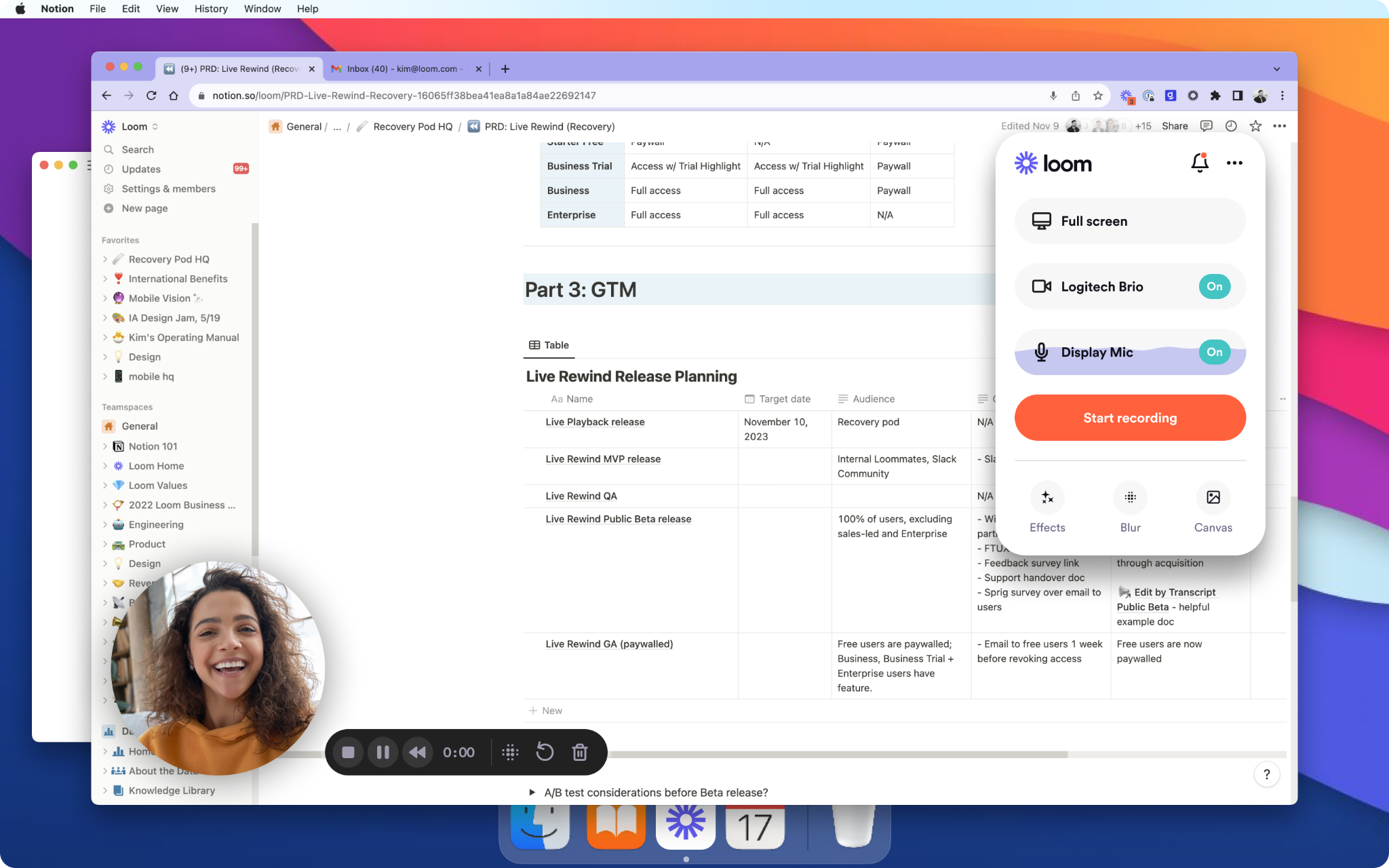
Loom is frictionless: click, record your screen (or webcam), share a link. The free tier gives you 25 five-minute videos with unlimited transcription. Paid plans (~$12.50/user/month) bring unlimited length, advanced AI add-ons, editing while you record, and password-protected sharing.
Use Loom when you need quick demos, walk-throughs, or async knowledge capture. The tradeoff: editing options are basic, and interactive assessments or SCORM packaging aren’t native.
But you can import Loom screen recordings into Colossyan, add avatar intros, or embed a quick quiz before exporting it as SCORM for tracking.
3) Camtasia - best for powerful desktop editing and polished screen-record training
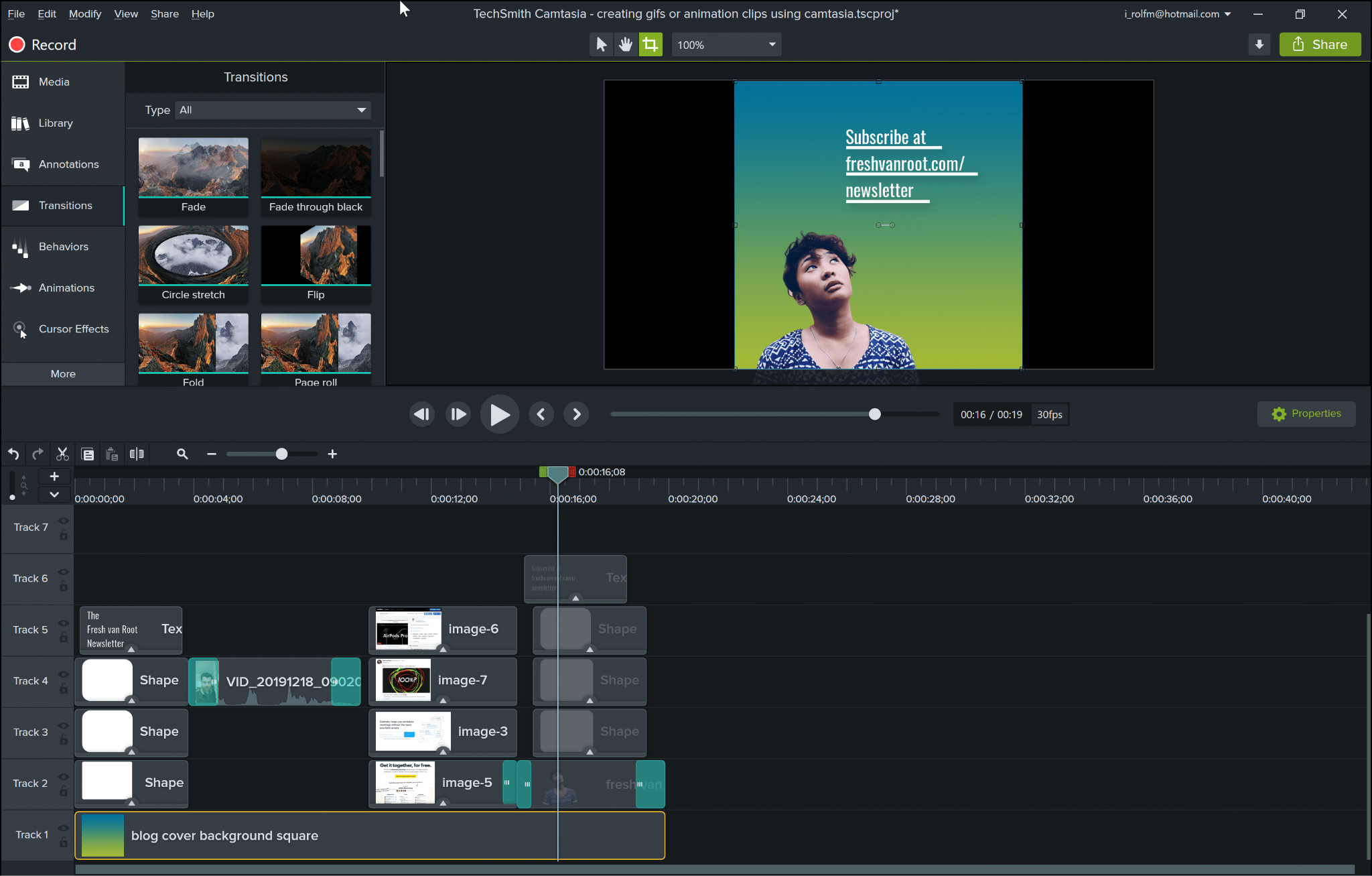
Camtasia is the gold standard for desktop-based video editing-think detailed tutorials or technical demos with fine-grained control. You get quizzes, PowerPoint integration, pro transitions, and effects. Subscriptions are around $180–$225/year.
It’s less cloud-friendly, collaboration can slow down, and output is still manual. Editing mastery takes time, and Mac users report some snags.
If you need to add presenter intros or translations, create those segments in Colossyan (with brand avatars/voice) and splice them into Camtasia. Or take your finished Camtasia video, import to Colossyan, layer on quizzes, and export in SCORM without rebuilding.
4) Vyond - best for animated explainer videos with large asset libraries
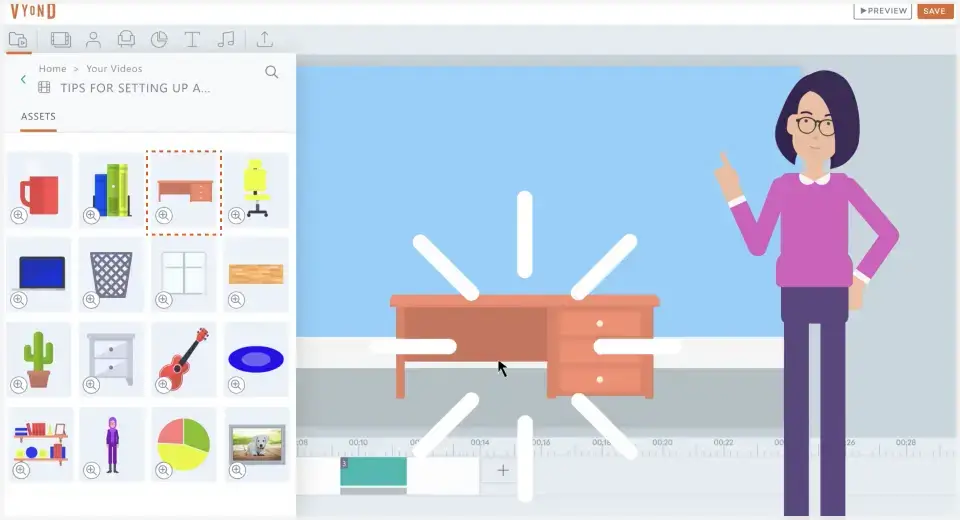
Vyond stands out for its huge animated prop library and character styles (over 40,000 props, 70+ languages, auto lip sync). Pricing often lands at $25/month or $299/year.
If you need animated stories rather than presenter-led courses, Vyond is a strong choice-though cost comes up a lot as a concern on Reddit. Videos with more than 100 scenes can’t be previewed at once.
If you need a realistic presenter or fast translations, use Colossyan’s AI avatars (styled for your brand), keep scenes short, and drop in interactive MCQs for comprehension. Then export as SCORM.
5) Articulate 360 - best for end-to-end course authoring with AI and multi-tool suite
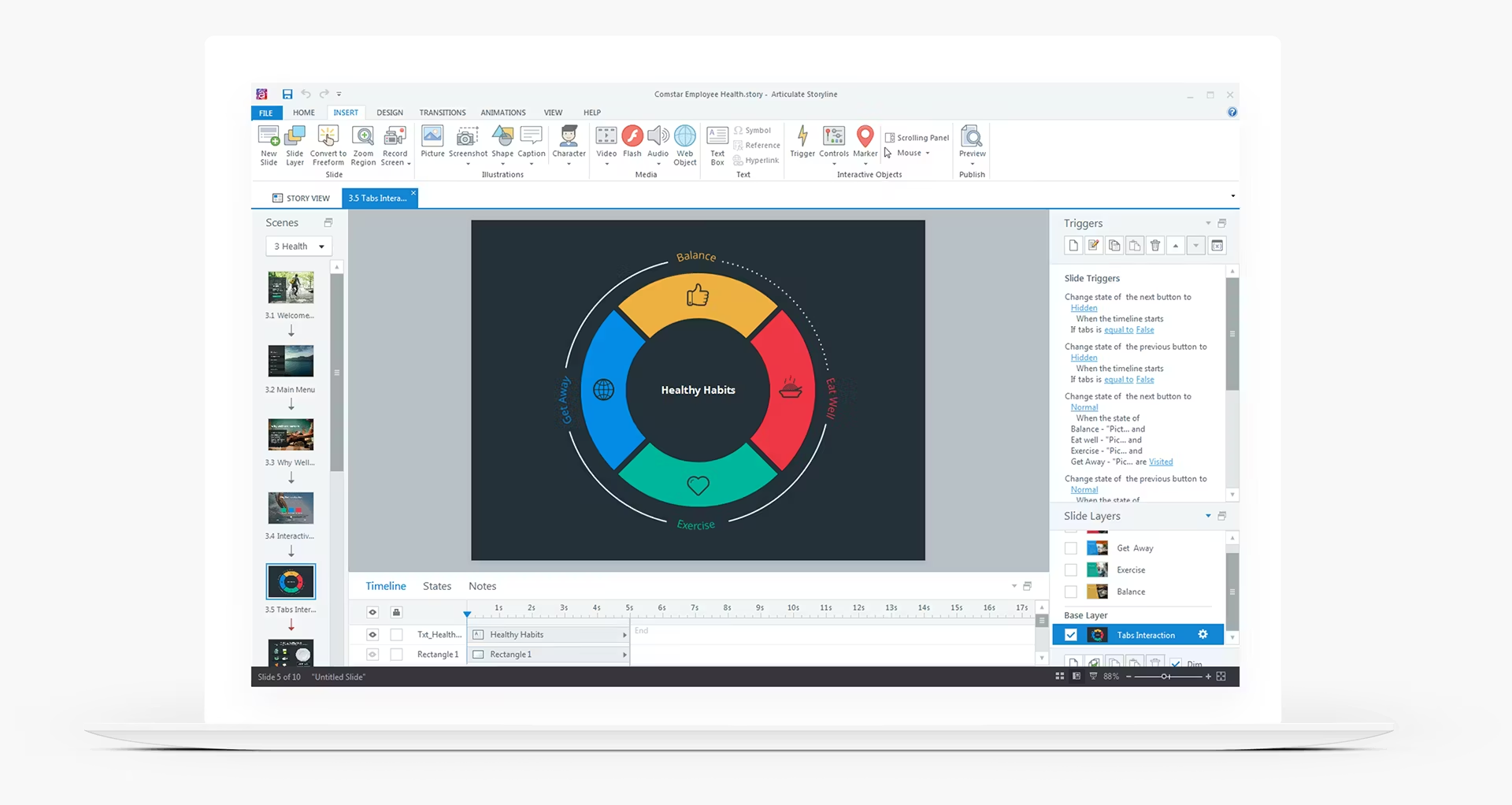
Articulate 360 is a full ecosystem: you get AI upgrades that turn static docs into interactive courses, suite-wide collaboration, analytics, translations, and localization. Output supports nearly every compliance need (SCORM/xAPI/Reach).
Go here if you’re building full e-learning courses with multi-slide branching, deep logic, or compliance tracking. It’s more than you need for pure video, but you can embed Colossyan videos inside Storyline/Rise modules, or use Colossyan for rapid video creation where a “full course” is overkill.
6) Panopto - best for secure video management, lecture capture, and enterprise search
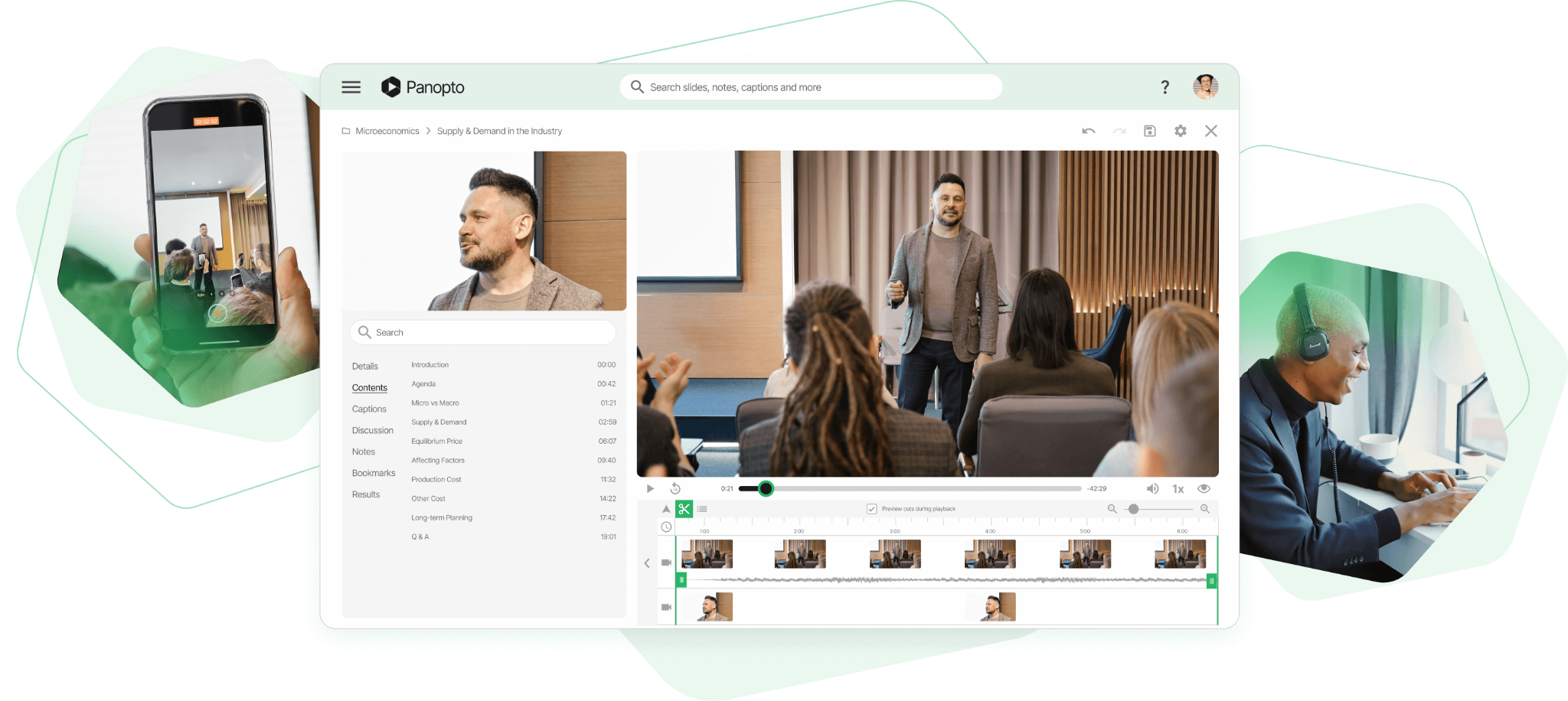
Panopto is about centralization and control. It’s widely used in higher ed and enterprise. You get secure video storage, AI-powered keyword search, quizzes, LMS integrations, automatic translation, and on-demand or live broadcast.
It’s not a video creator-think robust video management. When making new content, I produce avatar-led training in Colossyan, export as MP4 or SCORM, and let Panopto handle discovery, permissions, and analytics.
7) iSpring Suite AI - best for powerpoint-first teams needing standards-compliant outputs

iSpring Suite AI transforms PowerPoint slides into SCORM/AICC/xAPI packages; you can add narration (text-to-speech), quizzes, and rapid translation. It’s a desktop tool (~$1,290/year, discounts for academia/freelancers), with rapid course assembly and compliance coverage.
If you build everything in PPT, this is about as streamlined as it gets. But reviews and collaboration are slower compared to cloud solutions. Accelerate by importing your PPTs into Colossyan to auto-generate scene-based, presenter-led video, drop in interactivity, export in SCORM, or back-embed MP4s for richer results.
Honorable mentions (quick picks)
- Adobe Captivate: AI-first eLearning authoring, rapid image gen, PPT-to-interactive, responsive layouts.
- LearnWorlds: Interactive video with built-in analytics; best for full course hosting.
- ScreenPal: Affordable screen recording, cloud editing; watermark on free, analytics on higher plans.
- Vimeo: High-res hosting, quizzes, and video analytics.
- WeVideo: Interactive layers (polls, quizzes), real-time analytics, multi-editor collaboration.
How to choose: map needs to tools (and how to accelerate with Colossyan)
If you want speed and minimal upskilling, start with Loom or Colossyan. Colossyan’s strengths are in automating doc-to-video flows, adding AI avatars, quizzes, and SCORM export for compliance. If you do advanced desktop editing, Camtasia is best-supplement with Colossyan’s translation, interactive, or avatar features. For animated stories, Vyond is strong, but when you want a human presenter or fast language variants, Colossyan takes the edge.
If you need course-level structure and compliance, Articulate or iSpring lead the pack-importing Colossyan videos lifts engagement without slowing production. If hosting and governance matter most, Panopto is the home base, and Colossyan is where you make the source material.
Best-practice design tips backed by the research
Stick to each video’s 3–6 minute engagement window. Split scripts into shorter micro-videos-Colossyan’s scene timeline makes this easy. Hit your main point in the first 5–10 seconds; open with a clear avatar statement of “here’s why you’re watching.” Reinforce with short quizzes (target 80% pass rates) inside the video.
Optimize for mobile. In Colossyan, resize canvas or auto-translate for seamless global rollouts. Use analytics: see play rates, quiz scores, and drop-off points, then iterate.
Real-world buying signals and examples you can reference
Most teams want speed, cost-effectiveness, and simple workflows-not feature overload. The shift away from heavy, desktop-only software toward cloud tools is clear (Reddit insight). Many businesses stick to LMSs for tracking, but async video tools with analytics, central storage, and mobile playback are increasingly preferred (Atlassian insight).
Teams replace week-long production cycles with same-day Colossyan scripts: take a static slide deck, add an Instant Avatar, insert interactive branching, export SCORM, and release on your LMS. Speed plus engagement-no deep expertise needed.
Implementation checklist to go live quickly (with specific colossyan steps)
Set your Brand Kit up front (fonts, colors, logos) for consistency. Import docs or PPTs, draft narration with AI, and correct key pronunciations. Add MCQs or branching (for interaction), set pass marks, and export in SCORM format for LMS tracking. Localize instantly where needed, assign workspace roles, and review content with team comments in-app. Use scene-level previews to catch issues, share quick-links for review, and track engagement and scores in Colossyan’s built-in analytics.
Closing note
No tool or workflow is perfect for every team. Start by mapping what matters most for your L&D goals-speed, scale, compliance, and language support. Try shortlist pilots with your real content. Aim to launch one short, interactive, and, if you need, multilingual module end-to-end to judge speed and outcomes. That’s the real test of whether a tool fits your needs and delivers the clarity your learners deserve.
